If you run a WooCommerce store today, you’ve probably dealt with at least one of these headaches:
- Fake accounts are constantly popping up
- Spam orders are draining your time
- Bots abusing login forms
- Random spam reviews are ruining product credibility.
You are not alone!
Bot attacks in WooCommerce have become so common that adding reCAPTCHA to the checkout, login, and registration pages, and product review section is now considered a must-have protection, not an optional feature.
In this beginner-friendly guide, let’s break down everything you need to know: what reCAPTCHA is, why it matters, how to add it to WooCommerce, which plugins work best, and how to stop bots without hurting your customers’ checkout experience.
Stopped bots with reCAPTCHA? Convert real shoppers with smart discounts and deals using the “Discount Rules for WooCommerce –Pro” plugin.
Table of contents
- What is reCAPTCHA in WooCommerce?
- Types of CAPTCHA You Can Add to Your WooCommerce Store
- Benefits of Adding WooCommerce reCAPTCHA
- How to Add reCAPTCHA to Your WooCommerce Store?
- How to Add reCaptcha on 4 Key Pages?
- Why reCAPTCHA Matters Most on These Four Store Pages?
- Best WooCommerce ReCaptcha Plugins
- Best Practices for Adding reCAPTCHA to WooCommerce
- Tips to Improve Checkout Without Affecting Conversion Rates
- Real Examples: When reCAPTCHA Solved Actual Store Issues
- Conclusion
- Frequently Asked Questions
What is reCAPTCHA in WooCommerce?
ReCAPTCHA is a security tool that helps your WooCommerce store verify whether the visitor is a real human or a bot. It does this by adding simple validation steps to sensitive places like checkout, login, and registration.
Think of it as a smart lock for your online store.
It helps block:
- automated bot registrations
- mass fake orders
- spam review submissions
- brute force login attempts.
Types of CAPTCHA You Can Add to Your WooCommerce Store
Bots don’t stop at checkout; they target registration, login, reviews, and comments. That’s why adding CAPTCHA is essential.
Luckily, WooCommerce store owners have several options beyond just the basic Google reCAPTCHA. Here’s a breakdown:
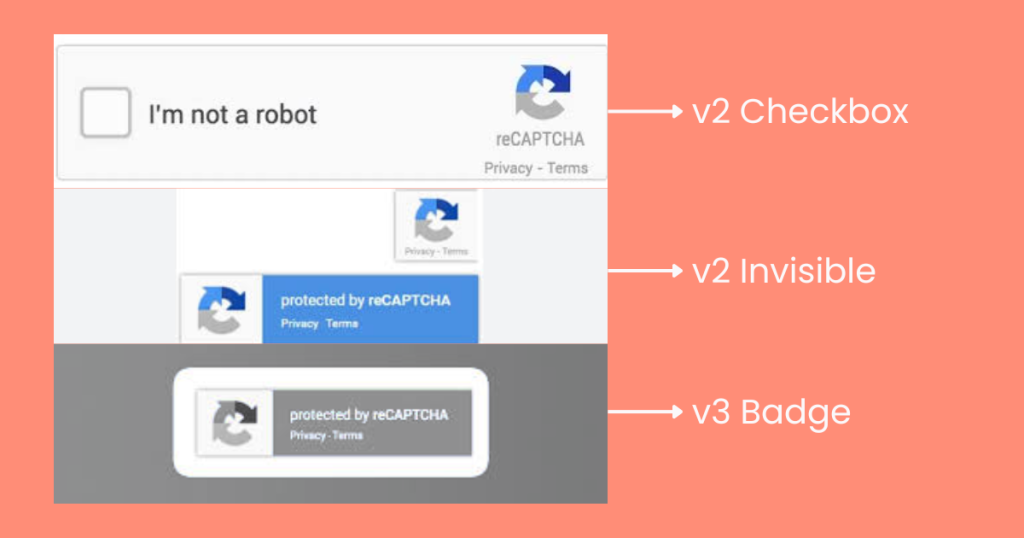
- Google reCAPTCHA v2 Checkbox
This is the classic “I’m not a robot” checkbox you’ve seen on many websites. It’s highly effective and user-friendly, making it ideal for login and registration pages, where human verification is most critical.
- Google reCAPTCHA v2 Invisible
Unlike the checkbox, this version runs in the background and only triggers verification when suspicious behavior is detected. It’s perfect for checkout pages, because it blocks bots without adding extra steps for real customers, helping reduce cart abandonment.
- Google reCAPTCHA v3
This version requires no interaction from users at all. Instead, it assigns a risk score based on user behavior to determine if the visitor is a bot.
It’s best suited for large stores with developers who can fine-tune the system and automate bot handling without interrupting user experience.
- hCaptcha
A privacy-focused alternative to Google reCAPTCHA, hCaptcha works similarly to v2 but focuses on data privacy and GDPR compliance. Ideal for stores that want bot protection while respecting user privacy.
- Math Captcha
A lightweight option that asks users to solve a simple math problem. While it’s less advanced than Google reCAPTCHA, it’s effective on slow servers or low-traffic stores where performance is a concern.
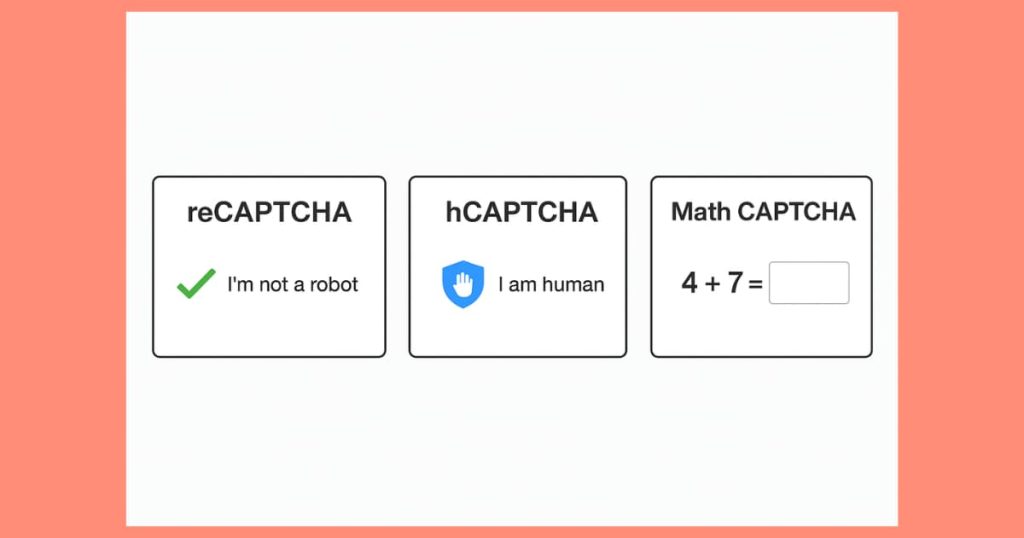
Tip: Most WooCommerce stores choose Google reCAPTCHA because it’s free, reliable, and widely supported, but the other options give flexibility depending on your store’s needs and audience.
reCAPTCHA v2 vs v3 (Which one should you use?)
| Version | User Interaction | Best For |
| v2 Checkbox | “I am not a robot” checkbox | Simple & highly reliable |
| v2 Invisible | No checkbox — validates on click | Frictionless customer experience |
| v3 Badge | No interaction — behavior scoring | Advanced stores with heavy traffic |
If you’re unsure which to pick, reCAPTCHA v2 Invisible is usually a good choice, strong security with almost zero friction.
Note: This tutorial is all about reCAPTCHA and its setup process.
Benefits of Adding WooCommerce reCAPTCHA
Adding reCAPTCHA to your WooCommerce store isn’t just a security checkbox; it’s a smart way to protect your store from bots while maintaining a smooth customer experience.
Here’s why reCaptcha matters to the WooCommerce site:
- Fewer spam orders
Bots love to test stolen credit cards or create fake purchases. reCAPTCHA stops these automated transactions before they hit your payment gateway, reducing chargebacks and unnecessary admin work.
- No more fake account registrations
Fake accounts inflate your database and can be used later for spam, coupon abuse, or login attacks. reCAPTCHA ensures only real humans can register, keeping your user data clean and reliable.
- Block bots before they reach the payment gateway
Automated checkout attempts can slow down your server or cause failed payments. With reCAPTCHA, most bots are filtered out before any sensitive payment process occurs.
- Protect customer accounts from login attacks
Bots often try brute-force logins on customer accounts. Adding reCAPTCHA to login pages stops these attacks, safeguarding your customers’ personal and financial information.
- Reduce fraudulent coupon abuse and spam reviews
Bots can exploit discount codes or flood product reviews with spammy content. reCAPTCHA helps maintain the integrity of promotions and product feedback, keeping your store trustworthy and credible.
- Save time and server resources
Less bot traffic means fewer resources wasted on unnecessary requests, database cleanup, and customer support. You get a smoother, faster website for real shoppers.
How to Add reCAPTCHA to Your WooCommerce Store?
Adding reCAPTCHA doesn’t have to be complicated, even if you’re new to WooCommerce.
Below is a step-by-step beginner-friendly guide to protect your store across registration, login, checkout, and product reviews/comments.
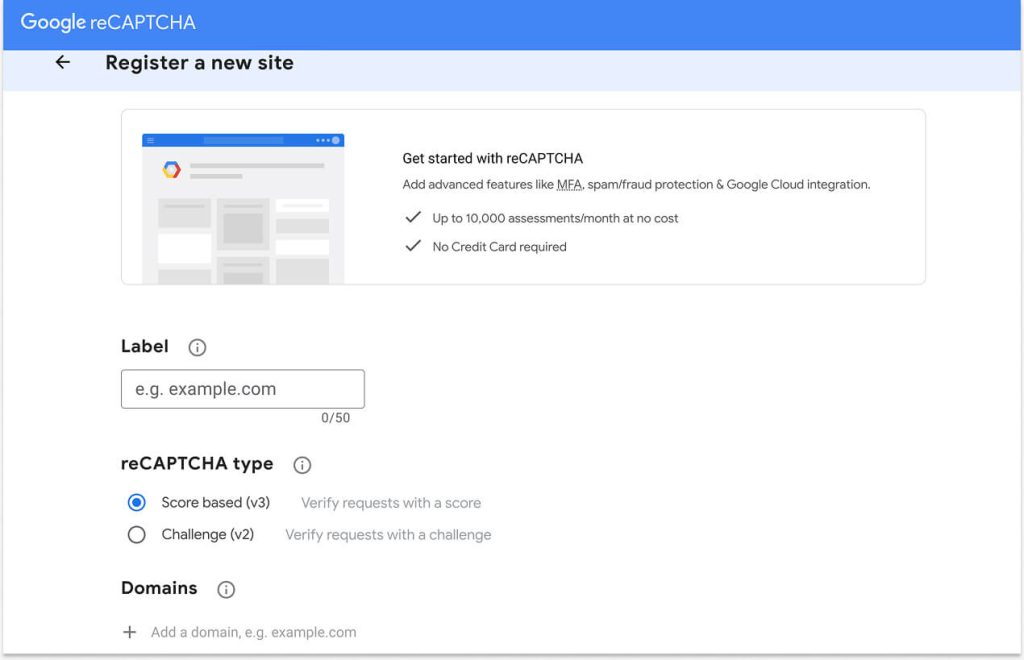
1: Prepare Your reCAPTCHA Keys
Before adding reCAPTCHA anywhere, do this:
- Go to “Google reCAPTCHA.”
- Click “Get Started” to register a new site.
- Choose your “reCAPTCHA type” (v2 Checkbox, Invisible, or v3).
- Enter your “domain” and accept the terms.
- Copy your “Site Key and Secret Key” — you’ll need them in your plugin.
2: Install ReCaptcha Plugin
- Go to your “WordPress” Dashboard -> “Plugins” -> “Add New.”
- Search for the “Plugin name.”
- Click “Install -> Activate.”
Note: If you don’t know what plugin to use, you can check the best plugin suggestions below! Some plugins also support hCaptcha or Math Captcha if you prefer those alternatives.
3: Configure the Plugin
- Open the “Plugin Settings” in WordPress.
- Paste your “Site Key and Secret Key.”
- Select where you want to enable “reCAPTCHA.”
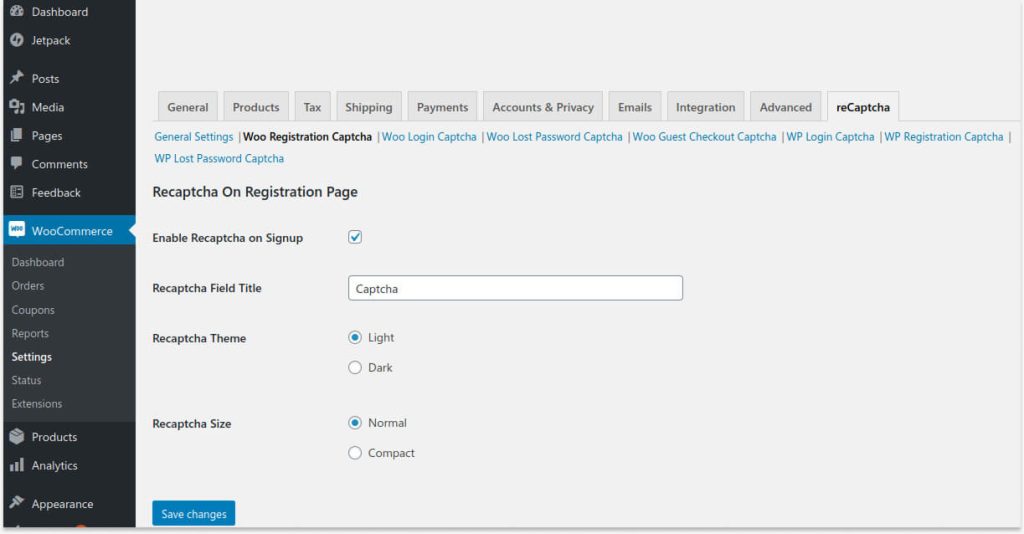
4: Enable reCAPTCHA on 4 Key Pages
- Customer Registration / Signup Page
- Customer Login Page
- Checkout Page
- Product Review / Comment Section
5: Test Everything
- Register a test account
- Try logging in
- Place a dummy order
- Submit a review
Make sure the CAPTCHA works without frustrating real customers.
How to Add reCaptcha on 4 Key Pages?
1: Adding reCAPTCHA to Registration / Account Signup Page
- Install a “WooCommerce reCAPTCHA plugin” (like reCAPTCHA for WooCommerce).
- Go to “WooCommerce → Settings → reCAPTCHA.”
- Paste your “Site Key and Secret Key.”
- Enable reCAPTCHA on the “Registration / Signup page.”
- Choose the “v2 Checkbox” for clarity.
- Save settings and test by registering a new account to ensure it works.
2: Add reCAPTCHA to Customer Login Page
- Install a “WooCommerce reCAPTCHA plugin” (like reCAPTCHA for WooCommerce).
- Go to “WooCommerce → Settings → reCAPTCHA.”
- Paste your “Site Key and Secret Key.”
- In the same plugin settings, enable reCAPTCHA for the “Login form.”
- Use “Invisible reCAPTCHA” to keep it smooth for returning customers.
- Save and test by logging in with an existing account.
3: Add reCAPTCHA to WooCommerce Checkout Page
- Install a “WooCommerce reCAPTCHA plugin” (like reCAPTCHA for WooCommerce).
- Go to “WooCommerce -> Settings -> reCAPTCHA.”
- Paste your “Site Key and Secret Key.”
- Enable reCAPTCHA on the “Checkout page” via the plugin settings.
- Use “Invisible reCAPTCHA,” so customers don’t face extra steps.
- Test by completing a test order to ensure no friction.
4: Add reCAPTCHA to Product Reviews or Comment Section
- Install a “WooCommerce reCAPTCHA plugin” (like reCAPTCHA for WooCommerce).
- Go to “WooCommerce -> Settings -> reCAPTCHA.”
- Paste your “Site Key and Secret Key.”
- Enable reCAPTCHA on “Reviews and Comment forms” in the plugin.
- Choose “v2 Checkbox or Math Captcha” for lightweight performance.
- Save and test by submitting a review as a guest to ensure it triggers correctly.
Why reCAPTCHA Matters Most on These Four Store Pages?
Bots don’t just attack one part of a WooCommerce store — they target multiple entry points.
The four pages below represent the highest-risk areas, and leaving even one of them unprotected can expose the entire store to spam and security issues.
Let’s discuss why each page matters:
1. Registration / Signup Page — First Entry Point for Bots
Bots attempt to create hundreds or even thousands of fake accounts automatically. These accounts are later used to:
- Test stolen credit cards
- Collect coupons meant for new customers
- Post spam product reviews
- Try brute-force login attacks.
If fake users slip in, cleaning them up is painful — and sometimes your email automation, CRM, analytics, and subscription counts get inflated too.
-> Adding reCAPTCHA at signup blocks fake accounts before they ever enter the system.
2. Login Page — Most Common Target for Credential Attacks
Even if bots fail to create accounts, they still try to break into existing ones. Login pages are hammered with:
- Automated password guessing attempts
- Credential stuffing using leaked passwords
- Login attempts on admin and customer accounts.
These attacks can:
- Trigger account lockouts
- Compromise customer data
- Alert hosting providers to suspend accounts due to a traffic surge.
-> reCAPTCHA on the login page blocks automated login attempts before they overload your system.
3. Checkout Page — Last Stop Before Financial Loss
Checkout spam is not just annoying — it costs money.
Bots attempt:
- Fake orders
- Testing stolen cards (high chargeback risk)
- Coupon/discount misuse
- Order flood attacks to overload servers.
Even a handful of spam orders can:
- Increase payment gateway fees
- Trigger fraud alerts
- Reduce trust with customers.
-> Invisible reCAPTCHA on checkout silently blocks spam orders without frustrating real shoppers.
4. Product Reviews & Comment Forms — Easy Target for SEO Spam
Bots love review and comment forms because they can flood them with spammy keywords and links for SEO manipulation.
Spam reviews:
- Ruin product credibility
- Drop conversion rates
- Get pages blocklisted by Google for linking to toxic sites.
Cleaning spam reviews manually is time-consuming and nearly impossible at scale.
-> reCAPTCHA here stops SEO bots and keeps your reviews authentic and trustworthy.
Best WooCommerce ReCaptcha Plugins
WooCommerce does not have a built-in reCAPTCHA option for registration, login, checkout, or reviews.
You cannot add Google reCAPTCHA directly without a plugin because it requires API integration and form-level configuration that WooCommerce doesn’t provide by default.
A reCAPTCHA plugin handles this for you by:
- Integrating Google reCAPTCHA keys into WooCommerce forms
- Enabling protection on registration, login, checkout, and reviews
- Preventing spam and bot attacks automatically.
So, install one of the best WooCommerce reCAPTCHA plugins to add reCAPTCHA to your website.
A) reCAPTCHA for WooCommerce — by Elliot Sowersby / RelyWP
- It helps enable Google reCAPTCHA on all major WooCommerce/WordPress forms, such as checkout, login, registration, and password reset.
- Setup is super simple: install, add your Google site & secret keys, and check boxes for the forms you want to protect.
- It’s totally free, which makes it a great entry-level solution if you’re just starting or want basic protection without extra cost.
Best for: Stores that want straightforward CAPTCHA protection on core pages with minimal fuss and no extra cost.
B) reCaptcha Integration for WooCommerce — by i13 Web Solution
- It offers a unified CAPTCHA solution for both WooCommerce and standard WordPress: login, registration, checkout, product reviews, password reset, etc.
- It lets you choose exactly where to enable CAPTCHA, so you can protect only the most vulnerable forms (e.g., registration + checkout) without over-peppering the site.
Best for: Store owners who want flexibility, good for medium-sized stores that want to cover many potential bot-entry points, but without forcing CAPTCHA everywhere.
C) Google reCAPTCHA for WooCommerce — by KoalaApps
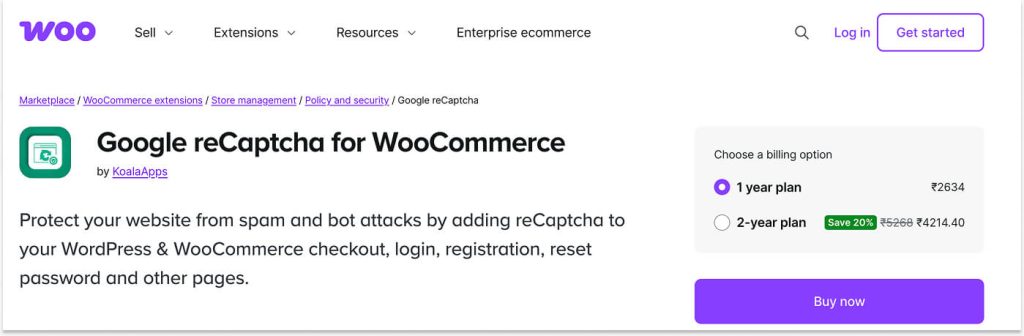
- It supports both reCAPTCHA v2 and v3 — giving you a choice between a visible checkbox or invisible behavior-based protection.
- It covers many WooCommerce/WordPress areas: registration, login, password reset, checkout/payment, product reviews, etc.
- This plugin also offers advanced customization: you can tailor CAPTCHA to certain IPs or countries, adjust size/theme, combine with reCAPTCHA.net (useful in regions where Google is restricted), and use shortcodes to apply it anywhere.
Best for: Stores looking for robust, customizable protection — especially useful if you have global traffic or expect sophisticated bot threats.
D) WP Armour – Anti Spam
Why does this plugin differ (and sometimes work better)?
- It uses a honeypot + JavaScript-based anti-spam technique instead of a visible CAPTCHA. This means no extra challenge for real users; it silently blocks bots behind the scenes.
- It works automatically once activated, no configuration, keys, or API required. Great for comments, registration, checkout, and many forms out of the box.
- This helps preserve user experience and site speed, with no heavy external scripts or visible CAPTCHA widgets.
Best for: Stores that want to maximize usability and avoid friction — ideal if your audience is sensitive to extra steps (mobile shoppers, frequent buyers). Also good for smaller stores where convenience and performance matter most.
Best Practices for Adding reCAPTCHA to WooCommerce
To maximize CAPTCHA security without hurting conversions or user experience, keep these best practices in mind:
- Always protect the highest-risk pages: registration and checkout should never be left unprotected.
- Enable reCAPTCHA on product reviews and comment forms if spam increases: activate only where needed instead of everywhere.
- Use Invisible reCAPTCHA on checkout and payment pages: reduces friction so customers don’t abandon carts.
- Avoid making customers solve multiple challenges: stacking CAPTCHA across forms during the same session can kill conversions.
- Monitor store metrics after enabling: checkout abandonment and failed logins will tell you if settings need adjustment.
When configured smartly, real customers won’t feel a thing, but bots will hit a wall. This is the ideal balance between security and sales growth.
Tips to Improve Checkout Without Affecting Conversion Rates
Adding protection shouldn’t come at the cost of losing sales. Use these smart tweaks to keep checkout fast while blocking bots.
Where to place reCAPTCHA for the least friction?
- Add Invisible reCAPTCHA right at the final checkout submission button, not at every form field.
- Avoid interrupting the flow with puzzles or “select all images” challenges.
- If you offer guest checkout, ensure CAPTCHA triggers only once per session.
This way, customers stay focused on completing their purchase, not solving challenges.
Combine reCAPTCHA with other security layers:
reCAPTCHA alone is powerful, but even better when paired with these tools:
- Rate limiting to block repeated failed logins and checkout attempts.
- Firewall/bot filter (Cloudflare, Wordfence, etc.) to stop malicious traffic before it reaches WooCommerce.
- Spam-blocking plugins to silently filter suspicious behavior without user interaction.
Together, they give stronger security with minimum user disruption.
Real Examples: When reCAPTCHA Solved Actual Store Issues
Even if everything looks fine today, bot attacks can hit any WooCommerce store without warning.
Here are real situations where adding reCAPTCHA instantly stopped the chaos:
Bots registering multiple fake accounts
One store owner noticed hundreds of new “customers” appearing overnight, none of whom ever placed an order.
These fake accounts were created to:
- Test stolen credit cards
- Collect signup coupons
- Spam the database and slow down the site
Solution: Adding “reCAPTCHA at Account Registration” stopped automated signups immediately without blocking real users.
Spam product reviews are affecting SEO and credibility
Some stores saw product pages filled with:
- “Promote your website here” spam
- Irrelevant keyword-stuffed reviews
- Fake links to malware sites
This crushed customer trust and risked Google penalties.
Solution: After enabling “reCAPTCHA on Product Reviews,” only real buyers could leave feedback, spam disappeared overnight, and the review section became clean again.
Bulk fake orders are messing up stock & sales reports
Bots sometimes place fake guest orders using random emails and addresses.
This leads to:
- Inventory is dropping for no reason
- Confusing analytics
- Wasted time manually deleting orders
Solution: By adding “reCAPTCHA to Checkout,” stores block automated order creation while keeping checkout completely smooth for real customers.
Login attack attempts on the store owner and customers
Some stores experienced rapid-fire login attempts; thousands in a day, on both admin and customer accounts.
It created:
- Security risk
- Downtime from server overload
- Stress for customers getting “security alert” emails.
Solution: Adding “reCAPTCHA to the Login Page” instantly stopped brute-force attacks and restored peace of mind.
reCAPTCHA handled the bots! Now maximize conversions with personalized discounts using Discount Rules for WooCommerce – Pro.
To learn more about the “Discount Rules plugin” and to apply discounts in your WooCommerce store to boost sales, check this guide: How to Add a WooCommerce Discount to Increase Sales? (7 ideas)
Conclusion
Adding reCAPTCHA to your WooCommerce store isn’t just about blocking bots; it’s about protecting your business while keeping the shopping experience smooth for real customers.
By securing the four most vulnerable areas — registration, login, checkout, and product reviews — you prevent fake accounts, spam activity, fraudulent orders, and malicious login attempts without frustrating genuine shoppers.
The key is implementing reCAPTCHA strategically, not aggressively. Invisible or single-action CAPTCHA on checkout and login keeps conversions high, while visible CAPTCHA on signup and reviews blocks bots where they attack most.
When done right, customers barely notice reCAPTCHA — but bots can’t get past it.
And once your store is protected and running smoothly, you can focus on what really matters: enhancing the shopping experience and driving more revenue.
This is the perfect moment to layer in high-impact promotions using plugins like “Discount Rules for WooCommerce – Pro” (Flycart) to reward real customers with smart, personalized deals.
Frequently Asked Questions
No. WooCommerce does not include native reCAPTCHA protection for registration, login, checkout, or product reviews. A plugin is required to add it.
The most important ones are:
– Registration/signup
– Login
– Checkout
– Product reviews/comment forms.
These are the pages bots target the most.
Not if configured smartly. Use Invisible reCAPTCHA on checkout and login pages to minimize friction and visible v2 Checkbox on signup/review pages for strong bot deterrence.
No. Most reCAPTCHA plugins allow you to paste your Google keys and simply toggle where to enable it; no coding required.
– v2 Checkbox for signup and reviews (clear bot protection).
– Invisible reCAPTCHA for checkout and login (smoother UX).
– v3 works too, but requires fine-tuning to avoid blocking real users.
Adjust the sensitivity or switch to Invisible reCAPTCHA. You can also allow trusted IPs or logged-in customers if your plugin supports it.
Yes. ReCAPTCHA is one layer of protection. Firewalls, rate-limiting, and malware scanners strengthen your overall store security.
Yes! And it’s recommended. Tools like WP Armour silently block bots in the background, while reCAPTCHA acts as the final barrier.