
TL;DR: A WooCommerce upsell plugin raises average order value by placing relevant offers on product pages, carts, checkout, popups, and post-payment screens. Start with one low-priced checkout order bump, wait a week, then add more offers based on your acceptance rate. UpsellWP covers all of these placements in a single plugin.
Only shoppers who have already decided to buy reach checkout and thank-you pages. Hence, leaving it empty is a big gap that loses revenue, and only a WooCommerce upsell plugin can help you use it wisely.
In this blog, you will learn about 5 offer types, where each works best, step-by-step setups (from native tools to popups), a comparison of the 5 best upsell plugins, and metrics to check your results and improve your conversion funnel.
Table of contents
- What does a WooCommerce upsell plugin do?
- What is the difference between an upsell and a cross-sell?
- Upsells, cross-sells, order bumps & product recommendations: A Quick Comparison
- Are native WooCommerce upsells enough, or do I need a plugin?
- What is a WooCommerce frequently bought together plugin?
- How to set up one click upsell in WooCommerce?
- How to add cart cross-sells with a WooCommerce plugin?
- How do I set up a WooCommerce order bump plugin at checkout?
- How to use a WooCommerce upsell popup to catch shoppers at the right moment?
- 5 Upsell strategies to make offers more relevant
- What is the best upsell plugin for WooCommerce? A comparison
- How do I choose by placement, checkout type, and budget?
- How does a WooCommerce upsell plugin increase AOV, and what to measure?
- Conclusion
- FAQ
What does a WooCommerce upsell plugin do?
A WooCommerce upsell plugin shows customers various upgrades, add-ons, and complementary products. Since WooCommerce itself can only do this through manually linked products, you will need plugins that add rules, placement control, discounts, and checkout offers.
Timing matters as well. According to HubSpot , the top upsell drivers are:
- Understanding customer goals: 42%
- Providing consistent value: 39%
- Waiting until right after delivering value: 37%
Therefore, offers should be to the point and match what the shopper is already looking for. For example, a premium upgrade suits a shopper viewing a basic item. Since the acceptance rate may differ, treat 20% as a planning input.
What is the difference between an upsell and a cross-sell?
An upsell is a better or more expensive version of the product you’re looking at. A cross-sell is a complementary product that you add to your cart. So cross selling is about widening the basket; upsell is about increasing the price.
Type | Goal | Example | Typical placement |
Upsell | Higher-priced version | $500 phone to $700 phone | Product page |
Cross-sell | Complementary item | Phone case with the phone | Cart page |
Most plugins handle both types. A WooCommerce upsell setup can also add order bumps and post-purchase offers.
Upsells, cross-sells, order bumps & product recommendations: A Quick Comparison
Five offer types cover the buying journey, and each has a best fit.
Offer type | Key strength | Best fit | Differentiating detail |
Product-page upsell | Moves shoppers to a higher tier | Products with good, better, best versions | Shown before add-to-cart |
Cart cross-sell | Adds complementary products | Accessory-heavy catalogs | Triggered by cart contents |
Checkout order bump | One-checkbox, low-friction add-on | Cheap extras like warranty or gift wrap | Appears where intent peaks |
Post-purchase one-click offer | Adds revenue after payment | Consumables and refills | No risk to the original sale |
Product recommendation | Rule-based suggestions | Large catalogs | Works on shop, product, cart, checkout, and thank-you pages |
A WooCommerce product recommendation plugin applies rules. The same rules apply for different positions. For example, you can have rules based on category, cart subtotal, or cart contents. As a result, you can set relevant offers without manually creating the links. The same is true of Upsell, as its recommendation engine works on all of those pages.
Are native WooCommerce upsells enough, or do I need a plugin?
Native upsells are sufficient for small catalogs where you just need to suggest other products. However, an upsell plugin for WooCommerce is worthwhile if you’re looking at checkout upsells, popup upsells, or post-purchase upsells.
To set up native upsells and cross-sells:
- Open the product, then scroll to “Product data”.
- Then, click the “Linked Products” tab.
- Following that, add products in the “Upsells” field. These show on the product page.
- After that, add products in the “Cross-sells” field. These show in the cart.
- Finally, click “Update,” then test the live product and cart pages.
However, every link is assigned by hand, product by product. Therefore, a 20-product store copes well, but a 2,000-product store struggles. In addition, native tools give no control over order. Some developers use ACF relationship fields, yet those links stay manual.
Turn every checkout into an extra sale with UpsellWP order bumps, then watch your average order value grow.
What is a WooCommerce frequently bought together plugin?
A WooCommerce frequently bought together plugin will show paired products on a single product page. The customer can also add the whole bundle in one click, and a bundle discount is optional.
Bundles work best when products truly pair. For example, a tripod pairs with a camera. Moreover, rules can pick bundles by product or category. As a result, you avoid hand-building every pairing.
Bundles also require no checkout changes, so they’re a safe first offer. See our ‘frequently bought together’ plugin guide for more information.
How to set up one click upsell in WooCommerce?
A WooCommerce one click upsell plugin works by showing an offer that can be added to the cart with a single click and no redirection.
A one-click upsell can be shown in six places, and they fall into two groups. Pre-purchase offers appear before the customer pays at the product page, cart page, checkout page, or pop-ups, while post-purchase offers appear after the customer has decided to buy, after “Place Order” or the thank-you page.
A WooCommerce post purchase upsell plugin like UpsellWP lets you set up a one-click purchase campaign with up to five offers.
- Go to WooCommerce > UpsellWP > Campaigns > Create New Campaign.
- Select Post-Purchase Upsells as the campaign type and then enter a campaign name.
- Following that, in the Offers section, add up to five upsell offers with relevant products and customize the offer template.
- Then, click Conditions to limit the offer by cart contents, purchase history, or other rules.
- Save and then activate the campaign.
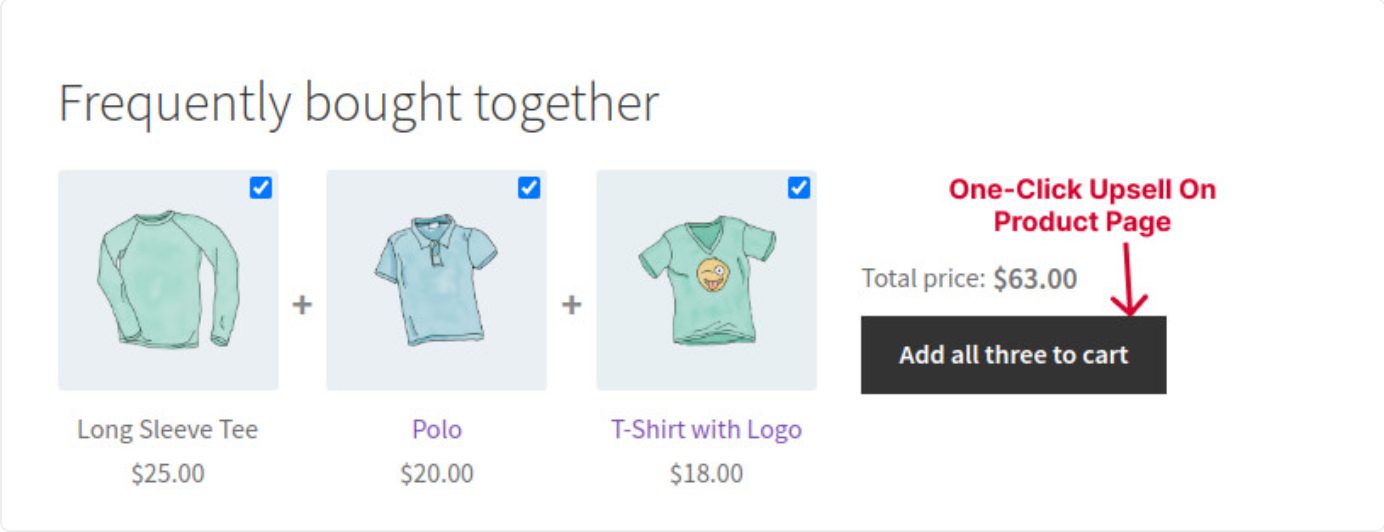
Pre-purchase vs. post-purchase one-click upsell
Pre-purchase upsells raise the value of the current order, so they work best for add-ons, bundles, and accessories. The risk is that too many offers can distract shoppers before they pay. Post-purchase upsells add a separate offer on top of the finished order. They suit refills, consumables, and complementary items, and they add revenue without affecting the first purchase.
Start with one pre-purchase offer, such as a checkout order bump, then add a post-purchase offer once you see steady results.
How to add cart cross-sells with a WooCommerce plugin?
A WooCommerce cross sell plugin lets you add cart cross-sells by creating a Cart Add-Ons campaign, picking the products to offer, and setting where they appear on the cart page. Native cross-sells do the same, but only through manual product links. A WooCommerce cart upsell plugin like UpsellWP removes that manual work with rules, discounts, and placement control.
Here is how to set it up in UpsellWP:
- Go to UpsellWP > Campaigns > Create new campaign, then choose Cart Add-Ons.
- Then, enter a campaign name for your reference.
- Following that, select Use cross-sell products so the offers come from your existing cross-sell links.
- Add a percentage or fixed discount, then choose a template and the display location on the cart page.
- Click Conditions > Add conditions to limit the offer by cart contents, purchase history, user, date, and then time.
- Finally, click Save & close, then test with a real cart.
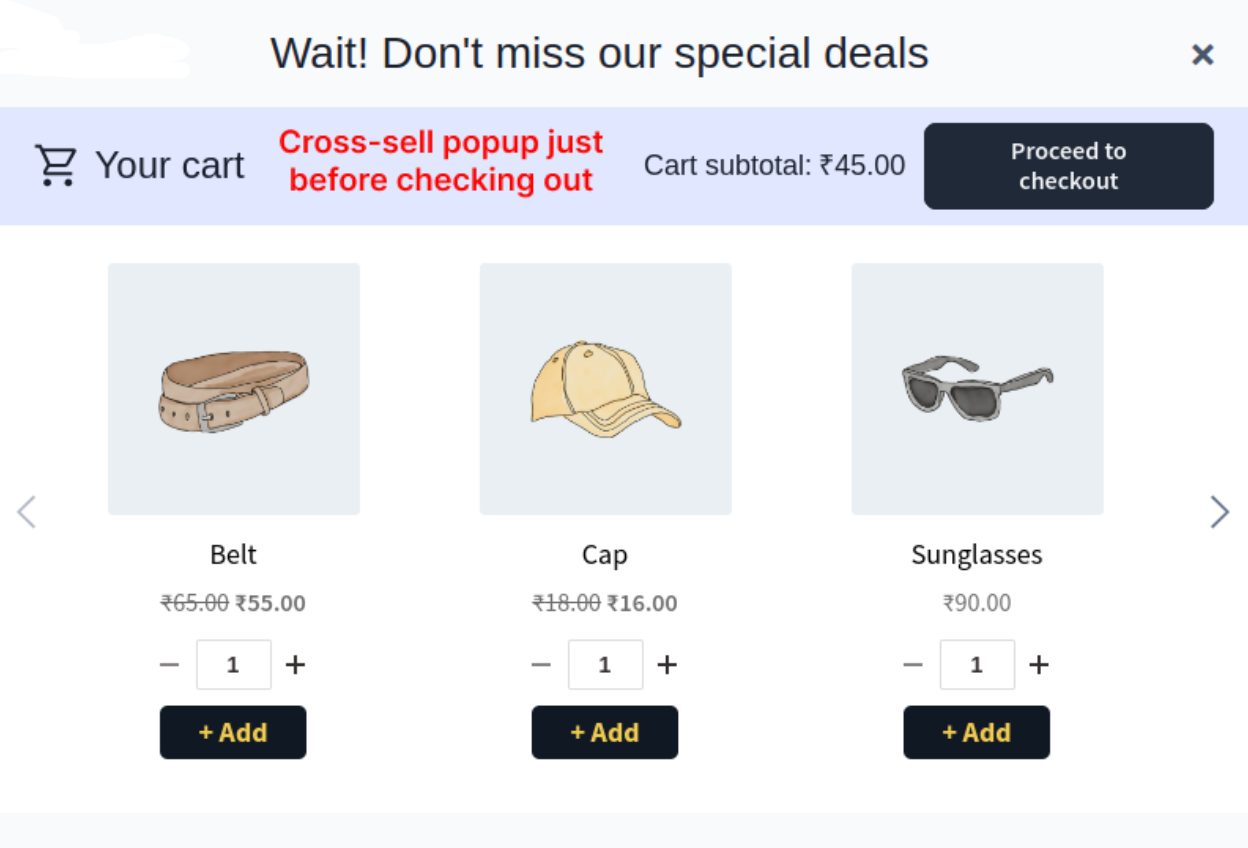
Offer products that complement what is already in the cart, such as a phone case with a phone or a memory card with a camera. In fact, keep the cross-sell price lower than the main item, so it feels like an easy add-on instead of a second purchase decision.
Moreover, a small percentage or fixed discount can also nudge shoppers to say yes. You can read more about discounts on our blog: Best WooCommerce Discount Plugin: 8 Top Picks Compared .
How do I set up a WooCommerce order bump plugin at checkout?
A WooCommerce order bump plugin adds one optional checkbox offer to your checkout page, and with UpsellWP you set it up by creating a Checkout Upsells campaign. A good WooCommerce checkout upsell plugin also controls placement, conditions, and discounts. In this example, a customer who buys a T-shirt gets 50% off a Cap.
- Install and activate UpsellWP.
- Go to UpsellWP > Campaigns > Create New Campaign, select Checkout Upsells, and then give the campaign a clear name.
- Following that, click Add Offer, pick the Cap as the offer product, set Discount Type to Percentage Discount, and enter 50 as the value.
- Then click Choose a Condition, select Products in the Cart, and choose the T-shirt so the Cap appears only with that item.
- Finally, save, activate, and test.
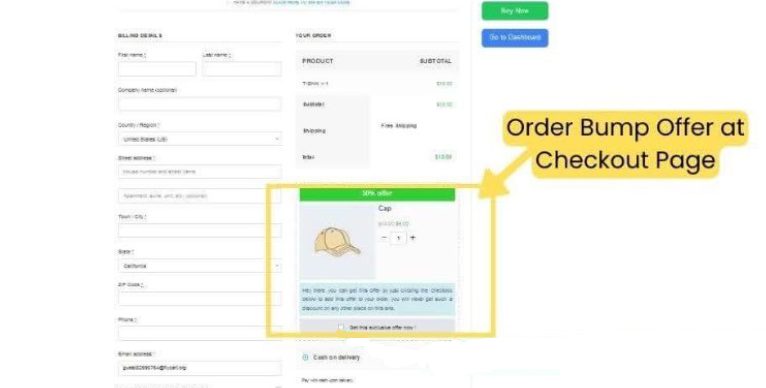
Keep the bump low-priced and closely related to the main product. A cap, gift wrap, or warranty feels like an easy add-on, while an expensive item makes shoppers stop and think. Furthermore, write a one-line benefit instead of a long description, so the offer can be understood at a glance.
Test one bump at a time, because stacked bumps add friction at checkout. Wait at least one week before judging results, then compare acceptance rate and average order value. Use conditions such as cart contents or subtotal to keep every offer relevant, and always test WooCommerce upsell plugin with order bumps and post purchase offers on both mobile and desktop.
How to use a WooCommerce upsell popup to catch shoppers at the right moment?
A WooCommerce upsell popup shows one offer right after a shopper action, such as clicking “Add to Cart” or “Proceed to Checkout.” Therefore, you catch shoppers when their buying intent is highest. Here are tips to use it well:
- Pick the right trigger. First, choose between “Add to Cart” and “Proceed to Checkout,” since each suits a different goal. Then, use the checkout trigger when you want to add a last-minute extra.
- Offer one relevant product. Next, match the popup to what is already in the cart, such as a case with a phone. Thus, the offer feels helpful instead of random.
- Keep the copy short. Also, write a brief headline and a clear button label. Hence, shoppers understand the offer at a glance.
- Add a small discount. Furthermore, a low percentage or fixed discount makes the offer easier to accept. Then, review how it affects your margins.
- Set conditions. Additionally, limit each WooCommerce upsell popup by cart contents, subtotal, or category. As a result, only the right shoppers see it.
- Show one popup per visit. However, too many popups annoy shoppers. Therefore, cap the display to avoid hurting the experience.
- Test on mobile and desktop. Finally, confirm the popup never blocks checkout. Moreover, check that the close button is easy to tap.
- Measure and adjust. Lastly, wait one week, then compare acceptance rate and average order value. Consequently, you can refine one rule at a time in an upsell plugin for WooCommerce with popup offers.
5 Upsell strategies to make offers more relevant
Relevant offers match the cart, the customer, and the moment, so these five strategies work best:
- Match offers to the cart. First, pick products that complement the main item, such as a cap with a T-shirt. Then use the “Products in the Cart” condition, so the offer appears only when it makes sense.
- Use purchase history and user conditions. Also, target offers by purchase history or user role; hence, returning customers can see different upsells than first-time buyers. Furthermore, this keeps each offer closer to what the shopper actually wants.
- Keep prices and discounts proportionate. Then price the add-on lower than the main item, so it feels like an easy yes. Also, a small percentage or fixed discount can nudge hesitant shoppers, thus lifting your acceptance rate.
- Time offers with schedules and placement. Furthermore, set start and end dates for sales and seasonal offers. Then place each offer where intent is high, such as above add-to-cart, in the cart, or at checkout, so it reaches shoppers at the right moment.
- Test and refine. Also, use the “Random” or “A/B Testing” display method when you have several offers. You can compare results, then change one thing at a time after waiting a week.
What is the best upsell plugin for WooCommerce? A comparison
The best WooCommerce upsell plugin depends on your budget, checkout optimization, and needed offer types. Here’s a quick comparison of the best plugins for upsell.
Option | Key strength | Best fit | Price starts at |
UpsellWP | All-in-one upsells from product page to thank-you page | Stores wanting many offer types in one plugin | Pro from $75/yr, 1 site |
CartFlows | Funnel builder with order bumps, one-click upsells, A/B testing | Stores rebuilding checkout as a funnel | Starter $149/yr |
FunnelKit | Funnels plus email and SMS automations | Stores wanting marketing automation | Basic is $129 |
Smart Offers | Widest offer list: upsell, downsell, BOGO, Buy Now | Stores keeping their existing checkout | $99/yr for 1 site |
One Click Upsell Funnel (WP Swings) | Free version on WordPress.org | Budget stores testing post-purchase offers | Pro is $89/yr |
How do I choose by placement, checkout type, and budget?
Start with the placement where shoppers already decided to buy. Then add one placement at a time.
Which placement should I start with?
- Firstly, launch a checkout order bump.
- Secondly, add a cart cross-sell.
- Then, add frequently bought together on product pages.
- Following that, add a one-click offer after payment.
- Finally, test a popup.
Should I pick classic or block checkout?
Pick the checkout type your store already uses, since switching only for an upsell plugin is rarely worth it. UpsellWP supports both the default (classic) and block checkout, so you can keep your current setup and still run order bumps. Other plugins vary in their support, so verify compatibility before buying, while Smart Offers works on top of your existing checkout.
What if I need a free option?
A WooCommerce upsell plugin free version is the safest way to test. Hence, start with that and test a simple campaign before investing in paid plans. For example, UpsellWP has a strong free version, and paid plans range from $75/yr for one site.
How does a WooCommerce upsell plugin increase AOV, and what to measure?
A WooCommerce upsell plugin increases average order value (AOV) by showing relevant offers when shoppers are ready to buy, and you can measure the results with three key metrics.
How to increase AOV with a WooCommerce upsell plugin
A WooCommerce upsell plugin lifts average order value by showing relevant offers when shoppers are ready to buy, so each of the following steps gives them one more reason to add to their cart:
- Shows upgrades, add-ons, and complementary products, thus giving shoppers more reasons to spend extra.
- Places offers across the buying journey, such as product pages, cart, checkout, and thank-you pages, hence reaching shoppers at every high-intent stage.
- Uses rules based on cart contents, category, or subtotal, so every offer stays relevant to what shoppers want.
- Lets you add percentage or fixed discounts, thus making each offer more attractive and easier to accept.
- Order bumps and one-click offers remove extra steps, hence raising the chance that shoppers say yes.
- Supports post-purchase offers, so you earn extra revenue without risking the original sale.
What to measure
- Track average order value, which is total revenue divided by the number of orders, thus showing whether offers lift basket size.
- Check acceptance rate, which is accepted offers divided by offers shown, hence revealing which offers truly work.
- Monitor revenue per customer, which is total revenue divided by the number of customers, so you can see the long-term impact.
- Review these numbers weekly, since small gains stack up over time.
Keep each offer relevant to the cart, and price order bumps low. Change one thing per test, then wait one week before judging results. Continue only the offers that perform well, and remove the rest.
Add one-click post-purchase offers with UpsellWP, so every order can earn extra revenue after payment.
Conclusion
A WooCommerce upsell plugin raises average order value by placing relevant offers where shoppers have already decided to buy. Furthermore, product-page bundles, cart cross-sells, checkout order bumps, popups, and post-purchase offers each cover a different moment of the journey. Native upsells work for small catalogs, but rules, discounts, and placement control make a plugin worth it as your store grows.
Your next step is simple: install UpsellWP, create one Checkout Upsells campaign with a low-priced bump, and test it on mobile and desktop. Then wait one week, check your acceptance rate and average order value, and add the next offer.
Related Reading
FAQ
The best choice depends on your checkout and budget. UpsellWP suits all-in-one setups, while CartFlows and FunnelKit suit full funnels. Smart Offers suits stores keeping their current checkout.
Yes. WP Swings lists a free version on WordPress.org. UpsellWP also lists a free core. Check each free plan’s limits before launch.
Open the product and go to “Linked Products.” Add items in the “Upsells” field, then click “Update.” Alternatively, a plugin adds rules and placement control.
Yes. UpsellWP and Smart Offers list both types. In FunnelKit, bumps and one-click upsells start at the Plus plan.
Start with one checkout order bump. Next, add a cart cross-sell. Then track average order value and acceptance rate weekly.
UpsellWP lists block checkout support. However, support varies by plugin. Therefore, test popups on your own checkout before launch.