
TL;DR: Core WooCommerce can’t run a WooCommerce BOGO deal natively. The fastest way is to install a discount-rules plugin (free), create a “Buy X Get Y” rule, choose the products or categories, set the free quantity, and the deal applies automatically in the cart — no coupon code.
Every WooCommerce BOGO deal is governed by three settings. These are the so-called 3 BOGO settings: Offer (the deal type), Rules & Value (what the shopper gets), and Mode of Apply (how the discount reaches the cart).
Get those three right and the free item works the first time. You therefore skip the code, the manual coupons, and the margin games.
We tested with WooCommerce and the Discount Rules plugin, updated in November 2026. Follow the steps below, and then you can build your very first Buy X Get X rule in around 5 minutes.
This guide is for WooCommerce store owners who want automatic BOGO deals that work at checkout without coupon codes or a developer.
Table of contents
- Does WooCommerce support BOGO by default?
- Which BOGO deal type do you need?
- How to set up buy one get one free in WooCommerce?
- How do I run variations of a BOGO in WooCommerce?
- How do I check that a BOGO deal won’t lose money?
- Why isn’t my BOGO rule applying?
- How do I test a BOGO rule before launch?
- What are the best free and paid WooCommerce BOGO plugins?
- Conclusion
- FAQ
Does WooCommerce support BOGO by default?
No, WooCommerce doesn’t natively support WooCommerce BOGO deals. Its coupons (percentage, fixed cart, or fixed product) can only take money off a product or a cart.
A manual coupon will work right up until the cart gets complicated. Core coupons can’t add a second item to the cart. They can’t make that item free, and they can’t pick the cheapest item automatically. You therefore need a plugin.
Both free and paid plugins fill that gap. For example, Discount Rules for WooCommerce lets you add BOGO rules and set promotional offers.
Which BOGO deal type do you need?
Your BOGO deal type determines what the shopper receives. For example, Buy X Get X gives the same product, and Buy X Get Y gives a different product. The choice between them, however, is often made based on your customer needs and profit margin.
| Offer | Deal | Rules & Value | Extra setting |
|---|---|---|---|
| Buy X Get X |
Buy 1 Get 1 free (same product) |
Free quantity 1 | None |
|
Buy 2 Get 1 Free (same product) |
1 Free |
Minimum Quantity 2, Recursive on |
|
| Buy X Get Y | Buy 1 Get 1 Half Off | Percentage Discount, 50 | Pick the Y product |
| Shopper picks the free item. | Free | Set Y as a category | |
| Free product with purchase over $X | Free | Conditions → Subtotal | |
| Either | Code-triggered BOGO | Free | Conditions → Coupons |
The free gift vs. percentage discount question is very much the issue here. A 2020 eye-tracking study in the Journal of Business Research found that BOGO deals draw more attention than percentage deals, and the effect grows as the discount deepens. So a free gift is better with deeper discounts. Therefore, a percentage discount is better with thin margins.
How to set up buy one get one free in WooCommerce?
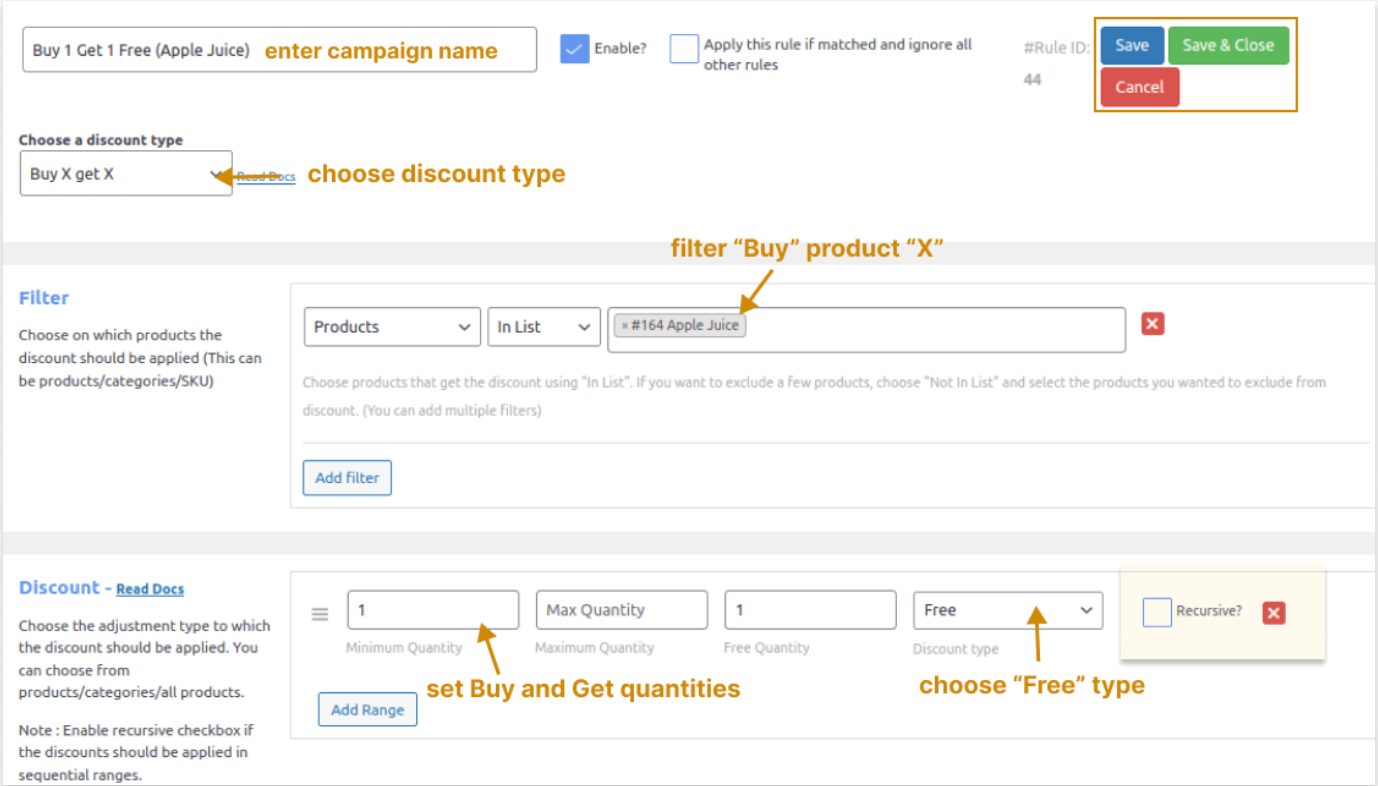
A buy one get one free WooCommerce rule takes about five minutes to set up in Discount Rules using these steps.
- Go to Plugins → Add New. Install and activate Discount Rules for WooCommerce.
- Then, go to WooCommerce → Discount Rules. Click Add New Rule and enter a name.
- Set the offer (setting 1). Choose Buy X Get X.
- Following that, in Filters, pick the product (for variable products, pick the variations).
- Set the quantities (Enter Minimum Quantity 1. Leave Maximum blank to allow larger orders.)
- Subsequently, set Rules & Value (setting 2). Choose Free and set Free quantity to 1. Without this step, nothing is discounted.
- Finally, review Mode of Apply (setting 3). Leave it on Auto add so the free copy is added automatically.
- Save, enable, and test.
How do I run variations of a BOGO in WooCommerce?
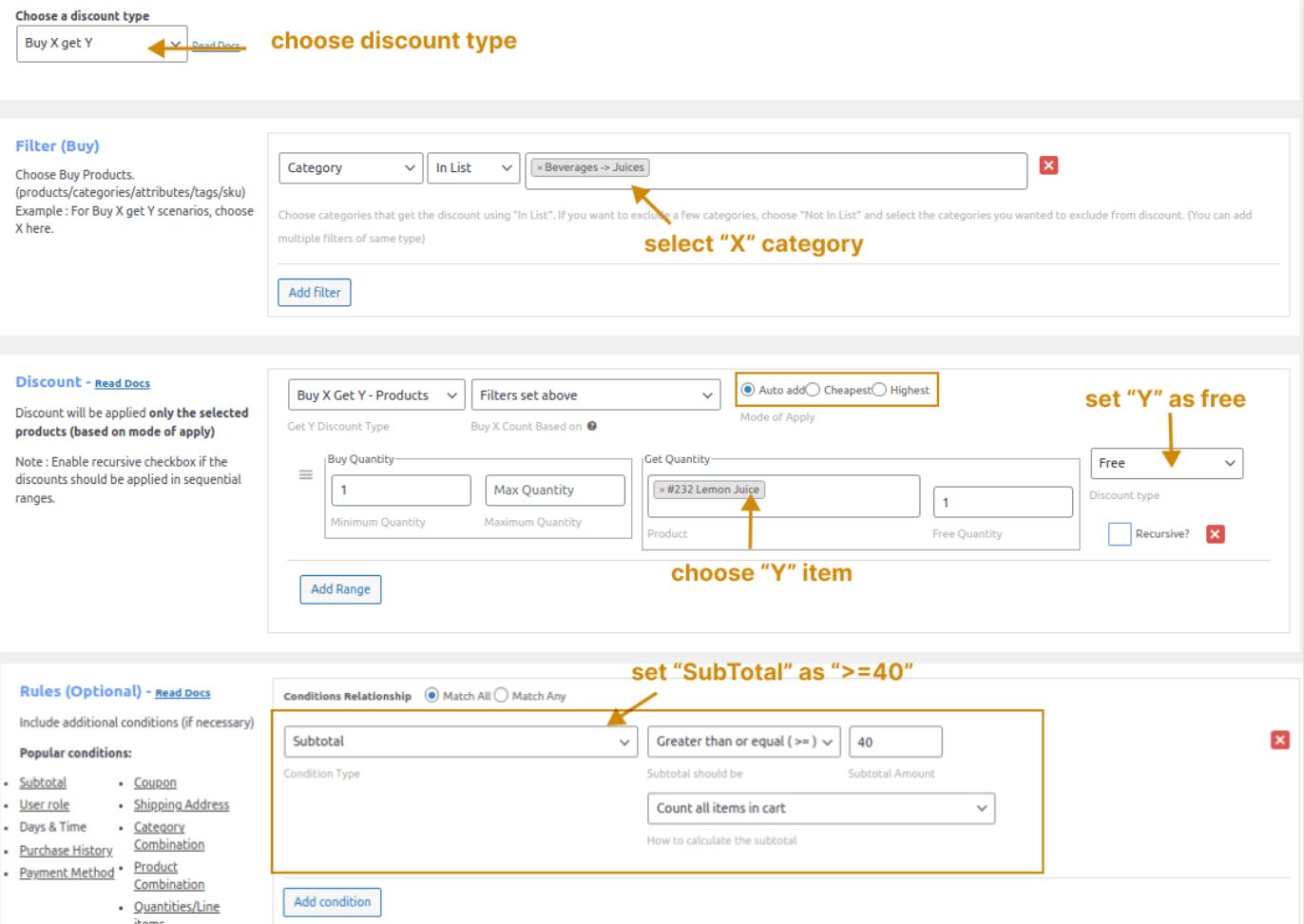
You can run a variation of BOGO by adding a Condition or limit to a saved Buy X Get X or Buy X Get Y rule. Furthermore, the three most common variations are spend-based, customer-based, and time-based for setting up a WooCommerce free product with purchase.
Launch automatic BOGO deals that add the free item to the cart themselves, with zero coupon codes.
How do I make shoppers spend more with BOGO?
Add a Subtotal condition to your rule. The free item then unlocks only when the cart reaches your amount.
- Go to WooCommerce → Discount Rules → Add New Rule. Choose Buy X Get Y.
- Then, in Filters, select the category. Only these products count toward the amount. This is the simplest WooCommerce BOGO by category setup.
- Set the reward. For example, pick something as a Y product. Then, choose Free as the Rules & Value.
- Set the Mode of Apply. Choose Auto add. As a result, the free item enters the cart on its own.
- Finally, open Conditions. Choose Subtotal and enter a number.
- Save and test.
Same product buy 2 get 1 free: Choose Buy X Get X, set Minimum Quantity 2 and Free quantity 1, leave Mode of Apply on Auto add, and turn Recursive on so the deal repeats (buy 4, get 2 free).
For deeper cross-product setups, read Create WooCommerce Buy X Get Y Offers .
How do I reward specific shoppers with buy X get X?
Add a User or Coupon condition to a Buy X Get X rule. Only matching shoppers then receive the free item.
- Specific customers or roles: Open Conditions → Users/User Roles. For example, pick wholesale buyers.
- Code-triggered deal: Open Conditions → Coupons. A WooCommerce BOGO coupon such as MJFREE then unlocks the free item.
- One use per shopper: Open Rules (limit) and set a usage limit per customer.
Each option is a separate WooCommerce BOGO discount rule. Duplicate your saved rule, then change only the condition.
How do I time a BOGO deal for an ecommerce store?
Set a start and end date under Rules (limit), namely Valid from/to. The rule then turns on and off by itself.
For example, plan a WooCommerce BOGO black friday offer a week early. Then, set it to end on Cyber Monday. The same approach suits any holiday sale promotion, and it also works for inventory clearance when you want to move slow stock before a set date. To compare other tools, see Best BOGO Plugins .
How do I check that a BOGO deal won’t lose money?
Check your margin before you launch. Take a $30 product with a 60% margin, which means a $12 cost. A normal sale earns $18 in profit. Under Buy 1 Get 1 Free, the shopper pays $30 for two units that cost you $24, so you earn just $6.
You would need about three times the orders to match your normal profit, so a free item only pays off if it brings new buyers or larger baskets. Buy 1 Get 1 Half Off is the safer choice when margins are thin: the shopper pays $45 for the same two units, so you earn $21.
How does a BOGO deal appear in the cart, emails, and reports?
The free item appears as its own cart line priced at $0, and order emails list it the same way. WooCommerce still reduces stock for it, and Analytics counts it as an item sold with no revenue, so plan inventory for the free units.
Why isn’t my BOGO rule applying?
A BOGO rule fails when one of six settings is wrong. In fact, based on Flycart data from August 2026 (120 samples), these are the top BOGO configuration errors and their remedies.
- If your rule saves but nothing is free, the free item probably has no Rules & Value. So, choose Free or a percentage.
- When the rule never fires, the filter usually doesn’t match the product or variation. As a result, select the variations, not just the parent. This also fixes most BOGO problems on variable products.
- If the free item never reaches the cart, Mode of Apply is often set to Cheapest, which discounts an item already in the cart instead of adding one. Hence, switch it to Auto add.
- When the wrong discount appears, a conflicting rule or priority is usually the cause. So, disable the other rule or change the priority.
- If the rule suddenly stops working, then the schedule may be outside its active window. Thus, check the Valid from/to dates.
- When the rule is ignored for some shoppers, a condition like subtotal, coupon, or role probably isn’t met. Finally, check each Condition.
How do I test a BOGO rule before launch?
Test every BOGO rule in a private browser as a logged-out shopper before launch.
- Add each size and color.
- Check whether the free item stacks with the sale prices.
- Confirm that the tax on the free item looks correct.
- Make sure that shipping costs don’t eat into the margin.
- Add 2, 4, and 6 items to the cart and then check the quantity each time.
- Apply another coupon and then check the total for stacking.
Set up 3 simple settings and your first Buy X Get X rule in 5 minutes.
What are the best free and paid WooCommerce BOGO plugins?
Free plugins handle simple BOGO rules. Discount Rules for WooCommerce is worth paying for when you need conditions, schedules, Recursive or Cheapest rules, and bulk discounts in one place. The table below compares the five most common options.
Plugin | Key strength | Best fit | Free/Paid (prices as of November 2026) |
Discount Rules for WooCommerce | Buy X Get X, Buy X Get Y, Recursive, Cheapest | Stores wanting BOGO, bulk, and conditions in one plugin | Free + Pro from $85/year |
Advanced Coupons | BOGO inside the native coupon screen | Code-based deals | Free + Premium from $99/year |
Bogofy | Auto-adds the free item, no coupon codes | Simple same-product or cross-product rules | Free (WordPress.org) |
Buy One Get One Free for WooCommerce | Simple BOGO with no ads or upsells | Stores needing one basic rule | Free (WordPress.org) |
BOGO Plus for WooCommerce | BOGO built on native WooCommerce coupons | Same-product and percentage-off BOGO | Free (WordPress.org) |
Conclusion
Since WooCommerce cannot run a BOGO deal on its own, a plugin like Discount Rules for WooCommerce is necessary. This guide covered the deal types, the 3 BOGO settings, and full setups for various BOGO deals in WooCommerce. It also showed how to add spend, coupon, role, and schedule variations. Finally, it provided a fix list for failing rules and a test checklist.
Following this guide, you can build your first WooCommerce BOGO rule in minutes. You also avoid lost margin and confused shoppers. Hence, your deal works the first time. Start with one Buy X Get X rule on your best-selling product. Install Discount Rules for WooCommerce , then build the rule, and test it in the cart.
Also Read
- What is a BOGO Sale? Examples, Benefits & How to Run One in 2026
- WooCommerce Bulk Discounts: The Complete Setup Guide for 2026
- Buy One Get One Scenarios
FAQ
Install a discount rules plugin (e.g., Discount Rules for WooCommerce), create a ‘Buy X Get X’ rule, set the free quantity to 1 at 100% off, and turn on the ‘auto add’ option.
Filter the category in Discount Rules and set the buy quantity to 2. Set Free quantity to 1 and Mode of Apply to cheapest item free. Then turn on Recursive for repeat deals.
Set Valid from/to in Rules (limit), and then the rule can run and stop itself. That’s ideal for a holiday sale promotion or an inventory clearance.
To cap any BOGO, including Buy 2 Get 1 Free, at one free item per order, turn Recursive off and set Free quantity to 1. Add a Maximum Quantity if needed.
Not fully. Core coupons can’t add or free an item, so you need either custom code (which requires a developer) or a free or paid plugin. A plugin is therefore the safer option.
Yes. You can specifically create BOGO offers for variable products using compatible discount plugins that support product variations and conditional pricing rules.