
TL;DR: Run a Black Friday flash sale in WooCommerce with a scheduled discount rule. Use Discount Rules for WooCommerce by Flycart to set the discount and schedule the start and end times. Then add a sale badge and pair it with a countdown timer plugin for urgency. For Black Friday 2026 (November 27), set your rules early.
Running a Black Friday sale is stressful when you edit prices by hand. Moreover, one missed start or end time can cost you sales. Hence, many store owners feel tense before the big weekend.
The fix is to let a scheduled discount rule start and end your flash sale in WooCommerce automatically. Then, add a countdown timer to create urgency. As a result, you can relax while the sale runs.
This guide shows you the easy way. Firstly, you will learn five setup steps. You will see four discount ideas and a plugin comparison. Finally, you will get a checklist for BFCM (Black Friday Cyber Monday) and answers to common questions.
Table of contents
- What is a WooCommerce flash sale plugin?
- How do you run a Black Friday flash sale in WooCommerce? (Step-by-step)
- How do you add a countdown timer to a WooCommerce flash sale?
- What are the best WooCommerce Black Friday discount ideas?
- Which is the best WooCommerce flash sale plugin in 2026?
- How to choose the right flash sale plugin for your store
- How do you prepare your store for WooCommerce Cyber Monday and BFCM?
- Conclusion
- Frequently asked questions
What is a WooCommerce flash sale plugin?
A WooCommerce flash sale plugin adds timed discounts to your store and turns each sale on and off automatically. Some sales run for hours or a few days. Since the foundation of the flash sale is built on urgency marketing, it uses scarcity tactics best. As a result, stores often see a conversion spike.
Can you run a WooCommerce flash sale without a plugin?
Yes, WooCommerce lets you schedule a sale price on each product. However, the native method has limits, as WooCommerce has no built-in countdown timer or storewide rules.
Furthermore, WooCommerce’s bulk edit doesn’t cover variations of variable products, so you must edit those one by one. Hence, a plugin saves time on large catalogs. Also, plugins add timers and rules.
Why do flash sales create a conversion spike?
Shoppers act faster when a deadline exists. For example, Shopify merchants made $14.6 billion in sales over BFCM 2025. In addition, that total was a 27% increase from 2024 ( Shopify research , December 2025).
Moreover, flash sales gave the best results for 43% of stores during BFCM 2025 (Flycart data, 2025). Therefore, plan your promotional campaign early.
Don’t let a missed start time cost you BFCM sales. Schedule your flash sale with Discount Rules
How do you run a Black Friday flash sale in WooCommerce? (Step-by-step)
Run a WooCommerce Black Friday sale in five steps, from planning to testing. Therefore, follow the steps in order.
Step 1: Plan your offer and sale window
Decide how long your sale will run. A true flash sale lasts a few hours to 24 hours, such as a 24-hour sale on Black Friday itself. If you want to cover the whole weekend, run a series of short flash sales or a limited-time offer from Black Friday to Cyber Monday.
Next, choose the products or categories you want to discount. Then confirm your time zone under Settings → General, since a wrong time zone is a common reason sales start or end at the wrong time. Finally, check your stock levels.
Step 2: Install Discount Rules for WooCommerce
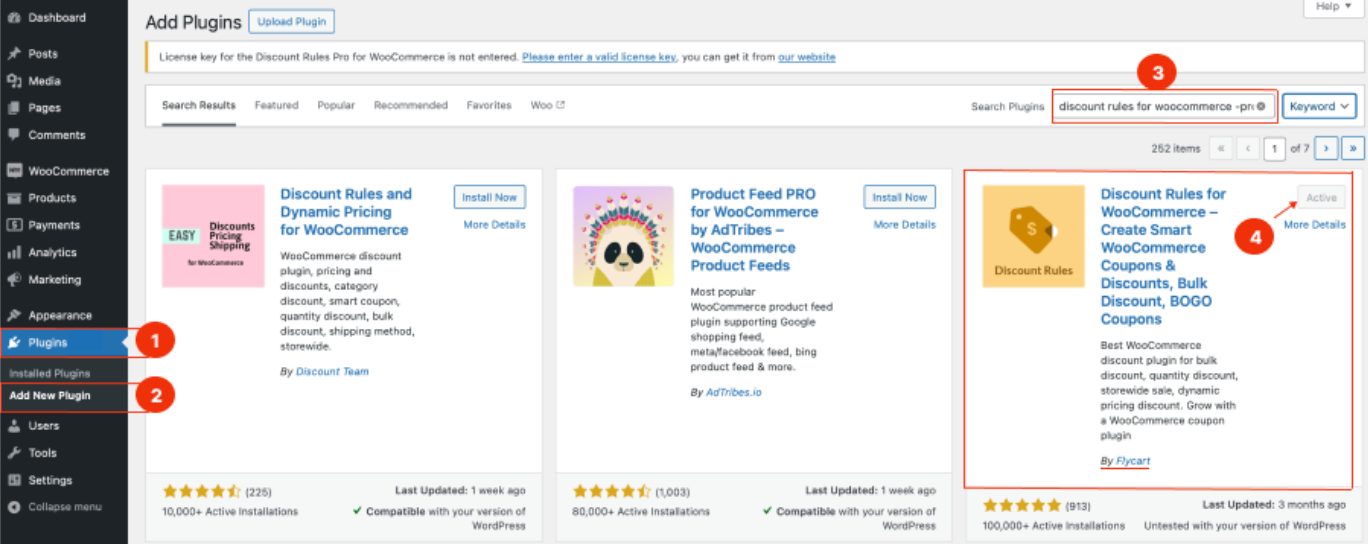
Install the Discount Rules for WooCommerce plugin . The setup takes under two minutes.
- Open your “WordPress” dashboard and go to “Plugins” → “Add New Plugin.”
- Then, search for “Discount Rules for WooCommerce” (by Flycart).
- Finally, click “Install Now,” then activate the plugin.
Step 3: Create and schedule the flash sale rule
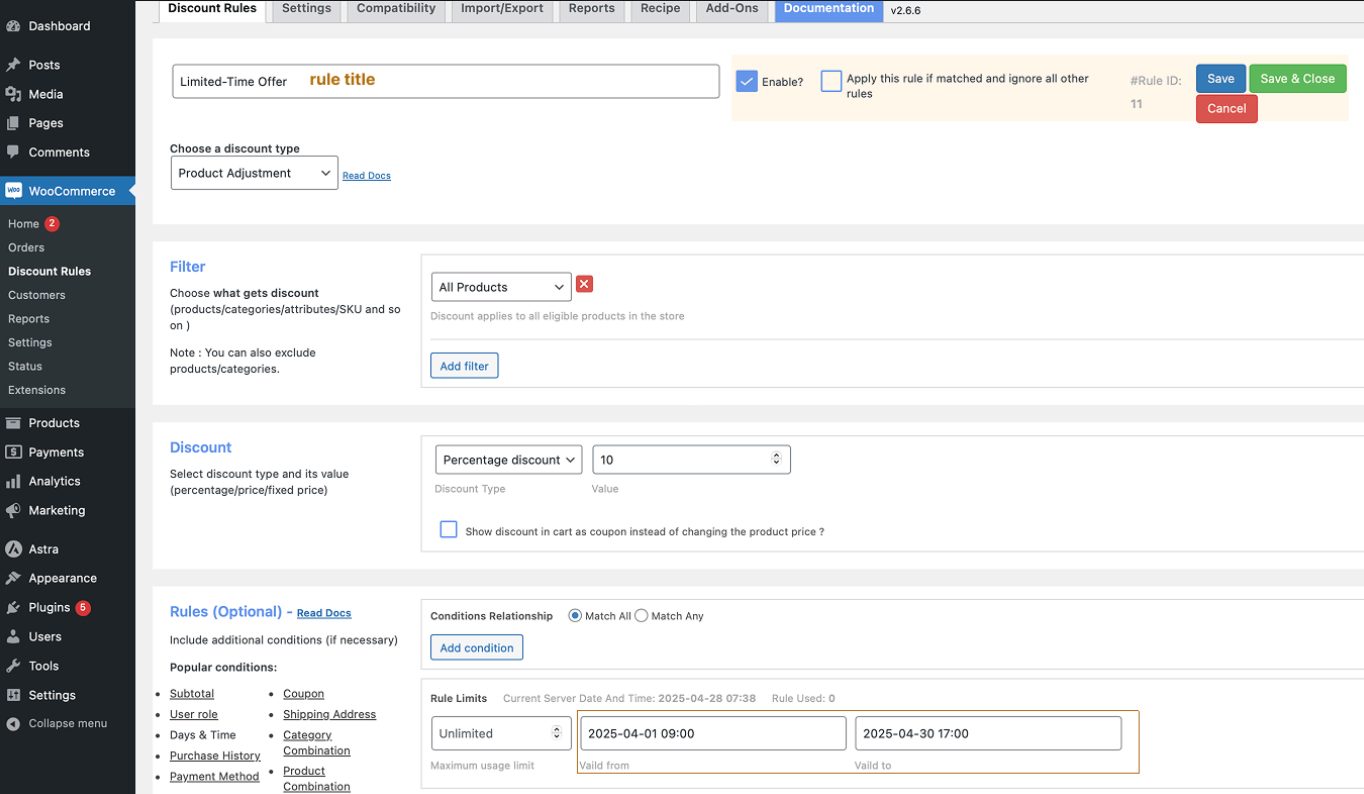
After that, create one rule for the whole WooCommerce flash sale.
- Go to “WooCommerce” → “Discount Rules” and click “Add New Rule.”
- Enter a “Rule Title,” and select products or categories.
- Then, set the discount type and value.
- Afterward, schedule discount dates by setting “Valid From” and “Valid To” under “Rules” → “Rules Limits.”
- Finally, save and enable the rule.
For example, run a 24-hour sale from November 27 00:00 to 23:59. As a result, the offer will start and end on time without your interference.
Step 4: Add a sale badge
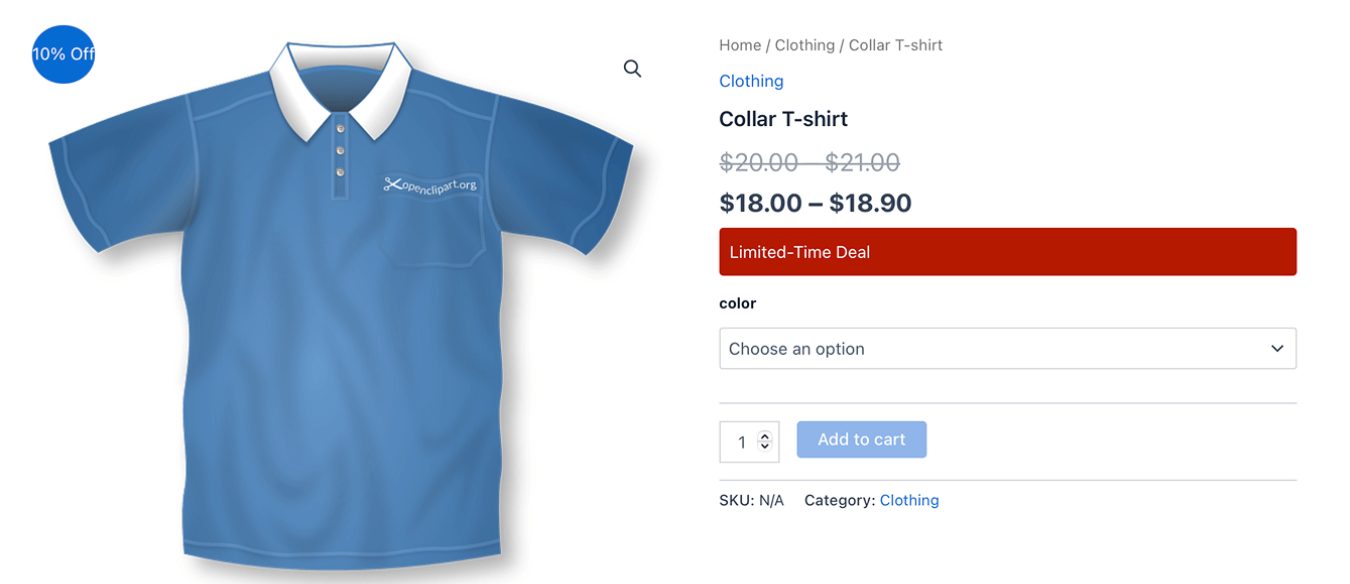
Now, show shoppers the deal and the deadline. First, turn on a sale badge and place it near the price.
Learn more about displaying discount badges in a WooCommerce store .
Step 5: Test pricing and checkout, then launch
Finally, test everything before launch. First, check sale prices on desktop and mobile. Following that, test coupons, variable products, and checkout totals. Then verify the sale ends automatically.
How do you add a countdown timer to a WooCommerce flash sale?
Add a timer with a countdown plugin . Then place the timer near the price. Moreover, most timer plugins offer several skins to match your theme.
WooCommerce flash sale countdown: Where to place the timer
A flash sale countdown for WooCommerce works best where shoppers decide. Therefore, a sale countdown timer must appear in several places in your WooCommerce store, like under the product price or near the “Add to Cart” button.
To create urgency and motivate shoppers to buy immediately, show coupon expiry timers on the cart page. You can also use a sticky header or footer bar. Moreover, to play on buyers’ FOMO, you can add a progress bar. For example, the bar can read “60% deal claimed.”
WooCommerce flash sale banner: Homepage, shop and product page
A WooCommerce flash sale banner tells visitors about the deal early. Therefore, put the banner on the homepage, shop page, and product pages.
You can choose among timer styles and colors to attract buyers. Thus increasing clicks and conversions.
What are the best WooCommerce Black Friday discount ideas?
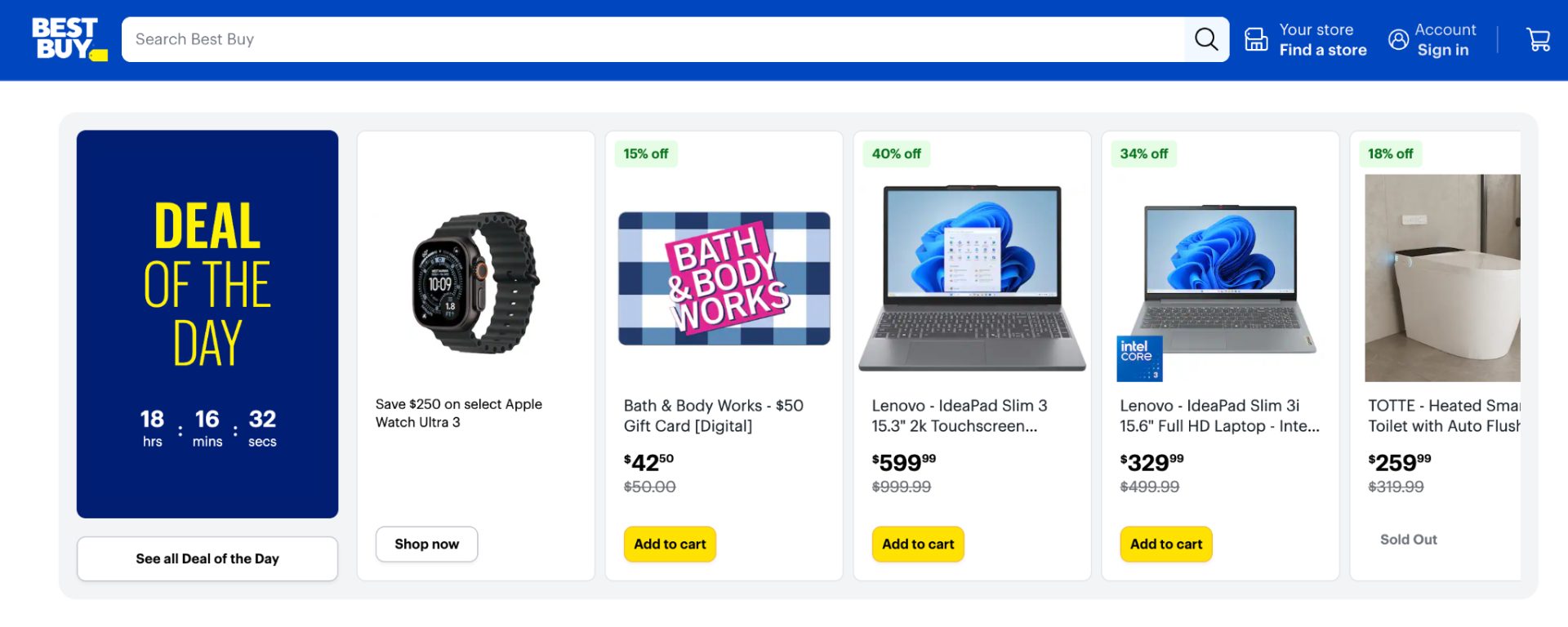
The best Black Friday ideas in WooCommerce are ones that match your sales goal. For example, if your aim is to clear stock, it is best to offer storewide discounts .
Each sale idea below lists its Black Friday WooCommerce benefit prerequisite and its goal. Moreover, you can mix several ideas in one sale.
1. Lightning deal
A WooCommerce lightning deal lasts a few hours. Therefore, it creates a rush on Black Friday morning.
- Prerequisite: Firstly, choose one product with plenty of stock.
- Helps with: Quick sales and traffic spikes.
2. Deal of the day
A WooCommerce deal of the day features one product for 24 hours. As a result, shoppers return daily during sale week.
- Prerequisite: Prepare one product for each day in advance.
- Helps with: Repeat visits and steady sales.
3. Daily deals
WooCommerce daily deals rotate a new offer each day. Hence, the sale stays fresh from Black Friday to Cyber Monday.
- Prerequisite: Then, plan a product list for every day.
- Helps with: Moving different products and inventory turnover.
4. Limited-time offer
A WooCommerce limited-time offer ends on a fixed date. Therefore, buyers decide before the deadline passes.
- Prerequisite: Firstly, confirm your timezone and end date.
- Helps with: Faster decisions and fewer abandoned carts.
Also read: Black Friday and Cyber Monday: A Quick Guide for 2026
Five discount setups you can apply for a flash sale during Black Friday
Discount Type | Why It’s Best for a Black Friday Flash Sale | Best for Which Type of Business | Example |
Storewide percentage discount | Attracts new buyers fast and clears stock. | Stores with healthy margins that want to clear stock and win new customers | 10% off all products. |
Fixed discount by order amount | Raises average order value during the rush. | Stores with many low-priced items that want bigger baskets | Spend $99, save $15. |
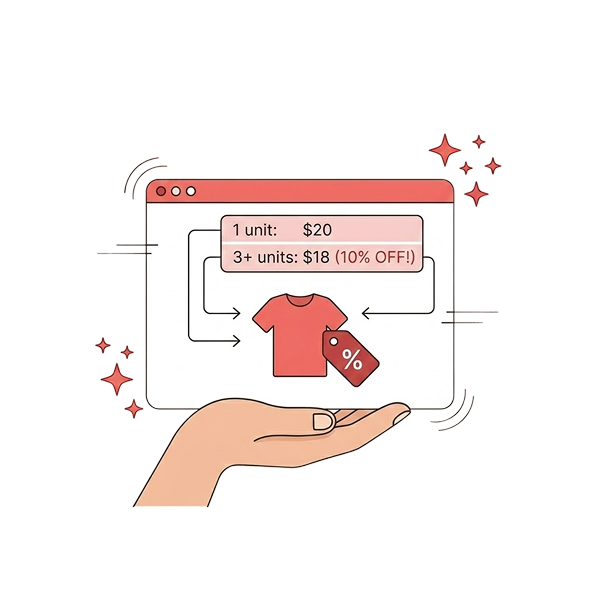
Bulk discount for a category | Rewards larger carts and speeds up inventory clearance. | Stores with deep stock in one category, such as accessories | Buy 1 to 5 for 5% off, and 6 or more for 10% off. |
BOGO free flash sale | A free item feels generous, so shoppers buy more. | Fashion and apparel stores that need to move slow stock and upsell | Buy One T-shirt, Get One Free |
User role flash sale with coupon | Rewards loyal customers before the public sale. | Stores with email subscribers, VIP groups, or wholesale customers | 20% off for Subscribers with code SPECIAL20 |
Which is the best WooCommerce flash sale plugin in 2026?
Best plugins for flash sales in WooCommerce in 2026 are:
- Discount Rules for WooCommerce by Flycart
- Finale Countdown Timer by XLPlugins
- WooCommerce Flash Sales Pro by Extendons
- Sitewide Discount for WooCommerce
- Sale Flash Pro by KoiLab
- PW WooCommerce On Sale
Plugin | Key Features | Best For | WP Rating (as of Nov 2026) |
Discount Rules for WooCommerce by Flycart | Storewide, bulk, BOGO, role-based rules | Full discount control | 4.9 (1,385+ reviews) |
Finale Countdown Timer by XLPlugins | Timers, counter bars, recurring campaigns | Urgency campaigns | 4.7 (151) |
WooCommerce Flash Sales Pro by Extendons | Timers, banners, top bar | Banner-led sales | 3.9 (138) |
Sitewide Discount for WooCommerce | Percent or fixed discounts, date limits | Simple sitewide sales | 5 (4) |
Sale Flash Pro by KoiLab | Custom sale badges | Clear badge messages | 5 (9) |
PW WooCommerce On Sale | Scheduled category sales | Planning sales ahead | 4.5 (6) |
How to choose the right flash sale plugin for your store
Choose a flash sale plugin by matching its features to your sale goal and follow these five steps in order.
- Define your sale goal. Firstly, decide if you need discounts, urgency, or both. For example, a clearance sale needs storewide rules, while a hype campaign needs timers.
- Pick the discount rules you need. Secondly, check for storewide, bulk, BOGO, or user role rules. For example, Discount Rules for WooCommerce by Flycart covers all four.
- Check the urgency tools. Then, look for countdown timers, banners, or counter bars. Finale Countdown Timer by XLPlugins and Extendons both offer timers.
- Review the scheduling options. After that, confirm you can set start and end times, including the hour. PW WooCommerce On Sale schedules whole categories ahead of time.
- Compare price and compatibility. Finally, set a budget and check your WooCommerce version to know which plugin is right for you.
How do you prepare your store for WooCommerce Cyber Monday and BFCM?
Prepare hosting, stock, and checkout before launch, and also use the given Black Friday checklist to stay organized.
- Upgrade hosting before traffic spikes.
- Exclude cart and checkout pages from caching.
- Check if you are stocked up to manage a high sales spike.
- Then, enable express checkout and Buy Now, Pay Later.
- Test mobile display.
- Finally, plan WooCommerce Cyber Monday follow-up deals.
How to avoid overselling loss-leader products
Set strict stock limits on loss-leader items. Therefore, you never sell more than you can ship. Also, pause the offer if stock runs low.
How do you measure a WooCommerce Black Friday sale?
Track results right after the sale ends. Then review these numbers: conversion rate, average order value, stock sell-through, and best-performing products.
Want a stress-free Black Friday and Cyber Monday? Create your rule today with Discount Rules, and start your flash sale.
Conclusion
A WooCommerce Black Friday sale does not need to be stressful. Firstly, this guide showed you how a scheduled discount rule starts and ends your sale on its own. Secondly, you learned five setup steps, from planning to testing.
Then, you saw how a countdown timer, banner, and stock limit add urgency. Moreover, the discount table helped you match each offer to your business goal. After that, the plugin comparison and selection steps made your choice easier.
Finally, the BFCM checklist and measuring tips cover everything from hosting to results. Therefore, you can now launch a WooCommerce flash sale with confidence. As a result, you save time, avoid overselling, and focus on customers.
Also Read
Frequently asked questions
Install a discount plugin and create a rule. First, pick products and set the discount. Then add start and end times. Finally, add a countdown timer and test checkout.
Plan your products and dates first. Then, create a scheduled discount rule for November 27. After that, add banners and test checkout. Finally, confirm the sale ends on time.
Set the rule’s Valid From and Valid To fields 24 hours apart. For example, run 00:00 to 23:59 on November 27. As a result, the rule expires automatically.
Enable stock management on the product and set the stock to 100. Hence, the product discount stops after 100 units. Also, enable “Sold individually” to cap one unit per order.
No, but a plugin helps. WooCommerce supports scheduled sale prices on each product. However, storewide rules and countdown timers need a plugin.
Timers add urgency, so shoppers decide faster. However, results vary by store and offer. Therefore, test a timer on one campaign and compare conversion rates.