A WooCommerce category discount is a strategy that involves reducing the price of a specific category of products to boost their visibility and increase sales.
Selling products across multiple categories can be challenging, but offering WooCommerce category discounts can simplify things. By applying discounts to specific categories, you can boost their visibility and drive more sales.
WooCommerce allows you to organize your products in categories, but it does not have a discount option to attract customers.
You can use a WooCommerce category discount plugin like “Discount Rules for WooCommerce -Pro” to offer personalized category discounts and capture customers’ attention.
In this blog, let’s discuss the steps to set up a WooCommerce discount by category and offer it in various ways to increase your sales.
Let’s start.
Table of contents
- What is a WooCommerce Category Discount?
- Benefits of Offering a WooCommerce Discount By Category
- What You Need Before Starting
- How to Set Up a WooCommerce Category Discount?
- 1. How to Apply a 15% Category Discount in WooCommerce?
- 2. How to Apply a WooCommerce Category Discount Based on User Roles?
- 3. Applying BOGO Deals for Specific Categories in WooCommerce
- 4. How to Create a WooCommerce Bulk Discount by Category?
- 5. Creating a WooCommerce Discount Based on Category Combinations
- How to Exclude Products from a Category Discount
- How to Display Discounted Prices with Strikethrough
- How Do Category Discounts Impact Average Order Value?
- Which Categories Should I Discount for Higher Conversions?
- Best Practices for Effective Category Discount Sales
- How Do I Use Category Discounts for Seasonal Sales?
- Why is My Category Discount Not Applying?
- Wrapping Up
- Frequently Asked Questions
Offer customized discounts to specific categories using the Discount Rules Pro plugin and increase your sales.
What is a WooCommerce Category Discount?
A WooCommerce category discount allows you to apply discounts only to specific product categories with the goal of boosting sales of specific niche items.
For example, a 5% discount only on the “Accessories” category or a $10 discount on the “Clothing” category for orders above $299.
Benefits of Offering a WooCommerce Discount By Category
Offering a WooCommerce discount by category can provide benefits for both store owners and customers. Here are the key benefits:
- Offering WooCommerce discounts to specific categories allows you to target particular customer segments who are interested in those products.
- You can apply category discounts if specific items need to be sold or if you need to clear your inventory.
- You can set conditions for category discounts that incentivize customers to spend more. For example, offering a 5% discount on purchases over $299 can motivate customers to reach the minimum order amount, increasing your average order value and driving more sales.
- When customers receive discounts on categories they are interested in, they feel valued and appreciated. This can lead to repeat purchases and stronger customer loyalty.
What You Need Before Starting
Before creating any category discount, make sure you have these ready:
- WordPress 6.5 or higher (tested up to 6.7)
- WooCommerce 9.0 or higher (tested up to 9.5)
- Product categories set up in WooCommerce → Products → Categories
- Products assigned to categories (check Products → All Products → filter by category)
- For advanced scenarios (BOGO, user roles, scheduling): Discount Rules for WooCommerce PRO installed and activated
The free version of Discount Rules for WooCommerce handles basic percentage and fixed category discounts. The PRO version (100,000+ active installs, 1,237+ five-star reviews on WordPress.org) is needed for BOGO deals, user role pricing, coupon activation, and scheduling.
How to Set Up a WooCommerce Category Discount?
Setting up a WooCommerce category discount requires a plugin like the “Discount Rules for WooCommerce -Pro.”
To set up a WooCommerce category discount, follow these two simple steps:
Step 1: Installing the Plugin
To install the “Discount Rules Pro” plugin:
- Open your “WordPress” dashboard.
- Go to “Plugins” -> “Add New Plugin.”
- Search for “Discount Rules for WooCommerce” (by Flycart).
- Install and activate the plugin on your website.
Step 2: Applying Category Discounts
After installing the plugin,
- Go to “WooCommerce” -> “Discount Rules” -> “Add New Rule.”
- Choose the discount type, “Product/ Cart Adjustment” (or) “Bulk/ Bundle/ BOGO.”
- In the “Filter” section, choose “Categories” and select the specific category.
- In the “Discount” section, set the discount type and value.
- Optionally, set purchase conditions and save & enable the rule.
Let’s check five popular scenarios to apply a WooCommerce category discount.
1. How to Apply a 15% Category Discount in WooCommerce?
For example, let’s apply a 15% discount only to the “Apparel” category.
To create a 15% discount in WooCommerce for a specific category:
- Go to “WooCommerce” -> “Discount Rules.”
- Click the “Add New Rule” button.
- Enter the rule name for reference.
- Select “Product Adjustment” as the discount type.
- In the “Filter” section, choose “Category” and select the “Apparel” category.
- Select “Percentage discount” as the discount type and set the value to “15” in the “Discount” section.
- Lastly, save and enable the rule.
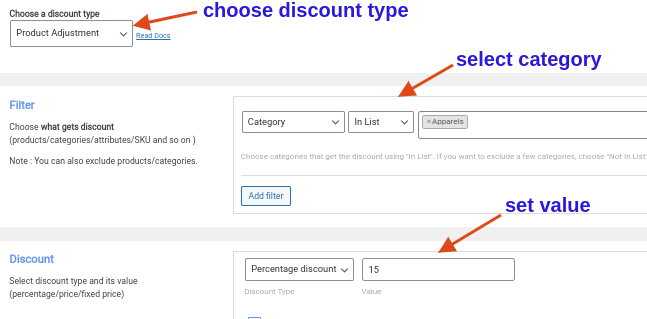
A 15% discount is applied to all products in the “Apparel” category.
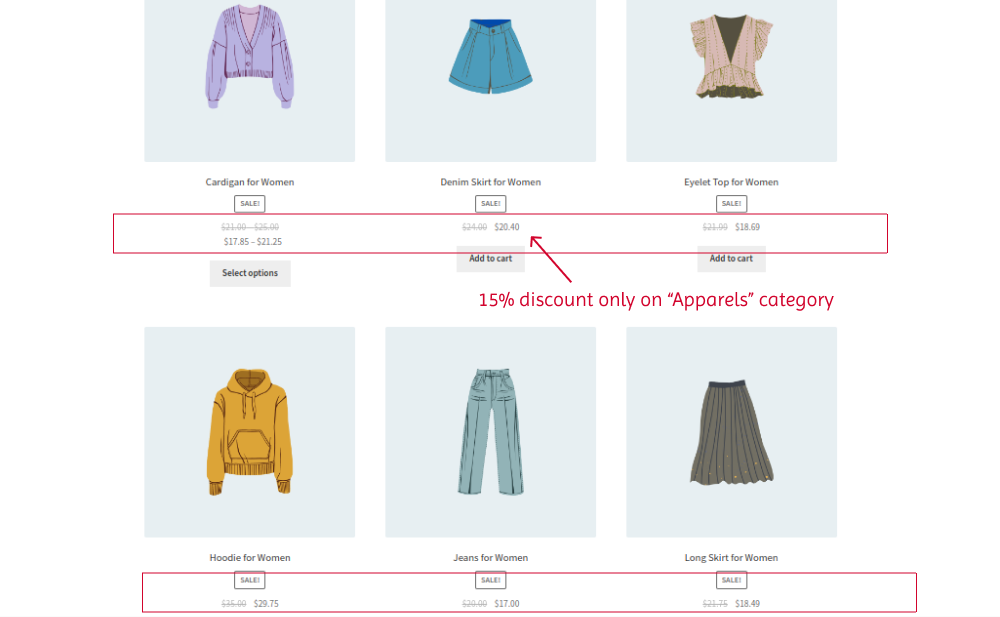
Related Read: How to create percentage discounts in WooCommerce?
2. How to Apply a WooCommerce Category Discount Based on User Roles?
With the “Discount Rules for WooCommerce -Pro” plugin’s role-based discount option, you can easily offer category discounts only to specific customer groups, such as wholesale customers, shop owners, subscribers, and more.
For example, Wholesale customers get a $50 discount on Electronics for shopping above $500.
To create a WooCommerce discount by category based on subtotal and specific user roles:
- Go to “WooCommerce” -> “Discount Rules.”
- Click the “Add New Rule” button.
- Enter the rule name and select “Product Adjustment” as the discount type.
- In the filter section, choose “Category” >> “Electronics.”
- Select “Fixed discount” as the discount type and set the value to “50.”
- In the Rules section, we need to set two conditions:
- Condition 1: Choose “User role” as the condition type, and select “Wholesale customer.”
- Condition 2: Choose “Subtotal” as the condition type, and set the subtotal amount to “500.”
- Finally, save and enable the rule.
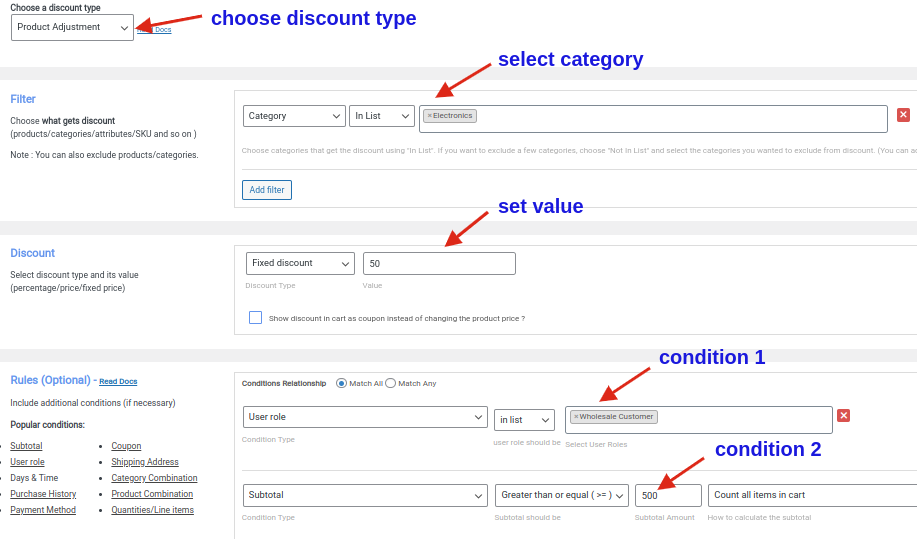
Now, we have created a WooCommerce discount by category for a specific user role.
Related Read: How to Set up Customer-Specific Discounts in WooCommerce?
Offer Category Discounts Based On Customers’ Cart Value Using the Discount Rules Plugin And Increase Average Order Value.
3. Applying BOGO Deals for Specific Categories in WooCommerce
BOGO (Buy One Get One) deals are popular discounts that can help you promote a new category or clear items in the existing category.
Example: Buy two items from “Kids apparel” and get one cap for free.
To create a Buy Two Get One offer for a specific category:
- Navigate to “WooCommerce” -> “Discount Rules.”
- Add a new rule and enter the rule name.
- Select “Buy X Get Y” as the discount type.
- In the “Filter” section, choose the “Kids Apparel” category.
- In the “Discount” section, select “Buy X get Y products” as the discount type, choose “cap” as the free product, and set the buying and get quantities.
- Optionally, click the recursive option to offer a free cap for every two products that customers purchase.
- At last, save and enable the rule.
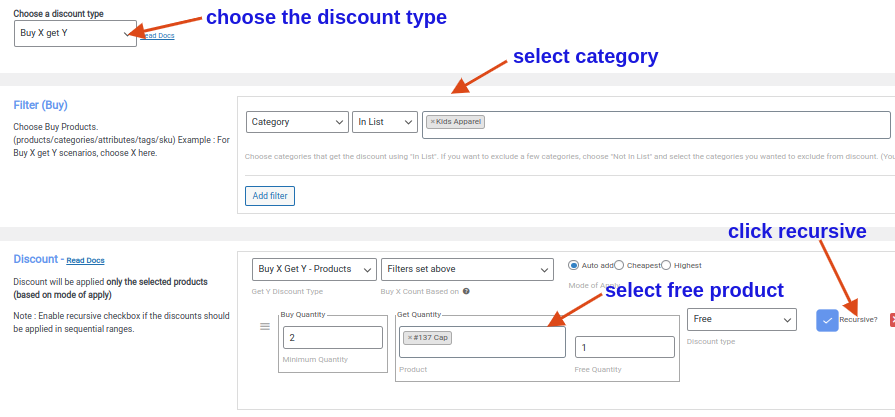
Now, we have created a Buy Two Get One free offer for a specific category.
Related Read: How to Create a Buy One Get One Offer in WooCommerce?
4. How to Create a WooCommerce Bulk Discount by Category?
WooCommerce bulk discounts by categories allow you to offer discounts on large purchases. This approach can help online stores focus on more profitable products to sell in larger quantities while providing customers with an excellent reason to purchase more.
For example,
- Buy 50 items in Accessories and get a $10 discount
- Buy 100 items in Accessories and get a $20 discount.
To create WooCommerce bulk discounts for a category:
- Open “WooCommerce” and click “Discount Rules.”
- Click the “Add New Rule” button.
- Select “Bulk discount” as the discount type.
- In the “Filter” section, choose “Category” and select “Accessories.”
- In the “Discount” section, select “fixed discount” as the discount type and set the value based on the quantity range.
- Save and enable the rule.
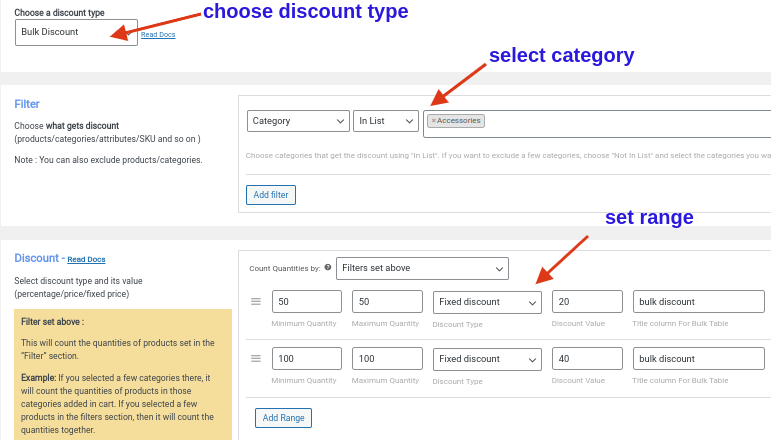
Related Read: How to Create Bulk Discounts in WooCommerce? (Different Ways)
5. Creating a WooCommerce Discount Based on Category Combinations
Discounts for category combinations allow you to offer discounts only for a specific combination.
These category-specific deals encourage customers to purchase products from different categories in a single purchase, which is helpful for both customers and online store owners.
Example: Purchase from “Apparel” and “Accessories” together for a 20% discount.
To create a discount based on category combinations in WooCommerce:
- In “WooCommerce,” select “Discount Rules.”
- Add a new rule.
- Select “Product Adjustment” as the discount type.
- In the “Filter” section, choose “Category,” select “In List,” and select “Apparel” and “Accessories.”
- Select “Percentage discount” as the discount type in the “Discount” section, and set the value to “20.”
- In the “Rules” section, choose the condition type as “Category combination,” select the two categories, and set their quantity.
- Finally, save and enable the rule.
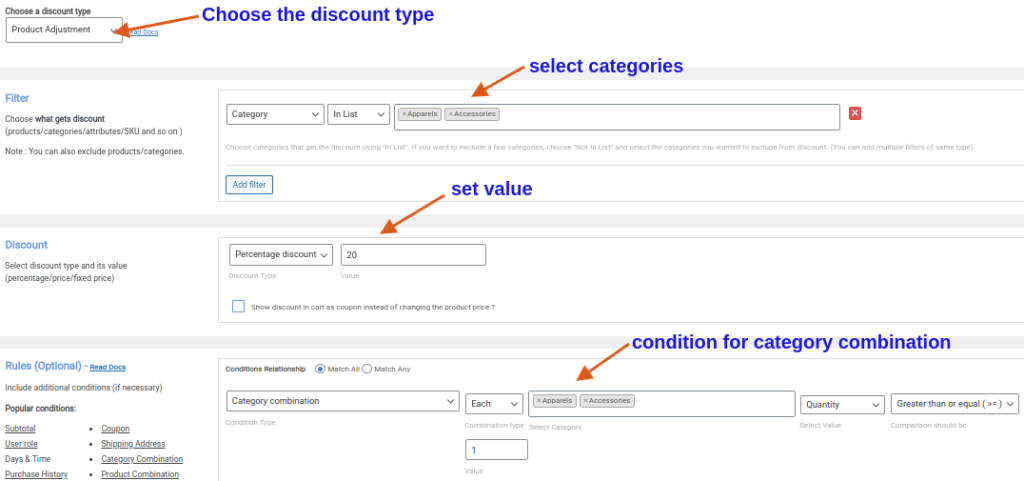
Now, we have created a WooCommerce category discount for a category combination. Customers who purchase products from both categories can get their discounts.
Key Takeaway: Using category combination discounts is a great way to increase average order value (AOV) by encouraging customers to shop across multiple departments.
How to Exclude Products from a Category Discount
Not every product should be discounted. Bestsellers, new arrivals, or already-clearanced items might need protection.
In the Filter section of your discount rule, click Add Filter and select “Not in List.” Choose specific products or sub-categories to exclude. For example, run 20% off all “Clothing” but exclude the “New Arrivals” sub-category.
Also Read: How to exclude products from the discount
How to Display Discounted Prices with Strikethrough
A discount that customers cannot see is a discount that does not convert. When using Product Adjustment as the discount type, the plugin automatically shows the original price struck through with the new price next to it – on both product pages and shop pages.
It also displays a “You saved $X” message in the cart and an optional sale badge on product thumbnails.
Customize these under WooCommerce → Discount Rules → Settings.
For related store optimizations, you might also want to customize your WooCommerce product page, set up WooCommerce free shipping offers, create cart upsells to boost basket size, or customize your order confirmation emails to highlight the savings customers received.
Category Discount Strategy: Picking the Right Discount Type
Not all category discounts are equal. The type you pick should match your business goal. With the average ecommerce order value sitting at roughly $145 globally as of late 2024 (Oberlo, 2024), even a small AOV lift from the right discount type compounds fast. Here is the framework I use when advising store owners:
Your Goal
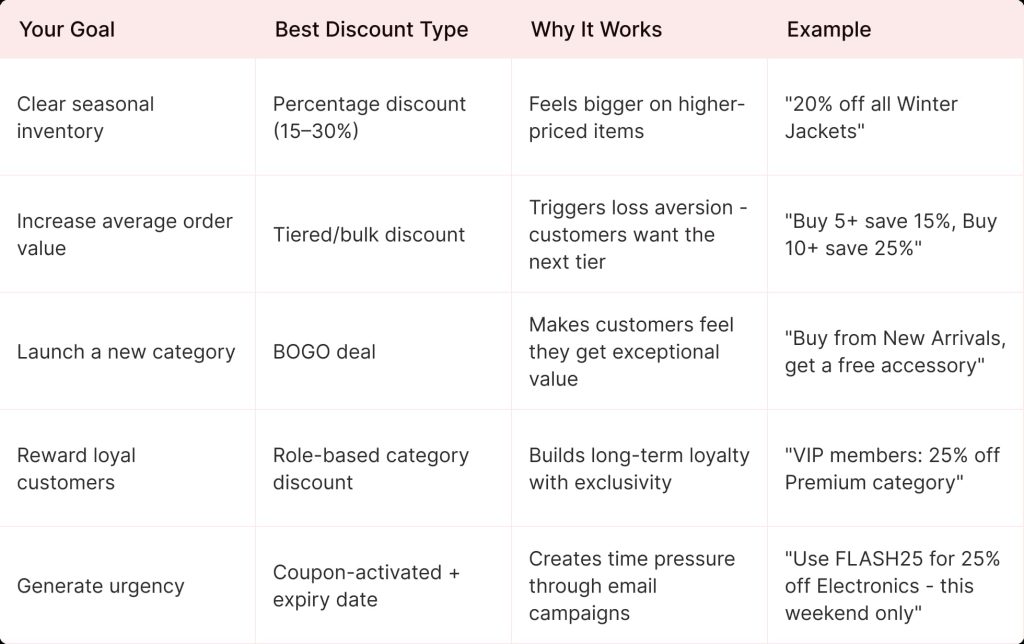
For a deeper dive into pricing strategy, check out the WooCommerce discount pricing strategy guide. If you want to pair discounts with loyalty rewards, see how WPLoyalty works with WooCommerce.
How Do Category Discounts Impact Average Order Value?
Category discounts can increase average order value when they are paired with smart conditions and product selection. By offering discounts on specific categories:
- Encourage customers to add more items from the same category to unlock better savings.
- Increase cart size when paired with minimum quantity or cart value conditions.
- Promote cross-selling within related products, leading to higher spend per order.
- Reduce reliance on storewide discounts while still boosting revenue.
- Help balance conversion growth with profitability when applied to high-margin categories.
Which Categories Should I Discount for Higher Conversions?
The best categories to discount are those:
- High-margin categories that can absorb discounts without hurting profits.
- Slow-moving or overstocked categories that need a sales push.
- Seasonal or trending categories with strong customer interest.
- Entry-level or popular categories that attract first-time buyers.
- Avoid frequently discounting low-margin bestsellers to maintain long-term profitability.
Best Practices for Effective Category Discount Sales
You can check the following best practices to make your category discount rules effective:
- Make sure your discount rules are clear and specific. This helps customers understand exactly what they’re getting and how much they’ll save.
- Percentage discounts are easier for customers to understand than fixed product discounts. For example, a 20% discount on a $50 product is more attractive than a $10 discount.
- Choose a popular category with a high-profit margin. This will help ensure that your discounts are effective and profitable.
- Limiting the discount period can create a sense of urgency, encouraging customers to purchase. Consider setting a time limit, specifically during holiday or weekend sales.
- Promote your discounts through email marketing, social media, and your website. This will help increase visibility and attract customers to your store.
- WooCommerce tiered discounts can encourage customers to buy more products. For example, a customer might get a 10% discount on one product in the “Apparel” category, a 15% discount on two, and a 20% discount on three.
- Monitor the results of your category discounts to see how effective they are. This practice helps you to adjust your strategy and make changes if necessary.
How Do I Use Category Discounts for Seasonal Sales?
Category discounts work especially well for seasonal sales when aligned with customer intent and timing:
- Apply discounts to relevant seasonal categories during holidays or peak periods.
- Use limited-time offers to create urgency and encourage faster purchases.
- Schedule discounts in advance to match seasonal demand trends.
- Promote seasonal category discounts through banners and emails.
- Combine category discounts with clear messaging to highlight timely value for shoppers.
Why is My Category Discount Not Applying?
When a category discount is not applying in WooCommerce, the issue is usually related to rule configuration, conflicts, or product setup rather than a system error.
- Issue 1: One of the most common reasons is incorrect category assignment.
If products are not properly assigned to the discounted category or are placed in multiple categories with conflicting rules, the discount may not trigger as expected.
Solution: Always double-check product categories and ensure the rule targets the correct taxonomy.
- Issue 2: Another frequent issue is conflicting discounts or coupons.
If you have multiple active promotions, WooCommerce may prioritize one rule over another or block stacking altogether. For example, a storewide coupon or automatic discount might override the category discount.
Solution: Review your discount settings to see whether stacking is allowed and whether exclusions for sale items, coupons, or other rules are enabled.
- Issue 3: Minimum conditions can also prevent discounts from applying.
Category discounts often depend on cart value, quantity thresholds, user roles, or customer login status. If a shopper does not meet these conditions, such as minimum quantity per category or being logged in, the discount will not appear.
Solution: Testing your rules using different cart scenarios helps identify these gaps quickly.
- Issue 4: Technical factors can also play a role.
Caching plugins, theme compatibility issues, or outdated WooCommerce versions may delay or hide discounts on the frontend.
Solution: Clearing the cache, switching temporarily to a default theme, and ensuring all plugins are updated can help isolate the problem.
By systematically reviewing category setup, rule conditions, and potential conflicts, you can usually resolve category discount issues and ensure your promotions work smoothly.
Wrapping Up
Offering a WooCommerce category discount could be the most effective strategy for boosting sales and promoting particular products.
Whether launching a new product, clearing out stock, or offering exclusive discounts on specific items, this discount could be the game-changer you need.
So, if you’re searching for a smart and convincing way to increase sales, category discounts should be at the top of your list!
Though several plugins are available to create this type of discount, you can use “Discount Rules for WooCommerce -Pro.”
This plugin has flexible options to create WooCommerce category discounts easily and offers other types of discounts, such as first-order discounts, bulk discounts, user role discounts, and more.
Offer WooCommerce Category Discounts Only to Specific Customer Roles using the Discount Rules Plugin to Increase Customer Loyalty and Sales.
Frequently Asked Questions
To display a product by category in Woocommerce:
1. Go to your “WordPress” dashboard-> “WooCommerce” -> “Products” -> “Categories.”
2. Give a category and slug name, add a description, and click the ” Add New Category ” button.
3. After creating a category, go to “Products.”
4. Click “Add New,” create a new product, add the new category you created, or select any existing product and add that product to the new category you created.
5. Finally, update changes.
Likewise, you can display all products by category.
The best WooCommerce category discount plugins are “Discount Rules for WooCommerce,” “ELEX dynamic pricing and discounts,” and “YITH Dynamic pricing and discounts.”
To show subcategories on the WooCommerce category page:
1. Go to your “WordPress” -> “WooCommerce” -> “Products.”
2. Choose the product, and in the product categories section, add the product’s parent category and suitable subcategory.
3. Lastly, update changes.
To change the number of products on a category page:
1. Go to your “WordPress” -> “Appearance” -> “Customize” -> “WooCommerce” -> “Product catalog.”
2. Choose the number of products you want in the “Products per row” section.
3. Click “Publish.”
To add bulk items to a category in WooCommerce, use the “ELEX WooCommerce Advanced Bulk Edit Products, Prices & Attributes” plugin.
A WooCommerce category discount is often more effective than a storewide offer because it targets specific products without reducing margins across your entire store.