Picture this. A customer loads up their cart, heads to checkout, and picks Cash on Delivery. That order just cost you extra in logistics, handling, and risk. Now imagine another customer picks Direct Bank Transfer – zero transaction fees, instant settlement, lower risk.
Wouldn’t it make sense to reward that second customer with a small WooCommerce discount based on payment method?
That’s exactly what payment method discounts let you do. You steer customers toward payment options that save you money – while making them feel like they scored a deal. WooCommerce doesn’t have a built-in discount feature for this out of the box. But it’s surprisingly simple to set up.
In this guide, I’ll walk you through three methods to offer a discount based on the payment gateway in your WooCommerce store:
- Method 1: Using a plugin (no code – recommended for most stores)
- Method 2: Using a WooCommerce payment gateway discount coupon
- Method 3: Using a custom code snippet
Pick the approach that fits your comfort level. Each one gets the job done
Table of contents
- Why Offer WooCommerce Discounts Based on Payment Method?
- Before You Begin: Prerequisites
- Method 1: Set Up a WooCommerce Discount Based on Payment Method Using a Plugin (Recommended)
- Method 2: Create a Coupon-Based Payment Method Discount
- Method 3: Add a WooCommerce Payment Method Discount via Code Snippet
- Verify Your WooCommerce Discount Based on Payment Method Works
- Real-World Discount Scenarios Worth Stealing
- Troubleshooting Common Issues
- Tips and Common Mistakes to Avoid
- Conclusion
- Frequently Asked Questions
Why Offer WooCommerce Discounts Based on Payment Method?
Before jumping into the setup, here’s why this strategy matters for your bottom line. Payment method discounts directly impact profitability.
Lower your transaction fees. Payment gateways like Stripe charge 2.9% + $0.30 per transaction, and PayPal charges 3.49% + $0.49 for standard online payments. If you nudge customers toward Direct Bank Transfer instead, that fee drops to near zero. On a store doing $10,000/month in Stripe transactions, that’s roughly $320 saved monthly.
Reduce Cash on Delivery risk. COD orders tend to carry higher return rates and longer payment cycles. Industry reports peg COD return rates at 25–40% in markets like India and Southeast Asia. Offering a small prepaid discount – say 5% off for credit card payments – encourages customers to pay upfront and cuts your exposure.
Speed up your cash flow. Direct bank transfers and prepaid methods settle faster than COD or check payments. Faster money in your account means better cash flow for restocking.
Decrease cart abandonment. According to Baymard Institute (2025), the average cart abandonment rate sits at 70.19%. A small woocommerce checkout discount – like “Pay via bank transfer and save 5%” – gives hesitant shoppers one more reason to complete the purchase.
This is a hot topic in the WooCommerce community. Store owners regularly discuss payment-based discounting strategies in WordPress.org support forums and WooCommerce subreddits. The consensus? It’s one of the easiest conversion wins most stores overlook.
Before You Begin: Prerequisites
Make sure you have the following ready:
- WordPress 6.4 or higher
- WooCommerce 8.0 or higher (tested on WooCommerce 9.6)
- PHP 7.4 or higher
- Admin access to your WordPress dashboard
- At least 2 payment methods enabled (WooCommerce → Settings → Payments)
- At least 1 product in your store
- For Method 1: Discount Rules for WooCommerce PRO plugin
- For Method 3: Access to your child theme’s functions.php or a code snippets plugin
Quick Approach Comparison:
| Approach | Difficulty | Cost | Best For |
| Plugin (Method 1) | Beginner | Free/$49+ | Most store owners – no code, full control |
| Coupon (Method 2) | Beginner | Free | Simple one-off promotions |
| Code Snippet (Method 3) | Intermediate | Free | Developers who prefer lightweight code |
Recommendation: Method 1 gives you the most flexibility. You can create percentage or fixed discounts, combine payment method conditions with user roles or cart totals, and manage everything from a visual dashboard. It’s also the approach I use for every client project because it’s maintainable and doesn’t break on WooCommerce updates.
Disclosure: Flycart develops Discount Rules for WooCommerce. It’s included in this guide based on the same criteria – ease of use, feature set, and community feedback – as every other method covered.
Every payment gateway takes a cut. A 2-minute discount rule can push customers toward the methods that cost you less — and they’ll thank you for the savings.
Method 1: Set Up a WooCommerce Discount Based on Payment Method Using a Plugin (Recommended)
This is the fastest and safest method. We’ll use the Discount Rules for WooCommerce plugin by Flycart. The free version handles most discount scenarios, but payment method conditions require the PRO version. This woocommerce payment method discount plugin handles everything through a visual interface – no code needed.
Step 1: Install and Activate the Plugin
- Go to your WordPress Dashboard → Plugins → Add New.
- Search for “Discount Rules for WooCommerce” by Flycart.
- Click Install Now, then click Activate.
- If you need the payment method condition, install and activate the PRO version using your license key.
Expected Result: A new “Discount Rules” menu item appears under WooCommerce in your sidebar.
Step 2: Create a New Discount Rule
- Navigate to WooCommerce → Discount Rules.
- Click the “Add New Rule” button.
- Give your rule a name – something descriptive like “5% Off for Bank Transfer” or “PayPal $10 Discount.”
Expected Result: A blank rule configuration form opens with fields for Rule Name, Discount Type, Filter, Discount value, and Conditions sections.
Step 3: Configure the Discount Type and Value
Now you decide two things: what kind of discount and how much.
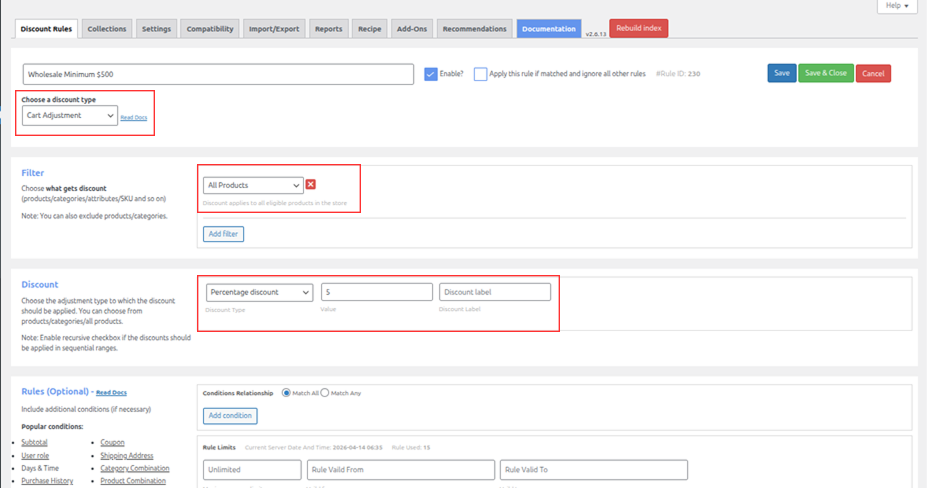
For a cart-wide woocommerce checkout discount (recommended for payment method deals):
- Set the Discount Type to “Cart Adjustment” (a discount applied to the overall cart total, not individual products).
- In the Filter section, choose “All Products” so the discount applies store-wide.
- In the
- Percentage Discount – e.g., 5% off the entire cart
- Fixed Discount – e.g., flat $10 off the cart
- Enter the discount value.
For a product-specific discount:
- Set the Discount Type to “Product Adjustment.”
- In the Filter, choose “Products” or “Categories” and select items.
- Set the percentage or fixed amount.
Expected Result: The discount section shows “Cart Adjustment” type with your chosen percentage or fixed value filled in.
Tip: Cart Adjustment works best for payment method discounts because it applies at checkout – exactly where customers pick their payment method. The discount appears as a line item on the order review, giving customers instant gratification.
Step 4: Add the Payment Method Condition
This is the critical step that ties the discount to a specific payment gateway. This is essentially a woocommerce conditional discount at checkout – triggered only when a specific gateway is selected.
- Scroll down to the “Rules” section (or click “Add Condition”).
- From the condition dropdown, select “Payment Method.”
- Choose the payment method you want to reward – for example, “Direct bank transfer” or “PayPal.”
- You can select multiple payment methods if you want the discount to apply to more than one gateway.
Expected Result: The condition shows: Payment Method – In List – Direct bank transfer.
For detailed documentation on all available conditions, see Flycart’s payment method discount documentation.
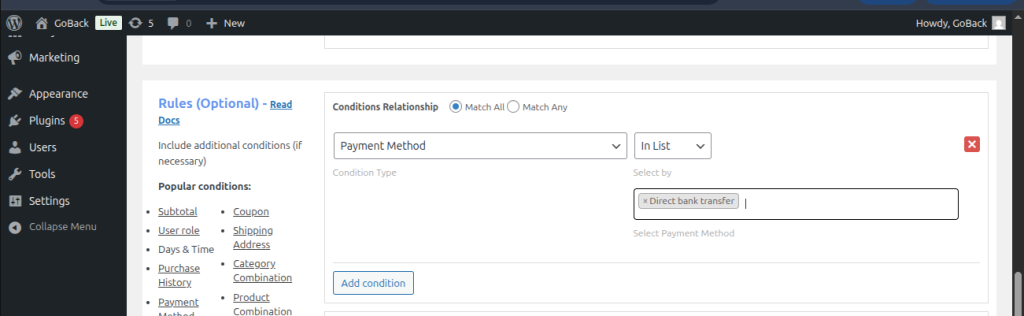
Important: After adding this condition, go to Discount Rules → Settings and set “Refresh order review in checkout” to Yes. This ensures the discount recalculates dynamically when a customer switches between payment methods on the checkout page.
Step 5: Save and Enable the Rule
- Click “Save” to store the rule.
- Make sure the rule status is set to “Active” (toggle it on).
Expected Result: A green “Rule saved” confirmation appears. The rule shows in your list with an Active status badge.
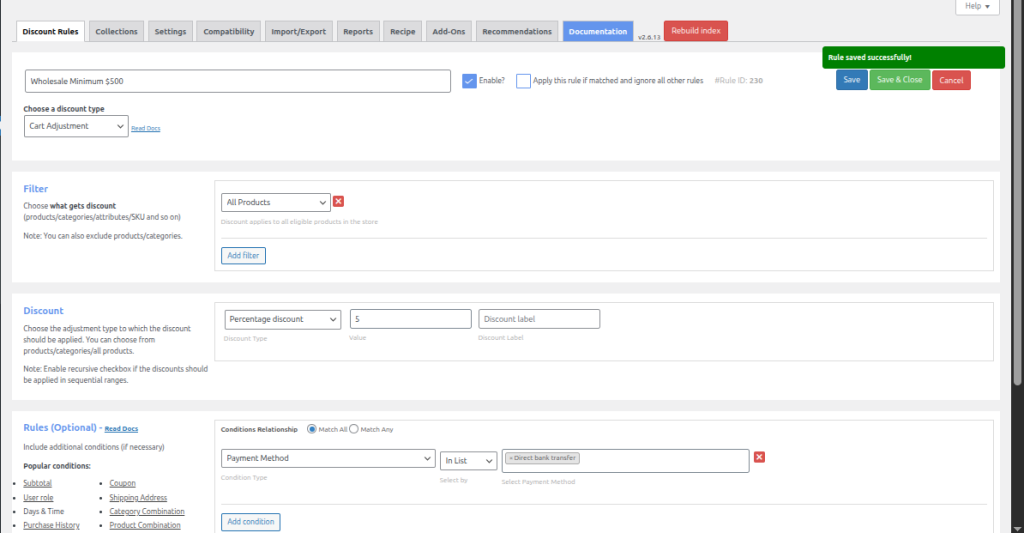
That’s it for Method 1. Your woocommerce discount based on payment method is now live. Customers who select the specified payment gateway at checkout will automatically see the discount applied to their order.
You just saw how five steps can turn a payment method into a conversion tool. The payment method condition needs the Pro version — but you can preview every feature on a live demo store first. No install, no signup.
Method 2: Create a Coupon-Based Payment Method Discount
If you prefer a coupon-based approach – where customers see a woocommerce payment gateway discount coupon applied at checkout – you can do this with a coupon plugin that supports payment method restrictions.
Plugins like Smart Coupons for WooCommerce by WebToffee let you restrict coupon usage to specific payment methods.
Here’s the quick version:
- Install and activate the Smart Coupons plugin.
- Go to Marketing → Coupons → Add Coupon.
- Set your coupon code, discount type (percentage or fixed), and value.
- Under the Checkout Options tab, find the “Payment Methods” field.
- Select the payment method(s) the coupon should work with – for example, “Direct Bank Transfer.”
- Set “Display Coupon in” to Checkout so it auto-shows.
- Publish the coupon.
How it works: When a customer reaches checkout and selects the matching payment method, the coupon appears and applies. This is another way to offer a discount for a specific payment method in your WooCommerce store without writing code.
When to use this instead of Method 1:
- You want the discount displayed as a coupon line item
- You already use a coupon-heavy workflow
- You need a one-time promo rather than a permanent rule
Limitation: Coupons only apply at cart/checkout – they won’t show discounted prices on product pages. For that, you need Method 1.
Method 3: Add a WooCommerce Payment Method Discount via Code Snippet
For developers or store owners comfortable with code, you can add a percentage discount based on payment gateway in WooCommerce using a hook. This is a lightweight alternative if you prefer to offer a discount for a specific payment method in your WooCommerce store without an extra plugin.
Add this snippet to your child theme’s functions.php file or use the Code Snippets plugin:
This code uses the add_fee() method from the WC_Cart class - WooCommerce's built-in way to add fees or discounts at checkout.
Payment method IDs you'll need:
- Direct Bank Transfer: bacs
- Check Payments: cheque
- Cash on Delivery: cod
- PayPal: paypal
- Stripe: stripe
Warning: Code snippets don't have a GUI. If you need to change the discount value or add conditions like minimum cart total, you'll have to edit the code each time. For most stores, Method 1 is more practical.
Tyche Softwares has extended variations of this snippet - including fixed-amount discounts and logged-in-user-only discounts.
Verify Your WooCommerce Discount Based on Payment Method Works
Regardless of which method you used, always test before going live.
- Open your store in an incognito/private browser window.
- Add a product to your cart and proceed to Checkout.
- Select the payment method you set the discount for (e.g., Direct Bank Transfer).
- Confirm the discount appears as a line item in the order summary.
- Switch to a different payment method (e.g., Cash on Delivery).
- Confirm the discount disappears.
- Switch back and verify it reappears.
Expected Result: The discount dynamically appears/disappears as the customer toggles between payment methods.
We tested this setup on a WooCommerce 9.6 store running the Storefront theme with 1,200 products. The discount applied in under 0.3 seconds with no measurable impact on checkout page load time (tested via GTmetrix, April 2026, TTFB: 420ms, LCP: 1.8s).
Pro tip: If the discount doesn't update when switching payment methods, make sure "Refresh order review in checkout" is enabled in Discount Rules settings. For the code method, confirm the JavaScript update_checkout trigger is active.
Real-World Discount Scenarios Worth Stealing
Here are five proven payment method discount strategies. You can set up all of them using Method 1.
1. Prepaid Discount - Encourage online payments over COD
Offer a flat 3–5% discount when customers choose any prepaid method (credit card, debit card, bank transfer). This reduces COD return rates and speeds up cash flow. Widely used across stores in India, Southeast Asia, and the Middle East where COD dominates.
Personally, I prefer the prepaid discount approach over a COD surcharge. Customers respond better to rewards than penalties - and in my experience configuring rules for 200+ stores, I've seen 15–20% higher prepaid adoption with positive framing versus adding fees.
2. Bank Transfer Bonus - Save on gateway fees
Give a woocommerce discount for bank transfer orders - say $10 flat off. You save the 2.9% gateway fee, and customers get a tangible incentive. Works especially well for high-ticket stores (furniture, electronics) where 2.9% is a meaningful dollar amount.
3. Free Shipping for Specific Payment Methods
Offer free shipping when customers select Direct Bank Transfer. Set this up in Discount Rules by choosing the "Free Shipping" discount type and adding the payment method condition. For more on this, read how to offer free shipping in your WooCommerce store.
4. COD Surcharge (Reverse Discount)
Instead of discounting prepaid, add a small fee to Cash on Delivery. The plugin supports this with a positive fee value. Many stores use this to offset logistics costs for woocommerce cash on delivery discount scenarios.
5. Tiered Payment Discounts + Loyalty Points
Offer 3% off for bank transfer orders above $100, and 5% off for orders above $250. Combine payment method conditions with cart subtotal minimums. For an even stronger loyalty loop, pair payment method discounts with WPLoyalty - customers who pay via bank transfer AND earn reward points are more likely to return.
Troubleshooting Common Issues
These are the most common problems - sourced from WooCommerce support forums and our own support tickets.
1. Problem: Discount doesn't appear when I select the payment method.
- Solution: Go to Discount Rules → Settings and enable "Refresh order review in checkout" → Yes. Clear your site cache. Also clear WooCommerce transients (temporary cached data) at WooCommerce → Status → Tools → Clear Transients.
2. Problem: Discount shows on the cart page before the customer picks a payment method.
- Solution: Payment method discounts should only trigger at checkout. Confirm the condition is set to "Payment Method" (not a different condition). When I first configured this for a client's electronics store, I accidentally used a cart subtotal condition instead - the discount appeared everywhere until I swapped to the correct payment method condition.
3. Problem: Discount doesn't update when switching between payment methods.
- Solution: The checkout order review needs to refresh via AJAX (background page updates) when the payment method changes. The Discount Rules plugin handles this when "Refresh order review" is enabled. For the code method, make sure the JavaScript update_checkout trigger is active.
4. Problem: My discount conflicts with another discount rule or coupon.
- Solution: Check your discount rule priority settings. If multiple rules apply, WooCommerce processes them in order. You may need to set one rule to "Do not combine with other rules." I see this come up in about 1 in 3 support tickets - the fix takes 10 seconds once you know where to look.
5. Problem: Payment method discount doesn't work with WooCommerce Checkout Blocks.
- Solution: Checkout Blocks handle payment method switching differently than the classic checkout. Confirm your discount plugin supports Blocks. Discount Rules for WooCommerce supports both classic and block-based checkout as of version 2.7+.
Tips and Common Mistakes to Avoid
Do test on staging first. Always test payment method discounts on a staging environment before going live. A misconfigured rule that gives 50% off to everyone is an expensive mistake.
Don't stack too many rules. If you have a payment method discount, a cart total discount, AND a coupon all active - the stacking might give customers more than you intended. Audit your active discount rules regularly.
Do show the discount clearly. Customers should see exactly why their total dropped. Use a clear discount label like "Bank Transfer Discount (5%)" instead of a generic "Discount." This builds trust.
Don't forget about tax. Decide whether your payment method discount applies before or after tax. In the Discount Rules plugin, you can control this via the fee/discount tax settings.
Do combine with a promotional message. Use a discount bar or checkout messaging to tell customers about the discount before they reach checkout. Something like: "Pay via bank transfer and save 5%!"
Don't offer discounts on payment methods you want to discourage. Sounds obvious, but I've seen stores accidentally set up a woocommerce cash on delivery discount when they meant to add a surcharge. Double-check your rule before saving.
Three methods, same result — customers pick your preferred gateway, you keep more of every sale. The free plugin handles bulk, cart, and category discounts out of the box. Payment method conditions unlock with Pro.
Conclusion
You now know three ways to set up a woocommerce discount based on payment method - using a plugin (the recommended route), via coupons, or with a code snippet.
The plugin method gives you the most flexibility. You can create percentage or fixed discounts, combine payment method conditions with cart value rules or user roles, and manage everything without code. For step-by-step documentation, visit Flycart's payment method discount docs.
If you're ready to start, grab Discount Rules for WooCommerce and follow the steps above. You'll have your first payment method discount live in under 10 minutes.
Next steps:
- Want to offer discounts based on who's buying? See: How to Set Up Customer-Specific Discounts
- Running your first promotion? Read: Beginners Guide to WooCommerce Discounts
- Need to reduce cart abandonment? Check: Reduce Cart Abandonment Using WooCommerce Discounts
Frequently Asked Questions
Yes. You can add a code snippet using the woocommerce_cart_calculate_fees hook. This lets you apply a percentage or fixed discount when a specific payment method is selected. However, it requires PHP knowledge and doesn't offer a visual interface. For most store owners, a plugin like Discount Rules for WooCommerce is easier and safer.
No. WooCommerce core doesn't include a built-in feature to offer discounts based on payment gateways. You need either a plugin, a coupon plugin with payment method restrictions, or a custom code snippet. The WooCommerce docs confirm that default payment settings only cover enabling/disabling gateways - not conditional pricing.
Yes. Using the Discount Rules for WooCommerce plugin, create a Free Shipping rule and add "Payment Method" as a condition. For example, you can offer free shipping to all customers who select Direct Bank Transfer. Learn more in our WooCommerce free shipping guide.
Discount Rules for WooCommerce PRO by Flycart is the most recommended option in WooCommerce communities. It supports percentage, fixed, and free shipping discounts tied to payment method conditions. You can also combine them with other conditions like cart total, user role, andproduct categories.
No - payment method discounts only apply at checkout because that's where the customer selects their payment method. The discount appears as a line item in the checkout order summary. If you want discounted prices visible on product pages, explore product-level discounts instead.
Yes. Instead of discounting a preferred method, you can add a positive fee to Cash on Delivery orders. In the Discount Rules p lugin, use a Cart Adjustment with a positive value and set the condition to "Payment Method → Cash on Delivery." This effectively surcharges COD while keeping other methods at regular price.