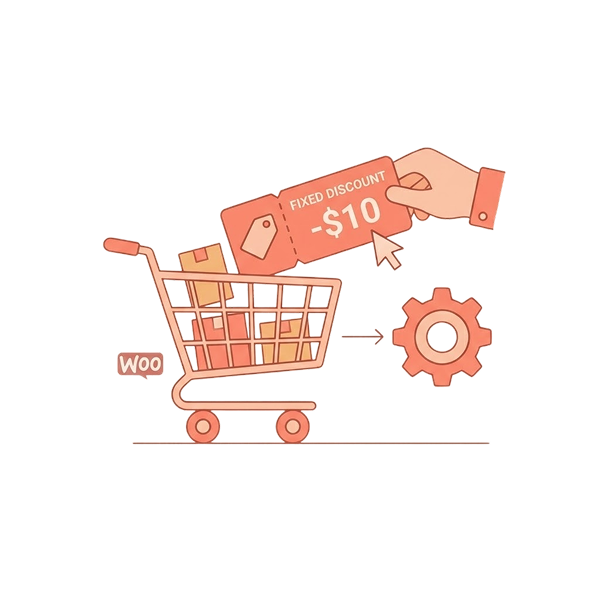
A WooCommerce fixed product discount subtracts a specific amount from the product’s original price. This makes the offer straightforward and transparent.
For example, if a product costs $50 and you offer a $10 fixed discount, customers immediately know they will pay $40 and save $10.
Because savings are easy to calculate, fixed discounts often outperform complex pricing structures. They build trust, reduce hesitation, and encourage faster checkouts.
If you haven’t tried fixed product discounts in your WooCommerce store yet, or if you’re still running basic offers, this guide will show you how to create both simple and advanced fixed discounts in five different ways using a plugin.
Let’s get started.
Note: A fixed product discount cannot be created with default WooCommerce settings. To fill this gap, we can use a discount plugin like “Discount Rules for WooCommerce -Pro” to personalize your fixed discounts.
Convert 31% of new visitors into regular customers by offering customized fixed-product discounts with the “Discount Rules for WooCommerce -Pro” plugin.
Table of contents
- What is a WooCommerce Fixed Product Discount?
- Fixed Product Discount vs Percentage Discount in WooCommerce
- Why Offer a WooCommerce Fixed Product Discount Over a Percentage Discount?
- How to Create a WooCommerce Fixed Product Discount?
- 1. How to Create a Storewide WooCommerce Fixed Product Discount?
- 2. How to Set Up a Fixed Product Discount Coupon in Woocommerce?
- 3. Creating a Bulk Fixed Product Discount in WooCommerce
- 4. How to Combine WooCommerce Fixed Product Discount and BOGO Deal?
- 5. How to Add a WooCommerce Fixed Cart Discount by Product Category and Order Amount?
- Can You Offer a Fixed Product Discount in WooCommerce Without a Plugin?
- Key Benefits of Offering a Fixed Product Discount in WooCommerce
- Difference Between Fixed Product Discount and Fixed Price Per Unit
- When Should You Use WooCommerce Fixed Product Discounts?
- Final Takeaway
- Frequently Asked Questions
What is a WooCommerce Fixed Product Discount?
WooCommerce fixed product discount is a promotional strategy that store owners apply to a few or all products with a specific amount reduced from the original price.
Offering a fixed product discount is one of the recommended tactics to capture customers’ attention and boost product sales.
- A sample, simple fixed product discount: $10 off on all products.
- A specific, advanced fixed product discount: $15 off only on products from the “Accessories” category.
Fixed Product Discount vs Percentage Discount in WooCommerce
- Fixed discounts reduce a product price by a specific amount, such as $10 OFF.
- Percentage discounts reduce prices proportionally, such as 20% OFF.
Fixed discounts are better for:
– predictable margins,
– lower-priced products,
– and fixed promotional campaigns.
Why Offer a WooCommerce Fixed Product Discount Over a Percentage Discount?
Both WooCommerce fixed product and percentage discounts are popular pricing strategies in WooCommerce.
However, they work differently and influence buying behavior in distinct ways:
A WooCommerce percentage discount reduces a certain percentage from the product price, so the final discount amount varies depending on the product’s original cost.
In contrast, a fixed product discount deducts the same amount from every eligible product, regardless of its price.
For example, consider Product A priced at $80 and Product B priced at $20:
- With a 10% percentage discount, Product A becomes $72 and Product B becomes $18.
- With a $10 fixed discount, Product A becomes $70 and Product B becomes $10.
As you can see, the percentage discount changes based on the product value, while the fixed discount remains constant.
From a store owner’s perspective, percentage discounts may sometimes appear more controlled, especially for high-ticket items.
However, when it comes to customer psychology, fixed discounts often feel more powerful and transparent.
- Customers clearly understand statements like “Save $10” without needing to calculate percentages.
- The savings feel direct, tangible, and easy to compare.
- In many cases, this clarity increases trust and encourages faster purchase decisions.
- Most importantly, fixed product discounts create a strong perceived value, especially for mid-range and lower-priced products.
When customers see a clear dollar amount reduced from the price, the deal feels immediate and attractive.
That’s why fixed product discounts are an excellent strategy when your goal is to drive quick conversions, improve customer satisfaction, and create straightforward, high-impact promotions in your WooCommerce store.
How to Create a WooCommerce Fixed Product Discount?
You can create a WooCommerce fixed product discount using a plugin in two steps.
With plenty of plugins available to create fixed discounts, I recommend the “Discount Rules for WooCommerce -Pro” as it has an easy interface, flexible discount options, and is compatible with the latest WooCommerce version.
Step 1: Installing the “Discount Rules for WooCommerce -Pro” Plugin
- Open your “WordPress” dashboard.
- Navigate to “Plugins” -> “Add New Plugin.”
- Search for “Discount Rules for WooCommerce -Pro (By Flycart).”
- Click “Install Now” and activate it on your site.

Step 2: Creating a Fixed Product Discount
- Go to “WooCommerce” -> “Discount Rules” -> “Add New Rule.”
- Choose the discount type, “Product Adjustment.”
- Filter “All or Specific” products.
- Choose the discount type, “Fixed discount” with the value in the “discount” section.
- Set optional purchase conditions, save, and enable the rule.
Let’s check the five different profitable ways to apply these fixed product discounts in your WooCommerce store.
1. How to Create a Storewide WooCommerce Fixed Product Discount?
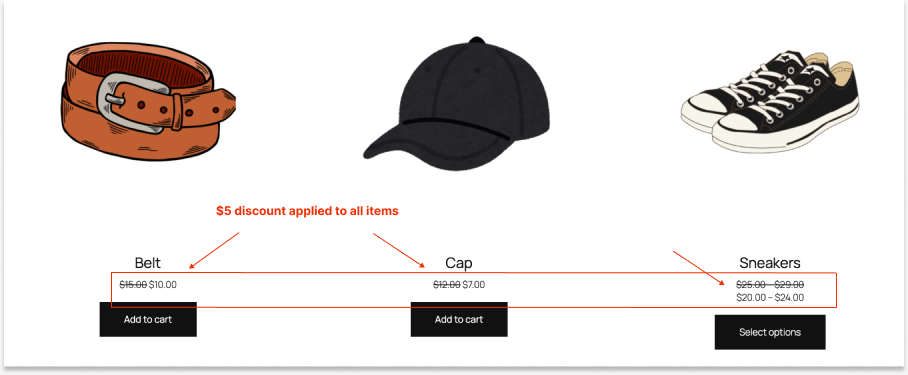
Example: Offering a $5 fixed discount on all products in your store.
To create a storewide $5 fixed product discount in WooCommerce:
- Go to “WordPress dashboard” -> “WooCommerce” -> “Discount Rules.”
- Click the “Add New Rule” button to add a new discount rule.
- Enter the rule name for your reference.
- Choose the discount type, “Product Adjustment.”
- In the “Filter” section, select “All Products,” as it is a store-wide discount.
- In the “Discount” section, select the “Discount type” as “Fixed Discount” with a value of “5.”
- Enable and save the rule.

Now the $5 discount is applied to all products in your store. It’s that simple!
Recommended for You
Explore more storewide discount strategies: How to Set Up a WooCommerce Storewide Discount: 4 Ways
2. How to Set Up a Fixed Product Discount Coupon in Woocommerce?
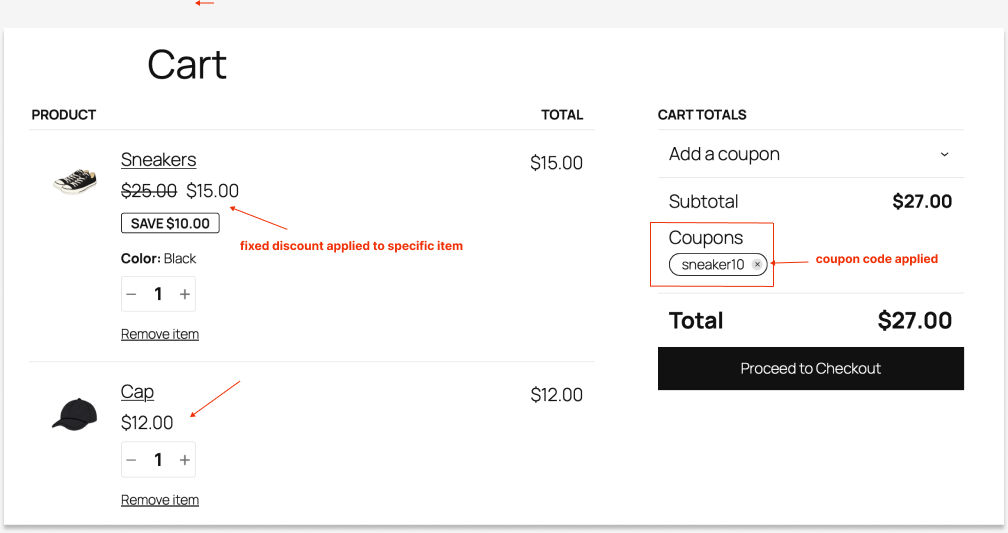
Example: Let’s offer a $10 fixed discount only to a specific product using a coupon code.
To create a WooCommerce fixed product discount coupon for specific products:
- Go to “WordPress Dashboard” -> “WooCommerce” -> “Discount Rules” -> “Add New Rule.”
- Choose the “Product Adjustment” discount type.
- In the “Filter” section, select the specific product to apply the discount.
- In the “Discount” section, set the discount type to “Fixed Discount,” and the value to “10.”
- In the “Rules” section, add a new condition “Coupons” and create a new coupon code.
- Save and enable the rule.
Note: You can also synchronize the default WooCommerce coupon code in this rule without creating a new code. Set the “Select Coupon By” option based on your requirements.

When customers enter the given coupon code, the fixed price discount will be applied to a specific product.
To know more about WooCommerce coupons, and enabling coupon URLs, check here: WooCommerce Coupons – The Complete Guide.
3. Creating a Bulk Fixed Product Discount in WooCommerce
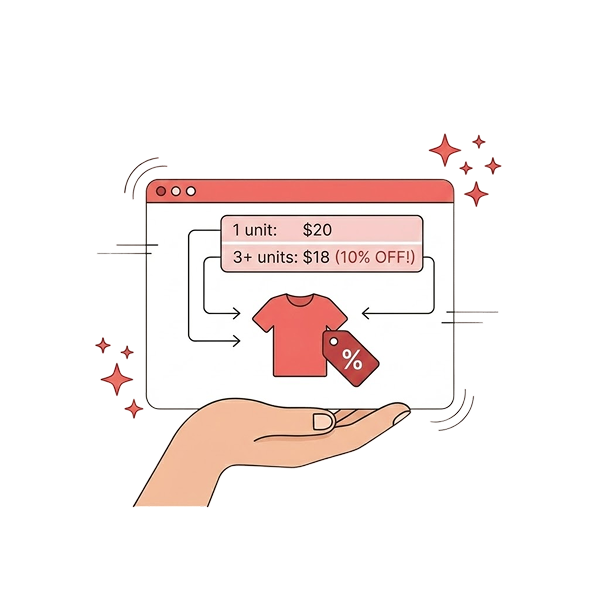
You can provide fixed item discounts when customers purchase your products in bulk. It is a good idea to motivate wholesale customers and shopaholics to spend more in your store.
To create a fixed WooCommerce discount for bulk purchases:
- Go to “WooCommerce” -> “Discount Rules” -> “Add New Rule.”
- Choose the discount type, “Bulk Discount.”
- Filter all or specific products to apply discounts.
- In the “Discount” section, set the “Minimum and Maximum” buying quantities along with the “Fixed Discount” type and value.
- Save and enable the discount rule.
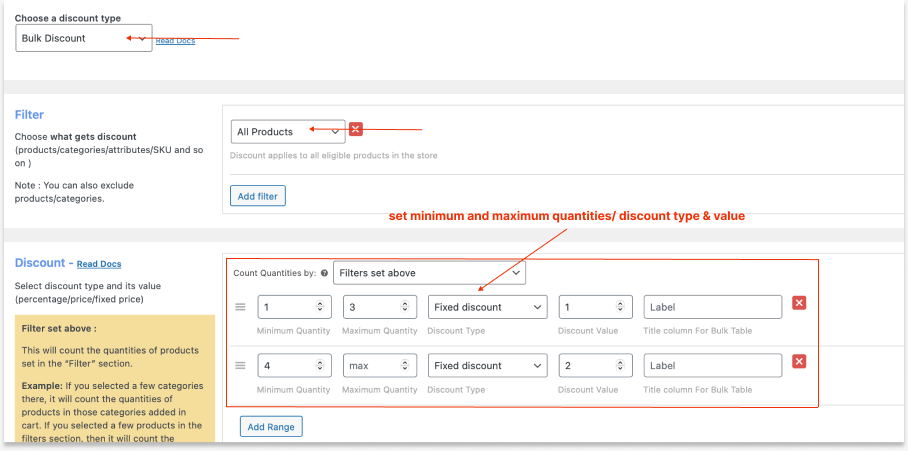
As per this example quantity range in the image, a $1 fixed discount is applied when customers order 1 to 3 quantities of any items and $2 will be applied for 4 to unlimited quantities.

This is how you can encourage bulk purchases with a fixed discount type.
Related Guide
Multiple Bulk Discount Scenarios: How to Create a WooCommerce Bulk Discount?
4. How to Combine WooCommerce Fixed Product Discount and BOGO Deal?
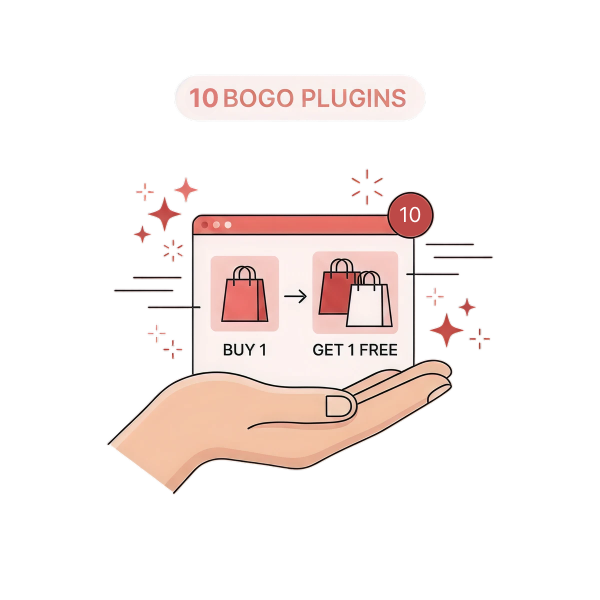
BOGO deals are not exceptional when you offer WooCommerce fixed product discounts. You can create an offer like “Buy One Get One At $5 Discount,” instead of regular “Buy One Get One Free” deals.
To create fixed discounts with BOGO in WooCommerce:
- Go to “WooCommerce” -> “Discount Rules” -> “Add New Rule” -> “Enter rule name.”
- Choose the discount type:
- Buy X Get X: to offer the same “buy” product with a discount
- Buy X Get Y: to offer a different product with a discount.
- For example, I choose “Buy X Get X.”
- In the “Filter” section, select specific or all products to apply discounts.
- In the “Discount” section, set:
- “Minimum and Maximum” buy quantities
- The “Get Quantity” as “Free Quantity”
- Select the “Fixed Discount” type and value.
- To make the offer even more attractive, scroll down to the “Rule Limit” part of the “Rules” section and set the “
- This offer expires automatically after the set period. You can optionally set the rule limit to restrict users from claiming discounts more than once or twice.
- Save and enable the rule.
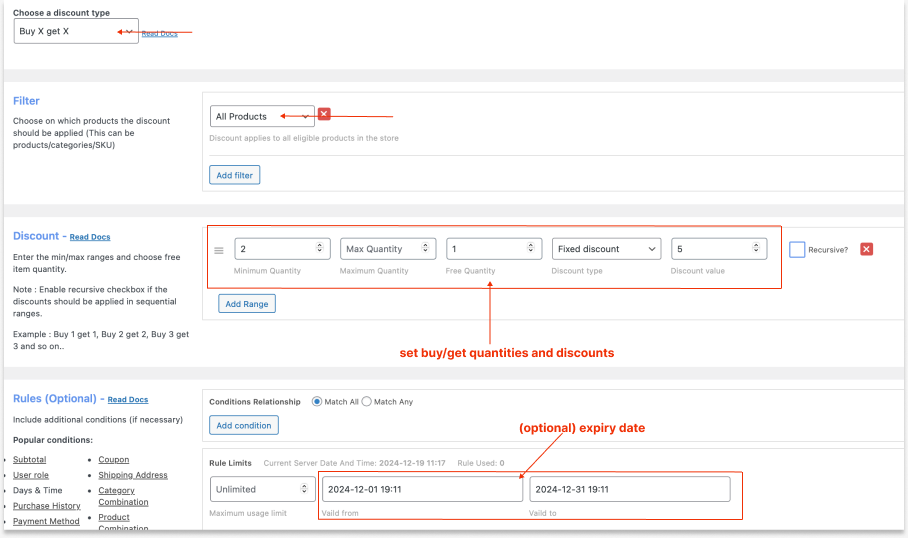
When customers buy two products, the second item will be applied with a specific fixed discount. Also, the offer expires after the set time.

For more examples based on BOGO free and “Buy X Get Y” types, check here: How to Create a WooCommerce Buy One Get One (BOGO) offer?
Combine fixed product discounts with BOGO or bulk discounts easily using “Discount Rules for WooCommerce -Pro” to encourage larger quantities per order and increase average order value.
5. How to Add a WooCommerce Fixed Cart Discount by Product Category and Order Amount?
Let’s try a different scenario where you can offer the fixed discount on the cart page instead of product pages, that too for specific category items.
Also, we can apply the discount only when customers’ carts reach a specific order amount.
To create a fixed cart discount in WooCommerce by product category and order amount:
- Go to “WooCommerce” -> “Discount Rules.”
- Click the “Add New Rule” button and enter a rule name.
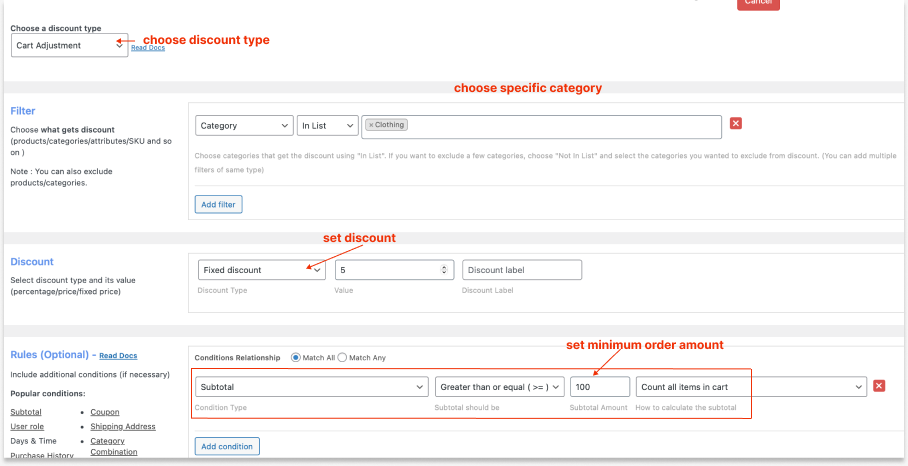
- Choose the discount type, “Cart Adjustment.”
- In the “Filter” section, select the specific category.
- In the “Discount” section, set the discount type to “Fixed discount” with a value.
- In the “Rules” section, add a new condition, “Subtotal,” set the “Subtotal should be” mode like “Greater or Equal,” and enter the “Subtotal Amount” that customers need to reach.
- Save and enable the rule.
Here is how this fixed cart discount by category Works:
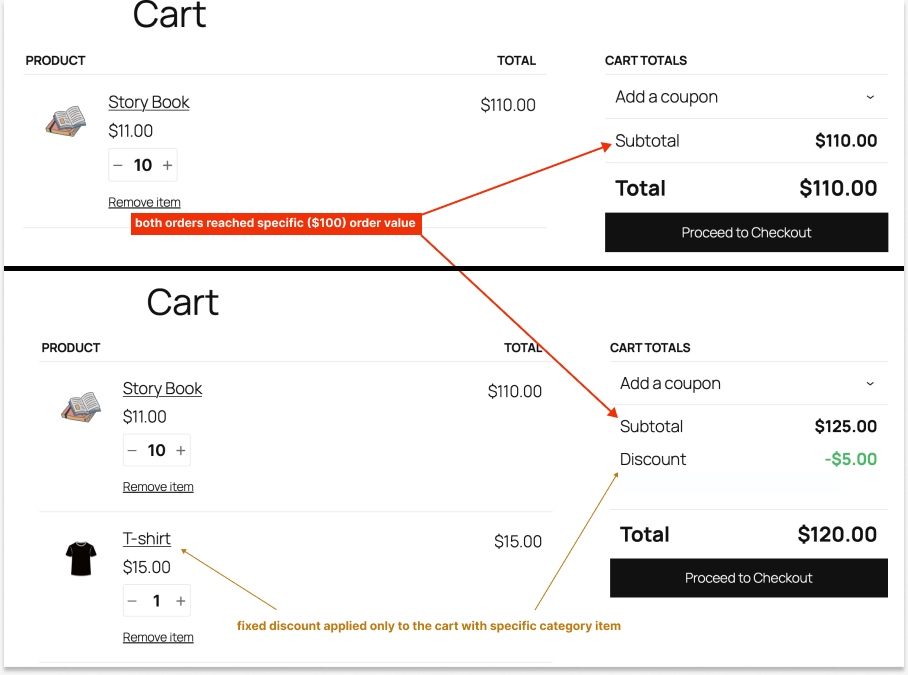
- The WooCommerce fixed product discount will be applied only when customers’ cart has an order amount of a specific value.
- Also, the discount will be enabled only when customers add an item in a specific category.
- If you check it carefully, the discount is applied to the cart total and does not apply to every product as we created a cart-based fixed discount type.
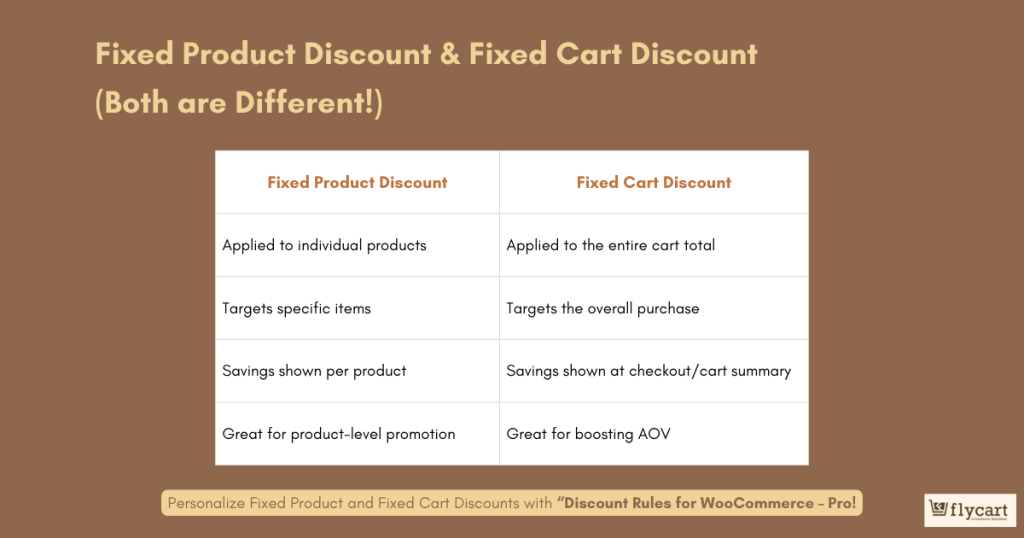
Always remember that the fixed product discount is different from the fixed cart discount.
A fixed product discount reduces a set amount from individual products, while a fixed cart discount deducts a set amount from the entire cart total.
Helpful Resources
- Learn advanced cart-level discount strategies beyond product discounts: How to Set Up a Fixed Cart Discount in WooCommerce?
- Find effective category-based offer ideas to drive targeted sales: How to Set Up a WooCommerce Category Discount?
Can You Offer a Fixed Product Discount in WooCommerce Without a Plugin?
You can offer a fixed product discount in WooCommerce without a plugin, but it has disadvantages.
You can offer a fixed discount only with coupon codes; you cannot automate it.
To offer a fixed product discount in WooCommerce without a plugin:
- In your “WordPress” dashboard, go to “Marketing -> Coupons -> Add Coupon.”
- Create a coupon code.
- Set the discount type to “Fixed Discount” and enter a value.
- Optionally, set usage limits/ restrictions, or choose specific products or categories.
- Click “Publish.”
This will allow you to offer a basic fixed product discount in WooCommerce with a coupon code.
But if you want to offer a fixed discount without coupon codes or customize the discounts with conditions like minimum order amount, specific customer groups, or other rules?
This is why a plugin like “Discount Rules for WooCommerce -Pro” will be helpful.
Instead of restricting your growth opportunities with default WooCommerce settings, use the Discount Rules Pro plugin and apply strategic fixed product discounts as above-mentioned five ways to improve customer satisfaction and conversions.
Key Benefits of Offering a Fixed Product Discount in WooCommerce
Offering a fixed product discount in WooCommerce increases conversions, supports steady revenue growth, and delivers additional strategic benefits:
- Clear and Transparent Savings
WooCommerce fixed product discounts communicate value instantly. When customers see “$10 Off,” they immediately understand how much they save. There’s no need to calculate percentages or compare price differences.
This transparency builds trust and reduces hesitation during the buying process. As a result, shoppers feel more confident completing their purchase.
- Stronger Purchase Motivation
A fixed amount feels tangible. Saving $15 sounds more concrete than “15% off,” especially for mid-priced products. Because of this, fixed discounts often create a stronger psychological impact.
Customers perceive the savings as direct and substantial, which encourages quicker buying decisions.
- Better Control Over Profit Margins
With a fixed product discount, you know exactly how much is being deducted from each product. This makes it easier to plan promotions without significantly affecting margins.
- Effective for Bulk and Quantity Promotions
Fixed discounts work especially well for bulk offers. For example:
-
- Buy 3 items and get $5 off each
- Buy 5 items and save $20.
This approach encourages customers to add more products to their cart, which helps increase average order value (AOV).
- Ideal for Product-Specific Campaigns
If you want to promote specific products, clear slow-moving inventory, or run targeted campaigns, fixed product discounts are highly effective.
You can apply them to:
-
- Specific products
- Selected categories
- Seasonal collections
- New launches.
This level of control allows you to boost sales strategically rather than discounting your entire store.
- Easy to Communicate in Marketing
Fixed discounts are simple to highlight in banners, emails, and ads. Messages like “Flat $10 Off” or “Save $25 Today” are easy to understand and attractive.
Clear messaging improves click-through rates and makes your promotions more compelling.
Difference Between Fixed Product Discount and Fixed Price Per Unit
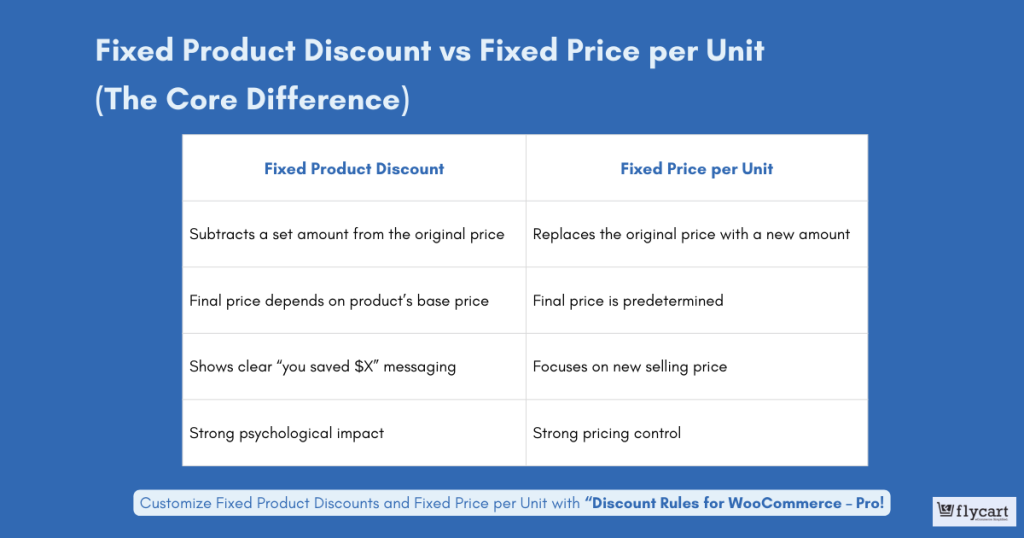
Although both pricing strategies adjust the final amount a customer pays, they work very differently in WooCommerce.
1. Fixed Product Discount
A fixed product discount subtracts a specific amount from the original product price.
How it works:
- Original price: $100
- Fixed discount: $20
- Final price: $80.
The discount amount is reduced from the regular price. The original price still exists, and the system shows customers how much they saved.
Key Characteristics:
- The discount is applied on top of the existing price.
- Customers see the original price and the reduced price.
- The final price depends on the original price.
- Great for promotions like “$10 Off” or “Save $25 Today.”
Best for:
- Flash sales
- Seasonal campaigns
- Clearance promotions
- Creating urgency with visible savings.
This method highlights savings clearly and boosts perceived value.
2. Fixed Price per Unit
A fixed price per unit directly sets a new selling price for the product, regardless of its original price.
How it works:
- Original price: $100
- Fixed price per unit: $70
- Final price: $70.
Here, WooCommerce overrides the product price with the defined fixed amount instead of deducting from it.
Key Characteristics:
- The original price becomes irrelevant during the offer.
- The final price is predefined.
- It does not “calculate” a discount; it replaces the price.
- Ideal for bulk rules like “Buy 5+ items for $50 each.”
Best for:
- Wholesale pricing
- Bulk quantity discounts
- Tiered pricing strategies
- Special member pricing.
This method ensures pricing control, especially when quantity-based rules apply.
When Should You Use WooCommerce Fixed Product Discounts?
Fixed product discounts work best when you want predictable pricing reductions instead of percentage-based promotions.
They are commonly used for:
- clearance sales,
- seasonal campaigns,
- product launches,
- bulk inventory movement,
- and fixed-value promotional offers.
Customize irresistible fixed product discounts with “Discount Rules for WooCommerce – Pro” to increase product sales and average order value.
Final Takeaway
Fixed product discounts in WooCommerce offer a simple yet powerful way to increase product-level conversions and encourage larger purchases. With clear, transparent savings, they help customers make faster buying decisions while giving you better control over your pricing strategy.
When applied strategically, fixed product discounts in WooCommerce can consistently boost sales and support sustainable revenue growth for your store.
Utilize the advanced features in the “Discount Rules for WooCommerce -Pro” plugin and manage your fixed discount offers easily in a few steps.
Read Next:
Offer fixed product discounts only to specific customers or groups like subscribers or wholesale buyers.
Learn how:
- How to set customer-specific Discounts in WooCommerce?
- How To Create A User Group Discount In WooCommerce?
Frequently Asked Questions
Key Aspects of Fixed Product Discounts:
– Flat Amount Reduction – Deducts a fixed value (e.g., $10 off) from the product’s original price.
– Product-Level Application – Applies only to selected products, categories, or variations.
– Transparent Savings – Customers clearly see the exact amount saved.
– Predictable Discount Value – The discount amount stays constant, regardless of product price.
– Flexible Targeting – Can be applied based on products, categories, quantity, or customer segments.
– Supports Bulk Promotions – Works well for “Buy More, Save More” strategies.
– Margin Control – Helps maintain better control over profit compared to percentage discounts.
No, default WooCommerce coupons can only apply fixed or percentage discounts. They cannot directly override a product’s price to a specific amount.
To set a product to an exact fixed price (e.g., “Buy for $50”), you’ll need an advanced discount plugin, “Discount Rules for WooCommerce -Pro.”
Yes, you can apply a fixed product discount to variable products in WooCommerce, such as blue or red shirts, only using a discount plugin like “Discount Rules for WooCommerce -Pro,” as it is not possible with default settings.
This usually happens when the coupon settings are not fully restricted. Even if you limit the coupon to a specific product, it may still apply to other eligible items if product restrictions, usage limits, or subscription-specific settings are not configured correctly.
Plugins like “Discount Rules for WooCommerce – Pro” support fixed product discounts, cart discounts, bulk pricing, and advanced promotional rules.