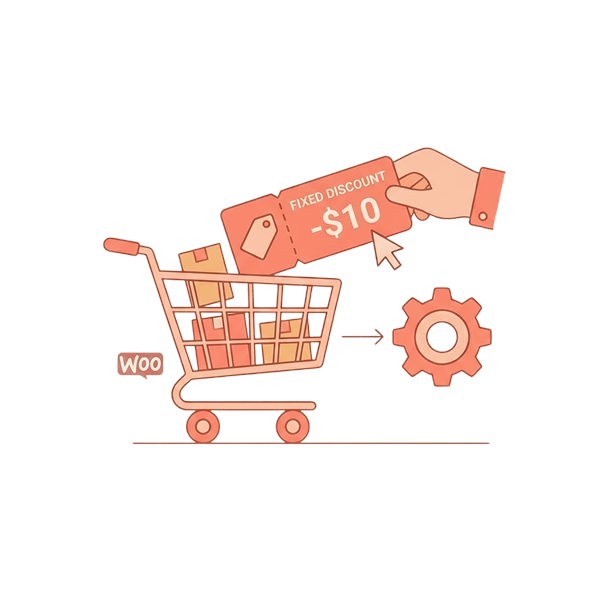

TL;DR: To give a discount based on cart total in WooCommerce without a coupon, use a cart-condition rule with Discount Rules by Flycart. Set the subtotal threshold, pick the discount, and it applies automatically in the cart. Discount Rules for WooCommerce also supports item-count conditions and a “spend $X more to save” progress message.
About 7 out of 10 shoppers fill their cart and leave without buying ( Baymard Institute ), often because the total feels too high once shipping and tax show up.
A cart total discount in WooCommerce fixes this by giving shoppers an automatic reward in the cart. For example, 10% off when they spend more than $100.
This guide shows you how to set up a WooCommerce cart total discount step by step, with no coupon code. You will also learn how to build different types of cart discounts and show the discount message.
Table of contents
- What is a WooCommerce cart discount?
- What are the types of cart discounts in WooCommerce?
- How to set up WooCommerce cart discount: Step-by-step guide
- How to give a discount based on cart total in WooCommerce?
- How do I give a fixed discount per product in the cart?
- How to give a discount when a specific product is in the cart?
- How to apply a cart discount to one product attribute?
- How do I give a cart discount only to first-time customers?
- How to give a discount only when specific products are in the cart?
- How to show discount progress bar in WooCommerce cart?
- Why isn’t my cart discount showing in the cart?
- Conclusion
- Frequently asked questions
What is a WooCommerce cart discount?
A WooCommerce cart discount is a price cut applied to the whole cart, not to one product. It depends on cart conditions like the subtotal, the number of items, or the type of customer. For example, “spend $100, get $15 off” is a cart-level discount and “15% off summer shoes” is a product discount.
Most stores start with the cart subtotal threshold. However, there are also other WooCommerce cart condition discounts based on item quantity attributes, etc. You can also use cart value to set up storewide discounts .
This discount based on cart total is a clear, automatic reward for spending more; hence, shoppers will care about it. Moreover, such a checkout incentive can raise average order value and reduce cart abandonment.
WooCommerce cart discount is for store owners who want automatic, spend-based offers that work without coupon codes. It does not suit every store, so check the lists below.
A good fit if you want to:
- Raise average order value with offers like “spend $100, get $15 off.”
- Apply offers automatically so shoppers don’t have to hunt for codes.
- Mix conditions, like subtotal, item count, free shipping, and dates, in one rule system.
What are the types of cart discounts in WooCommerce?
The main types of cart discounts you can offer in WooCommerce are subtotal, tiered, item count, product-based, attribute-based, first order, and free shipping discounts.
Cart discount type | Benefit | Best for |
Cart subtotal (“spend $100, get $15 off”) | Raises average order value with a clear spend goal | Fashion, home goods, or electronics accessories |
Tiered subtotal (5%, 10%, 15% by spend) | Rewards bigger carts more, so shoppers keep adding items | Mid-priced products |
Item count (10% off 5 items) | Increases items per order | Low-priced or repeat-buy items |
Fixed discount per product by quantity ($2 off each item at 2+ items) | Pushes shoppers to add one more specific item | Accessories or add-ons |
Specific product in cart (20% off with a T-shirt) | Promotes a chosen product or launch | Product launches or category pushes |
Product attribute (50% off blue items) | Clears stock by color, size, or material | Apparel and home decor |
First order (new customers only) | Lowers hesitation on the first purchase | Customer acquisition |
Product combination (both products in cart) | Boosts cross-sell and bundle sales | Complementary items |
Stop watching shoppers abandon full carts; this one automatic discount rule brings them back to checkout
How to set up WooCommerce cart discount: Step-by-step guide
You can trigger a discount by the subtotal, products in the cart, a product attribute, or the type of customer. Each example below uses the same Cart Adjustment rule, so only the Filter, Discount, and Rules sections change.
How to give a discount based on cart total in WooCommerce?
Use a Cart Adjustment rule in Discount Rules with a Subtotal condition to set a WooCommerce discount based on cart total. It takes about five minutes, needs no coupon code, and is available in the free version.
Here is how to apply an automatic discount when the cart reaches an amount in WooCommerce (spend $199, get $15 off)
- Install and activate Discount Rules for WooCommerce (by Flycart) from Plugins > Add New Plugin.
- Go to WooCommerce > Discount Rules and click Add New Rule. Give the rule a clear name, like “$15 Off.”
- Set the discount type to Cart Adjustment so the discount applies to the whole cart.
- Then, in the Filter section, leave All Products selected or pick certain products or categories if the offer is limited.
- Following that, in the Discount section, choose Fixed Discount and set it to $15.
- In the Rules section, add the Subtotal condition, set it to Greater than or equal to, and enter 199. This is your WooCommerce minimum cart amount discount trigger.
- Finally, save and enable the rule. Then add $200 worth of items to a cart to check that the discount shows up in the cart summary.
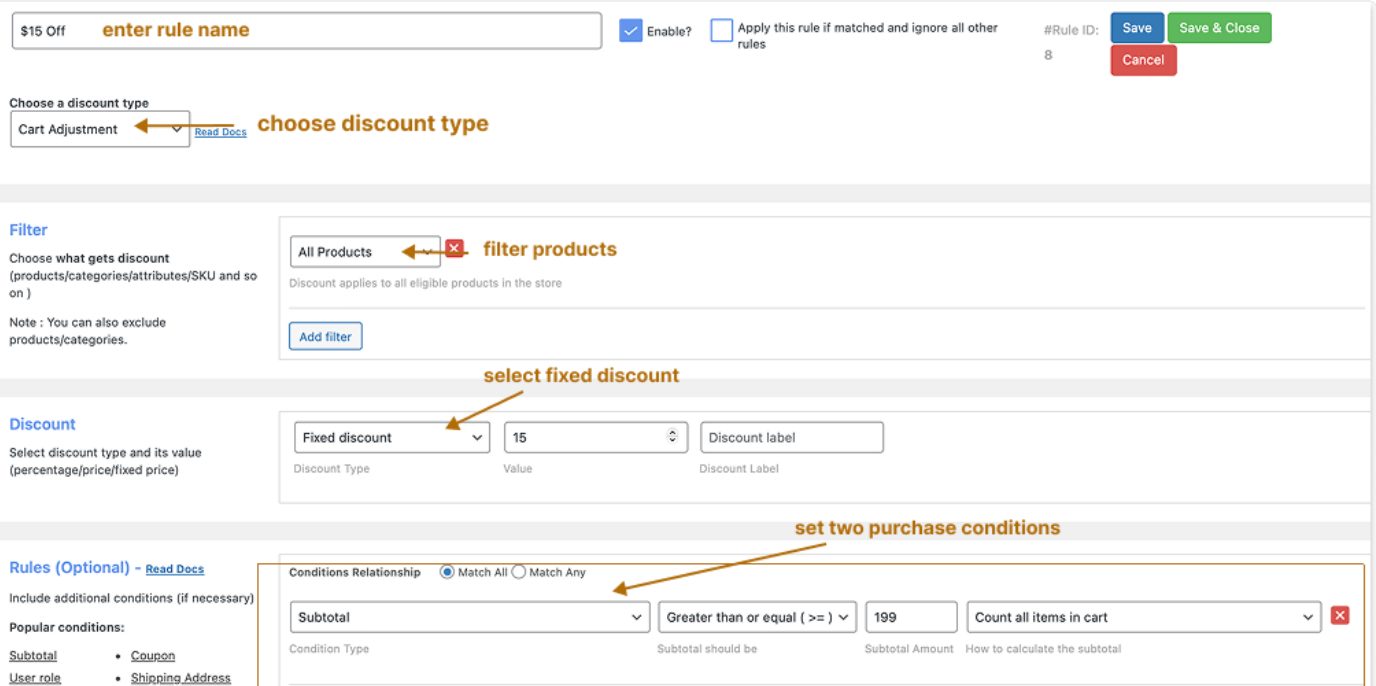
Once the cart reaches 200, it shows a discount line such as “Discount:-$15.00.” There is no code to enter, which makes this a true WooCommerce automatic cart discount.
If you want to compare other discount types first, see our guide to creating WooCommerce conditional discounts .
How do I give a fixed discount per product in the cart?
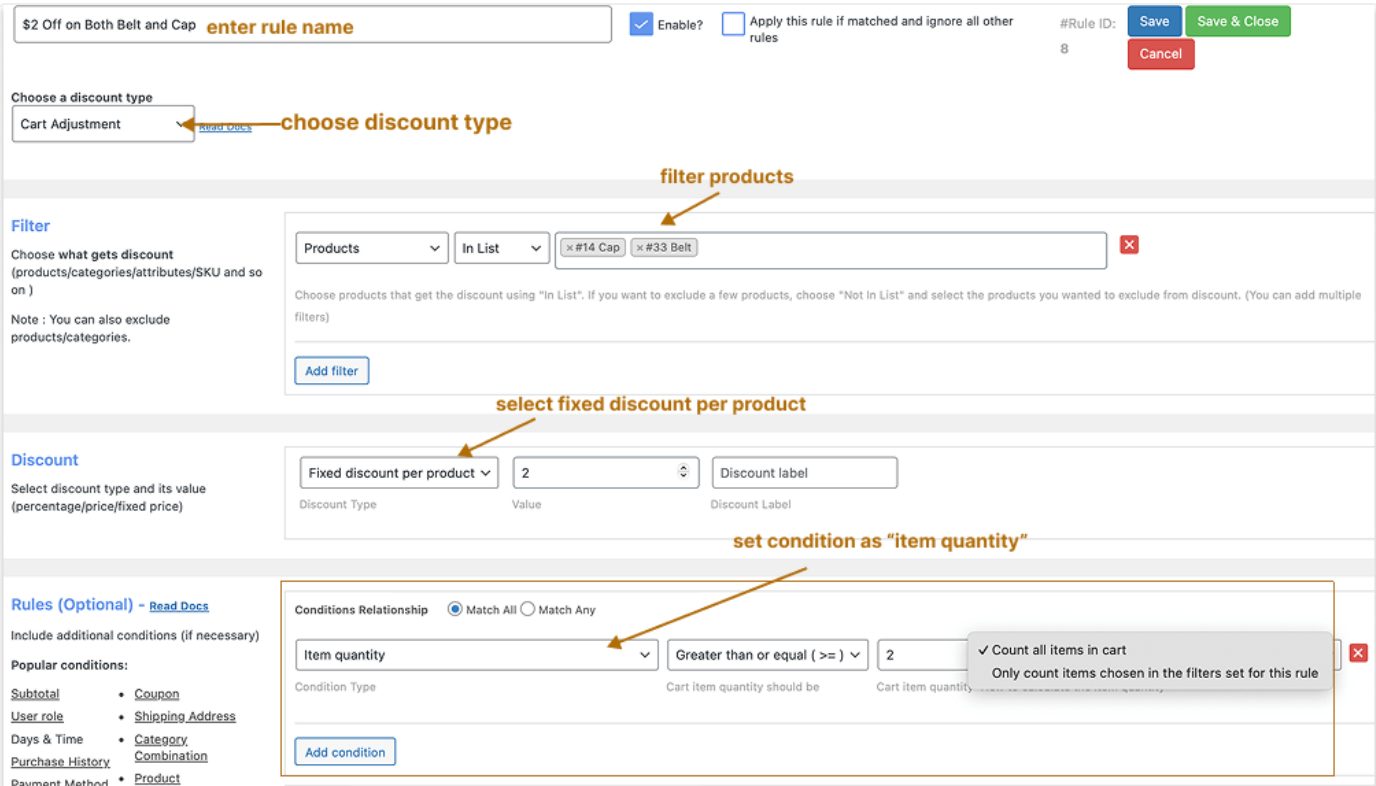
Use the Fixed Discount Per Product type with an Item Quantity condition to set a WooCommerce cart quantity discount. This takes a set amount off each selected product once the cart is big enough, which gives shoppers a reason to add one more item.
For example, you can offer $2 off every Belt and Cap when the cart has at least 2 items.
- Go to WooCommerce > Discount Rules > Add New Rule, name the rule, and choose Cart Adjustment.
- In the Filter section, select the specific products, such as Belt and Cap.
- Then, in the Discount section, choose Fixed Discount Per Product and enter 2.
- Following that, in the Rules section, add Item Quantity, count all items in the cart, and set it to Greater than or equal to 2.
- If the offer is time-limited, then set the Valid From and To dates in Rules Limits. Finally, save and enable the rule.
Best for: raising items per order. Promote the discount per product in the cart with “Buy more, save more” banners. For WooCommerce cart-level discount, see our guide to increase sales with cart coupons .
How to give a discount when a specific product is in the cart?
Use the Products condition. The discount applies when any one (or all) of the products you choose is in the cart at the quantity you set. You can also use this along with the WooCommerce spend X get Y off discount .
For example, you can give 20% off when the cart has a T-shirt or a collar T-shirt.
- Add a new rule and choose Cart Adjustment.
- In the Filter section, leave All Products selected.
- Then, in the Discount section, choose Percentage Discount and enter 20.
- Under the Rules section, add Products, select the T-shirt and the collar T-shirt, and set the quantity to Greater than or equal to 1.
- Save and enable the rule.
Best for: product launches and category promotions. To discount a whole category instead, read our guide to set up a WooCommerce category discount: 5 proven ways
How to apply a cart discount to one product attribute?
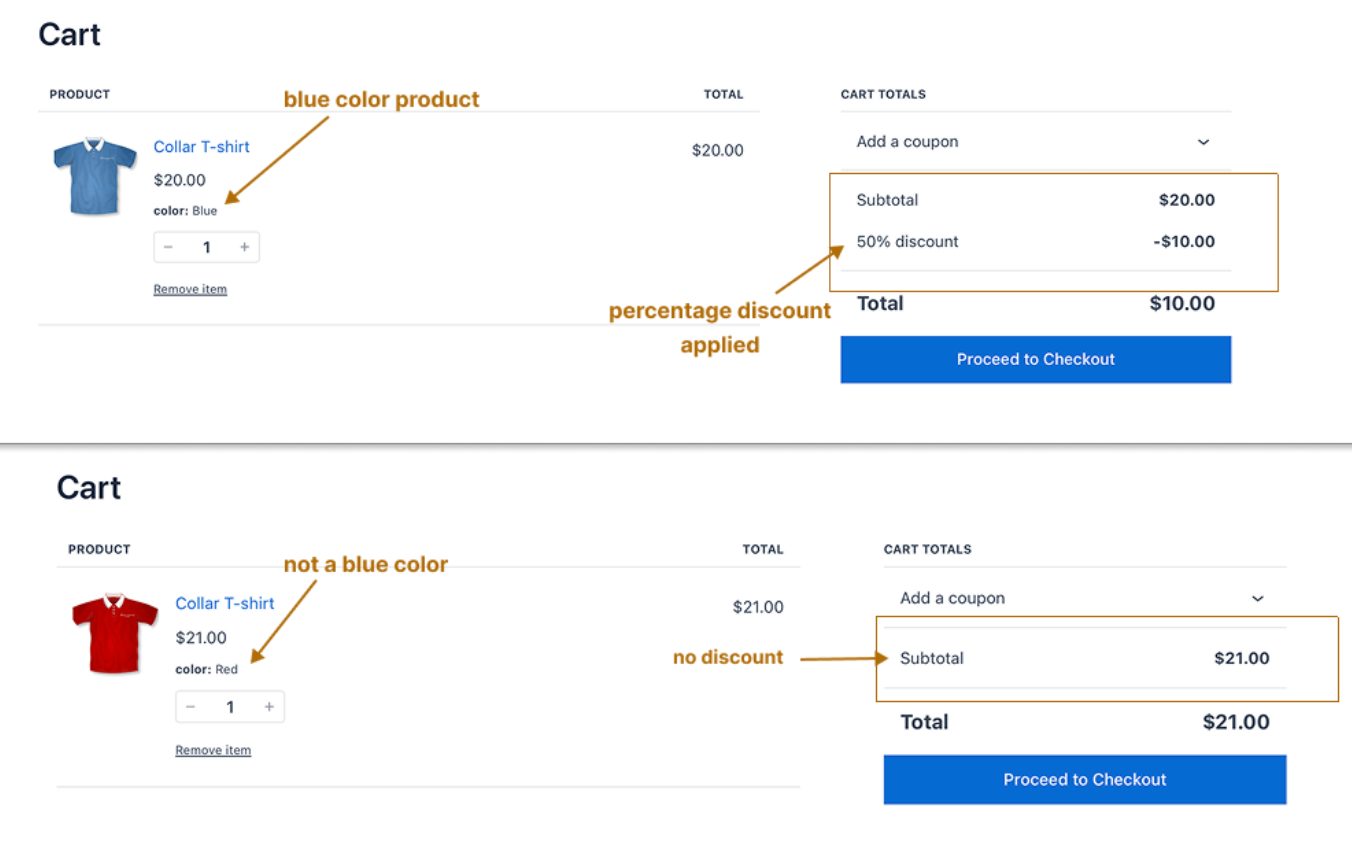
Set the Filter to Attributes and pick the value in cart total to offer a WooCommerce cart-based discount on attributes. The discount then applies only to the items in the cart that match the rule, not to every product.
For example, you can give 50% off blue items only.
- Add a new rule and choose Cart Adjustment.
- In the Filter section, select Attributes and choose “Blue.”
- In the Discount section, choose Percentage Discount and enter 50.
- Save and enable the rule.
Best for: color, size, or material sales. Try a themed name like “Blue Friday: Half Price on All Blue Items.”
How do I give a cart discount only to first-time customers?
Add the First Order condition and set it to Yes. Only customers placing their first order get the discount, and returning customers do not. This conditional pricing is a Pro feature.
For example, you can give new shoppers $25 off.
- Add a new rule and choose Cart Adjustment.
- In the Filter section, pick the products the offer covers, or leave All Products selected.
- Then, in the Discount section, choose Fixed Discount and enter 25.
- In the Rules section, add First Order and select Yes.
- Save and enable the rule.
Best for: winning new buyers. Pair it with a welcome email, such as “Here’s $25 off your first order.” For more ideas, see our guide to WooCommerce user group discount
How to give a discount only when specific products are in the cart?
Use the Product Combination condition to give discounts only when specific products are in the cart. For example, you can discount a camera and a memory card when they are bought together.
- Add a new rule and choose Cart Adjustment.
- Then, in the Filter section, choose all products or specific products.
- In the Discount section, pick a discount type and enter the value.
- Under the Rules section, set the condition to Product Combination and select the two products.
- Save and enable the rule.
Best for: combo deals, seasonal bundles, and cross-selling. Tell shoppers whether they need one product or both, so they know what to add.
How to show discount progress bar in WooCommerce cart?
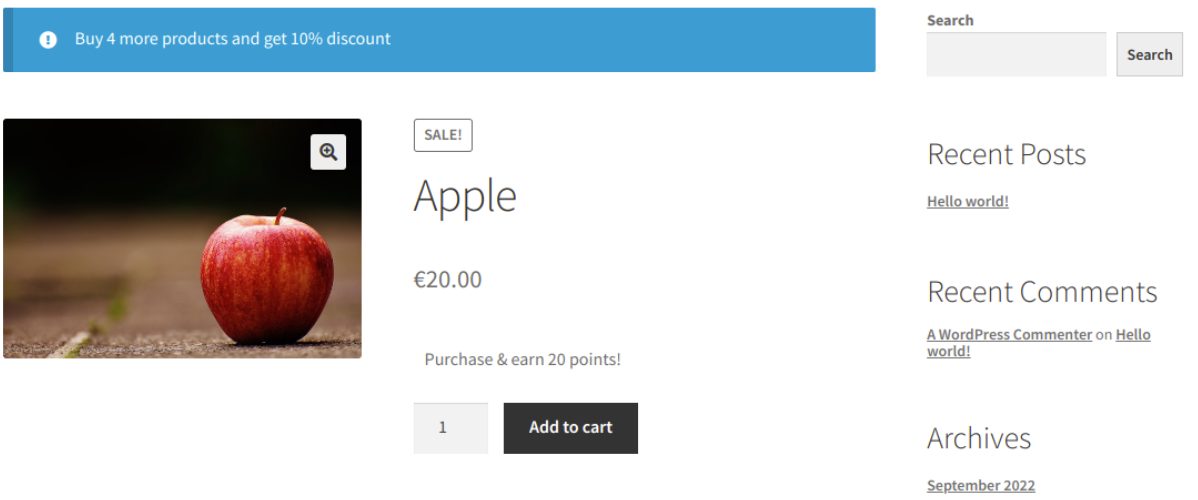
Turn on Cart Quantity Promotion in the Discount Rules settings, then add a message to your Item Quantity condition. The message tells shoppers to spend more, save more. For example, “Buy 4 more products and get a 10% discount.” It is tied to item count, so it needs an Item Quantity condition.
For example, this setup gives 10% off each product when the cart reaches 5 items.
- Go to WooCommerce > Discount Rules > Settings > Promotions > Condition-based promotion and enable Cart Quantity Promotion.
- Choose where the message shows: the shop page, product page, cart page, or checkout page. Save the settings.
- Then, create the rule: choose Product Adjustment, keep All Products in the Filter section, and set a Percentage Discount of 10.
- Following that, in the conditions section, add Item Quantity, set it to Greater than or equal to, and enter 5.
- In the promotion field that now appears under the Item Quantity condition, enter your message: “Buy {{difference_quantity}} more products and get a 10% discount.” The {{difference_quantity}} shortcode fills in how many items are left.
- Set the threshold value to 1 so the message starts showing from the first item in the cart, then save and enable the rule.
Why isn’t my cart discount showing in the cart?
The most likely cause is a rule that’s been saved but not turned on, or a condition the cart simply doesn’t satisfy. Go through those checks in order.
- Ensure the rule is enabled rather than just saved, and that the start and end dates in the schedule cover today.
- Check your Subtotal condition. If the rule is based on pre-tax or post-tax amounts, then a cart just over the threshold could fall short once tax is applied.
- If you’re limiting the rule to certain products or product categories, then the cart must contain them.
- Set usable usage limits. A total limit or a per-customer limit may already be used up, which will stop the rule.
- Review priority and stacking. If more than one WooCommerce cart rule matches, then the stacking mode (e.g., “Apply the Highest Discount Only”) will determine which one is actually applied.
- Under Third Party Coupon Compatibility, select whether a WooCommerce coupon will turn off the discount rules or apply after them.
- Clear the cache on the cart and the checkout pages and then test again in a private browser window.
Boost average order value with automatic cart discounts that need no coupon codes
Conclusion
A cart discount gives customers a good reason to reach checkout. You don’t even need coupon codes to do it. Start with a simple rule like cart subtotal, then go on to add in further tiers, item count offers, or free shipping once you’ve worked out what your customers actually like.
Show the savings on the cart page, set your dates and limits, and try out various spend goals. A small tweak to the goal can actually increase your average order value without impacting your profit at all. Pick one of the rules from this guide, build it today, and see the results.
Also Read
Frequently asked questions
Yes. A cart-condition rule in a plugin like Discount Rules for WooCommerce applies the discount automatically at your subtotal threshold. Coupons need a code.
Make a Cart Adjustment rule with a Fixed Discount of 10 and a Subtotal of at least 100. Enable it, and it applies automatically.
To combine a cart discount with free shipping, use a Cart Adjustment rule for the discount and a free shipping threshold in Discount Rules by Flycart.
Make one Cart Adjustment rule per spend level, like $100 for 5% and $200 for 10% for WooCommerce tiered cart discount. Then set stacking to highest discount only.
In the Cart Adjustment rule, add a 10% Percentage Discount and then set the Item Quantity condition to at least 3 in Discount Rules to offer a discount for 3 or more items.