PDF files are one of the most common content formats used by businesses, educators, and marketers.
Whether you’re sharing manuals, eBooks, reports, or product catalogs, PDFs often contain valuable information that users want to access quickly. However, without a dedicated search system, finding content inside PDFs on your WordPress site can be frustrating for visitors.
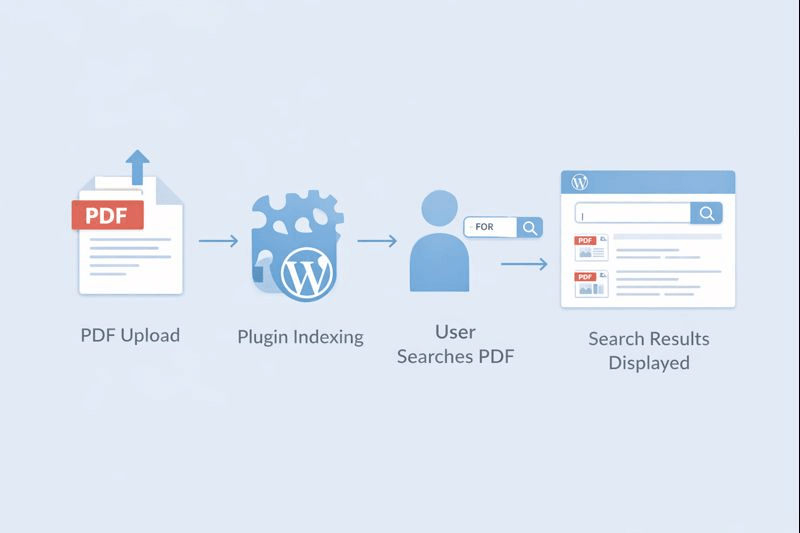
A WordPress PDF search engine solves this problem by allowing users to search for specific text within PDF files directly on your website.
Not only does this improve user experience, but it also enhances your site’s SEO performance by making PDF content indexable for search engines.
By the end of this blog, you’ll learn how to implement a fully functional WordPress search PDF system and optimize your PDFs for both users and search engines.
Get Discount Rules for WooCommerce – Pro today and offer personalized discounts, bundles, and promotions while improving your PDF search experience.
Table of contents
- What is WordPress PDF Search Engine?
- Benefits of Enabling WordPress Search PDF Features
- Key Features to Look for in a WordPress Plugin Search PDF Content Tool
- How to Add a PDF Search Engine to WordPress Step by Step?
- How to Create a PDF Library in WordPress?
- Top Plugins to Build a PDF Library in WordPress
- How to Make Your PDF Library SEO-Friendly?
- Integrating WooCommerce with Your PDF Search Engine
- Conclusion
- Frequently Asked Questions
What is WordPress PDF Search Engine?
A WordPress PDF search engine is a tool or plugin that allows WordPress websites to index PDF files and make their content searchable. Unlike normal search, which only scans post titles and descriptions, this search engine reads the text inside PDFs.
Key points to understand:
- It scans the PDF text content and metadata.
- Supports multiple PDFs across posts, pages, or the media library.
- Provides accurate search results within seconds.
The primary goal is to improve content accessibility.
For businesses that provide downloadable PDFs like guides, product manuals, or eBooks, enabling a WordPress search PDF feature can make information instantly available to users.
Benefits of Enabling WordPress Search PDF Features
Adding a WordPress PDF search engine delivers real value to both users and website owners, especially when your site hosts multiple PDF documents such as guides, manuals, reports, or downloadable resources.
Instead of forcing visitors to open several files to find one piece of information, a PDF search engine allows them to locate exactly what they need in seconds.
As a result, the overall browsing experience becomes smoother and far less frustrating.
- Enhanced user experience is the most immediate benefit.
When visitors can search inside PDFs directly from your website, they avoid unnecessary scrolling, downloading, or guessing which document contains the right information. This is particularly useful for knowledge bases, documentation sites, and WooCommerce stores offering product manuals or specification sheets.
- From an SEO perspective, a PDF search engine supports better search visibility.
When PDF content is indexed properly, search engines can understand and rank that content for relevant queries. This means your valuable information doesn’t remain hidden inside files.
Instead, it actively contributes to your organic traffic and strengthens your site’s topical authority for targeted keywords.
- Another major advantage is that a searchable PDF system adds a professional and trustworthy appearance to your website.
It signals that your content is well-organized and user-focused.
For businesses, especially WooCommerce store owners, this professionalism often leads to higher trust, stronger credibility, and ultimately, better conversion rates.
- Finally, increased user engagement.
When content is easy to find, users naturally spend more time exploring your site. They interact with more documents, visit related pages, and are less likely to leave immediately.
Over time, this improves important metrics such as time on site and bounce rate.
For website owners, this translates into higher conversions and more satisfied visitors, especially if your site hosts technical documents, tutorials, or downloadable resources.
Key Features to Look for in a WordPress Plugin Search PDF Content Tool
When choosing a plugin for WordPress search PDF content, consider the following features:
- Full-text PDF indexing:
Full-text PDF indexing ensures every word inside your PDF files is searchable, not just the file name or title. This allows users to find specific terms, phrases, or topics directly within documents, making large PDF collections easier to navigate and far more useful.
- Support for multiple PDF types:
A good PDF search solution supports digital PDFs, scanned PDFs, and mixed-content files.
With OCR support for scanned documents, text inside images becomes searchable. This flexibility ensures your entire PDF library remains accessible, regardless of how the files were created.
- Fast search speed:
Fast search speed ensures users receive accurate results almost instantly, even when your site hosts many PDF files.
Quick responses reduce frustration, improve usability, and encourage visitors to continue exploring content instead of leaving due to slow or incomplete search results.
- Customizable search layout:
A customizable search layout allows you to style the PDF search bar and results to match your website design.
You can adjust colors, fonts, and placement, ensuring the search experience feels native to your site and maintains visual consistency across pages.
- SEO-friendly:
An SEO-friendly PDF search engine allows Google to crawl and index your PDF content. This helps valuable information inside PDFs appear in search results, increasing organic visibility and driving relevant traffic to your website beyond standard blog posts and pages.
- Integration with WordPress search:
Integration with WordPress search ensures PDFs appear alongside posts, pages, and products in search results. This creates a consistent user experience, so visitors don’t need to use separate search tools to find different types of content across your website.
Plugins that include these features can turn your website into a comprehensive content hub, helping both users and search engines discover your PDFs efficiently.
How to Add a PDF Search Engine to WordPress Step by Step?
Here’s a detailed, actionable guide to add a WordPress PDF search engine to your website:
1. Choose the Right Plugin for PDF Search
The foundation of a WordPress PDF search engine is the plugin you choose. Not all search plugins support PDF indexing, so selecting the right one is critical.
A good plugin should read the full text inside PDFs, integrate with WordPress search, and deliver fast, accurate results.
Some popular and reliable plugins for WordPress search PDF files include:
- PDF Embedder Premium – Ideal if you want to embed PDFs on pages and allow users to search within them.
- SearchWP – A powerful search solution that indexes PDF content along with posts, pages, and custom post types.
- Relevanssi – Enhances default WordPress search and supports full-text PDF indexing with relevance-based results.
When choosing a plugin, consider your website size, the number of PDFs you host, and how advanced your search needs are.
Large sites with many documents benefit from advanced indexing and performance controls, while smaller sites may need simpler solutions.
2. Install and Activate the Plugin
Once you’ve selected the plugin, the next step is installation. This process follows the standard WordPress plugin workflow and only takes a few minutes.
From your WordPress dashboard:
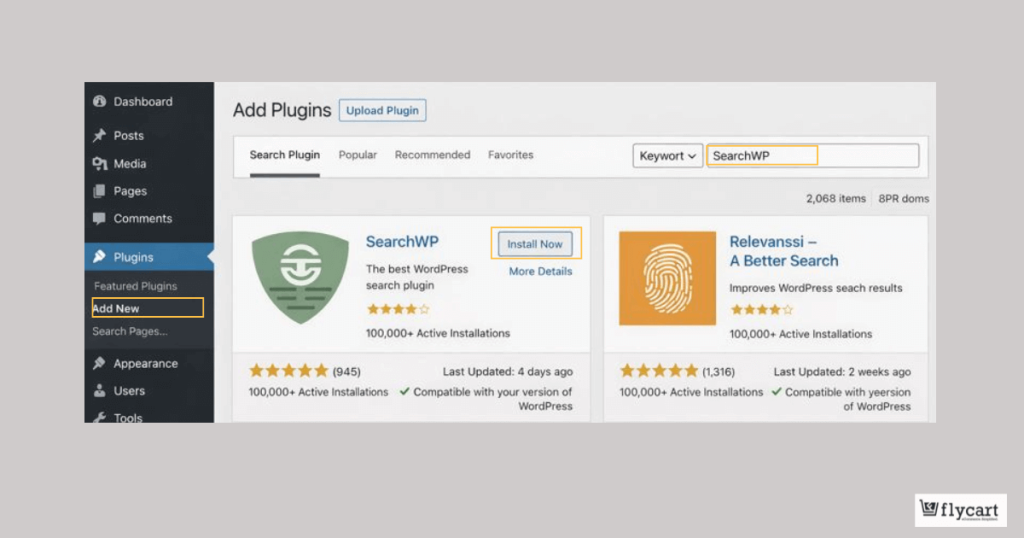
- Navigate to “Plugins → Add New.”
- Search for your chosen plugin by name.
- Click “Install Now,” then “Activate.”
After activation, the plugin becomes part of your WordPress system and gains access to your content, including PDFs stored in the media library.
Most plugins begin preparing for indexing immediately after activation.
Activation is important because PDF indexing cannot start until the plugin is fully enabled and connected to your site’s search system.
3. Configure PDF Indexing Settings
After activation, you must configure the plugin so it knows how to handle PDF files. This is where you enable full-text indexing and control how PDFs are scanned.
In the plugin settings:
- Navigate to the plugin’s “Search or Indexing Settings.”
- Enable “PDF indexing or WordPress search PDF content.”
- Choose whether to index:
- All PDFs in the Media Library, or
- Only PDFs from selected folders or categories.
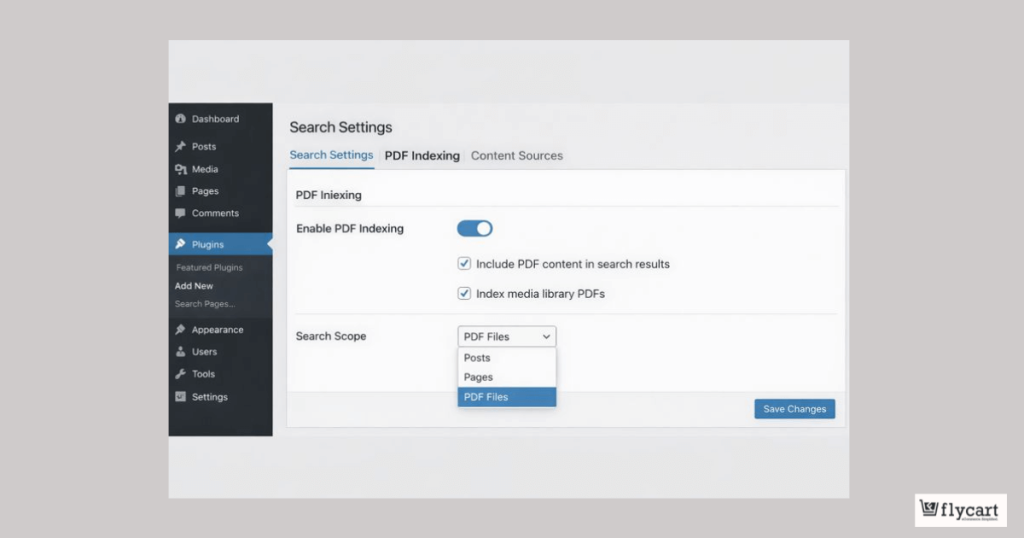
Some plugins also allow you to set indexing priorities, file size limits, or reindex schedules. These options help maintain performance while ensuring all important PDF text content remains searchable.
This step ensures every word inside your PDFs is read and stored in the search index.
4. Enable WordPress Search PDF Content Functionality
By default, WordPress search focuses on posts and pages. To make PDFs appear in search results, you must explicitly include them in the search scope.
Inside your plugin’s search settings:
- Open “Search Settings or Engines.”
- Add “PDF content” to the search scope.
- Enable display options such as:
- PDF title
- File name
- Content snippet from inside the PDF.
Once enabled, PDFs will appear alongside posts, pages, or products when users search your site. This creates a seamless experience where users don’t need a separate PDF search tool.
Now, your WordPress PDF search engine works as part of your site’s main search feature.
5. Test Your WordPress PDF Search Engine
Testing is a crucial final step before making the feature live. It ensures everything works as expected and delivers accurate results.
To test:
- Upload a sample PDF containing a unique keyword.
- Use your website’s search bar to search for that keyword.
- Confirm that:
- The correct PDF appears in the results.
- A relevant snippet is shown.
- The link opens the correct file.
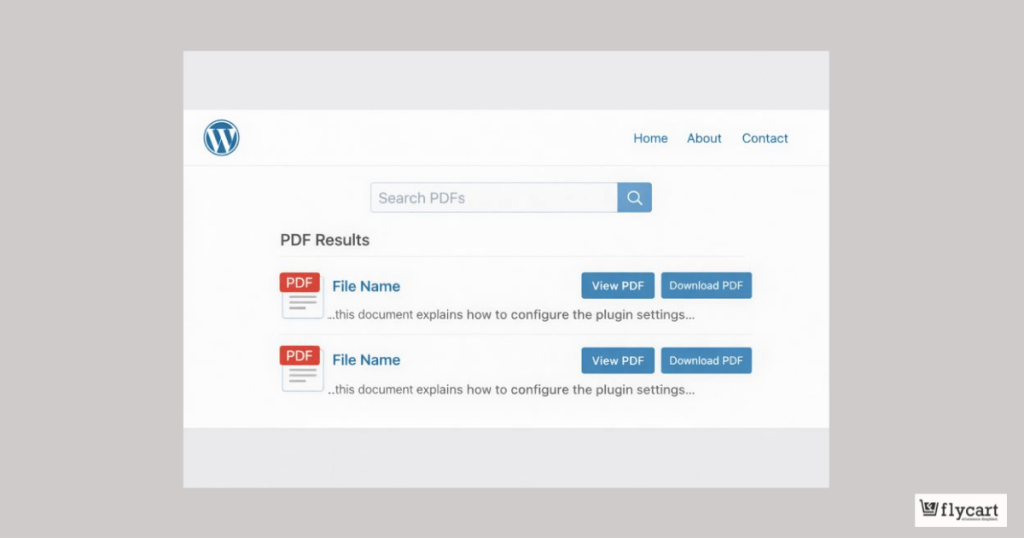
If results don’t appear immediately, some plugins require manual reindexing. Once indexing completes, search accuracy improves significantly.
Testing confirms that users can easily find PDF content and that your WordPress search PDF system is functioning efficiently.
How to Create a PDF Library in WordPress?
Creating a PDF library in WordPress allows you to organize and display all your PDFs in one place, making it easier for users to search and access content. This is especially useful if you have multiple reports, eBooks, or product manuals.
A. Plan Your PDF Library Structure
- Decide on categories or topics for PDFs (e.g., Tutorials, Product Manuals, eBooks).
- Name files consistently using descriptive, SEO-friendly titles.
B. Install a Plugin for PDF Library Management
- Plugins like PDF Embedder Premium, WordPress Download Manager, or SearchWP allow you to create searchable PDF libraries.
- Install and activate the plugin from the WordPress dashboard.
C. Upload and Organize PDFs
- Go to the “Plugin dashboard → Add New PDF.”
- Assign categories, tags, or labels for easier navigation.
- Add metadata like author, publication date, and descriptions for better SEO.
D. Display the PDF Library on Your Website
- Create a dedicated page for the PDF library.
- Use shortcodes or Gutenberg blocks provided by the plugin to display the PDF list.
- Enable search functionality so visitors can find PDFs by keywords, title, or content.
E. Enable Search Within PDFs
- Configure the plugin to allow WordPress search PDF content functionality.
- Users can now search for terms inside PDFs directly from the PDF library page.
F. Test Your PDF Library
- Search for a few terms within your PDFs to ensure indexing and results work properly.
- Make sure the download and view functions are smooth for both desktop and mobile users.
Top Plugins to Build a PDF Library in WordPress
If your goal is to implement a WordPress PDF search engine, choosing the right plugin is critical.
Here are the best options:
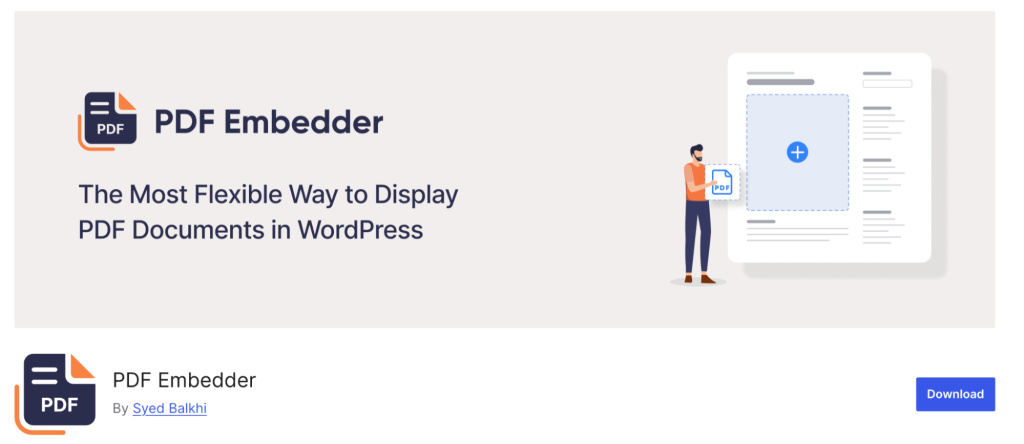
This PDF Embedder allows you to embed PDFs directly on pages or posts. It supports mobile-friendly viewing and easy navigation. It also includes search functionality for PDF content when combined with add-ons. You can use this plugin to create a user-friendly WordPress search PDF experience.
2. SearchWP

SearchWP turns WordPress search into a powerful tool that indexes PDFs, posts, pages, and custom post types. Users can find PDF content quickly via your WordPress PDF search engine. It offers keyword weighting, relevance scoring, and search filters.
3. Relevanssi

This plugin enhances the default WordPress search with full-text PDF indexing. It displays snippets from PDF content in search results.
It works well for sites with large WordPress search PDF file collections.

This plugin is ideal for creating a structured PDF library with categories, tags, and user access control. It lets you organize PDFs for easy retrieval, making WordPress search PDF content more efficient.
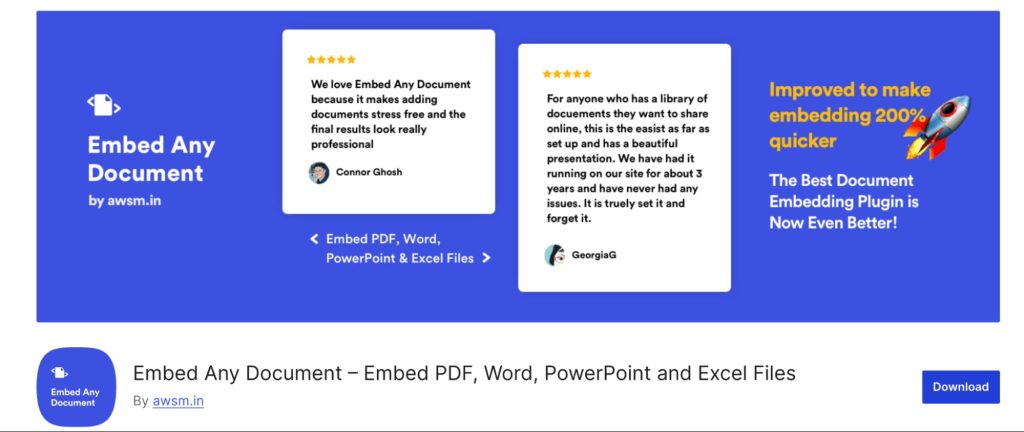
It supports PDF, Word, and Excel files. It also provides easy embedding and secure download options. This plugin can be combined with a WordPress PDF search engine plugin for searchable content.
Pro Tip: Choose a plugin based on your needs: if your goal is SEO and searchability, SearchWP or Relevanssi are better. If you prioritize embedding and viewing PDFs, PDF Embedder Premium is ideal.
Best Practices to Optimize WordPress Search for PDF Files
To maximize the value of your WordPress search for PDF files, follow these tips:
- Use Text-Based PDFs – Scanned images won’t be searchable unless OCR (Optical Character Recognition) is applied.
- Optimize PDF File Size – Smaller PDFs load faster, improving search speed.
- Include Metadata – Titles, author names, and descriptions help both users and SEO.
- Organize PDFs Logically – Categorize by topic, year, or type for easier indexing.
- Regularly Update PDFs – Ensure outdated content doesn’t clutter search results.
By following these best practices, you ensure your WordPress PDF search engine is fast, accurate, and user-friendly.
How to Make Your PDF Library SEO-Friendly?
Once you have a PDF library in WordPress, optimizing it for search engines ensures both users and Google can find your content.
Here’s how to make your library fully SEO-friendly:
- Use Text-Based PDFs
- Only text-based PDFs are fully indexable by Google.
- Scanned PDFs require OCR (Optical Character Recognition) to be searchable.
- Include Metadata
- Add titles, descriptions, authors, and tags for each PDF.
- Helps search engines understand your content and improves relevance for WordPress SEO PDF.
- Optimize Filenames
- Use keyword-rich, descriptive filenames (e.g., “wordpress-pdf-search-engine-guide.pdf”).
- Improves SEO and makes files easier to identify in your library.
- Internal Linking
- Link PDFs to related posts, pages, or products.
- This improves crawlability and helps users find related content, enhancing the overall WordPress search PDF content experience.
- Add PDFs to Sitemap
- Ensure all PDFs are included in your XML sitemap.
- Makes it easier for search engines to index your PDFs, boosting organic traffic.
- Enable Search Within PDFs
- Use your plugin’s PDF search feature to make text inside PDFs searchable.
- Supports both user experience and SEO by allowing keyword searches in PDFs.
- Use Alt Text for Images Inside PDFs
- If your PDFs include charts, images, or tables, adding alt text improves accessibility and SEO.
By following these steps, your PDF library becomes a fully optimized resource that enhances user experience, improves WordPress SEO PDF, and ensures your PDFs rank better in search results.
Integrating WooCommerce with Your PDF Search Engine
If you run a WooCommerce store, a WordPress PDF search engine can be highly beneficial:
- Product manuals, guides, or downloadable resources can be searched by users directly.
- Customers can quickly find product specifications or warranty information.
- PDF indexing increases user trust and engagement.
Pro Tip: Use Discount Rules for WooCommerce – Pro to complement your WooCommerce PDF search strategy. While users search for product PDFs or manuals, you can offer targeted discounts or bundles directly, boosting conversions.
This integration ensures your store is not only user-friendly but also conversion-optimized.
Want smarter WooCommerce promotions with a seamless PDF search experience?
Try Discount Rules for WooCommerce – Pro – the easiest way to create advanced discount rules and boost conversions!
Conclusion
Adding a WordPress PDF search engine is a game-changer for websites with PDF content. It improves user experience, boosts SEO, and keeps your audience engaged.
By following this step-by-step guide, you can index PDFs, optimize them for search, and even integrate with your WooCommerce store for increased conversions.
For WooCommerce store owners, leveraging tools like Discount Rules for WooCommerce – Pro allows you to combine advanced discounts with a seamless PDF search experience, helping users find what they need while boosting sales.
Start implementing a WordPress search PDF solution today and watch your website’s usability and SEO performance improve significantly.
Also Read:
5+ Best Form Builders for WordPress
Steps to Choose the Best WordPress Plugin for Your Site
Frequently Asked Questions
Not efficiently. The default WordPress search doesn’t index PDF content. A plugin is needed to create a WordPress PDF search engine.
Properly configured plugins index PDFs efficiently. Large PDF libraries may need caching or selective indexing.
Only if OCR (Optical Character Recognition) is applied. Text-based PDFs are naturally searchable.
Yes, most modern plugins display PDF content snippets in search results.
Absolutely. WordPress SEO PDF content is indexable by Google, improving organic traffic.