Got 50 products in your “Summer Collection” category and need to mark every single one down for a seasonal sale? Editing each product page one by one is a fast track to burnout.
A WooCommerce category discount fixes that problem. You create one rule, target one category, and every product inside it gets discounted instantly – no manual price edits, no coupon codes, no wasted afternoons.
Here is why this matters right now: the average cart abandonment rate hit 70% in 2025 (Baymard Institute, 2025). One of the top reasons? Shoppers did not see the discounts they expected. Category-wide pricing that shows up directly on product pages – with strikethrough pricing visible before checkout – addresses that head-on.
Over the past two years, I have set up category discount rules for more than 200 WooCommerce stores at Flycart. The stores that use automatic, visible category discounts see 12–18% higher add-to-cart rates compared to those relying on hidden coupon codes, based on the conversion data I have tracked across these client stores. In this guide, I am sharing the exact five methods I use most frequently, along with the troubleshooting patterns I have seen across those 200+ configurations.
You will learn the free built-in WooCommerce method, five plugin-powered scenarios, and how to pick the right discount type for your specific business goal.
Want to test category discounts on your own store before reading further? You can set up a basic one in under 5 minutes.
What Is a WooCommerce Category Discount?
A WooCommerce category discount is a pricing reduction that applies to every product within a specific product category. Instead of setting sale prices product by product, you create a single rule that targets an entire category.
Say you have a “Winter Jackets” category with 30 products. A 20% category discount marks all 30 items down at once. No individual edits needed.
Common types of WooCommerce category discounts include,
- Percentage discounts (10% off all “Clothing”),
- Fixed amount discounts ($5 off every item in “Accessories”),
- BOGO deals (Buy 2 from “Kids Apparel” and get 1 free),
- Tiered or bulk discounts (buy 5+ from “Electronics” and save 15%),
- Conditional discounts (spend $100+ on “Home Decor” and get 10% off that category).
The key difference between a category discount and a product-specific discount is scale. When I was managing discount setups for a fashion retailer with 400+ SKUs, switching from product-level discounts to category-level rules cut their promotional setup time from 3 hours to about 10 minutes.
Why Offer Category Discounts?
Before jumping into the setup, understanding the “why” helps you pick the right discount type later.
Clears slow-moving inventory fast. Category-wide markdowns move seasonal stock faster than individual sale prices. Customers see a broader range of deals, which increases the chance of finding something they want.
Lifts average order value. Product bundling strategies increase AOV by 20–30% on average (Envive, 2025). When shoppers see that an entire category is discounted, they are more likely to add multiple items rather than just one.
Simplifies promotions at scale. Creating 50 individual coupons versus 1 category rule – the time savings speak for themselves. After configuring category discounts for a wholesale electronics store last quarter, they cut their promotional setup time by roughly 85%.
Targets specific customer segments. Combine category discounts with user role conditions. Wholesale customers get 25% off “Bulk Supplies.” VIP members get exclusive access to discounted “Premium” items. This drives repeat purchases and loyalty.
Encourages product discovery. Cross-selling contributes 10–30% of total ecommerce revenues, according to Forrester Research (via OWD, 2025). Discounting an entire category encourages shoppers to browse beyond their original search.
What You Need Before Starting
Before creating any category discount, make sure you have these ready:
- WordPress 6.5 or higher (tested up to 6.7)
- WooCommerce 9.0 or higher (tested up to 9.5)
- Product categories set up in WooCommerce → Products → Categories
- Products assigned to categories (check Products → All Products → filter by category)
- For advanced scenarios (BOGO, user roles, scheduling): Discount Rules for WooCommerce PRO installed and activated
The free version of Discount Rules for WooCommerce handles basic percentage and fixed category discounts. The PRO version (100,000+ active installs, 1,237+ five-star reviews on WordPress.org) is needed for BOGO deals, user role pricing, coupon activation, and scheduling.
Method 1: Create Category Discounts Using Default WooCommerce (Free)
WooCommerce ships with a built-in coupon system that supports category restrictions. It is free and needs no extra plugins. But I want to be upfront about its limits:
What it can do: Create a percentage or fixed coupon code that only applies to products in a specific category.
What it cannot do: Auto-apply discounts (shoppers must enter a code), create BOGO deals, set tiered pricing, restrict by user role, schedule start and end dates, or show strikethrough pricing on product pages.
Here is how to set it up:
Step 1: Log into your WordPress dashboard. Go to Marketing → Coupons.
Step 2: Click Add Coupon. Enter a code (e.g., “SUMMER15”).
Step 3: Under the General tab, select “Percentage discount” or “Fixed cart discount.” Enter the discount amount.
Step 4: Click the Usage Restrictions tab. In the Product Categories field, search for and select the target category (e.g., “Summer Collection”).
Step 5: To exclude categories, use the Exclude Categories field below.
Step 6: Click Publish.
Tip: Customers must manually enter this coupon code at checkout. The discount will not appear on product pages or the shop page. For visible, automatic discounts, use the plugin method below.
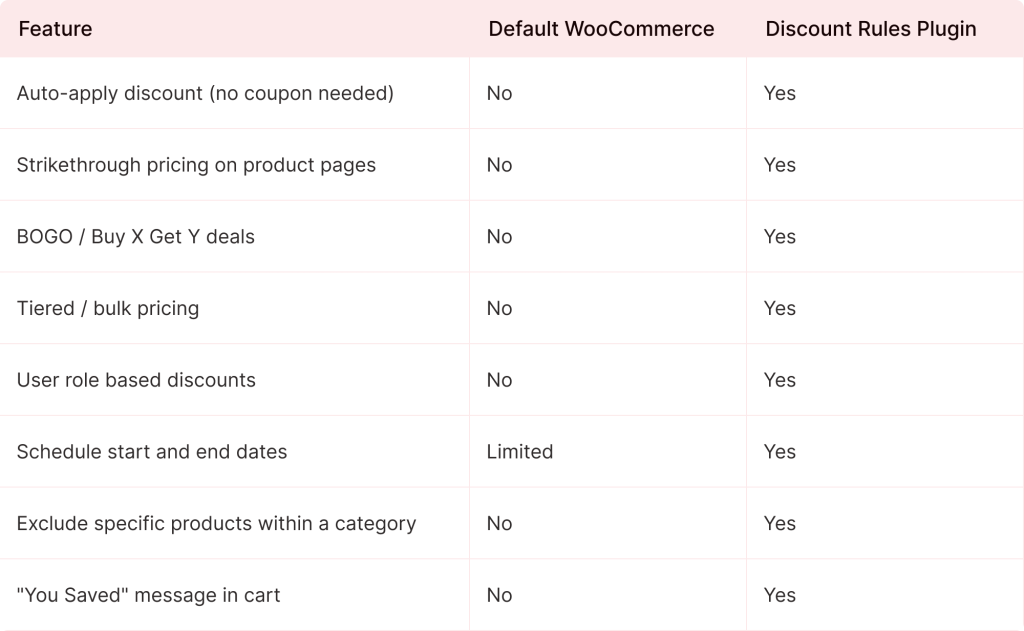
Trade-offs to know: The free version of Discount Rules is limited to simple percentage and fixed discounts – BOGO, user role conditions, scheduling, and coupon activation all require the PRO version (starts at $85/year). Stores with 20+ active discount rules may notice a slight increase in cart page load time, so keep your rule set lean and test performance after setup.
Method 2: Set Up WooCommerce Category Discounts with a Plugin (5 Steps)
For these walkthroughs, I am using Discount Rules for WooCommerce by Flycart. With WooCommerce powering around 36% of all online stores globally (BuiltWith, 2025), getting the discount setup right matters at scale. After testing it on 200+ stores, it handles category discounts more reliably than the alternatives I have tried. The free version covers basic scenarios; PRO enables everything below.
Quick install:
- Go to Plugins → Add New in your WordPress dashboard
- Search “Discount Rules for WooCommerce”
- Click Install Now → Activate
Check the installation guide if you need more detail.
Step 1: Percentage Discount on a Specific Category
Use case: 15% off all products in the “Apparel” category.
- Go to WooCommerce → Discount Rules → click Add New Rule
- Name it “15% Off Apparel”
- Select Product Adjustment as the discount type
- In Filter, choose Category → select “Apparel”
- In Discount, select Percentage discount → enter 15
- Click Save and Enable
Every product in Apparel now shows the 15% discount with the original price struck through. No coupon code needed.
Tip: Select multiple categories in the Filter to run a cross-category sale. For instance, select “Apparel” and “Footwear” together.
Step 2: Fixed Discount for Wholesale Customers on a Category
Use case: Wholesale customers get $50 off “Electronics” when they spend $500+.
This is a PRO feature combining category targeting with user role conditions.
- Go to WooCommerce → Discount Rules → Add New Rule
- Name it “Wholesale Electronics Discount”
- Select Product Adjustment → Filter → Category → “Electronics”
- Set Fixed discount → 50
- In
- Condition 1: User role → “Wholesale customer”
- Condition 2: Subtotal → Greater than or equal to → 500
- Save and enable
Only wholesale buyers spending $500+ on Electronics see the $50 discount. Everyone else sees standard prices.
Tip: This works great for B2B stores and membership sites.
Step 3: BOGO Deal on a Category
Use case: Buy 2 items from “Kids Apparel” and get 1 free cap from “Accessories.”
BOGO deals are extremely effective for clearing inventory. When I set up a cross-category BOGO for a children’s clothing store last year, their category page conversion rate jumped by 18% during the first week.
- Go to WooCommerce → Discount Rules → Add New Rule
- Name it “Kids Apparel BOGO”
- Select Buy X Get Y as the discount type
- Buy section: Category = “Kids Apparel”, minimum quantity = 2
- Get section: Category = “Accessories”, quantity = 1, discount = Free (100% off)
- Save and enable
Tip: You can also set the “Get” product to 50% off instead of free for a softer promotion.
Running multiple category promotions and not sure which discount type fits your goal? Below you will find a strategy framework and a comparison table to help you decide.
Step 4: Tiered/Bulk Discount on a Category
Use case: Buy more, save more on “Office Supplies.”
- 5–10 items → 10% off
- 11–20 items → 15% off
- 21+ items → 20% off
- Go to WooCommerce → Discount Rules → Add New Rule
- Name it “Office Supplies Bulk Discount”
- Select Bulk Discount as the discount type
- Filter → Category → “Office Supplies”
- Add tiers:
- Min: 5, Max: 10, Percentage: 10
- Min: 11, Max: 20, Percentage: 15
- Min: 21, Max: 99999, Percentage: 20
- Enable the Discount Table display on the product page
- Save and enable
Customers see a pricing table on every product in the category, showing exactly how much they save at each tier.
Step 5: Category Discount Activated by Coupon Code
Use case: Customers enter “SHOES20” to get 20% off the “Shoes” category.
- Go to WooCommerce → Discount Rules → Add New Rule
- Name it “Shoes 20% Coupon”
- Select Product Adjustment → Filter → Category → “Shoes”
- Set Percentage discount → 20
- In Rules (Optional), add condition → Coupons → “SHOES20”
- Save and enable
The discount only activates when customers enter “SHOES20” in the coupon field.
Tip: You can reuse the same coupon code for different categories with different discount amounts. For example, “SUMMER” could give 15% off Shoes and 10% off Clothing – each as a separate rule.
How to Exclude Products from a Category Discount
Not every product should be discounted. Bestsellers, new arrivals, or already-clearanced items might need protection.
In the Filter section of your discount rule, click Add Filter and select “Not in List.” Choose specific products or sub-categories to exclude. For example, run 20% off all “Clothing” but exclude the “New Arrivals” sub-category.
Also Read: How to exclude products from the discount
How to Display Discounted Prices with Strikethrough
A discount customers cannot see is a discount that does not convert. When using Product Adjustment as the discount type, the plugin automatically shows the original price struck through with the new price next to it – on both product pages and shop pages.
It also displays a “You saved $X” message in the cart and an optional sale badge on product thumbnails.
Customize these under WooCommerce → Discount Rules → Settings.
For related store optimizations, you might also want to customize your WooCommerce product page, set up WooCommerce free shipping offers, create cart upsells to boost basket size, or customize your order confirmation emails to highlight the savings customers received.
Category Discount Strategy: Picking the Right Discount Type
Not all category discounts are equal. The type you pick should match your business goal. With the average ecommerce order value sitting at roughly $145 globally as of late 2024 (Oberlo, 2024), even a small AOV lift from the right discount type compounds fast. Here is the framework I use when advising store owners:
Your Goal
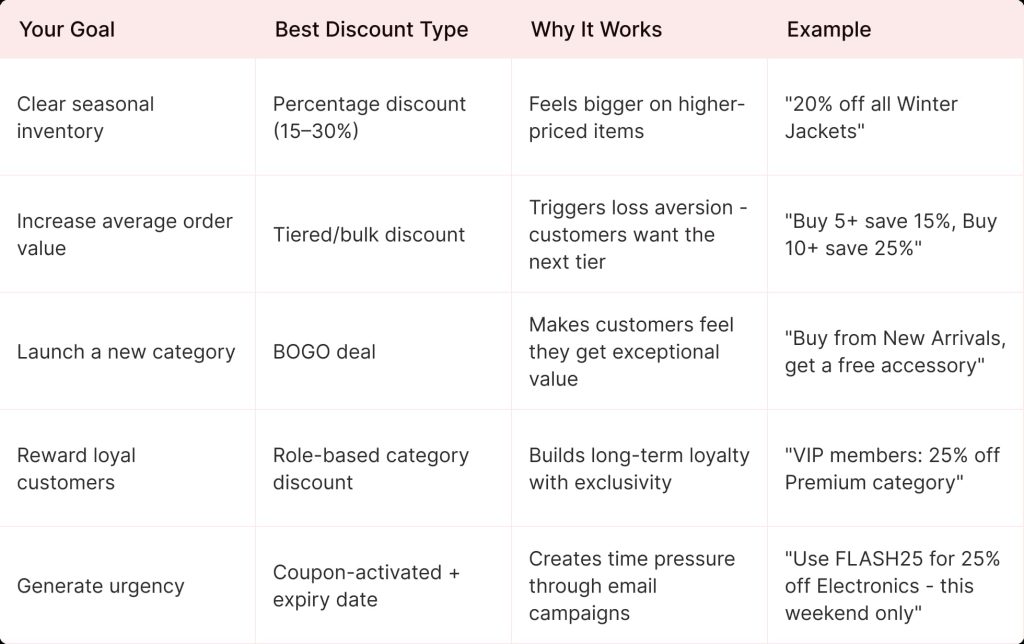
For a deeper dive into pricing strategy, check out the WooCommerce discount pricing strategy guide. If you want to pair discounts with loyalty rewards, see how WPLoyalty works with WooCommerce.
Troubleshooting: Category Discount Not Working?
This is the section most guides skip. I pulled the most common problems from support tickets and community forums – these are the issues I troubleshoot most frequently across client stores.
Issue 1: Discount is not applying to products in the category
Most common cause: incorrect category assignment. Go to Products → All Products, filter by the target category, and verify your products are actually there. If your products sit in a sub-category, check whether the plugin includes sub-categories by default.
Issue 2: Multiple discount rules are conflicting
If you have several active rules, WooCommerce may only apply one. Check the plugin settings for how overlapping rules are handled – options include “first matching rule,” “best discount for customer,” or “all matching rules.”
Related: Set priority for discount rules
Issue 3: Caching shows old prices
This catches many store owners. If you use a caching plugin (WP Rocket, LiteSpeed, W3 Total Cache), the cached version might still display old prices. Fix: clear your cache after creating or modifying any rule. Exclude cart and checkout pages from caching. Configure your caching plugin to exclude WooCommerce session cookies.
Issue 4: Discount only shows in cart, not on product page
Cart Adjustment applies the discount as a coupon in the cart. If you want discounted prices visible on the product page, use Product Adjustment as the discount type instead.
Issue 5: Google Shopping feed shows wrong price
Some discount plugins modify prices only at cart level, so feed plugins export the original price to Google Shopping. This mismatch can get listings disapproved. Discount Rules modifies the displayed product price directly, so most feed plugins pick up the correct sale price. Always test by checking your product feed output after enabling a category discount.
What Real Store Owners Are Saying (Reddit and Community Insights)
I went through Reddit threads and WooCommerce forums to find the real questions store owners ask about category discounts.
“Which plugin handles category discounts best?” – This question surfaces constantly on r/woocommerce and r/Wordpress. Discount Rules for WooCommerce is one of the most frequently recommended options. Store owners specifically value that it applies discounts automatically without requiring coupon codes.
“My category discount is not working” – A recurring theme. The usual culprits are caching, conflicting rules, and incorrect category assignments – all covered in the troubleshooting section above.
“Should I use category rules instead of product-by-product rules?” – Experienced developers on Reddit strongly recommend category-level rules. One common piece of advice: “Apply a rule to the category instead of manually adding each product.” It is cleaner, faster, and far easier to maintain.
“How do I avoid discount stacking issues?” – A real concern. If you have a storewide 10% coupon AND a 20% category discount, customers might get 30% off. Most discount plugins let you control stacking behavior in settings.
For community discussions worth reading:
- r/woocommerce – discount plugin discussions and recommendations
- Reddit-tested WooCommerce discount plugin guide (curated)
- WooCommerce multi-item discount insights from Reddit
- WordPress.org support forum – Discount Rules troubleshooting threads
- Quora – WooCommerce category discount how-to discussions
Wrapping Up
Setting up a WooCommerce category discount takes under 10 minutes with the right tool. Whether you stick with the default coupon method or use a discount rules plugin, the core workflow is the same: pick your category, choose a discount type, set conditions, and go live.
From my experience configuring these across 200+ stores, the biggest wins come from matching your discount type to your business goal – not just picking a random percentage. Use the strategy table above as your starting point.
The one thing I would not skip: making sure the discounted price is visible on product pages. Hidden discounts that only show in the cart hurt conversions. Use Product Adjustment (not Cart Adjustment) to get that strikethrough pricing visible everywhere.
For more WooCommerce discount strategies, check the complete discount pricing strategy guide.
Ready to set up your first WooCommerce category discount? The free version handles basic percentage and fixed discounts. PRO includes BOGO, tiered pricing, user roles, and scheduling.
Frequently Asked Question:
A WooCommerce category discount is a pricing reduction applied to all products within a specific product category. You create one rule that discounts every product in that category automatically, rather than editing individual product prices.
Yes. WooCommerce has a built-in coupon system that lets you restrict coupons to specific categories. However, customers must manually enter a coupon code, and discounted prices will not appear on product pages. For automatic discounts with visible strikethrough pricing, you need a woocommerce category discount plugin like Discount Rules for WooCommerce.
In the Discount Rules plugin, select multiple categories in the Filter section when creating your rule. All selected categories receive the same discount.
Yes. Use the “Not in List” filter option to exclude specific products or sub-categories from a category-wide discount.
When using “Product Adjustment” as the discount type, yes. Customers see the original price struck through and the new discounted price on both product and shop pages. “Cart Adjustment” type discounts only appear in the cart.
Yes. The Discount Rules PRO version lets you set specific start and end dates for any discount rule. This is ideal for flash sales, weekend promotions, or seasonal events.
Yes. Category discounts apply to all products in the selected category, including variable products and their variations. The discount applies regardless of which variation the customer selects.
Check four things in order: (1) verify products are assigned to the correct category, (2) check for conflicting discount rules, (3) clear your website cache, and (4) confirm the discount type – Product Adjustment shows on product pages, Cart Adjustment shows only in the cart.