
If you’re running a WooCommerce store, product attributes are one of the most powerful features for organizing your catalog, creating product variations, improving filtering, and helping customers find exactly what they need.
Whether you sell clothing, electronics, furniture, or digital products, understanding how WooCommerce product attributes work can improve the shopping experience while making product management much easier.
In this guide, you’ll learn everything about WooCommerce attributes: from creating global and custom attributes to displaying them on your store, creating variable products, and following best practices.
Want to offer discounts on specific sizes, colors, brands, or materials? With “Discount Rules for WooCommerce – Pro,” you can create advanced promotions based on WooCommerce product attributes in just a few clicks.
Table of contents
- What are WooCommerce Product Attributes?
- Categories vs Attributes vs Tags
- Types of WooCommerce Product Attributes
- Why Use Product Attributes for WooCommerce Stores?
- How to Create Global Attributes in WooCommerce? (Step-by-Step)
- How to Create Custom Attributes in WooCommerce?
- How to Add Attributes to Products in WooCommerce?
- How to Change Product Attribute Price in WooCommerce?
- How to Manage Stock for Product Variants in WooCommerce?
- WooCommerce Attributes vs Variations
- How to Display Product Attributes in WooCommerce Product Pages?
- Filter and List Products by Attribute in WooCommerce
- How to Edit WooCommerce Product Attributes?
- How to Delete WooCommerce Attributes?
- How to Import WooCommerce Product Attributes?
- Best Plugins for WooCommerce Attribute Management
- Best Practices for WooCommerce Product Attributes
- Conclusion
- Frequently Asked Questions
What are WooCommerce Product Attributes?
WooCommerce product attributes are descriptive characteristics that define a product. They provide additional information beyond the product title and description.
For example:
| Product | Attributes |
| T-Shirt | Size, Color, Material |
| Laptop | RAM, Processor, Storage |
| Shoes | Size, Color, Brand |
| Coffee Mug | Capacity, Material |
Attributes help customers compare products and make informed purchasing decisions. They can also be used for:
- Creating variable products
- Product filtering
- Product comparison
- Better store organization
- Improved product information.
Categories vs Attributes vs Tags
Many WooCommerce beginners confuse these three terms. Here’s a simple comparison:
| Categories | Attributes | Tags |
| It answers “What is this product?” | It answers “What characteristics does it have?” | It answers “What else is it related to?” |
| Organize products into groups | Describe product characteristics | Add searchable keywords |
| For instance, Men’s Clothing | For instance, Color, Size, Material, and Sleeve Length | For instance, Summer, Bestseller, or Cotton |
| Hierarchical | Not hierarchical | Flat taxonomy |
| Used for navigation | Used for filtering and variations | Used for search |
| Required for the organization | Optional | Optional |
Types of WooCommerce Product Attributes
WooCommerce supports two types of attributes:
(i) Global Attributes:
- Global attributes are reusable across your entire WooCommerce store.
- Once a global attribute is created, you can assign it to multiple products.
- Examples include: Color, Size, Brand, Material, Capacity.
(ii) Custom Attributes:
- Custom attributes exist only for a single product.
- These custom attributes aren’t available for other products unless you recreate them.
- For example, a handmade product may have: Artist, Collection, and Handmade Since.
Choosing between global and custom attributes depends on your product catalog.
Global Attributes vs Custom Attributes
| Global Attributes | Custom Attributes |
| Reusable | Product-specific |
| Best for large stores | Best for unique products |
| Supports filtering | Limited filtering |
| Easy maintenance | Manual management |
| Better consistency | Flexible |
Use Global Attributes When:
- Selling apparel
- Electronics
- Furniture
- Grocery
- Large catalogs.
Use Custom Attributes When:
- Selling one-of-a-kind products
- Handmade items
- Custom artwork
- Personalized products.
Why Use Product Attributes for WooCommerce Stores?
Here’s why WooCommerce product attributes are essential for a high-converting store:
- Better Product Organization: Product attributes allow you to group similar products and present options in a clean, organized way. Instead of listing separate products for each size or color, you provide them all under one product using variations.
- Improved Shopping Experience: Customers can instantly see product details like material type, Dimensions, Fabric Weight, and size fit. This reduces confusion and increases purchase confidence.
- Faster Filtering and Search: WooCommerce attributes enable filter widgets like: Filter by “Size/ Color/ Material/ Brand.” This makes large stores easy to navigate.
- Higher SEO Visibility: Attributes help Google understand your products better through attribute-based URLs:
- examplestore.com/color/red
- examplestore.com/size/large.
These pages often rank for high-intent search terms like “red cotton t-shirt”.
- Foundation for Product Variations: Attributes are required to create variable products, like:
- Size S / M / L
- Color Black / White
- Storage 128 GB / 256 GB.
Without attributes, you cannot set different images, inventory, or pricing for each variant.
How to Create Global Attributes in WooCommerce? (Step-by-Step)
Global attributes ensure consistent structure across your store. Here’s how to add them in WooCommerce:
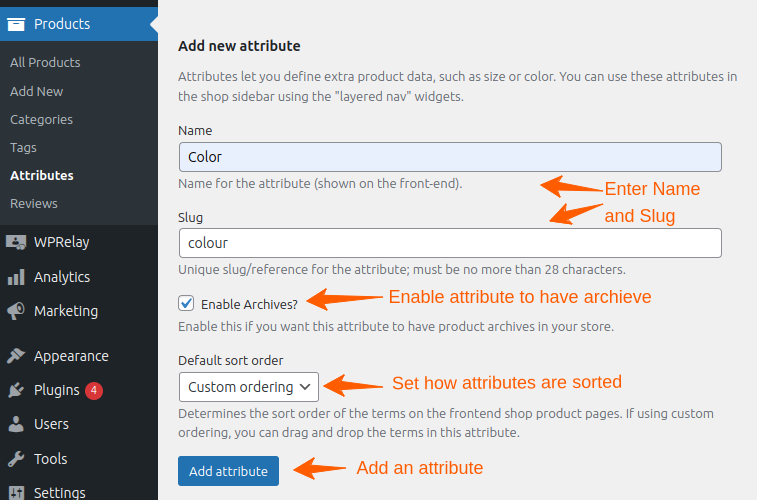
- Go to your “WordPress dashboard → Products → Attributes.”
- Fill in the details:
- Name: Example — Color
- Slug: color
- Enable Archives: Check this if you want pages like yoursite.com/color/blue.
- Default Sort Order: Choose alphabetical, custom order, or numeric.
- Click “Add Attribute.”
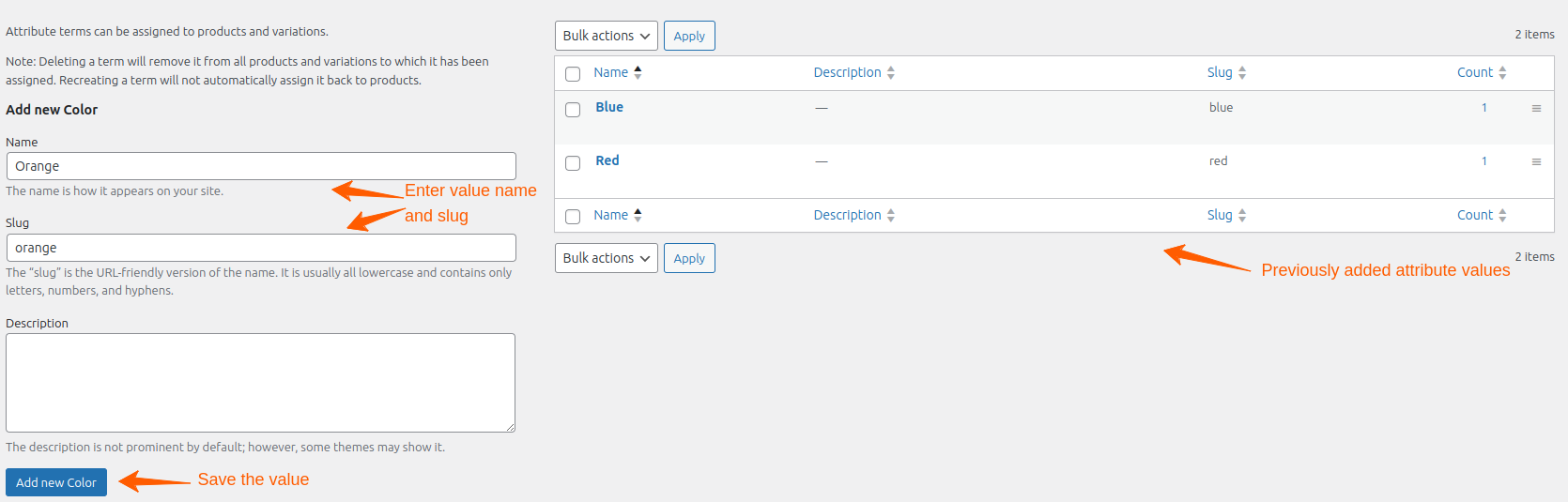
- Once the attribute is created, click “Configure Terms.”
- Add attribute values like: Color: “Red, Blue, or Green.”
Each term gets its own SEO-friendly URL and filtering functionality. Your attribute is now available throughout your WooCommerce store.
How to Create Custom Attributes in WooCommerce?
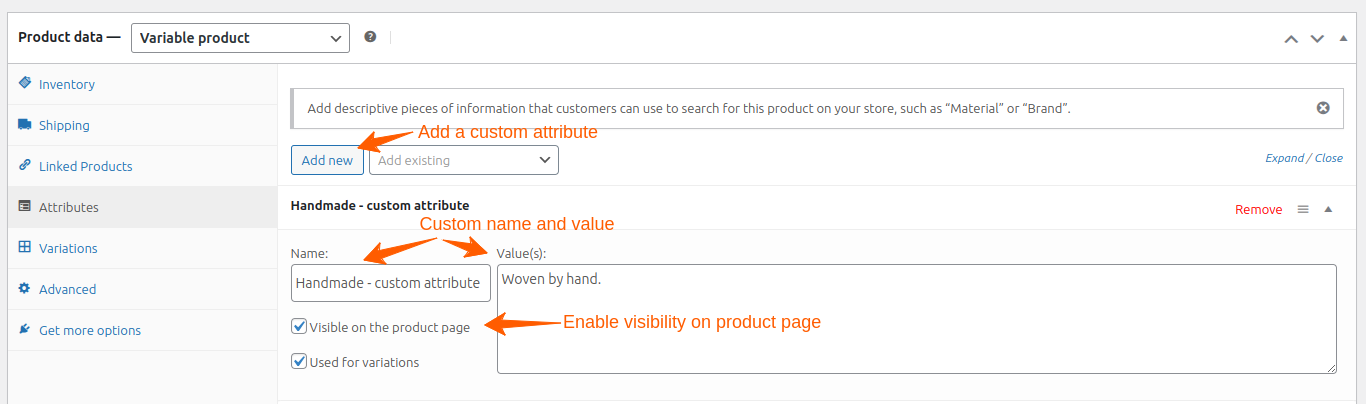
Custom attributes are created inside individual product pages.
- Go to “Products → All Products → Edit a product.”
- Scroll to “Product Data → Attributes → Add.”
- Define Your Attribute:
- Enter “Name.” (e.g., Material)
- Add values separated by a pipe symbol (Cotton | Polyester)
- Check “Visible on product page.”
- Click “Save.”
Custom attributes are ideal for one-off product details.
How to Add Attributes to Products in WooCommerce?
Once your attributes are ready, assign them to products.
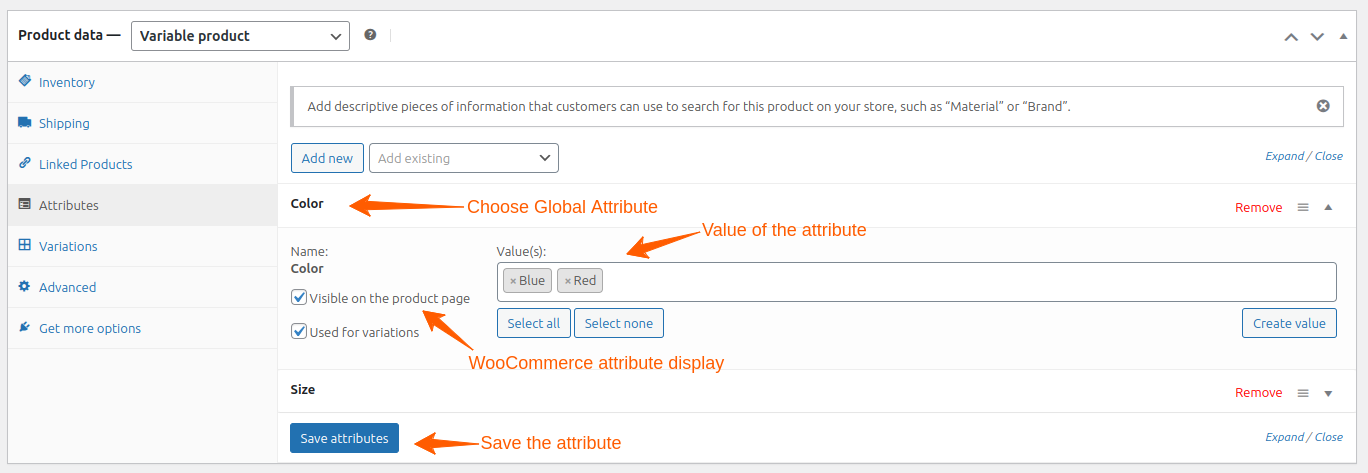
- Go to “Products → Edit Product.”
- Go to “Product Data → Attributes.”
- Select “Global Attributes”: Choose from the dropdown:
- Color
- Size
- Material
- Pick appropriate values from the attribute terms.
- Enable “Visible on product page” to display them on the product page.
- Finally, save attributes.
How to Change Product Attribute Price in WooCommerce?
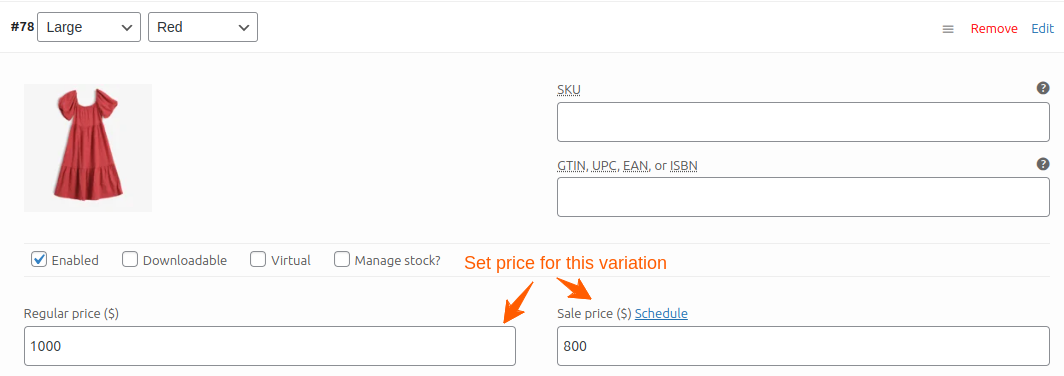
You can set different prices for each variant:
- Go to “Product → Variations.”
- Click on the “variation.”
- Add “Regular Price and Sale Price.”
This is useful for:
- Larger sizes cost more
- Premium colors or materials are priced higher.
How to Manage Stock for Product Variants in WooCommerce?
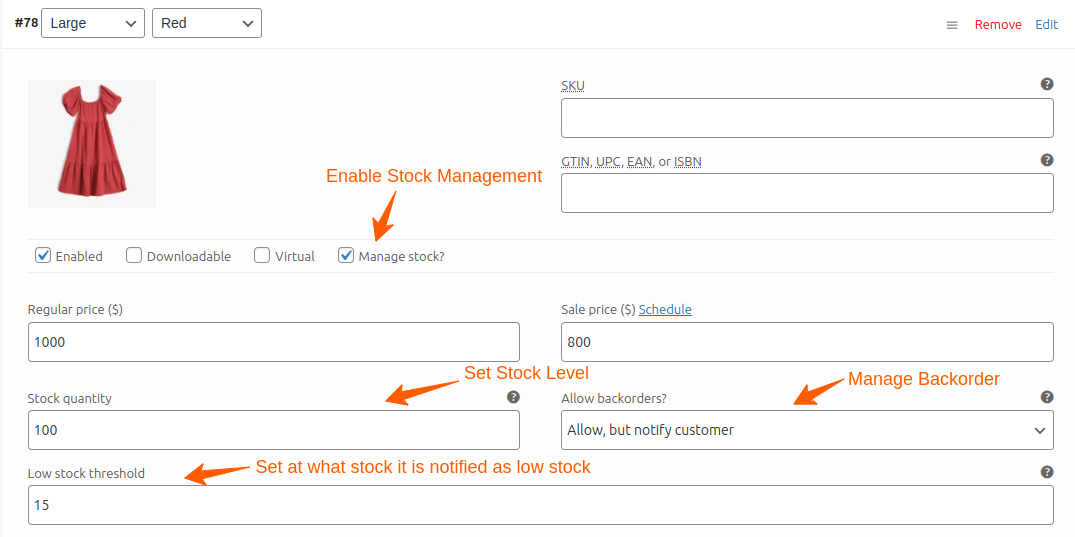
WooCommerce allows individual inventory for each attribute combination.
- Open a “variation → enable ‘Manage Stock’.”
- Set Stock Levels by adding:
- Stock quantity
- Low stock threshold
- Backorder options.
This ensures accurate availability for each variant.
WooCommerce Attributes vs Variations
Many store owners think attributes and variations are the same. They aren’t.
- Product Attributes
Attributes describe products. They simply provide information.
Example: Color: Black or White; Size: Small or Medium.
- Product Variations
Variations create product options. Customers can choose between these options before purchasing.
Example:
| Variation | Price |
| Small – Black | $20 |
| Medium – Black | $22 |
| Large – Black | $25 |
How to Create Variable Products Using Attributes?
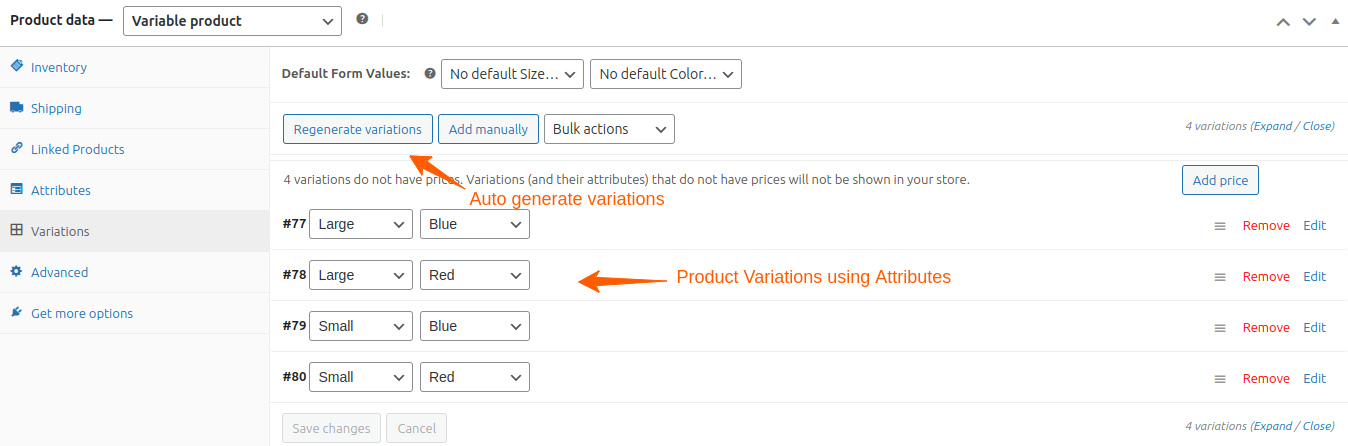
Attributes are the building blocks for variations (e.g., size & color combinations). Here’s how to use them for variable products:
- In “Product Data → select Variable Product.”
- Go to the “Attributes tab → choose relevant attributes → check Used for Variations → click Save.”
- Go to the Variations tab:
- Click “Create variations from all attributes”
- WooCommerce auto-generates combinations
- Or add variations manually.
- For each variation, add:
- Price
- SKU
- Stock
- Image
- Shipping dimensions
- Weight
- This gives customers complete clarity.
To learn more about variable products, check this guide: How to Create a WooCommerce Variable Product (Step-by-Step Guide).
How to Display Product Attributes in WooCommerce Product Pages?
You can display product attributes in several ways:
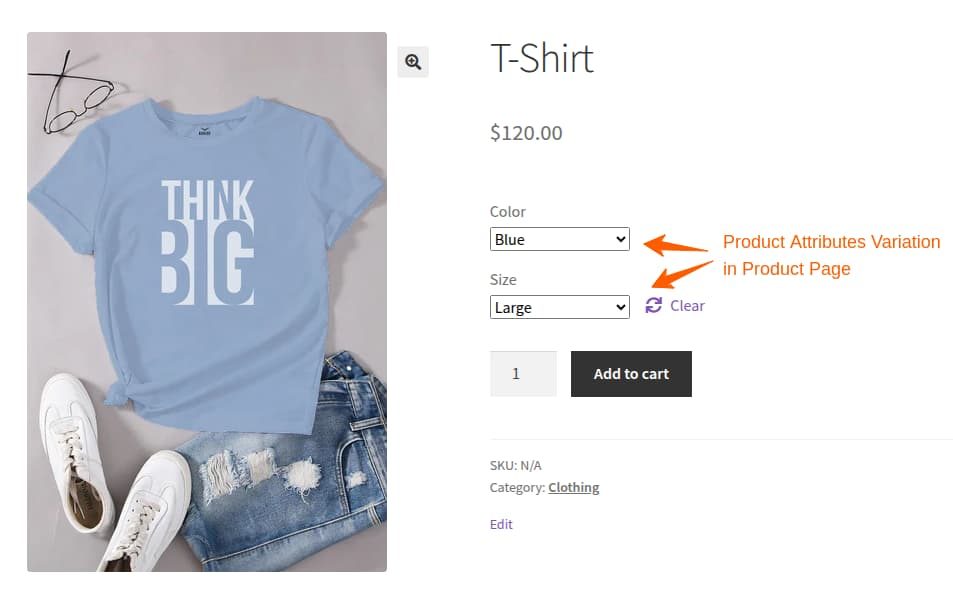
1. Default WooCommerce Attribute Display
You can display attributes by enabling “Visible on the product page.”
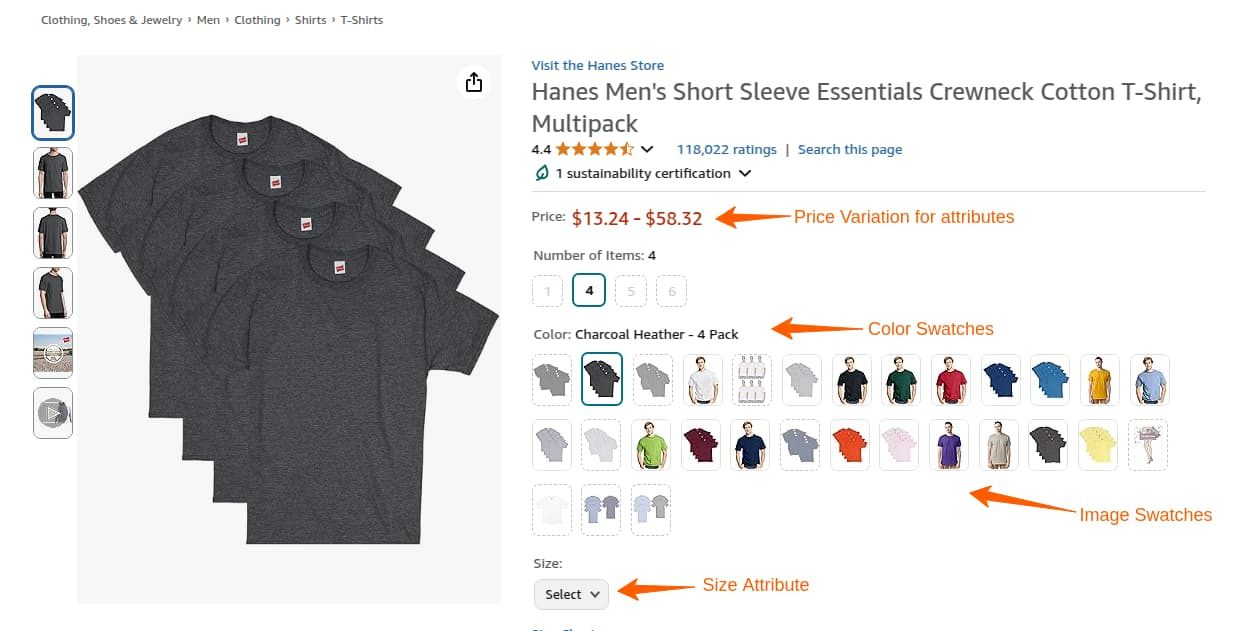
2. Use Attribute Swatches for Better UX
Instead of dropdowns, use:
- Color Swatches
- Image Swatches
- Button Swatches
Swatches help customers better visualize their choices and increase conversions.
Popular plugins for this:
3. Other Options:
- Default Additional Information tab. This is suitable for most stores.
- Display attributes inside the product description.
- Use page builders like Elementor, Gutenberg, or Divi.
- Display attributes with custom code. It is useful when building custom product layouts.
- Display attributes in product tables or comparison tables. This improves shopping for wholesale stores and large catalogs.
Related Reading: Display tiered pricing table in WooCommerce
Filter and List Products by Attribute in WooCommerce
Attribute filtering helps customers quickly narrow down choices.
1. Default WooCommerce Filters
WooCommerce includes basic filters like:
- Filter by attribute
- Dropdown filters
But these aren’t visually appealing and reload pages each time.
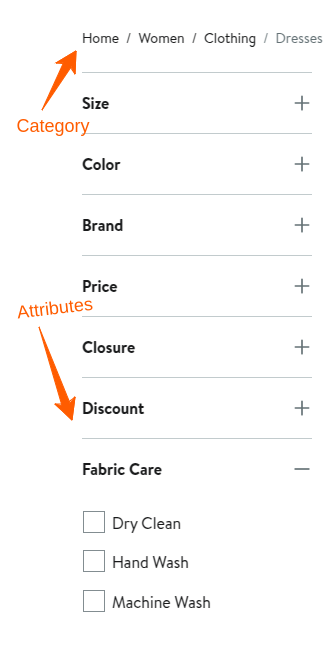
2. Use an AJAX Product Filter Plugin
Advanced filters update instantly without a page reload.
Filter types include:
- Checkboxes
- Radio buttons
- Color swatches
- Image swatches
These create a smooth shopping experience.
3. Use Shortcodes and Widgets
WooCommerce lets you display filters anywhere:
- Sidebar
- Header
- Custom landing pages
This helps guide shoppers to relevant products.
How to Edit WooCommerce Product Attributes?
To edit a global attribute:
- Go to “Products → Attributes.”
- Hover over the attribute.
- Click “Edit.”
- Update the “name or slug.”
- Save changes.
To edit attribute values:
- Open “Configure Terms.”
- Edit “existing values.”
- Save changes.
How to Delete WooCommerce Attributes?
Deleting unused attributes keeps your catalog clean.
To delete:
- Go to “Products → Attributes.”
- Hover over the attribute.
- Click “Delete.”
If products still use that attribute, review the impact before deleting.
How to Import WooCommerce Product Attributes?
If you manage hundreds or thousands of products, importing attributes saves time. WooCommerce supports CSV imports.
Typical workflow:
- Prepare a “CSV file.”
- Include “attribute columns.”
- Open “Product Importer.”
- Map “attribute fields.”
- Import “products.”
Many product import plugins like “ Product Import Export for WooCommerce ” also support attribute imports with advanced mapping.
Best Plugins for WooCommerce Attribute Management
Here are the top plugins for managing attributes effectively.
1. Variation Swatches for WooCommerce : Transforms boring dropdowns into attractive swatches, such as color, image, and text swatches. It helps with better UX and higher conversion rates.
2. Discount Rules for WooCommerce – Pro : Allows dynamic discounts based on attributes. Perfect for promotions and inventory clearance. Examples:
- 10% off for “Blue” products
- Extra discount on the “XL” size
- BOGO deals for specific attributes.
Set different prices for each attribute using Discount Rules to create flexible, profit-boosting attribute-based pricing and boost sales of each attribute.
3. Bulk Edit Products, Prices & Attributes for WooCommerce : This plugin is Ideal for large stores to bulk edit attribute values, update prices for all variations, and schedule bulk changes.
Best Practices for WooCommerce Product Attributes
Follow these recommendations to keep your catalog organized:
- Use Global Attributes Whenever Possible: Avoid creating duplicate attributes like Colour, Color, Colors. Choose one naming convention.
- Keep Attribute Names Consistent: Use “Color” instead of “Product Color, Item Color, Color Option.” Consistency improves filtering.
- Don’t Create Too Many Attributes: Only add attributes customers actually use. Too many attributes make filtering confusing.
- Use Attributes for Filtering: Customers often filter products by “Size/ Brand/ Material/ Color/ Capacity.” Well-structured attributes improve product discovery.
- Plan Before Creating Attributes: Avoid creating unnecessary attributes later. For example: “Category: Shoes;” “Attributes: Brand, Size, Color, Material.”
- Using Categories Instead of Attributes: Categories organize products. Attributes describe them.
- Don’t Forget Variation Settings: Adding attributes alone won’t create variations. You must enable “Used for Variations.”
- Avoid Inconsistent Attribute Values: Don’t mix “Blue, Navy Blue, Dark Blue” unless they truly represent different products.
Conclusion
WooCommerce product attributes are much more than product labels; they’re a powerful way to organize your catalog, create product variations, improve filtering, boost SEO, and enhance the shopping experience.
By understanding the difference between categories, attributes, and tags, choosing between global and custom attributes, and following best practices, you’ll build a store that’s easier to manage and easier for customers to navigate.
Whether you’re launching a new WooCommerce store or optimizing an existing one, investing time in a well-planned attribute structure will pay off in better product organization, smoother shopping experiences, and higher conversion rates.
Frequently Asked Questions
Attributes don’t directly improve rankings, but they enhance product pages by adding structured information, improving user experience, and helping customers find relevant products more easily.
Yes. Global attributes can be used with WooCommerce’s product filtering widgets and many third-party filter plugins, allowing shoppers to narrow products by characteristics like size, color, or brand.
Yes. You can use WooCommerce’s built-in bulk editing tools, CSV import/export, or dedicated product management plugins to update attributes across multiple products.
Yes. Attributes power layered navigation filters, enabling customers to refine results by color, size, material, brand, and more.
When attributes are well-organized, shoppers can instantly narrow down choices, leading to faster product discovery and higher conversions. Many stores also use attribute-based filtering widgets to create Amazon-like shopping experiences.