WooCommerce variable products let you sell multiple versions of the same product from a single product page, but managing WooCommerce variations can sometimes become confusing.
This usually happens when you need different prices, stock quantities, images, or discounts for each variation.
For example, you may want to sell a T-shirt in multiple sizes and colors while setting separate prices for specific variations. Or maybe you want to display WooCommerce variation swatches instead of basic dropdown menus to improve the shopping experience.
The good news is that WooCommerce includes built-in features to create and manage product variations easily. And if you need advanced WooCommerce variable pricing or variation-specific discounts, plugins can make the process even simpler.
In this blog, we’ll show you how to:
- Create a variable product in WooCommerce step by step,
- manage variable product attributes,
- configure pricing,
- use variation swatches, and
- bulk-edit WooCommerce variations quickly.
Apply targeted offers to specific WooCommerce variations using the “Discount Rules for WooCommerce – Pro” without relying on basic coupons.
Table of contents
- What is a WooCommerce Variable Product?
- Variable vs Simple vs Grouped vs External: Which Product Type Should You Use?
- How to Create a Variable Product in WooCommerce (Step-by-Step)
- How to Display Variations with Visual Swatches?
- Bulk Edit WooCommerce Variations: Save Time at Scale
- Inventory Management for Variable Products
- Industry Examples of WooCommerce Variable Products
- Common Issues and Troubleshooting
- Apply Discounts to Variable Products
- How to Set Up Product Variation Discounts in WooCommerce?
- Why WooCommerce Variable Products Work Better for Growing Stores?
- Best Practices for WooCommerce Variable Pricing
- Final Thoughts
- Frequently Asked Questions
What is a WooCommerce Variable Product?
A WooCommerce variable product is a product type that allows customers to choose between different product options: size, color, material, or storage, on a single product page.
Instead of creating separate products, you can use WooCommerce product variations to offer different:
- Sizes
- Colors
- Materials
- Storage options
- Styles.
For example:
- A clothing store can sell one T-shirt in multiple sizes and colors
- A furniture store can offer different wood finishes
- An electronics store can sell phones with different storage capacities
Each variation can have:
- Separate pricing
- Individual stock quantity
- Unique SKU
- Different images.
This is why the product variations in WooCommerce are much easier to manage than creating separate product pages for every option.
Variable vs Simple vs Grouped vs External: Which Product Type Should You Use?
WooCommerce offers different product types depending on what you sell.
| Product Type | Best For | Supports Variations |
| Simple Product | Single standalone product | No |
| Variable Product | Products with multiple options | Yes |
| Grouped Product | Collection of related products | No |
| External Product | Affiliate or external products | No |
Variable vs Simple Product WooCommerce
A simple product works best when:
- The product has no variations
- Pricing stays the same
- Inventory management is straightforward.
A variable product works better when:
- Products come in multiple sizes, colors, or styles
- Variations need separate pricing
- Stock should be tracked individually
- Customers need multiple options on one page.
For stores selling customizable products, a WooCommerce variable product is usually the better choice.
When Should You Use Variable Products Instead of Separate Simple Products?
Many WooCommerce store owners also discuss this in Reddit discussions : whether it’s better to use one variable product or multiple linked simple products.
In most cases, WooCommerce variable products work better for options like:
- Sizes
- Colors
- Storage variants
- Materials
because customers can choose everything from a single product page.
For example, a clothing store selling the same T-shirt in multiple sizes and colors will usually benefit from WooCommerce product variations instead of creating separate product listings for every option.
However, separate simple products can sometimes work better when the products look visually very different.
For example:
- Different artwork designs
- Unique engravings
- Custom printed products.
In these cases, separate product pages may improve:
- Product discovery
- Catalog browsing
- SEO visibility.
The right choice usually depends on:
- Your product type
- Store structure
- Customer experience goals
- Inventory workflow.
For most growing stores, WooCommerce variable products are the easier and more scalable option for managing related product variations.
If you want to learn more about each of these product types, check this blog: How to Set Up a WooCommerce Product Discount?
How to Create a Variable Product in WooCommerce (Step-by-Step)
To create a variable product in WooCommerce, you need to set up global attributes within the WooCommerce product section. Once you’ve defined these attributes with their respective values, you can seamlessly incorporate them into the process of your variable product, creating multiple variations for a single product.
Now, let’s take you through the step-by-step process of creating a variable product.
Step 1: Adding New Attributes
In WooCommerce, attributes are like tags for products , describing characteristics such as color, size, or material.
There are two different attributes in WooCommerce.
- Global Attribute
- Custom Product Attribute
Global Attributes: Global attributes are attributes that apply to all products on your site, such as color, size, or material. These attributes can be created once and then used across multiple products, making it easy to maintain consistency and organization in your product catalog.
Custom Product Attributes: Custom Attributes are attributes that are specific to individual products. These attributes can be created and assigned to a single product, allowing you to provide detailed information about the product that may not apply to other products on your site.
Creating New Attributes
Let’s create different attributes like Colour and Size.
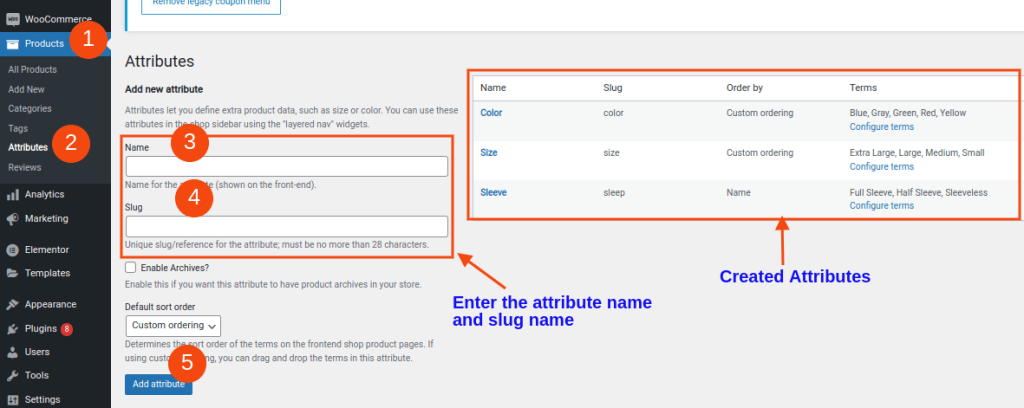
- Go to your “WordPress Dashboard -> Products -> Attributes.”
- Enter the “Attribute name and slug name.”
- Click the “Add Attribute” button.
Adding Values to Attributes
We have created global attributes already, so now let’s add values to each attribute based on which you will price your products.
For example, adding attribute value to ‘Size’ as Small, Medium, Large:
- Go to your “WordPress dashboard -> Products -> Attributes.”
- Click the “attribute” that you have created. Here, we will click on “Size.”
- Enter the “style name, slug, and description” of it.
- Click the “Add New Size” button.
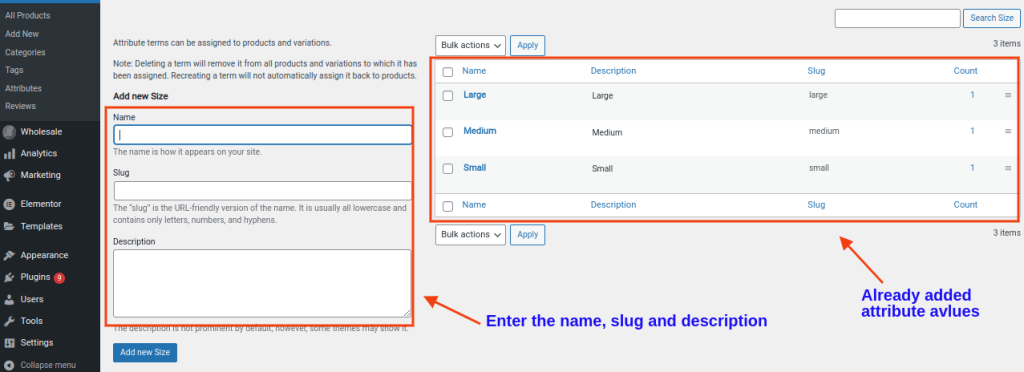
Similarly, we can keep adding values to the attributes. The added values with attributes will be shown on the right side.
Step 2: Adding Global Attribute Values to the product
Now, let’s add the created attributes to the products.
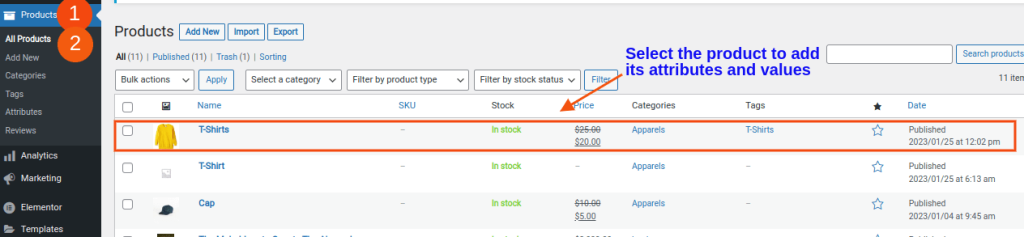
- Go to your “WordPress Dashboard -> Products -> All Products.”
- Click on the “product” to which you want to add attributes and values.
Step 3: Adding New Variable Product
- Go to your “WordPress Dashboard -> Products -> Click the “Add New” button.
- Enter the “Product Name” and describe your product.
- In the product data section, choose ‘Variable Product’ to create variable products with different attributes like size and color.
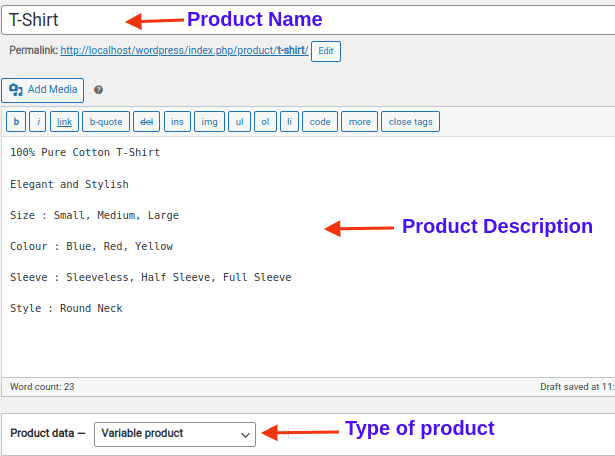
On the product page, go to product data and choose ‘Variable Product’ to add the attributes and values.
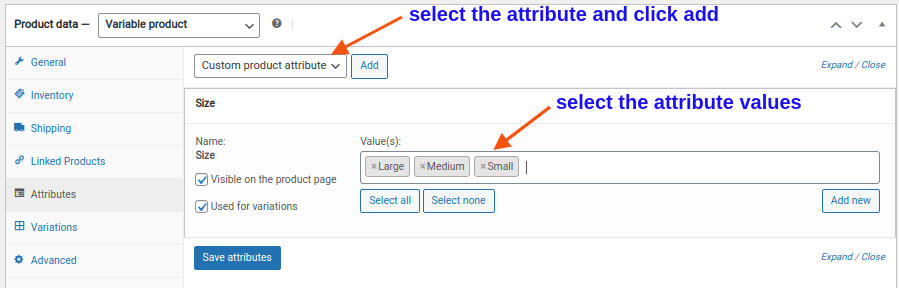
- Select “Attributes” and choose “Color” from the drop-down.
- Click the “Add” button and select the values you want to add to the product.
- Click “Visible on the product page” to show the created variable product on the product page.
- Click “Used for variations” to add the price and image for each variation in the variation section.
- Click the “Save Attributes’ button.
Step 4: Adding Variations
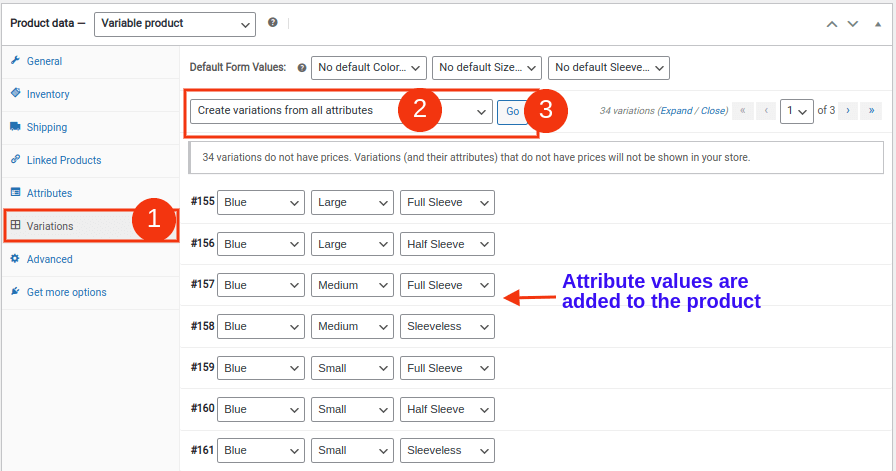
- In the variations section, select “Create variations from all attributes.”
- Click “Go.” You will get a warning message such as “Are you sure you want to link all the variations?”
- Click “Ok” to add all the values from the attributes to the product.
Step 5: Adding Price and Images to a Variable Product in WooCommerce
- You can add the images and price for each variation in the variation section, as shown in the screenshot below.
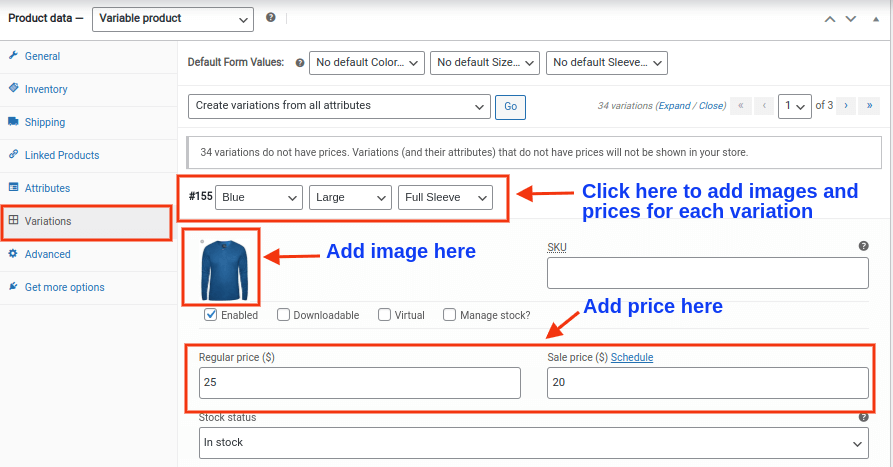
- Click “Save Changes.”
Now, the images and pricing for WooCommerce products will be added to your store.
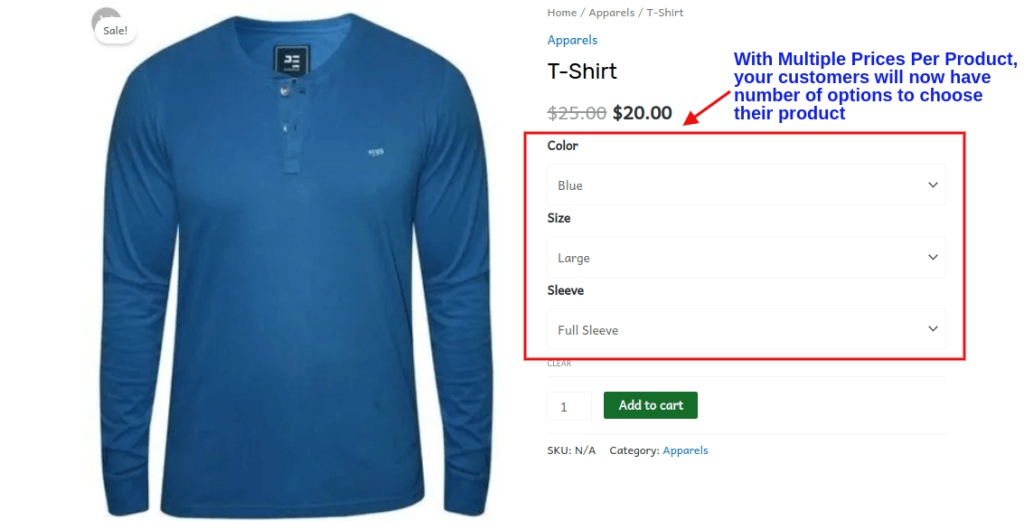
Here is the live result of variable product options on the cart page:
Now, we have learned to create a variable product in WooCommerce. We will further learn the steps to set up discounts for variable products.
How to Display Variations with Visual Swatches?
By default, WooCommerce displays variations using dropdown menus.
But dropdowns are not always the best option for user experience.
That’s why many stores use WooCommerce variation swatches.
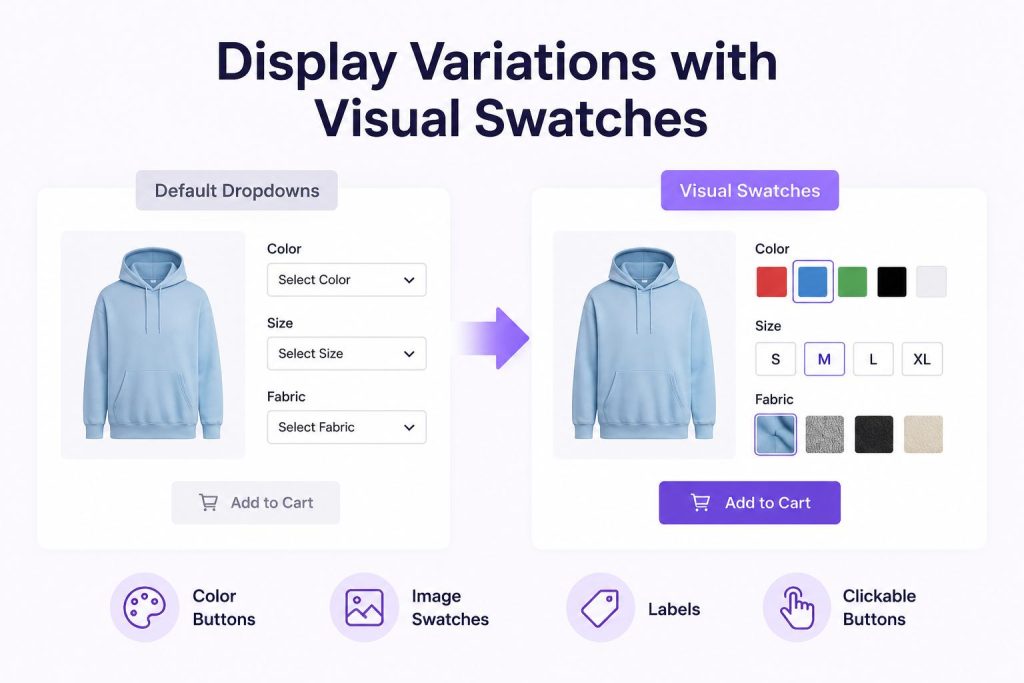
Variation swatches replace dropdowns with:
- Color buttons
- Image swatches
- Labels
- Clickable buttons.
For example:
- Customers can click a color box instead of selecting from a dropdown
- Fabric styles can display as image swatches
- Sizes can appear as clickable buttons.
Why WooCommerce Variation Swatches Matter?
Variation swatches improve:
- Product browsing
- Mobile shopping experience
- Customer engagement
- Conversion rates.
Instead of repeatedly opening dropdown menus, customers can quickly select the variation they want.
Popular WooCommerce Variation Swatches Plugins
Some commonly used plugins include:
- Variation Swatches for WooCommerce : This plugin replaces standard WooCommerce dropdown fields with modern variation swatches, such as colors, images, and buttons. It is useful for stores selling clothing, accessories, cosmetics, and other products where visual selection improves the customer experience.
- YITH WooCommerce Color and Label Variations: A popular plugin that allows you to display color swatches, text labels, and image-based variation selectors. It also offers customization options to match your store design and improve product presentation.
- WooCommerce Better Variations: This plugin focuses on improving the variation selection process by making product options easier to view and select. It can help simplify the shopping experience, especially for stores with many product variations.
These plugins make variation selection much easier and visually appealing.
Bulk Edit WooCommerce Variations: Save Time at Scale
Managing a few variations is simple.
But updating hundreds of variations manually can take a lot of time.
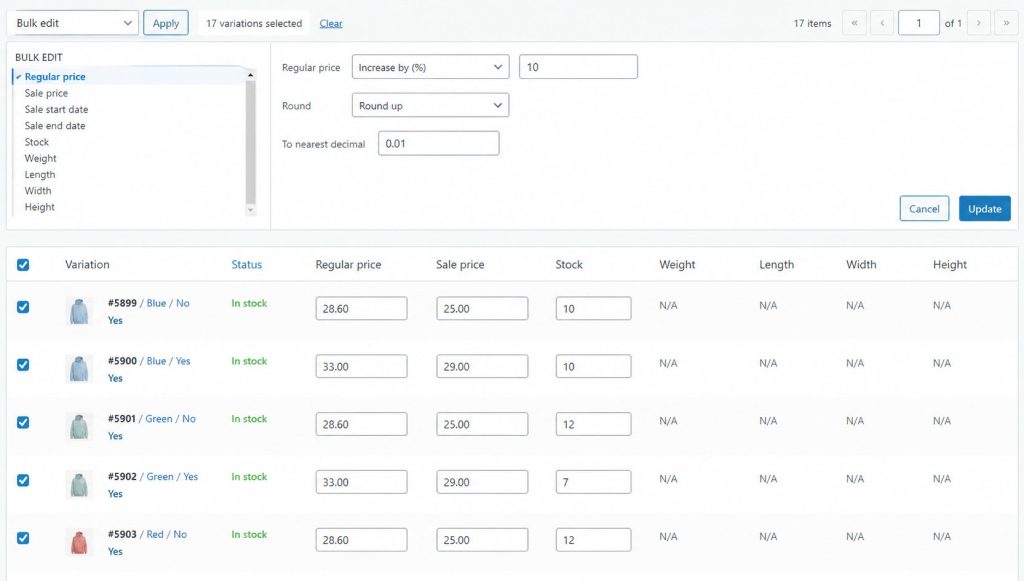
That’s where tools to bulk edit WooCommerce variations become useful.
Bulk editing allows you to:
- Update prices quickly
- Change stock quantities
- Edit SKUs
- Modify sale pricing
- Replace variation images
For example:
- Increase prices for all XL products
- Add sale pricing for selected colors
- Update inventory for all blue variations
Instead of editing every variation separately, bulk editing tools help manage large stores much faster.
Recommended Bulk Editing Plugins
Popular tools include:
- WooCommerce native bulk editor : WooCommerce also includes a built-in bulk editing feature that supports basic updates such as prices, stock status, categories, and product visibility. While it may not offer advanced filtering or variation management features, it works well for smaller stores and simple edits.
- Smart Manager : Smart Manager provides a spreadsheet-style interface that makes it easy to manage WooCommerce products and variations in bulk. Store owners can quickly edit pricing, stock levels, categories, attributes, and custom fields without opening each product individually.
- ELEX Bulk Edit Products: This plugin allows you to filter and bulk update WooCommerce products, categories, and variations efficiently. It is especially useful for applying price changes, stock updates, or product modifications across large catalogs.
These tools save time when managing large WooCommerce product variation catalogs.
How to Bulk Edit Variable Products And Prices in WooCommerce?
To bulk edit variable products and prices in WooCommerce, you can follow these steps:
- Go to “Products” -> “All Products” in your WordPress dashboard.
- Use filters or search to find the variable products you want to edit.
- Check the “checkbox” next to the products you want to edit or select all.
- Look for the “Bulk Actions” option and select “Edit.”
- Find the price field and enter or adjust prices as needed.
- Update (save) the Changes.
Inventory Management for Variable Products
Inventory management becomes more important when using WooCommerce variations.
Each variation should have:
- Separate stock quantity
- Unique SKU
- Inventory tracking enabled
Example
Instead of using one SKU:
- SHIRT001
Use:
- SHIRT-BLACK-S
- SHIRT-BLACK-M
- SHIRT-BLUE-L
This makes inventory tracking much easier.
Best Practices
To manage inventory efficiently:
- Use unique SKUs
- Avoid unnecessary variations
- Archive discontinued products
- Enable low-stock notifications
Too many variations can slow down your WooCommerce store, so it’s better to keep variation combinations manageable.
Industry Examples of WooCommerce Variable Products
Different businesses use WooCommerce variable products differently.
Fashion Stores
Fashion stores commonly use:
- Size variations
- Color variations
- Fabric options.
Beauty Stores
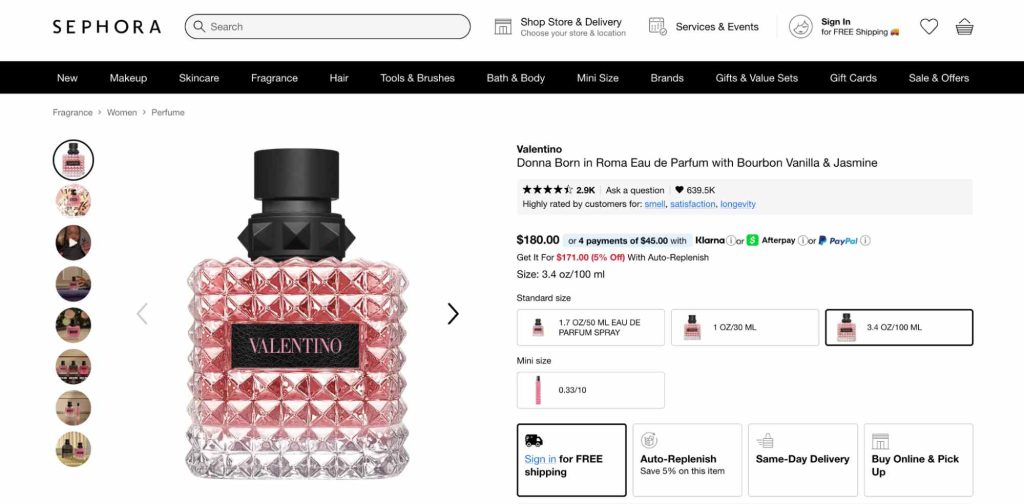
Beauty and cosmetics stores often use WooCommerce variable products to offer different product options from a single page.
Common WooCommerce product variations include:
- Shades
- Fragrances
- Sizes
- Bundle options
For example:
- A lipstick product can offer multiple shades
- A perfume can come in 50ml, 100ml, and 200ml sizes
- A skincare product can have regular and premium variants.
Electronics Stores
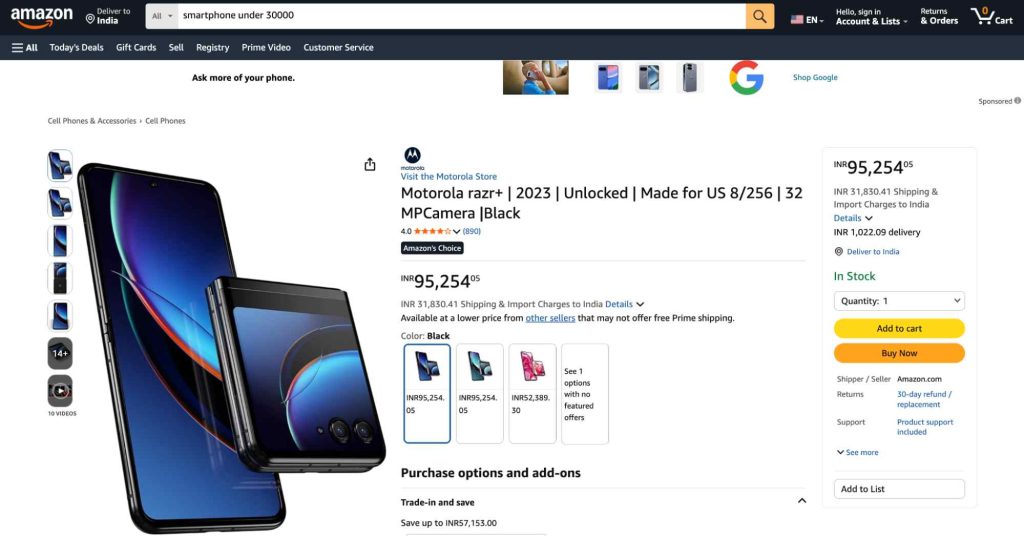
Electronics stores often use:
- Color variations
- Storage options
- RAM configurations
- Warranty variations
Furniture Stores
Furniture stores may offer:
- Material choices
- Finish options
- Different dimensions
Subscription Products
Subscription businesses can create:
- Monthly plans
- Yearly plans
- Premium packages
This flexibility is why WooCommerce product variations work well for many industries.
Common Issues and Troubleshooting
Even experienced WooCommerce users sometimes face variation issues.
Here are some common problems.
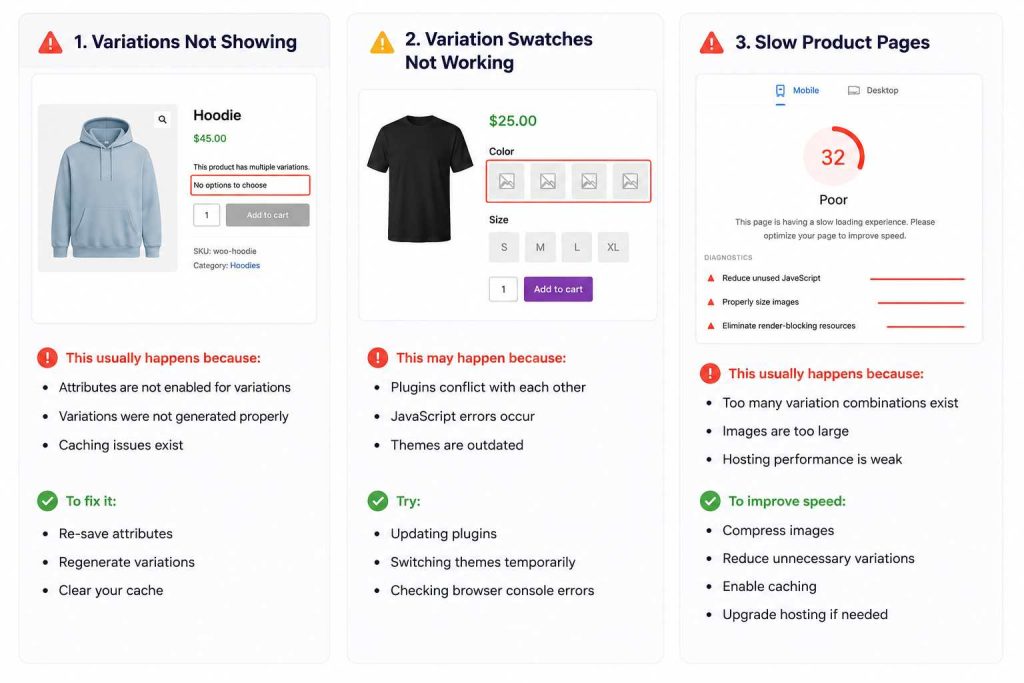
1. Variations Not Showing
This usually happens because:
- Attributes are not enabled for variations
- Variations were not generated properly
- Caching issues exist
To fix it:
- Re-save attributes
- Regenerate variations
- Clear your cache.
2. WooCommerce Variation Swatches Not Working
This may happen because:
- Plugins conflict with each other
- JavaScript errors occur
- Themes are outdated
Try:
- Updating plugins
- Switching themes temporarily
- Checking browser console errors.
3. Slow Product Pages
Large numbers of variations can slow down WooCommerce product pages.
This usually happens because:
- Too many variation combinations exist
- Images are too large
- Hosting performance is weak
To improve speed:
- Compress images
- Reduce unnecessary variations
- Enable caching
- Upgrade hosting if needed.
Apply Discounts to Variable Products
WooCommerce supports basic coupons, but advanced variation discounts often require additional plugins.
For example, you may want to:
- Give 15% off only on Large-sized products
- Apply discounts for selected colors
- Create bulk discounts for variation purchases
- Offer category-based variation discounts
This is where plugins like:
- Flycart’s Discount Rules for WooCommerce – Pro
- YITH WooCommerce Dynamic Pricing & Discounts becomes useful.
These plugins help create advanced WooCommerce variable pricing rules beyond the default coupon system.
How to Set Up Product Variation Discounts in WooCommerce?
Setting up product variation discounts in WooCommerce is a simple process.
Choose a plugin like “ Discount Rules for WooCommerce – Pro ,” which helps you easily create this type of discount. Check out the Installation guide for additional information.
Let’s create a simple product variation pricing discount for a WooCommerce store.
10% Discount on Specific Product Variation
Example: Let’s offer a 10% discount on the product variation “Cotton T-Shirts.”
- Go to your “WordPress Dashboard -> WooCommerce -> Discount Rules.”
- Click the “Add New Rule” button and give a title for the rule.
- Choose the discount type as “Product Adjustment.”
- In the filter section, choose the products that get the discount. In this example, we will be offering discounts on “Cotton T-Shirts.” Hence, choose “Products,” select “In the list,” and choose “T-Shirts – Cotton.”
- In the discount section, you have to choose “Percentage discount” and set the range to “10.”
- Save and enable the rule.
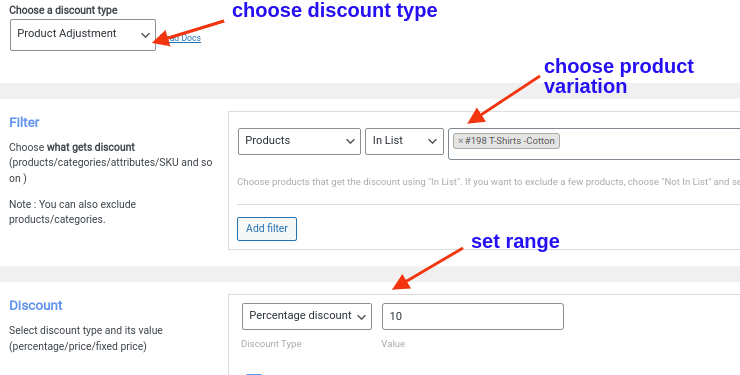
Now customers will get a 10% discount on Cotton T-shirts.
To apply advanced discounts to variable products, such as BOGO deals, bulk discounts, or conditional discounts, check these detailed guides:
Set up bulk discounts and advanced WooCommerce variable pricing rules easily with “Discount Rules for WooCommerce – Pro.”
Why WooCommerce Variable Products Work Better for Growing Stores?
WooCommerce variable products help online store owners offer a wider range of options to customers and enhance their shopping experience. It offers several advantages for online stores:
- Flexible Product Options: Variable Products in WooCommerce enable offering multiple variations (sizes, colors, materials), catering to diverse customer preferences and boosting sales potential.
- Efficient Inventory Management: Manage all variations under one listing, simplifying inventory tracking, reducing backend clutter, and enhancing stock level management.
- Improved User Experience: Customers can select specific variations, enhancing satisfaction and ease of purchase.
- Simplified Product Organization: Grouping related WooCommerce product variations facilitates catalog organization, aiding customer navigation and product discovery.
- Enhanced Marketing Opportunities: Highlight different product features across variations to target specific customer segments and promote upsells and cross-sells effectively.
- Optimized SEO: Combining variations on a single page enhances SEO efforts, improving product visibility in search results.
- Cost Efficiency: Creating Variable Products reduces resources needed for management, updates, and maintenance compared to separate listings.
- Scalability: Variable Products scale seamlessly as your business expands, accommodating a growing range of product variations without overwhelming your store infrastructure.
Best Practices for WooCommerce Variable Pricing
Here are some best practices for WooCommerce variable pricing:
- Clear Product Descriptions: Clearly describe each product variation, including any differences in features, materials, sizes, or colors. This helps customers understand the options available and choose the right product for their needs.
- Use Descriptive Attributes: Use descriptive attributes such as size, color, material, or any other relevant feature to differentiate product variations. This helps customers easily identify and select the options they prefer.
- Set Default Attributes: Set default attributes for each variable product to showcase the most popular or commonly chosen option. This simplifies the ordering process for customers who may not want to customize their selection.
- Clear Display of Options: Display product variations clearly on the product page, allowing customers to see all available options at a glance. Use dropdown menus, radio buttons, or swatches to make it easy for customers to select their preferred variation.
- Highlight Price Differences: Clearly indicate any price differences between product variations to avoid surprises at checkout. You can use strike-through pricing or display the price difference next to each option.
- Manage Inventory Effectively: Keep track of inventory levels for each product variation to prevent overselling. Set up notifications to alert you when stock is running low so you can replenish inventory promptly.
- Optimize Performance: Optimize your WooCommerce site for performance to ensure that variable pricing options load quickly and smoothly. Minimize unnecessary plugins, optimize images, and use caching to improve page load times.
- Provide Customer Support: Offer reliable customer support to assist customers with any questions or issues they may have regarding product variations or pricing. This helps build trust and encourages repeat business.
Use the “Discount Rules for WooCommerce – Pro” plugin to create variation-specific discounts for sizes, colors, and other WooCommerce product variations.
Final Thoughts
A properly configured WooCommerce variable product setup helps you manage products more efficiently while improving the shopping experience for customers.
By using:
- WooCommerce product variations
- Flexible WooCommerce variable pricing
- WooCommerce variation swatches
- Bulk editing tools
- Proper inventory management.
You can create a cleaner, faster, and more scalable WooCommerce store.
Whether you sell clothing, electronics, furniture, or subscription products, mastering WooCommerce variations makes product management easier while helping customers quickly find the product option they want.
Also Read:
- How to Create WooCommerce Bundle Products with Discounts?
- How to Set Multiple Prices Per Product in WooCommerce?
- How to Apply Discount to All Products in WooCommerce – Step-by-Step (2026)
Frequently Asked Questions
WooCommerce can handle an unlimited number of variations for a product. However, it is important to keep in mind that adding a large number of variations can impact the website’s performance.
A SKU (Stock Keeping Unit) variation is like a special code given to each item or product that a store sells. For example, if a store sells a shirt in different colors, each color would have its own SKU variation number.
Product variation is important for any WooCommerce store because it allows store owners to offer customers a range of choices for a particular product.
To add or change prices to WooCommerce variable products:
To display only the lowest prices for variable products in WooCommerce, you can use custom code or a plugin, as the default WooCommerce platform does not provide this feature.