A WooCommerce grouped product lets you display multiple related products on a single product page, making it easier for customers to purchase complementary items together.
Instead of browsing separate product pages, customers can view a collection of related products, choose the quantities they want, and add them to the cart in one go.
For example, if you sell furniture, you can group a dining table with matching chairs and benches. If you run an electronics store, you can group a laptop with accessories like a mouse, keyboard, and laptop bag.
In this guide, you’ll learn everything about WooCommerce grouped products, including what they are, how they work, how to create them, and when to use them instead of other WooCommerce product types.
Table of contents
- What is a Grouped Product in WooCommerce?
- How Do WooCommerce Grouped Products Work?
- 4 WooCommerce Product Types Explained
- Grouped Products vs Bundled Products
- Benefits of WooCommerce Grouped Products
- How to Create a Grouped Product in WooCommerce?
- How to Add Products to a WooCommerce Grouped Product?
- Can You Add Variable Products to a Grouped Product?
- How to Display Grouped Products in WooCommerce?
- How to Edit Grouped Products in WooCommerce?
- How to Remove Products from a Grouped Product in WooCommerce?
- SEO Best Practices for Grouped Products
- Common Mistakes to Avoid While Grouping WooCommerce Products
- Best Use Cases for WooCommerce Grouped Products
- Conclusion
- Frequently Asked Question
What is a Grouped Product in WooCommerce?
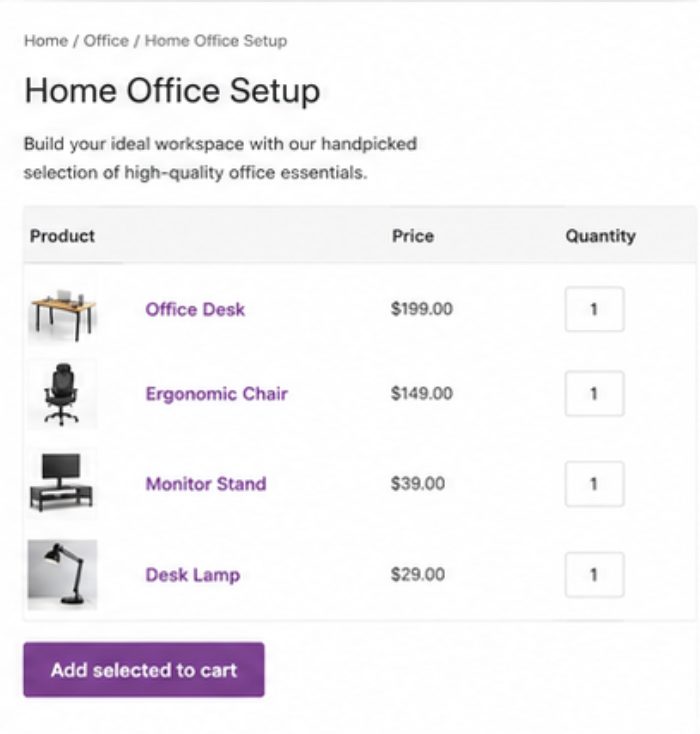
A grouped product in WooCommerce is a parent product that links together multiple standalone products into a single listing. The grouped product itself doesn’t have a price or inventory. Instead, each child product keeps its own price, SKU, stock quantity, and product page.
Customers can select the quantity of each individual product directly from the grouped product page and add all selected items to their cart with a single click.
For example, imagine you sell home office furniture.
Grouped Product: Home Office Setup
Child Products:
- Office Desk
- Ergonomic Chair
- Monitor Stand
- Desk Lamp
Instead of asking customers to search for each product separately, WooCommerce displays them together, making it easier to purchase everything needed for a complete workspace.
Unlike product bundles, grouped products don’t force customers to buy every item. They can purchase one product, several products, or all products in the group.
How Do WooCommerce Grouped Products Work?
A grouped product acts as a container for existing products.
Here’s how it works:
- Create individual, simple, or variable products.
- Create a new product and set its type to Grouped Product.
- Link the individual products to the grouped product.
- Publish the grouped product.
On the storefront, customers will see a list of linked products with quantity fields. They can select the items they want and add them to their cart together.
Since each child product remains independent, you’ll only need to update pricing, stock, images, or descriptions once, and the changes will automatically appear wherever that product is grouped.
4 WooCommerce Product Types Explained
WooCommerce offers four default product types, each designed for different selling scenarios:
| Product Type | Best For | Example |
| Simple Product | Selling a single item | Coffee Mug |
| Variable Product | Products available in different options, like size or color | T-Shirt (Small, Medium, Large) |
| Grouped Product | Displaying related standalone products together | Camera with accessories |
| External/Affiliate Product | Products sold on another website | Amazon affiliate product |
Choosing the right product type improves your store’s organization and creates a better shopping experience.
For example:
- Use Simple Products when you sell one standalone item.
- Use Variable Products when customers need to choose options like size or color.
- Use Grouped Products when you want to recommend related products that customers can purchase individually.
- Use External Products when you earn affiliate commissions from another store.
Grouped Products vs Bundled Products
Store owners often confuse grouped products with product bundles. Although both display multiple purchasing options, they serve different purposes:
| Feature | Grouped Product | Bundled Product |
| Purpose | Group related standalone products | Sell multiple products as a package |
| Inventory | Separate inventory for each product | Depends on bundle configuration |
| Pricing | Individual prices | Bundle price or discounted total |
| Customer Choice | Buy any products in the group | Usually buy products together |
| Separate Product Pages | Yes | Usually yes |
| Example | Gaming Setup – Gaming Monitor – Mechanical Keyboard – Gaming Mouse – Mouse Pad Customers can purchase only the keyboard, only the mouse, or the complete setup. | Photography Starter Kit – Camera – Lens – Tripod – Memory Card Instead of selecting individual products, customers purchase the complete bundle as a package. |
Which One Should You Use?
Use a Grouped Product if:
- Products are related but sold individually.
- Customers should be free to buy one, several, or all items.
- Each product has its own inventory and pricing.
Use a Product Bundle if:
- You want to sell products together as a package.
- You’re offering bundle discounts or promotional kits.
Choosing the correct product type creates a smoother shopping experience and helps customers find exactly what they need.
Learn more about it: WooCommerce Bundle Products: 10 Best Plugins + How to Create Bundles
Benefits of WooCommerce Grouped Products
Here are the key benefits of using grouped products in WooCommerce.
- Increase Average Order Value: Grouped products encourage customers to buy multiple related items in a single purchase. For example, instead of purchasing only a laptop, customers may also add a laptop bag, wireless mouse, and cooling pad displayed on the same page. Showing complementary products together naturally increases the average order value without requiring aggressive upselling.
- Improve Product Discovery: Customers don’t have to search your entire catalog to find related products. For example, a “Camping Essentials” grouped product can include “Camping Tent, Sleeping Bag, Camping Stove, Lantern.”
- Simplify the Shopping Experience: Instead of navigating through multiple product pages, customers can browse related products from a single page. This streamlined buying process reduces friction and saves time.
- Keep Inventory Management Simple: Each product in a grouped product remains independent. That means every child product has its own “Price, SKU, Inventory, Product description, Images, and Shipping settings.” Updating a child product automatically reflects wherever it’s included in a grouped product, eliminating duplicate work.
- Cross-Sell Related Products: Grouped products are an excellent cross-selling tool because they showcase complementary products at the right moment. Examples include “Camera + Lens + Memory Card.” Instead of relying on customers to find these products separately, you present them together, increasing the likelihood of additional purchases.
Learn more about cross-selling: 5 Places to Show Cross-Sell Products in WooCommerce
- Maintain Individual Product SEO: A grouped product page serves as a hub that links related products together, strengthening your site’s internal linking structure.
- Flexible Purchasing Options: Customers can “Buy a single product or purchase multiple products.” This freedom creates a better shopping experience than forcing customers to purchase a complete bundle.
How to Create a Grouped Product in WooCommerce?
Creating a WooCommerce grouped product is straightforward.
Before you begin, make sure you’ve already created the products you want to include in the group, as grouped products can only link to existing products.
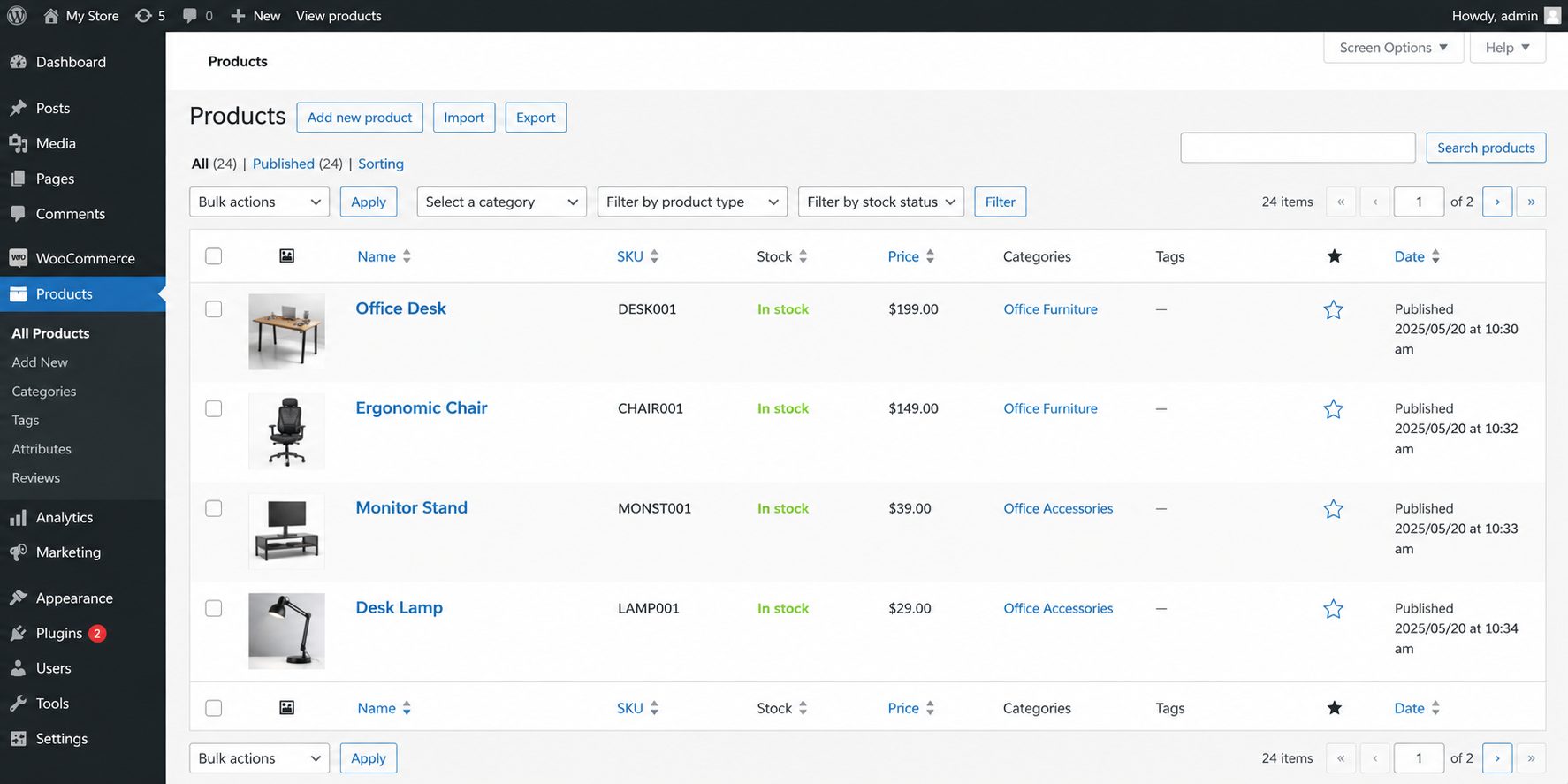
For this example, let’s create a grouped product called Home Office Setup that includes a desk, chair, monitor stand, and desk lamp.
Step 1: Create Individual Products
- Start by creating each product separately. Go to “Products → Add New” and create all the products you want to group.
- For example:
- Office Desk
- Ergonomic Chair
- Monitor Stand
- Desk Lamp
- Each product should have its own:
- Product title
- Description
- Price
- Images
- Inventory
- SKU.
Since these are standalone products, customers can purchase them individually as well.
Step 2: Create a New Product
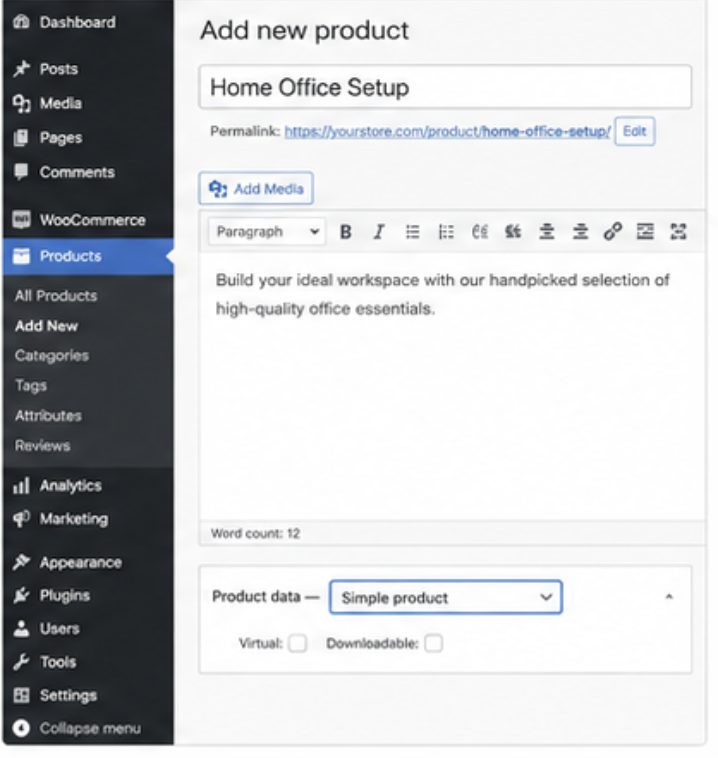
- Navigate to “Products → Add New.” Enter a product name that represents the entire collection.
- For example: Home Office Setup.
- You can also add a product description explaining what’s included in the group and why customers should consider purchasing these products together.
Step 3: Select “Grouped Product”
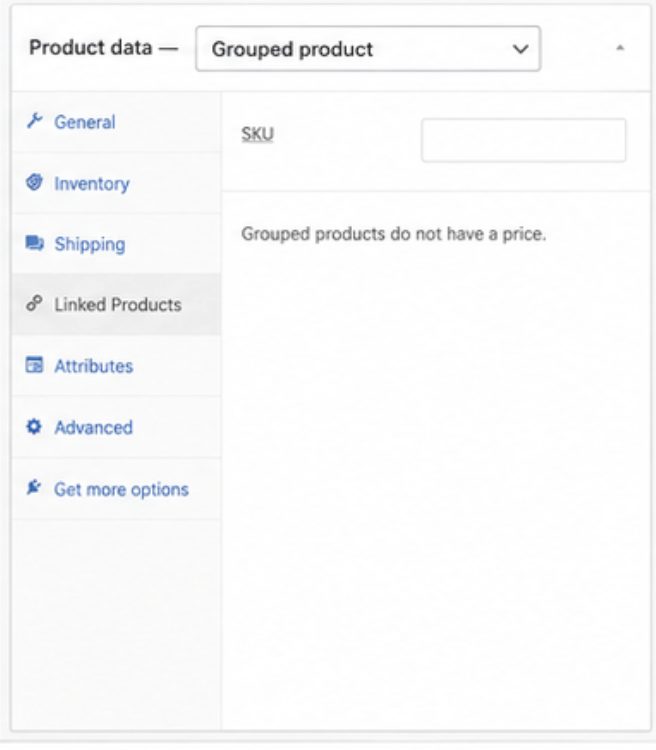
- Scroll down to the “Product Data” section.
- From the “Product Type” dropdown, select “Grouped Product.”
- Once selected, you’ll notice that fields like “Regular Price” and “Inventory” disappear because the grouped product itself doesn’t have its own price or stock.
Instead, each linked product manages its own pricing and inventory.
Step 4: Link Child Products
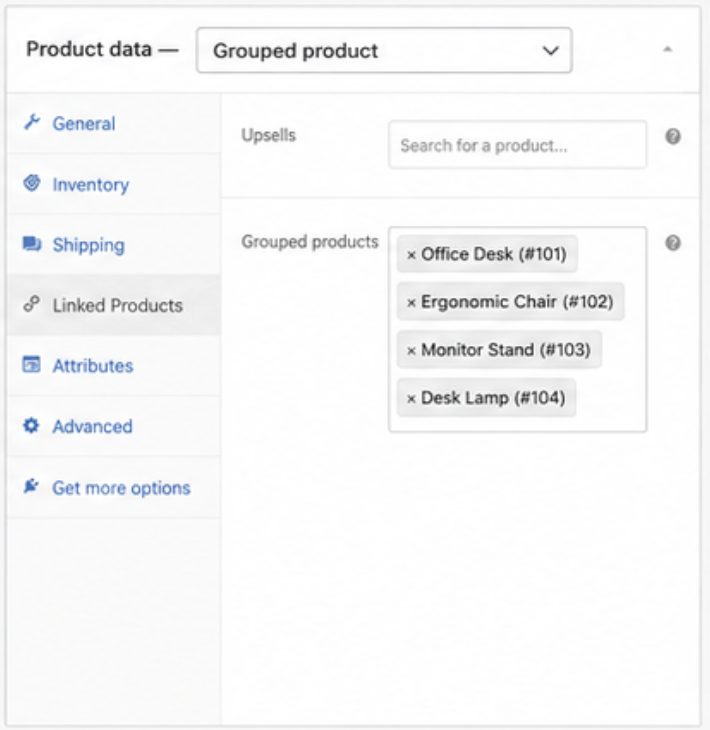
- In the Product Data panel, click Linked Products.
- Locate the Grouped Products field and search for the products you want to include.
- For example, add:
- Office Desk
- Ergonomic Chair
- Monitor Stand
- Desk Lamp
You can add as many products as needed. WooCommerce will automatically display them on the grouped product page.
Step 5: Publish the Grouped Product
- Once you’ve added all the child products, click “Publish or Update.”
- Your grouped product is now live.
When customers visit the product page, they’ll see each linked product listed with:
- Product name
- Price
- Quantity selector
- Add to Cart option.
They can choose the quantity for each item and purchase multiple products with a single action.
Offer discounts on grouped products with ease.
Use “ Discount Rules for WooCommerce – Pro” to create discounts for grouped products, related items, and product combinations.
How to Add Products to a WooCommerce Grouped Product?
After creating a grouped product, you can easily add more products whenever your catalog expands.
Follow these steps:
- Go to “Products → All Products.”
- Open the grouped product you want to edit.
- Scroll down to the “Product Data” section.
- Click “Linked Products.”
- Search for the products you want to add in the “Grouped Products field.
- Select the “products.”
- Click “Update.”
The newly added products will immediately appear on the grouped product page.

Can You Add Variable Products to a Grouped Product?
Yes. WooCommerce allows you to include variable products as child products within a grouped product.
For example, you could create a grouped product called Photography Kit containing:
- DSLR Camera (Simple Product)
- Camera Bag (Simple Product)
- Tripod (Simple Product)
- Camera Lens (Variable Product)
When customers select the variable product, they’ll need to choose the required options, such as size, color, or storage capacity—before adding it to their cart.
This gives customers the flexibility to purchase related products while still selecting the appropriate variation for each item.
Limitations
Although variable products work inside grouped products, there are a few things to keep in mind:
- Each variable product must have its own variations configured.
- Customers must select a variation before adding the product to their cart.
- Each child product is added separately to the cart.
- The grouped product itself doesn’t have a single combined price or inventory.
Learn more about variable products here: How to Create a WooCommerce Variable Product (Step-by-Step Guide)
How to Display Grouped Products in WooCommerce?
WooCommerce automatically displays grouped products on the product page, but you can customize their appearance in several ways.
- Default WooCommerce Layout: By default, grouped products display:
- Product name
- Price
- Quantity selector
- Add-to-cart option.
This layout works well for most stores and requires no additional configuration.
- Customize Using Theme Templates: Most WooCommerce-compatible themes let you customize grouped product layouts through template overrides. You can modify:
- Product order
- Table layout
- Typography
- Button styles
- Product information.
This option is ideal if you want complete control over the design.
- Use a Page Builder: If you use a page builder like Elementor, Divi, or Gutenberg, you can create custom product page layouts without writing code. You can showcase grouped products alongside:
- Product videos
- FAQs
- Testimonials
- Related products
- Promotional banners.
- Display Grouped Products in Product Tables: For wholesale stores or large catalogs, product table plugins provide a more efficient browsing experience. Customers can quickly:
- View multiple products
- Compare prices
- Select quantities
- Add several products to the cart.
This layout is particularly useful for B2B stores and bulk ordering.
How to Edit Grouped Products in WooCommerce?
As your inventory changes, you may need to update your grouped products.
- Go to “Products → All Products,” open the grouped product, and make the required changes.
- You can “Add New Products”: Include additional products as your collection grows.
- Remove Existing Products: Delete products that are discontinued or no longer relevant.
- Reorder Products: Drag products into a logical order to highlight best-selling or featured items first.
- Update Product Title and Description: Keep your grouped product title and description relevant as you add or remove products.
- After making changes, click Update to save them.
How to Remove Products from a Grouped Product in WooCommerce?
Removing products is just as easy as adding them.
- Open the “grouped product.”
- Scroll to “Product Data → Linked Products.”
- Locate the product you want to remove.
- Click the “×” next to the product name.
- Click “Update.”
Note: Removing a child product only unlinks it from the grouped product; it doesn’t delete the product from your WooCommerce store.
SEO Best Practices for Grouped Products
A well-optimized grouped product page can improve visibility in search engines while providing a better user experience:
Write Unique Product Descriptions
Avoid copying descriptions from individual products. Instead, write a unique introduction explaining the purpose of the grouped product and how the products complement each other.
Avoid Duplicate Content
Don’t simply duplicate information from child product pages. Add original content, buying advice, or recommendations to make the grouped product page valuable on its own.
Link Related Products
Use internal links to connect grouped products with related categories, buying guides, and individual product pages.
This helps both users and search engines discover more of your content.
Optimize Product Images
Use high-quality images that clearly showcase the grouped collection. Include descriptive file names and alt text for better accessibility and image SEO.
Add FAQs
Frequently asked questions improve user experience and help your page target long-tail search queries.
Include answers to common questions about grouped products, pricing, and purchasing options.
Strengthen Internal Linking
Link your grouped product guide to other WooCommerce tutorials, such as:
- Variable products
- Product bundles
- Product attributes
- Product categories
A strong internal linking structure helps establish topical authority.
Common Mistakes to Avoid While Grouping WooCommerce Products
Avoid these common mistakes when creating grouped products:
- If customers are choosing different sizes, colors, or materials of the same product, use a Variable Product instead of a grouped product.
- Only group products that naturally complement each other. Random product combinations confuse customers and reduce conversions.
- A grouped product should explain why the products belong together and how customers benefit from purchasing them.
- Include attractive featured images for both the grouped product and each child product to improve engagement.
- Remember that every child product has its own product page. Optimize each one with unique titles, descriptions, images, and keywords.
Best Use Cases for WooCommerce Grouped Products
Grouped products work well in many industries. Popular examples include:
- Furniture Sets – Dining tables, chairs, benches, and cabinets
- Camera Accessories – Cameras, lenses, tripods, memory cards, and bags
- Gaming Setups – Gaming PCs, keyboards, mice, headsets, and monitors
- Laptop Accessories – Laptop bags, docking stations, mice, keyboards, and cooling pads
- Office Supplies – Desks, chairs, lamps, organizers, and monitor stands
- School Kits – Backpacks, notebooks, calculators, and stationery
- Beauty Collections – Shampoo, conditioner, serum, and hair masks
- Kitchen Essentials – Cookware, utensils, cutting boards, and storage containers
If customers commonly purchase products together, a grouped product is often a great choice.
Increase Conversions with Dynamic Pricing: Create advanced discounts for grouped products, bundles, and product combinations.
Conclusion
WooCommerce grouped products are an excellent way to showcase related products on a single page while allowing customers to purchase each item individually. They’re ideal for cross-selling complementary products, improving product discovery, and increasing average order value without complicating inventory management.
By selecting the right product type and organizing your catalog effectively, you can create a smoother shopping experience that helps customers find what they need and encourages them to buy more.
Also Read:
- How to Add Product Attributes in WooCommerce?
- How to Display Percentage Discount Badges in WooCommerce ?
Frequently Asked Question
Yes. Each child product has its own individual price. The grouped product itself doesn’t have a separate price.
Yes. Variable products can be added to grouped products, allowing customers to select the required variation before adding the item to their cart.
Yes. Customers can purchase one product, multiple products, or every product in the group.
No. The grouped product itself doesn’t manage inventory. Each linked product maintains its own stock quantity.
Yes. You can apply discounts to grouped products or their child products using discount plugins like “Discount Rules for WooCommerce – Pro.”
Yes. You can customize the layout using your WooCommerce theme, page builders, custom templates, or plugins.