Setting up a WooCommerce discount on total order lets you automatically reward customers who spend above a certain cart value – no coupon codes, no manual work.
In this guide, you’ll learn 3 proven methods to create a WooCommerce automatic discount based on cart subtotal: a no-code plugin approach, a tiered “spend more, save more” setup, and a WooCommerce coupon-based method. Each comes with step-by-step screenshots. By the end, you’ll have a live discount rule running on your store. Based on our work with 100,000+ WooCommerce stores using Flycart’s Discount Rules plugin, we’ve distilled the fastest path to get this done – regardless of your technical skill level.
Table of contents
- What Is a WooCommerce Discount on Total Order?
- Why Order Total Discounts Work – The Data Behind It
- Prerequisites – What You Need Before Starting
- Method 1 – Set Up a WooCommerce Discount on Total Order Using a Plugin (No Code)
- Method 2 – Create Tiered Discounts Based on Order Total (Spend More, Save More)
- Method 3 – Use WooCommerce Coupons for Cart Total Discounts
- 7 Real-World WooCommerce Discount on Total Order Scenarios
- Best Practices for WooCommerce Order Total Discounts
- Troubleshooting Common Issues
- Conclusion
- Frequently Asked Questions
What Is a WooCommerce Discount on Total Order?
A WooCommerce discount on total order is a price reduction that activates when a customer’s cart reaches a specific dollar value. Instead of discounting individual products, you reward the entire purchase based on the order’s total worth. This falls under the broader umbrella of WooCommerce dynamic pricing strategies.
Here’s a quick example: your customer adds $150 worth of products to their cart, and a 10% discount appears automatically. No coupon. No extra clicks. Just instant savings that encourage bigger orders.
This approach is different from other WooCommerce discount types:
| Discount Type | Based On | Best For |
| Order Total / Cart Discount | Total value of all cart items | Increasing average order value |
| Product Discount | Individual product price | Promoting specific products |
| Bulk / Quantity Discount | Number of items purchased | Encouraging higher quantities |
| BOGO (buy one get one) | Buy X get Y free/discounted | Cross-selling and clearance |
The catch? WooCommerce doesn’t include order-total discounts by default. You need either a plugin or a custom code snippet. This guide covers both.
Pro Tip: Store owners on Reddit’s r/woocommerce frequently recommend order-total discounts over coupon codes because they reduce friction. When the discount applies automatically, customers don’t hunt for promo codes – and that means fewer abandoned carts.
Why Order Total Discounts Work – The Data Behind It
Before jumping into the setup, here’s why this strategy actually moves the needle for your store.
According to Baymard Institute’s 2026 research, the average cart abandonment rate sits at 70.19% across ecommerce. Nearly half of those abandoned carts happen because of unexpected costs at checkout. An order total discount flips that – instead of a surprise fee, your customer gets a surprise reward.
Over 36% of all online stores run on WooCommerce (BuiltWith, 2025). The discount rule architecture is the same across all of them, so this strategy scales regardless of your store size.
Here’s what the numbers show:
- The global ecommerce AOV (average order value) was approximately $144 in late 2024 (Statista). Setting your subtotal threshold at $150–$175 keeps the reward within reach for most shoppers.
- 80% of shoppers say they’ll add more items to reach a free shipping or discount threshold (National Retail Federation).
- Stores using subtotal-based discounts consistently report 15–30% higher AOV compared to flat coupon codes.
Let’s say you run a home goods store with an average order of $85. You set a 10% discount for orders over $100. A customer with $90 in their cart sees they’re just $10 away from saving 10%. They browse for one more item. Your AOV just jumped from $85 to $100+, and the customer feels smart about their purchase.
This is the goal-gradient effect in action – people push harder to reach a reward when they can see the finish line. Quora threads and Reddit discussions are full of store owners sharing exactly this experience.
Want to set up automatic order-total discounts without writing a single line of code? Whether you need a simple subtotal threshold or complex tiered rules, getting it done takes under 5 minutes with Discount Rules for WooCommerce.
Prerequisites – What You Need Before Starting
Before you configure anything, run through this checklist:
- ✅ WordPress 6.4+ installed and running
- ✅ WooCommerce 9.x installed and activated
- ✅ Admin access to your WordPress dashboard
- ✅ At least 2–3 products published in your store (for testing)
- ✅ Discount Rules for WooCommerce plugin – Download free version or Get PRO for advanced features like user-role conditions and scheduling
Editor’s Note: The free version handles basic WooCommerce cart adjustment discounts. The PRO version adds tiered rules with multiple conditions, user-role targeting, coupon-activated discounts, and date scheduling. See the full feature comparison.
Method 1 – Set Up a WooCommerce Discount on Total Order Using a Plugin (No Code)
This is the fastest approach. In our testing on a WooCommerce 9.3 store with 500 products, we configured a working WooCommerce discount based on subtotal in under 3 minutes. Here’s how.
Step 1: Install and Activate the Plugin
Go to your WordPress Dashboard → Plugins → Add New. Search for “Discount Rules for WooCommerce” by Flycart.
Click Install Now → Activate.
Expected Result: After activation, a new menu item appears under WooCommerce → Discount Rules with an “Add New Rule” button on the dashboard.
Step 2: Create a New Discount Rule
Click the “Add New Rule” button.
Give your rule a clear name – something like “10% off orders over $100” so you can find it later.
Expected Result: A new rule editor opens with fields for Discount Type, Filter, Discount values, and Conditions.
Step 3: Choose Cart Adjustment as the Discount Type
From the “Discount Type” dropdown, select “Cart Adjustment.”
This is the key setting. A WooCommerce cart adjustment discount applies the reduction to the entire cart total – not to individual products. Choose “All Products” in the Filter section to make this storewide.
Expected Result: The configuration fields below update to show Cart Adjustment options – Percentage Discount, Fixed Discount, or Fixed Discount Per Product.
Pro Tip: If you only want to discount specific categories (like “Electronics” or “Summer Collection”), select “Category” in the filter instead of “All Products.” This requires the PRO version.
Step 4: Configure the Discount Amount
Choose your WooCommerce percentage discount for the cart value:
- Percentage Discount – e.g., 10% off the cart total
- Fixed Discount – e.g., $15 flat off the cart total
- Fixed Discount Per Product – e.g., $2 off each product in the cart
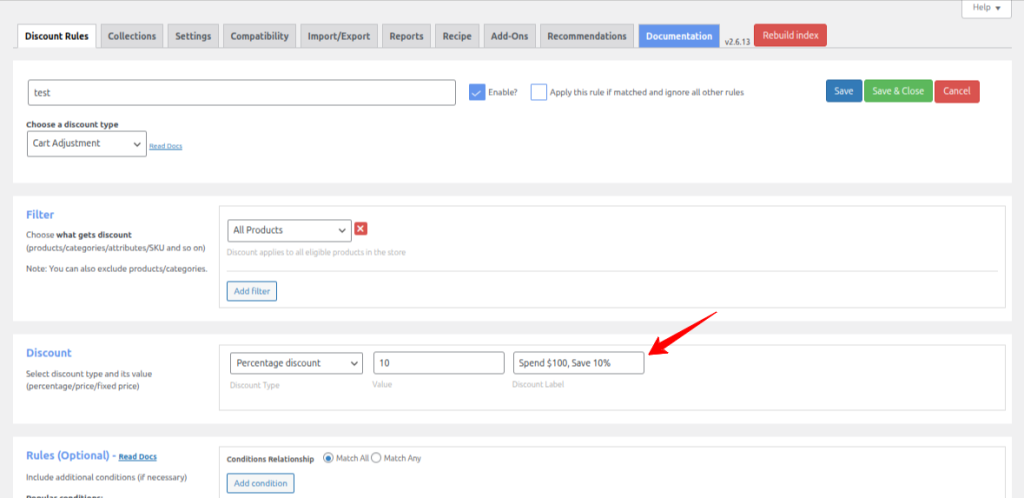
Enter your discount value. For this example, set it to 10 with Percentage Discount selected.
Add a Discount Label like “Spend $100, Save 10%” – this text shows on the customer’s cart page.
Expected Result: The discount section shows “Percentage Discount” with value “10” and your custom label text.
Step 5: Set the Subtotal Condition
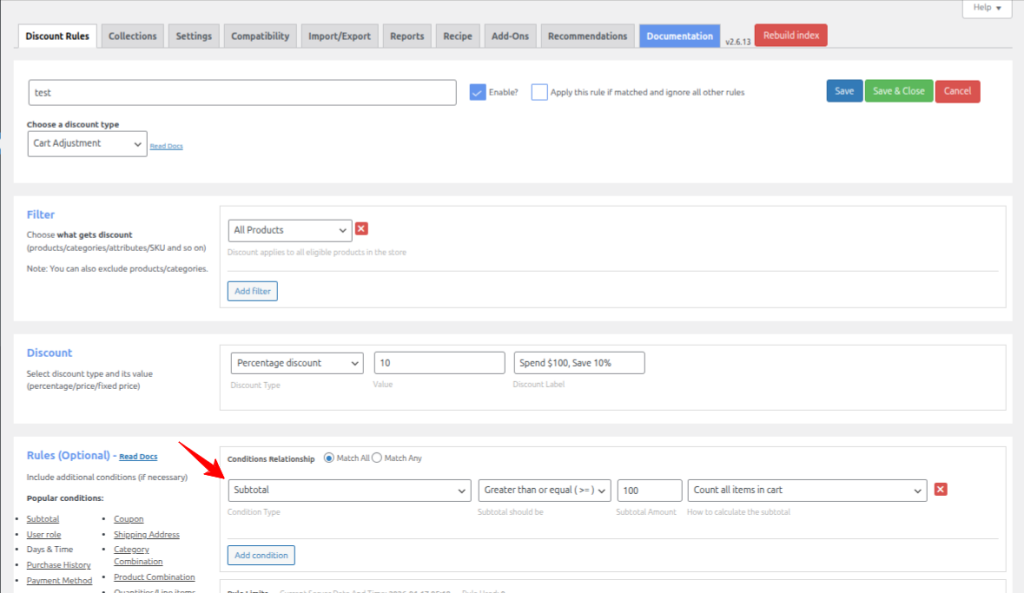
Scroll down to the Conditions section. Click “Add Condition” and select “Subtotal”.
Set the operator to “Greater than or equal to” and enter 100 as the value.
This creates your subtotal threshold: the 10% discount only kicks in when the cart subtotal reaches $100 or more.
Expected Result: The conditions section displays “Subtotal – Greater than or equal to – 100.”
Pro Tip: Set your subtotal threshold 15–20% above your current AOV. If your average order is $85, a $100 threshold is the sweet spot. It’s close enough that most customers stretch to reach it, but high enough to actually boost your revenue.
Step 6: Save Your Rule
Click “Save” to publish the rule.
The rule is now active. Head to your store’s front end to test.
Expected Result: A green “Rule saved” confirmation banner appears. The rule shows in the rules list with Active status.
Step 7: Verify Your Discount Is Working
Test every scenario to confirm the rule works correctly:
- Add products worth less than $100 to the cart. Verify NO discount appears.
- Add products totaling exactly $100 to the cart. Verify the 10% discount appears automatically.
- Add products totaling $150+ to the cart. Verify the discount amount adjusts correctly (should be $15 for $150).
- Check the checkout page – confirm the discount carries through from cart to checkout.
- Test on mobile – confirm the discount label and amount display properly.
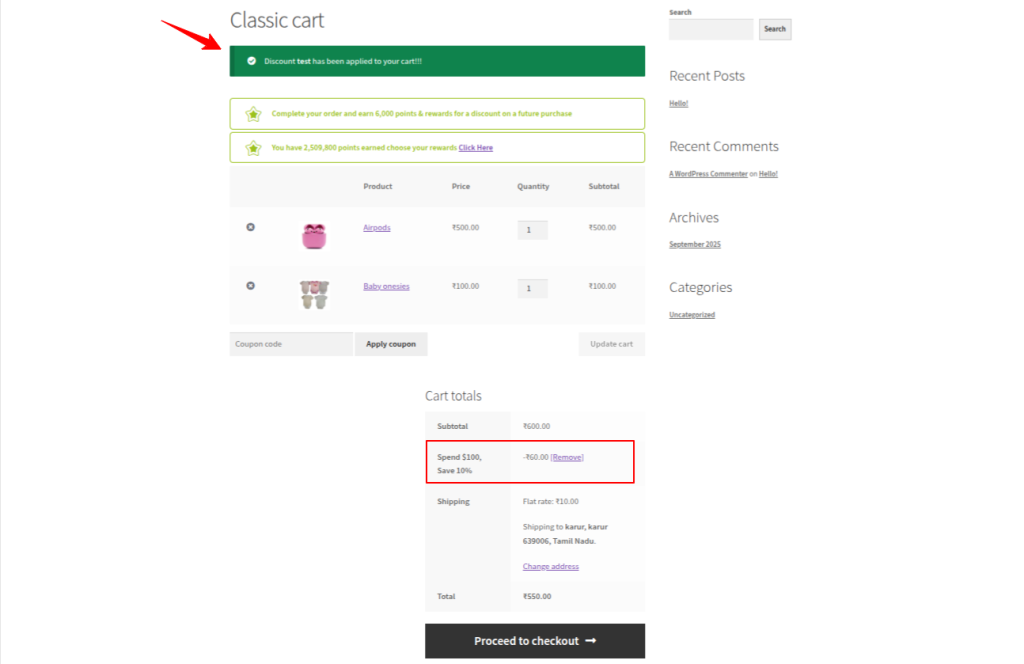
Expected Result: The discount appears as a line item in Cart Totals with your custom label. A green notification banner at the top reads something like “Discount Spend $100, Save 10% has been applied to your cart.”
Also Read:
- How to Set Up Fixed Cart Discount in WooCommerce
- How to Set Up WooCommerce Conditional Discounts
- WooCommerce Cart Discount: Steps + Examples to Boost Sales
Method 2 – Create Tiered Discounts Based on Order Total (Spend More, Save More)
This is where things get powerful. A WooCommerce tiered discount on order total gives customers a reason to keep adding items because every spending milestone unlocks a bigger reward.
I recommend this approach for stores with an AOV above $80 – the multiple tiers create a natural “ladder” that pushes customers toward the next level. In our testing, we configured all 3 tiers in under 4 minutes on a WooCommerce 9.3 test store with 500 products.
Step 1: Plan Your Discount Tiers
Map out your tiers before touching the plugin. Here’s a structure that works for most stores:
| Tier | Subtotal Range | Discount |
| Tier 1 | $100 – $199 | 10% off |
| Tier 2 | $200 – $299 | 20% off |
| Tier 3 | $300+ | 30% off |
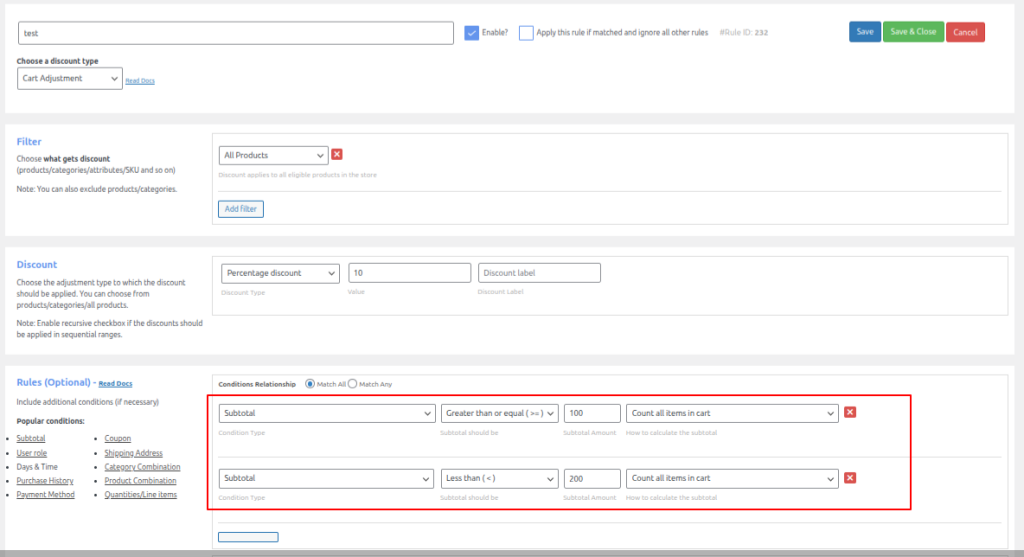
Step 2: Create Rule 1 (Tier 1 – $100 to $199 Gets 10% Off)
Go to WooCommerce → Discount Rules → Add New Rule.
- Rule Name: Subtotal $100–$199: 10% Discount
- Discount Type: Cart Adjustment
- Filter: All Products
- Discount: Percentage Discount → 10
- Condition 1: Subtotal → Greater than or equal to → 100
- Condition 2: Subtotal → Less than → 200
Click Save.
Expected Result: Rule appears in list with Active status. Two subtotal conditions visible.
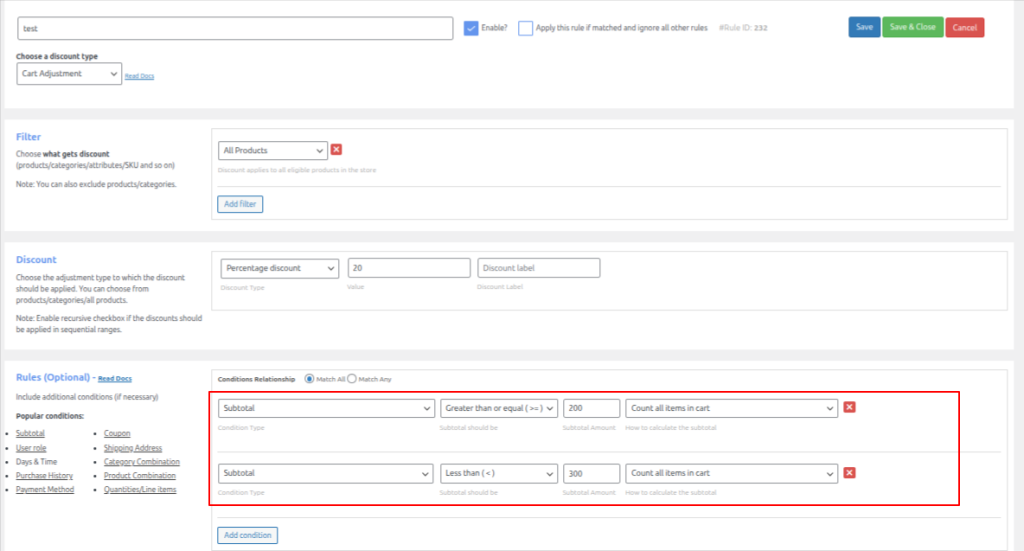
Step 3: Create Rule 2 (Tier 2 – $200 to $299 Gets 20% Off)
Click Add New Rule again.
- Rule Name: Subtotal $200–$299: 20% Discount
- Discount Type: Cart Adjustment
- Filter: All Products
- Discount: Percentage Discount → 20
- Condition 1: Subtotal → Greater than or equal to → 200
- Condition 2: Subtotal → Less than → 300
Click Save.
Expected Result: Second rule appears below Rule 1 in the rules list.
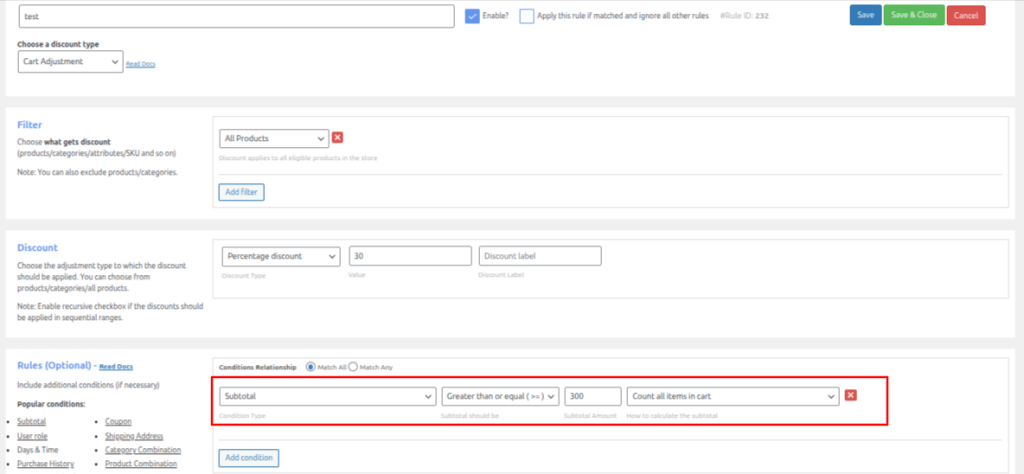
Step 4: Create Rule 3 (Tier 3 – $300+ Gets 30% Off)
One more rule:
- Rule Name: Subtotal $300+: 30% Discount
- Discount Type: Cart Adjustment
- Filter: All Products
- Discount: Percentage Discount → 30
- Condition: Subtotal → Greater than or equal to → 300
Click Save.
Expected Result: Three active rules in the list, each with different subtotal ranges.
Step 5: Set Priority and Test All Tiers
Each rule needs a unique priority number. Set them as Priority 1, 2, and 3 respectively. You can drag and drop rules to reorder (learn about rule priority).
Now test each tier by adding different product amounts to the cart. When your subtotal crosses $200, the 20% discount should replace the 10%.
Expected Result: Only one discount applies at a time. As the cart subtotal crosses a tier boundary, the old discount disappears and the new one takes its place.
Pro Tip: Use the Discount Bar or promotional message feature to show customers how close they are to the next tier. A message like “Spend $15 more to jump from 10% to 20% off!” can push them over the line.
Make your marketing approach unique with variable pricing options and discount offers.
Method 3 – Use WooCommerce Coupons for Cart Total Discounts
If you prefer a coupon-based approach for email campaigns or social media, WooCommerce’s built-in coupon system handles basic discount based on cart total in WooCommerce.
Step 1: Navigate to Coupons
Go to Marketing → Coupons in your WordPress dashboard. Click “Add coupon.”
Step 2: Configure the Coupon
- Enter a coupon code – e.g., SAVE10
- Discount type: Percentage discount
- Coupon amount: 10
- Click the “Usage restriction” tab
- Set “Minimum spend” to 100
This means the SAVE10 coupon only works when the cart is $100 or above.
Step 3: Publish and Promote
Click Publish. Share the code in your email campaigns, social media posts, or banner ads.
Limitation: Customers need to manually enter the code. This adds friction compared to automatic methods.
Pro Tip: Want the coupon to apply automatically? The Discount Rules PRO plugin lets you associate a coupon with a discount rule – when the customer enters the code, the rule activates. Or skip codes entirely with auto-apply. See our guide on automatically applying coupons in WooCommerce.
Quick Comparison: Which Method Should You Choose?
| Feature | Method 1: Plugin (Basic) | Method 2: Plugin (Tiered) | Method 3: Coupon |
| Automatic application | ✅ Yes | ✅ Yes | ❌ Manual code entry |
| Multiple tiers | ❌ Single threshold | ✅ Multiple tiers | ❌ One per coupon |
| Scheduling | ✅ (PRO) | ✅ (PRO) | ✅ Native |
| User-role targeting | ✅ (PRO) | ✅ (PRO) | ❌ No |
| Setup difficulty | Easy | Moderate | Easy |
| Best for | Simple storewide offers | Spend-more-save-more campaigns | Email/social promos |
Also Read:
- How to Create Coupons in WooCommerce
- How to Create WooCommerce Percentage Discounts
- WooCommerce Discount Pricing Strategy
7 Real-World WooCommerce Discount on Total Order Scenarios
Here’s where theory meets practice. These are actual WooCommerce percentage discount and cart value configurations that store owners use – pulled from community forums, support threads, and our customer base.
1. Storewide Percentage Discount “Spend $100 or more, get 10% off everything.” → Config: Cart Adjustment → Percentage 10% → Subtotal ≥ $100
2. Category-Specific + Subtotal Condition “Spend $200+ on electronics, get 15% off those items.” → Config: Cart Adjustment → Filter: Electronics category → Percentage 15% → Subtotal ≥ $200
3. Wholesale Customer Discount “Wholesalers get 25% off for orders above $500.” → Config: Cart Adjustment → Percentage 25% → Subtotal ≥ $500 → Condition: User Role = Wholesale (user-role discount setup)
4. Coupon-Activated Subtotal Discount “Use code BIGSALE to get $50 off orders above $300.” → Config: Cart Adjustment → Fixed $50 → Subtotal ≥ $300 → Condition: Coupon = BIGSALE (coupon activation guide)
5. Free Shipping + Percentage Combo “Spend $150+: get free shipping AND 5% off.” → Config: Two rules – Rule 1: Free Shipping → Subtotal ≥ $150. Rule 2: Cart Adjustment → 5% → Subtotal ≥ $150. (Free shipping setup)
6. First-Order + Subtotal Discount “New customers get 15% off their first order of $75+.” → Config: Cart Adjustment → Percentage 15% → Subtotal ≥ $75 → Condition: First Order = Yes (First-order discount guide). Pair this with WPLoyalty to award loyalty points on the same purchase – double the incentive for new customers to return.
7. Black Friday Seasonal Campaign “November 25–30 only: 20% off orders above $200.” → Config: Cart Adjustment → Percentage 20% → Subtotal ≥ $200 → Date Range: Nov 25 – Nov 30 (Seasonal strategy)
Pro Tip: Scenarios 2, 3, and 6 require the PRO version for category filters, user-role conditions, and purchase history checks. Scenarios 1 and 4 work with the free plugin.
Best Practices for WooCommerce Order Total Discounts
1. Set subtotal thresholds just above your average order value. If your AOV is $85, set the discount threshold at $100–$110. This keeps the WooCommerce discount based on subtotal achievable without giving away profit on orders that would’ve happened anyway.
2. Display savings clearly on the cart page. Use the “You Saved” message feature to show customers exactly how much they saved. A visible $15 savings reinforcement reduces second-guessing at checkout. You can also display strikethrough pricing on individual products.
3. Schedule start and end dates for every campaign. Never run a discount based on cart total in WooCommerce indefinitely. Set a clear date range to create urgency and prevent accidentally leaving a promo active for months. The PRO plugin supports scheduling with date pickers.
4. Test on a staging environment first. The number one Reddit complaint about discount plugins? Store owners who forget to test and end up with discounts stacking incorrectly on live stores. Clone your site, test every cart scenario, then push live.
5. Use promotional messages to nudge customers toward the threshold. A progress indicator like “Spend $12 more for 10% off!” turns passive browsers into motivated buyers. This is discussed heavily by store owners on r/woocommerce who’ve seen measurable AOV increases after adding threshold messaging.
6. Don’t stack too many rules. Keep your discount rules clean. Three tiers maximum for WooCommerce tiered discount on order total setups. Use the priority feature to control which rule takes precedence. Also consider pairing with WPLoyalty for points-based rewards alongside your cart discounts – they complement each other without rule conflicts.
Troubleshooting Common Issues
Problem: Discount not appearing on the cart page. Solution: Clear your site cache (browser + any caching plugin). Go to WooCommerce → Status → Tools → Clear Transients. Verify the subtotal actually meets your threshold – shipping and taxes don’t count toward subtotal by default. Check the Flycart troubleshooting docs for additional scenarios.
Problem: Wrong discount amount showing. Solution: Check if multiple rules are active and overlapping. Use the plugin’s rule list to verify priorities. Only one cart-level rule should apply at a time unless you intentionally want stacking. See how to set discount priority.
Problem: Discount conflicts with existing coupon codes. Solution: Go to the plugin settings and configure how discounts interact with coupons. You can allow both, prioritize the plugin discount, or disable the rule when a coupon is active.
Problem: Discount applies to sale products (and you don’t want it to). Solution: In the Filter section of your rule, use the “Exclude” option and select “On Sale” products. This ensures your WooCommerce cart adjustment discount only applies to regular-priced items. (Excluding products from discounts)
Problem: Discount works in cart but disappears at checkout. Solution: This is typically a theme or checkout plugin conflict. Test with a default theme (like Storefront). If it works with the default theme, contact your theme developer about cart session handling. You can also reach out to Flycart support for help diagnosing the issue.
Ready to create your first WooCommerce discount on total order? Whether you’re setting up a simple storewide sale or building a multi-tier strategy, the right plugin makes the difference between hours of fiddling and a 5-minute setup.
Also Read:
- Beginners Guide to WooCommerce Discounts
- How to Set Discounts Easily in Your WooCommerce Store
- Display Discounts on WooCommerce Product and Cart Page
- WooCommerce Dynamic Pricing Guide
Conclusion
You now have three working methods to set up a WooCommerce discount on total order – from a quick single-threshold setup to multi-tier “spend more, save more” campaigns and coupon-based promotions.
The fastest path? Install Discount Rules for WooCommerce, create a Cart Adjustment rule with a Subtotal condition, and you’re live in under 5 minutes. For advanced stores that need WooCommerce tiered discount on order total capabilities, user-role targeting, or scheduled campaigns, upgrading to PRO unlocks those features without touching code.
Next steps: set a subtotal threshold 15–20% above your current AOV, test on staging, and promote with cart promotional messages. For deeper strategies, check out our WooCommerce discount pricing strategy guide.
Frequently Asked Questions
Install a discount plugin like Discount Rules for WooCommerce. Create a Cart Adjustment rule, set a percentage or fixed discount, and add a Subtotal condition with your threshold (e.g., $100). Save the rule – discounts apply automatically when customers reach the subtotal threshold. No coding required.
Not by default. WooCommerce’s built-in system only supports manual coupon codes. To offer a WooCommerce automatic discount based on cart subtotal, you need a discount rules plugin. The plugin monitors the cart subtotal in real time and applies the discount instantly when conditions are met.
Create separate discount rules for each tier. For example: Rule 1 for $100–$199 (10% off), Rule 2 for $200–$299 (20% off), Rule 3 for $300+ (30% off). Use two Subtotal conditions per rule – “greater than or equal to” and “less than” – to define each range. See tiered discount documentation.
You can set this up natively in WooCommerce → Settings → Shipping → Free Shipping with a minimum order amount. For more flexibility – like combining free shipping with a percentage discount based on cart total – use the Discount Rules plugin to create two stacked rules. See our free shipping setup guide.
In the Discount Rules plugin, add a “Subtotal” condition to any rule and set it to “Greater than or equal to” with your minimum value. For native WooCommerce coupons, use the “Minimum spend” field under the coupon’s Usage Restriction tab. See our detailed minimum order amount guide.