A small tweak — like offering a second product at 50% off — can turn a low-value order into a high-value one without drastically cutting into your margins. Instead of pushing customers with aggressive discounts, you’re guiding them toward buying more while still maintaining profitability.
That’s exactly where a WooCommerce buy one get one half off strategy shines.
Pricing decisions quietly shape how customers behave in your store.
Unlike “Buy 2 Get 1 Free” or other “BOGO Free” deals, which work well for low-cost products, this model is more controlled. Customers still feel rewarded, but you avoid giving away full-value items. It’s especially effective for stores selling mid to high-priced products where margin protection matters.
However, WooCommerce doesn’t support this type of discount by default. There’s no built-in way to automatically apply a 50% discount to the second product in a cart.
That’s why most store owners rely on a rule-based plugin like Discount Rules for WooCommerce – PRO.
In this guide, you’ll learn:
- How to set up a WooCommerce Buy One Get One Half Off deal step by step
- How to configure rules correctly to avoid margin loss
- How to display and test the offer for maximum conversions
- Advanced strategies to scale this discount effectively.
Let’s walk through it step by step.
Launch advanced BOGO deals without coding.
Try Discount Rules for WooCommerce – Pro and create your first buy one get one half off offer in minutes.
Table of contents
- What is WooCommerce Buy One Get One Half-Off?
- Why This “Buy One Get One 50 Off” Discount Strategy Works So Well?
- How the “Buy 1 Get 1 Half Off” Deal Works (With Practical Example)
- Prerequisites Before You Start
- How to Set Up WooCommerce Buy One Get One Half-Off Deal? (Step-by-Step)
- The Best WooCommerce BOGO Discount Plugin
- 1. How to Create WooCommerce Buy One Get One Half Off Deal for the Same Products?
- 2. How to Add “Buy Two Get One 50 Off” in WooCommerce for Different Products?
- 3. How to Create a WooCommerce Buy One Get One Half Off with a Coupon?
- 4. How to Offer WooCommerce Buy One Get One 50% Discount for Different Categories?
- 5. How to Set a Minimum Order Price in WooCommerce BOGO?
- 6. More BOGO Ideas
- Six Easy Ways to Promote BOGOHO Offer
- Best Practices to Increase Sales Using the “Buy One Get One Half Price” Deals
- Two Brand Examples of “Buy One Get One 50 Off” Deals
- Conclusion: Start Your BOGO Deal Today
- Frequently Asked Questions
What is WooCommerce Buy One Get One Half-Off?
A WooCommerce Buy One Get One Half Off deal is a pricing rule where a customer receives a 50% discount on the second item when they purchase one qualifying product. This type of offer belongs to the broader category of BOGO (Buy One Get One) discounts, but instead of offering a free product, it provides a partial discount.
This approach is also referred to as BOGOHO (buy one, get one half off).
What makes this strategy unique is how it balances customer appeal with business sustainability. Instead of sacrificing an entire product’s value, you’re only reducing the price of the second item. This allows you to maintain better control over your margins while still encouraging customers to increase their purchase quantity.
Why This “Buy One Get One 50 Off” Discount Strategy Works So Well?
A WooCommerce Buy One Get One 50 Off deal is effective because it aligns with how customers naturally make purchasing decisions. Instead of forcing a discount, it introduces a logical incentive: “If I buy one more, I get a better deal.”
This subtle shift in messaging creates a strong motivation to increase cart size.
- One of the biggest advantages of this strategy is its impact on average order value (AOV). Customers who initially intended to buy a single product are encouraged to add another item to unlock the discount. Over time, this leads to a noticeable increase in revenue without requiring additional traffic.
- Another reason this strategy works is margin control. Unlike free-item offers, where you absorb the full cost of the product, a 50% discount still generates revenue on the second item. This is particularly important for stores with tighter profit margins or higher product costs.
- It also improves perceived value. Customers feel like they are getting a premium deal rather than a clearance discount. This helps maintain brand positioning while still driving conversions.
- Additionally, this strategy reduces decision friction. Customers often hesitate before completing a purchase, especially when they feel they might be missing out on a better deal. A clearly visible “buy one, get one half off” message removes that hesitation by presenting an immediate opportunity to save.
- Finally, it works across multiple industries: from fashion and electronics to supplements and home goods, making it one of the most versatile pricing strategies available in WooCommerce.
How the “Buy 1 Get 1 Half Off” Deal Works (With Practical Example)
Understanding how a WooCommerce Buy One Get One Half Off deal works in practice is crucial before setting it up. The logic is simple, but the impact on customer behavior can be significant.
Let’s take a realistic example.
Imagine you sell a product priced at $50. A customer adds one item to their cart, bringing the total to $50. At this stage, there is no discount applied.
Now, when the customer adds a second item, the pricing rule triggers. Instead of charging the full $50 for the second product, the system applies a 50% discount. This reduces the second item’s price to $25.
So the total becomes:
- First product: $50
- Second product: $25
- Final total: $75
Without the offer, the customer would have paid $100 for two items. With the offer, they save $25, which feels like a strong incentive.
From the store owner’s perspective, this is still profitable. You’ve increased the order value from $50 to $75 while only partially discounting one product.
Another important variation is how the discount is applied. In most cases, it’s best to apply the discount to the cheapest item in the cart. This prevents scenarios where customers exploit the offer by pairing a low-cost product with a high-cost one.
For example:
- Product A: $100
- Product B: $40
If the discount applies to the cheaper item, only $20 is discounted instead of $50. This keeps your margins intact while still offering a valuable deal.
Prerequisites Before You Start
Before setting up your WooCommerce Buy One Get One Half Off deal, it’s important to ensure that your store is properly prepared. Skipping these prerequisites can lead to setup issues, incorrect pricing, or unexpected behavior during checkout.
- First, you need a fully functional WooCommerce store.
- This includes having WordPress installed, WooCommerce activated, and your basic store settings configured. Your products should already be added with accurate pricing, as the discount rules will rely on this data.
- Next, you need to install a plugin that supports advanced discount logic. WooCommerce’s default coupon system is limited and cannot handle dynamic pricing rules like BOGO offers. This is why a plugin such as Discount Rules for WooCommerce – PRO is required.
- Another key requirement is having a clear pricing strategy. Before creating the rule, you should understand your product margins and determine how much discount you can safely offer. Even though this strategy is more controlled than free-item offers, it still impacts profitability.
- It’s also important to review your product categories. If you plan to apply the offer to specific categories rather than the entire store, having a well-organized category structure will make the setup much easier.
- Finally, ensure that caching and performance settings are configured correctly. Discount rules rely on real-time calculations, so caching plugins should not interfere with cart and checkout pages.
Taking the time to prepare these elements ensures that your setup process is smooth and your discount behaves exactly as intended.
How to Set Up WooCommerce Buy One Get One Half-Off Deal? (Step-by-Step)
1. Install and Activate the Plugin
- Go to “WordPress Dashboard → Plugins → Add New.”
- Search for “Discount Rules for WooCommerce (by Flycart).”
- Install and activate the plugin.
- Upgrade to Pro version (required for BOGO offers)
- After activation: Go to “WooCommerce → Discount Rules.”
2. Create a New Discount Rule
- Click “Add New Rule.”
- Enter a rule name. Example: “BOGO Half-Off Offer.”
- Choose Discount Type: Buy X Get Y (BOGO).
This tells the system you are creating a buy one get one 50 off WooCommerce type offer.
3. Configure Discount Setup:
- Define which products the offer applies to:
- Go to the Filter section and choose “Specific products, categories, or all products.” Example: Apply to the T-shirts category only.
- Set the core BOGO condition:
- Buy Quantity (X) → 1
- Get Quantity (Y) → 1.
This means: Customer buys 1 product → gets 1 product at a discount.
- Now define the discount:
- Discount Type → Percentage
- Value → 50.
- Choose how the discount applies:
- Recommended: Cheapest item in cart or specific product.
4. Add Minimum Quantity Condition
To make it a true buy 2 get 1 free / half-off style logic, add a condition:
- Go to the Conditions section
- Add:
- Cart Items Count ≥ 2
This ensures the discount only applies when 2 items are in the cart.
5. Save and enable the discount rule.
6. Test the Offer
Go to your store and test:
- Add 1 product → No discount
- Add 2 products → One item gets 50% off.
7. Display the Offer (Important for Conversions)
Make your WooCommerce buy one, get one half off deal visible:
- Enable pricing table (in plugin settings)
- Add product page message:
- “Buy 2 items, get one at 50% off.”
- Add cart notice:
- “Add 1 more item to unlock 50% discount.”
The Best WooCommerce BOGO Discount Plugin
Creating a WooCommerce Buy One Get One Half-Off deal is easier with the best BOGO discount plugin, “Discount Rules for WooCommerce -Pro,” as this type of deal can’t be created with the default settings.
But why did I choose this particular plugin from the rest?
If you search online, you will know that this plugin has the highest number of downloads in the WordPress repository. However, that isn’t the only reason.
Here are a few things that I like about this “Discount Rules for WooCommerce – Pro” plugin, and you may also prefer to use this as your daily tool:
- It is a freemium plugin, so you can get limited features in a free plan, which is enough to try the BOGO campaign. The Pro features will provide advanced discount features, so you can create limitless, unique offer strategies.
- In addition to the BOGO feature, it also has options to create bulk discounts, bundle discounts, and regular percentage and fixed-product discounts.
- You can set conditions for your discounts, such as minimum order amount, specific user/ user roles, specific shipping locations, payment methods, and more.
- You can schedule and set priorities for your discount rules.
- It is like an all-in-one tool that helps with different discount strategies.
You can check out this plugin or also explore the list of five best discount plugins for WooCommerce before deciding on the best tool for your store.
Let’s check a few example use cases to create a Buy One Get One 50 Off deal using the “Discount Rules for WooCommerce – Pro” plugin.
Start offering “Buy One Get One 50% Off” deals to grab customers’ attention and increase store sales. Use a plugin like “Discount Rules for WooCommerce – Pro” to create your offers.
1. How to Create WooCommerce Buy One Get One Half Off Deal for the Same Products?
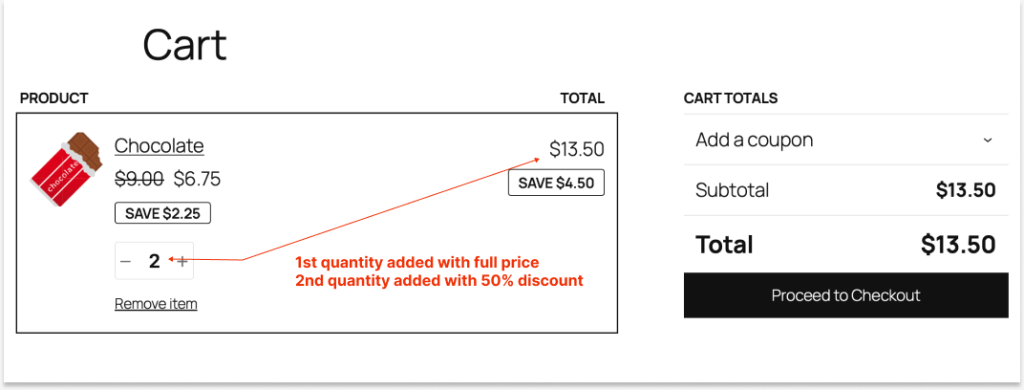
Let’s offer a 50% discount on the same second item when the customer buys the first item at its original price.
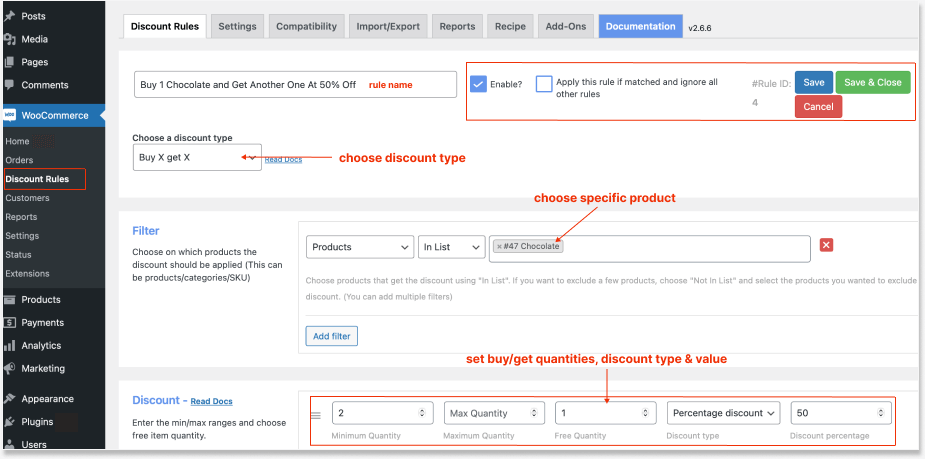
To create a Buy One Get One Half off in WooCommerce for the same product:
- Install and activate the “Discount Rules for WooCommerce – Pro” plugin (by Flycart).
- Go to “WordPress dashboard” -> “WooCommerce” -> “Discount Rules.”
- Click the “Add New Rule” button.
- Enter the rule name for your reference.
- Now, choose a discount type, “Buy X Get X,” to offer the same product at a discount.
- Choose the “specific product” in the “Filter” section to apply the discount. Here, I chose “Chocolate.”
- In the “Discount” section, set the “Minimum Buying Quantities” as “2,” as one product is added at the original price, and the other will be added at half price.
- Optionally set the “maximum buying quantities” if you want to limit the buying quantities.
- Set the “Free Quantity” to “1” and choose the discount type, “Percentage Discount,” with the value, “50.”
- Save and enable the rule.
It’s as simple as that. Now you have created a discounted item on your WooCommerce store.
Related Read: How to create percentage discounts in WooCommerce?
2. How to Add “Buy Two Get One 50 Off” in WooCommerce for Different Products?
Let’s try another scenario where you will offer a 50% discount to a Y product (to say, Cap) when your customers buy two quantities of X product (to say, T-shirt).
To create a WooCommerce Buy Two Get One 50 Off deal:
- Install the “Discount Rules for WooCommerce – Pro” plugin (by Flycart).
- Go to “WordPress dashboard” -> “WooCommerce” -> “Discount Rules.”
- Add a new discount rule.
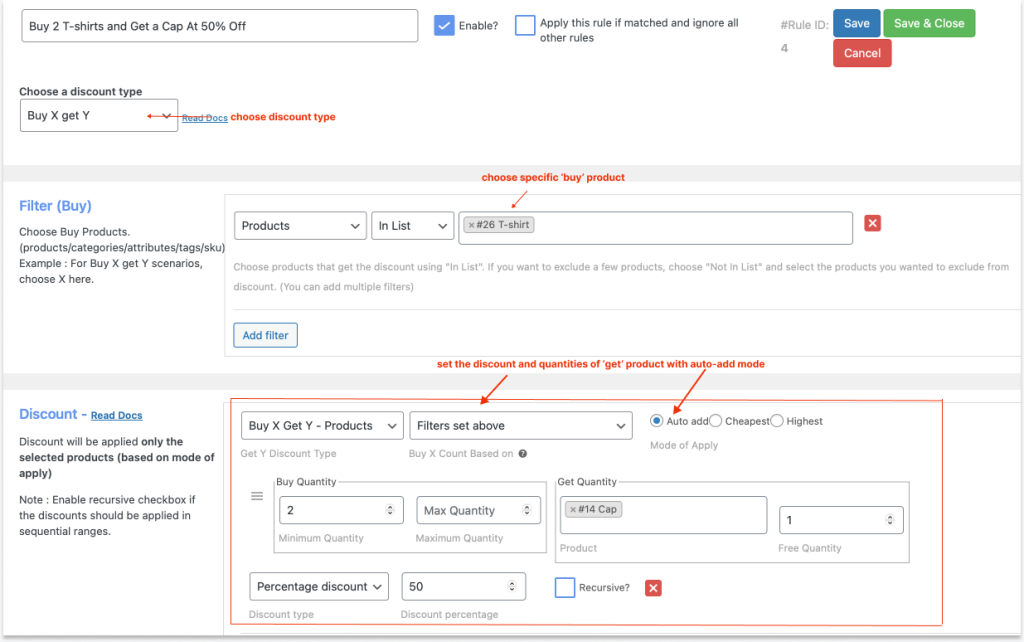
- Give a name and choose the discount type, “Buy X Get Y,” as you offer a different product with a discount.
- In the “Filter” section, select the specific Buy (X) product, “T-shirt.”
- In the “Discount” section, set:
- Get Y Discount Type -> “Buy X Get Y- Products.”
- Buy X Count Based on -> “Filters set above,” to cumulatively count all items in the cart.
- Choose “Auto add” mode to automatically add discounted items to customers’ carts.
- In the “Buy Quantity” section, set “Minimum Quantity” as “2” and optionally set “Maximum Quantity.”
- In the “Get Quantity” section, select the “Get Product” as “Cap” with “Quantity” as “1.”
- Finally, choose the “Percentage” discount type with the value “50.”
- Save and enable the rule.
Quick Note:
- If you select “Auto-add” mode, the discounted item can be automatically added to customers’ cart, which they can’t remove unless deleting the “Buy” product from the cart.
- To provide the discounted item as a choice, set the mode to “Cheapest/ Highest”. This can’t add the product to the cart, and customers have to navigate to the product page to add the discounted “cap” item.
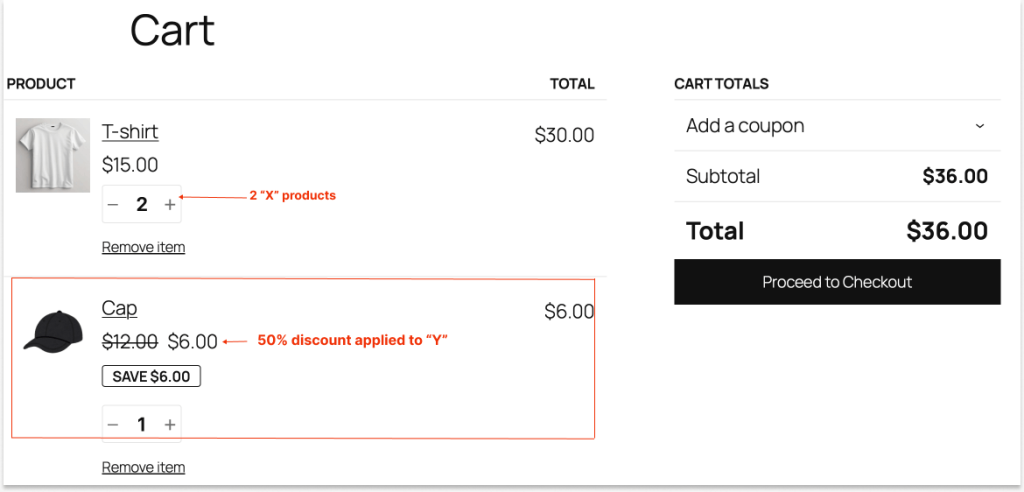
When customers add two t-shirts to their cart, the 50% discounted cap will automatically added to their cart, which they can buy or remove from their order.
3. How to Create a WooCommerce Buy One Get One Half Off with a Coupon?
Let’s try a different scenario using a coupon instead of applying discounts directly to the product.
Customers have to enter the provided coupon code to claim their discounts, which is a tactic to increase customer engagement.
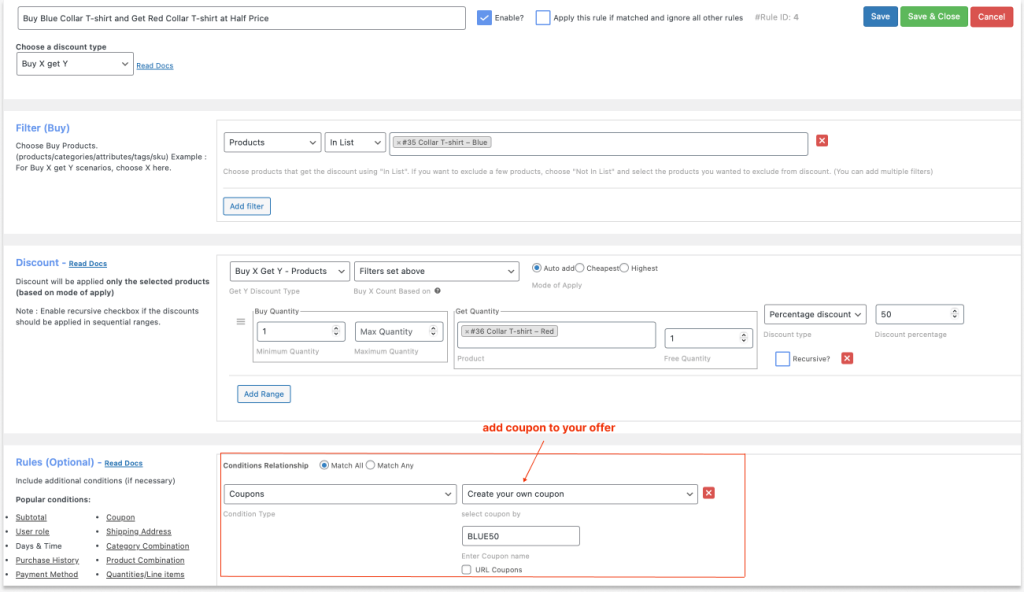
To create a Buy One Get One-Half Price Using a Coupon in WooCommerce:
- Install and activate the “Flycart’s Discount Rules for WooCommerce – Pro” plugin.
- Go to “WordPress dashboard” -> “WooCommerce” -> “Discount Rules” -> “Add New Rule.”
- Give a rule name and choose the discount type, “Buy X Get Y.”
- In the “Filter” section, select the specific “Buy” product.
- In the “Discount” section, set
- “Buy X Get Y – Products” as “Get Y Discount Type.”
- Set the “Auto-add” mode and “Filters set above” as “Buy X Count.”
- Set the “Minimum and Maximum Buying” quantities.
- Choose the specific “Get” product with the quantity and “50 Percentage” discount type.
- In the “Rules” section, add a new condition as “Coupons” and create a new coupon. For example, “BLUE50.”
- Save and enable the rule.
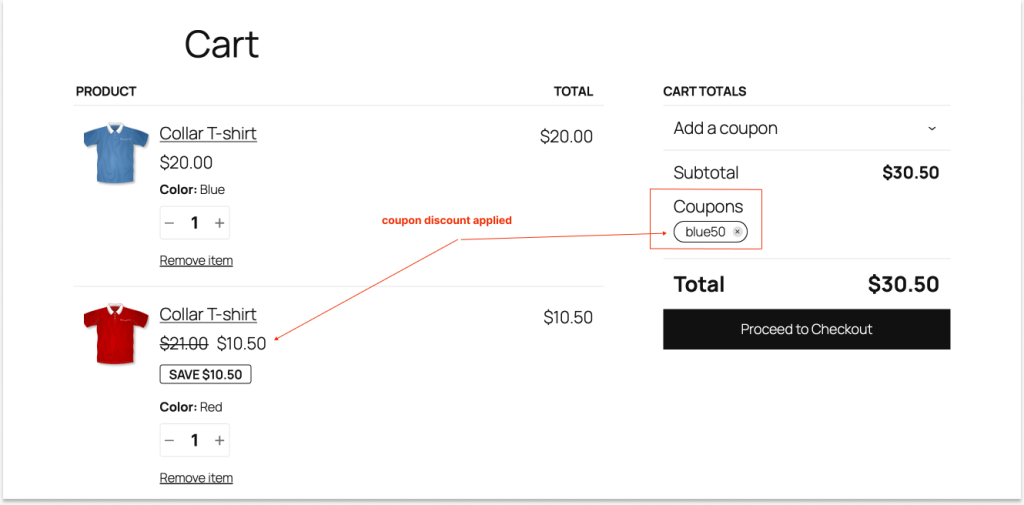
The half-price discount will be applied to the second item when customers use the given coupon code.
Related Read: Want to know more about coupons? Check this guide: How to create coupons in WooCommerce?
4. How to Offer WooCommerce Buy One Get One 50% Discount for Different Categories?
You can offer discounts on different category products to get rid of boring, simple product discounts.
For instance, customers can buy from the “A” category and get a 50% off deal for “B” category items.
To create a 50% off BOGO deal for different categories in WooCommerce:
- Activate the “Flycart’s Discount Rules for WooCommerce – Pro” plugin.
- Go to “WordPress dashboard” -> “WooCommerce” -> “Discount Rules” -> “Add New Rule.”
- Choose the discount type, “Buy X Get Y.”
- In the “Filter” section, choose a specific “Buy category.”
- In the “Discount” section, set
- Get Y discount type: “Buy X Get Y- Categories,” as you offer a different category here.
- Set the mode to “Cheapest (or) Highest,” where the low-cost or high-cost products from a different category will be discounted.
- Also, set the “Buy and Get Quantities,” select the specific “Get category” with “Percentage Discount” & “50.”
- Save and enable the rule.
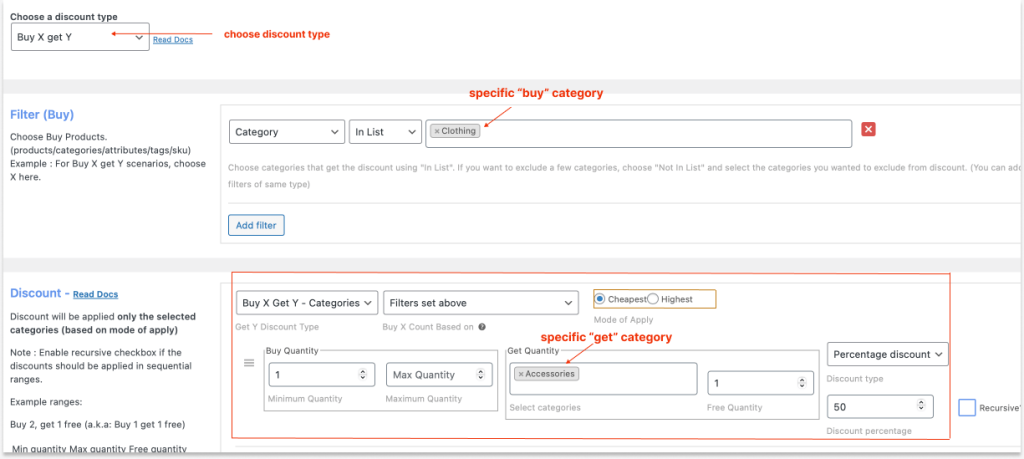
Here’s how the “Mode of Apply” works:
When customers add any one item from the “Clothing” category to their cart, the “Accessories” product page will be updated with a 50% discount.
Like this :
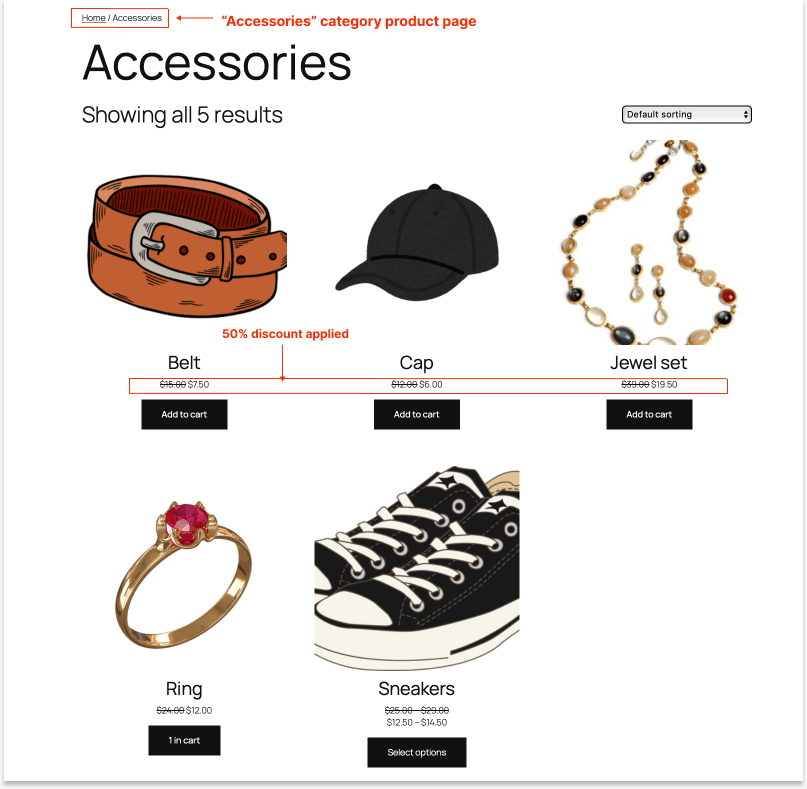
Customers can choose their favorite “Accessories” item and get 50% off.
What if they choose two items in the discounted category, as we already set the “Get” quantity as “One”? This is where the “Cheapest or Highest” mode of application is used.
If you set “Cheapest,” a 50% discount is applied to the low-cost product from the two added category items, and the same applies to the “Highest” mode with the high-cost product.
Live Result :
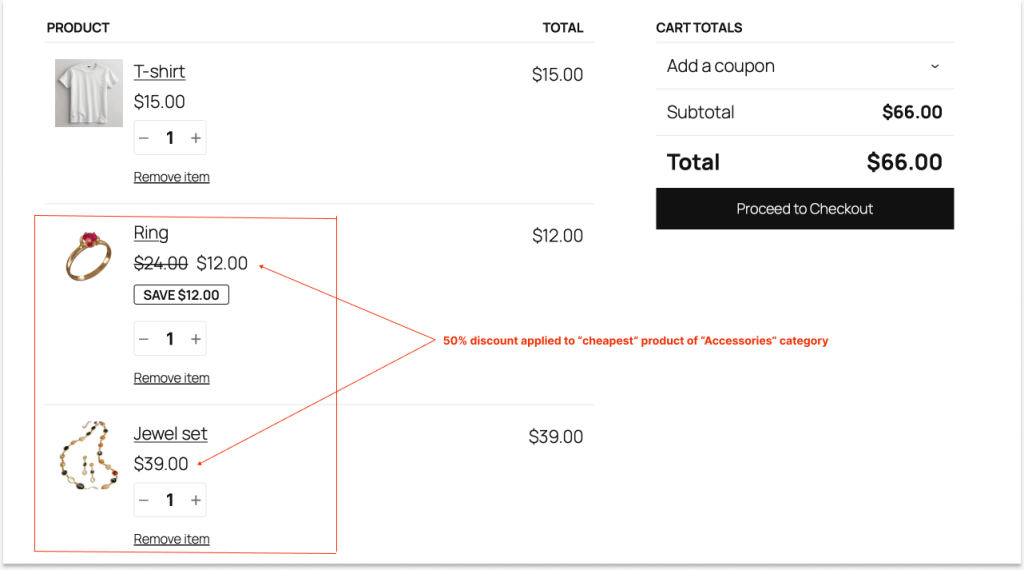
But, wait!
How will you notify this offer as they don’t know the updated discount page when they purchase an item from the “A” category?
That’s why the “Discount Rules for WooCommerce – Pro” plugin provides you with the “Discount Bar” option to help you announce the discounts and deals to your customers by displaying them as a badge on product pages.
Displaying Customized Discount Message
To customize and enable the discount bar:
- While creating the discount rule, navigate to the “Discount Bar” section below the “Rules” section.
- Select “Yes” to show the discount bar.
- Customize the badge text and background color; also, customize the text message.
- Save changes.
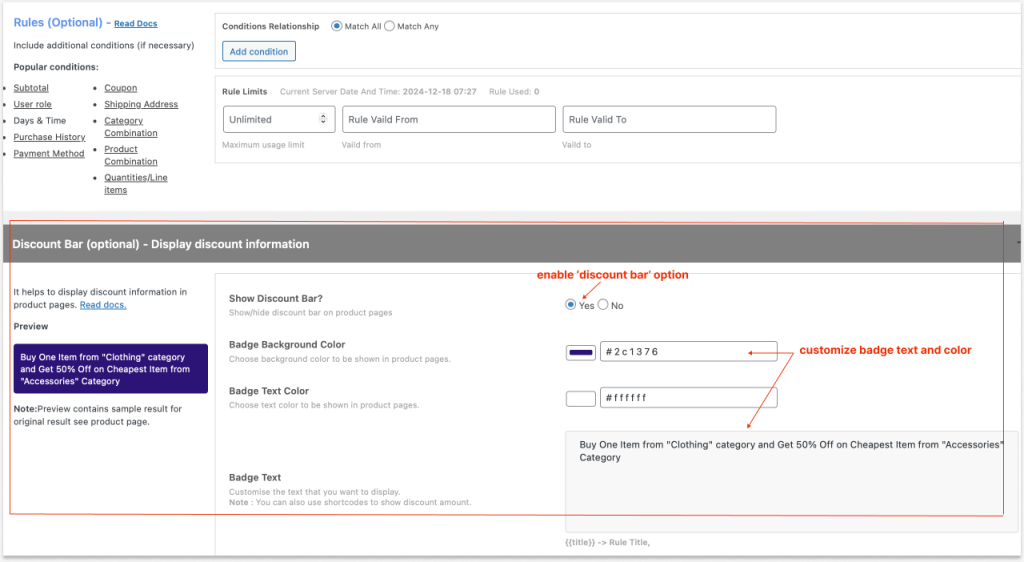
It will show a discounted message as a badge on the selected product pages based on the discount rules you create.
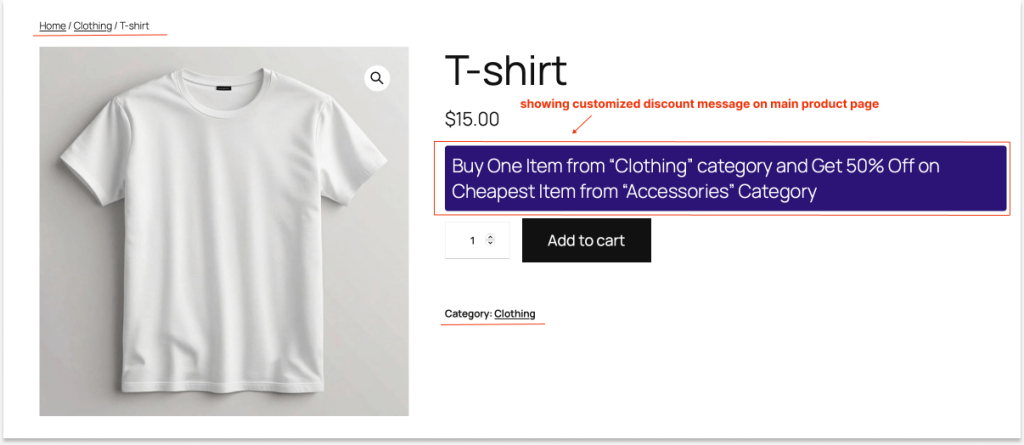
You can also change the position of this text message to the top or somewhere else. Open the “Settings” page of the “Discount Rules” plugin and make changes to the necessary features.
Related Read: How to create category discounts in WooCommerce?
5. How to Set a Minimum Order Price in WooCommerce BOGO?
To set a minimum order price with BOGO deals in WooCommerce:
- Install and activate the “Discount Rules for WooCommerce -Pro” plugin by Flycart.
- Go to “WooCommerce” -> “Discount Rules.”
- Click the “Add New Rule” button.
- Choose the discount type as “Buy X Get X (or) Buy X Get Y.”
- Filter the specific products or categories.
- Configure the discount section.
- In the “Rules” section, add a condition as “Subtotal” and enter the “minimum order value.”
- Save and enable the rule.
The BOGO discount will be applied only when customers add items worth this purchase amount.
6. More BOGO Ideas
I’ve already written a detailed blog on “Buy One Get One” WooCommerce deals with seven BOGO strategies, such as:
- Buy One Get One Free
- Spend “X” amount and get “Y” Product for free.
- BOGO Coupons
- BOGOHO deals with a different example
- Buy an “X” product and select the free “Y” product of your choice.
- Buy 2 Get 1 at a fixed discount
- Buy 2, get 1 free with recursive loops.
If you want to try these BOGO types in addition to this BOGOHO deal, learn those steps here: WooCommerce BOGO.
Six Easy Ways to Promote BOGOHO Offer
Customers don’t know your WooCommerce BOGOHO offer until it is promoted or announced. Here are six ways to promote your offer to increase its visibility:
- Website Banners: You can utilize the top and side spaces on your website to display the discount banner. You can also use the discount bar option on the “Discount Rules” plugin as discussed above.
- Social Media: Analyze which social media platform your target customers spend most of their time on and share the “Buy One Get One Half Off” discount posts there to increase engagement.
- Paid Campaigns: Not possible for every store owner, but if you have a budget to run sponsored ads on social media or collaborate with your niche influencers on YouTube, run a paid campaign to show your discount offer and increase ROI.
- Write Blogs: Again, not all store owners write blogs on their site. However, if you sell a product that has more customer queries, answer those in blogs to increase the site visibility on Google and other search engines, which helps you to get new traffic and customers. Mention your offer in related blogs to increase sales.
- SEO: Marketing is an important part of your business. In this digital era, you have to be up-to-date with the latest digital marketing trends to increase your site traffic. SEO is a major part of this process; so, optimize your on-page SEO process with the necessary keywords.
- Do YouTube or TikToks: Videos are trendier than images and blogs. Create relevant short & entertaining videos on YouTube or TikTok to boost your brand awareness and discount responses.
Best Practices to Increase Sales Using the “Buy One Get One Half Price” Deals
Though offering “Buy One Get One Half Off” deals in WooCommerce is a must-try strategy to increase sales, following these best practices will make this offer even more profitable:
Identify Your Target Customers:
You may have new and regular customers, and not all of them are interested in “Buy One Get One Half Off” deals as much as “BOGO free” deals.
It’s important to analyze how many percent of your customers are interested in BOGOHO deals and customize the discount offer based on their product search histories and purchases.
Segmenting your customers will help you offer relevant deals and increase sales.
Try Multiple Offers:
As we discussed above, you can offer the same “WooCommerce Buy One Get One Half Off” deal in different scenarios.
Understand your customer interests and preferences and customize the discount using coupons or direct discounts. Provide discounts to specific or high-demand products, or enable discounts based on subtotal or specific user roles, such as subscribers, wholesale dealers, and more.
A/B Test Your Offers:
Using the “Discount Rules” plugin, you can create multiple “BOGO 50 Off” offers and test them to find the best-performing and most relevant deals for your customers. Use that deal in your upcoming promotions to elevate your revenue.
Set Clear Terms & Conditions:
You may have specific purchase conditions that customers need to meet to claim their discounts, such as a minimum purchase amount, specific customer groups, specific delivery locations, or others.
Mention all the terms and conditions clearly to avoid confusion, help customers take advantage of your offers, and enhance customer experience.
Promote It More:
Discounts should be promoted on your websites, social media, or in other ways to make sure that your customers are aware of those deals to increase your sales.
Run Limited-Time Offers:
While other store owners have opened their deal gateway for more days, you can set the expiry time to your discount. This creates urgency for customers and helps them immediately purchase the discounted products.
Two Brand Examples of “Buy One Get One 50 Off” Deals
Brand 1: B&N
B&N (Barnes & Noble) is a popular online bookstore based in the USA. It uses the “Buy One Get One 50% Off” deal on its website to increase book sales.
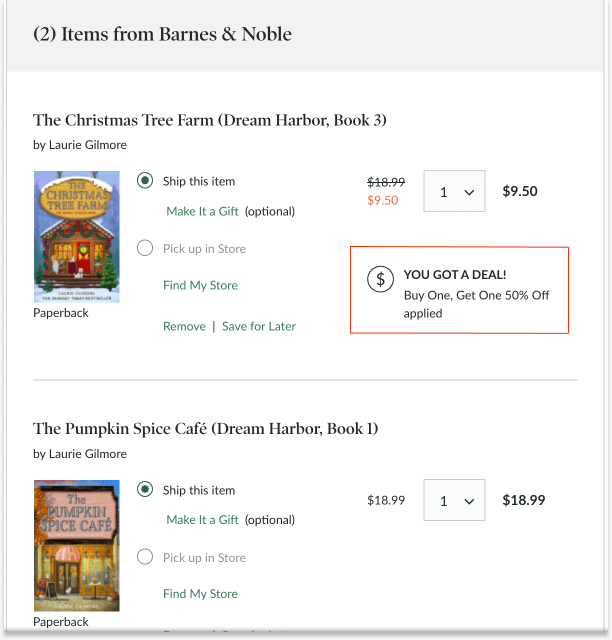
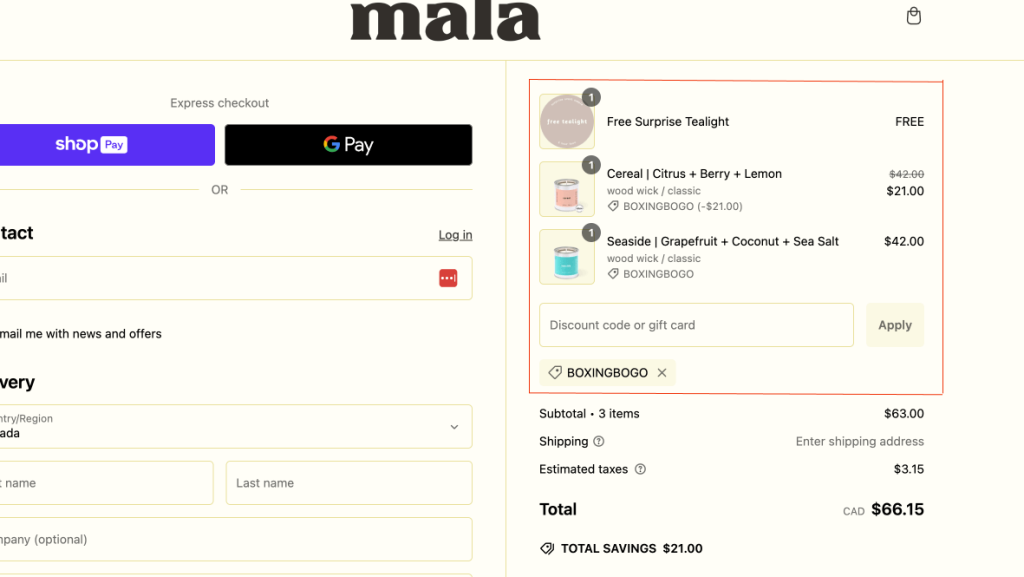
Brand 2: Mala The Brand
The “Mala the Brand” is a USA-based online store that sells hand-crafted and eco-friendly candles. It applies “BOGO 50% off” deals on its products to increase sales. It also uses “Coupon Code” to highlight its offer.
Offer BOGOHO deals based on subtotal and specific products using the “Discount Rules Pro” plugin and increase your sales & revenue.
Conclusion: Start Your BOGO Deal Today
A WooCommerce Buy One Get One Half Off deal is one of the most effective ways to:
- Encourage multi-product purchases
- Increase average order value
- Improve customer satisfaction
Unlike traditional discounts, it feels like a reward rather than a price cut — which is why it performs better.
The key to success lies in:
- Proper rule configuration
- Clear visibility
- Strategic targeting
- Continuous testing
Start simple:
- Buy 2 → Get the cheapest at 50%
Then scale with:
- Category-based offers
- Cart conditions
- Time-based promotions.
You can use the “Discount Rules for WooCommerce -Pro” plugin to create and manage your BOGO discount rules.
What to learn next?
- 5 Best WooCommerce Buy One Get One Free Plugins
- What is a BOGO Sale? Everything You Need to Know
- How To Offer WooCommerce Free Shipping? (Strategies + Examples)
Frequently Asked Questions
A split order refers to the process of splitting customers from one order into multiple orders for deliveries. It happens when customers provide different delivery locations for some products or when some items are not available for immediate delivery.
WooCommerce does not have a feature to split purchase orders, but you can use a plugin to fill the gap and enhance the shipping process.
Yes, you can offer more than one BOGO coupon at the same time on your site using the “Discount Rules for WooCommerce -Pro” plugin.
When creating a discount rule, add two coupon codes to your discount rules. Customers can enter any one of these codes to claim their discount.
You can apply BOGO deals to a variant of a product using the “Discount Rules for WooCommerce -Pro” plugin.
For example, you can apply BOGO deals on:
1. Same product variations, such as blue/ black/ white shoes.
2. same attributes and different products, such as blue color shirts and pants, white color shoes and caps, small-size t-shirts and shoes, and more.
WooCommerce has a default option to create coupon-based discounts for your products.
However, to add automatic discounts in WooCommerce, you need a plugin like “Discount Rules for WooCommerce -Pro”.