A WooCommerce conditional discount is an “if-then” based promotional strategy to offer specific discounts without sacrificing your profits.
For instance, “Spend $100 or more to get a 10% discount.” The 10% discount does not work for all carts and only applies to customers who have ordered $100 or more.
This condition attracts customers, makes them spend more to reach a specific threshold, increases their order value, and boosts sales. You can get more revenue even after offering discounts; this way, you can easily minimize revenue losses.
That’s why conditional discounts for WooCommerce are a must-needed strategy for your store to reach your planned sales target.
WooCommerce does not have a default option to set conditions. Hence, the discount plugin, “Discount Rules for WooCommerce – Pro,” helps you set strategic conditions for your discounts to increase conversions.
Learn how to create these conditional discounts for your WooCommerce store in seven different profitable ways.
Set conditions for your discounts using the “Discount Rules for WooCommerce – Pro” plugin to restrict ineligible carts from claiming discounts and minimize revenue losses.
Table of contents
- What is a WooCommerce Conditional Discount?
- How to Create a WooCommerce Conditional Discount?
- 7 Ways to Create Conditional Discounts for WooCommerce
- 1. How to Apply 10% Cart Discount with a Minimum Order Quantity?
- 2. How to Apply a $50 Fixed Cart Discount with a Minimum Order Amount?
- 3. How to Set Up Conditional Discounts for WooCommerce Based on Customers’ Purchase History?
- 4. How to Create Conditional Discount Coupons in WooCommerce for New Orders?
- 5. How to Offer a 20% Discount only to a Specific User Role “Wholesale Customers” in WooCommerce?
- 6. How to Set Up Conditional WooCommerce Discounts for Product Combinations?
- 7. How to Enable Free Shipping Deal Only for Specific Shipping Locations?
- Tips for Setting Strategic Discount Conditions in WooCommerce
- Why Offer Conditional Discounts for WooCommerce?
- Conclusion
- Frequently Asked Questions
What is a WooCommerce Conditional Discount?
A WooCommerce Conditional Discount is a type of promotional strategy where store owners set purchase conditions and offer discounts only to specific customers who meet their requirements, such as a minimum order amount, order quantity, and more.
Setting conditional discounts for WooCommerce drives customers to your store, makes them spend more to claim their deals, and boosts the average order value and sales without a fall in profit margin.
Examples of Conditional Discounts for your WooCommerce Store
Simple, Regular discount: 10% discount on All Products
Conditional Discounts:
- 10% discount only for First-time Buyers.
- Get $10 off only on T-shirts.
- Purchase for $200 and get a 5% discount.
- Purchase 10 items and get a $10 discount.
- 10% discount applies exclusively to orders shipped to India and the USA.
- PayPal Users get a $10 discount.
- 5% Discount on your Third Order.
Embed This YouTube Video Here:
How to Create a WooCommerce Conditional Discount?
To create a WooCommerce conditional discount, you need the plugin “Discount Rules for WooCommerce -Pro.” Here are the quick steps to create conditional discounts in WooCommerce:
Install the Discount Rules Pro Plugin
- Open your WordPress dashboard.
- Go to “Plugins” -> “Add New.”
- Search for “Discount Rules for WooCommerce – Pro” (by Flycart).
- Click the “Install” button and install & activate the plugin on your WooCommerce store.
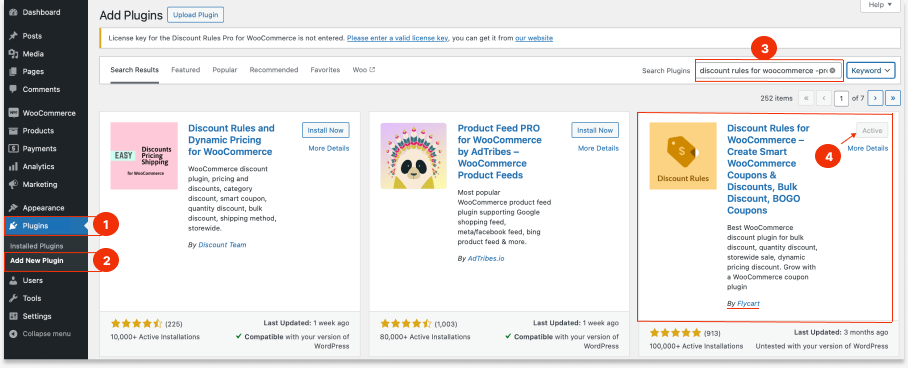
Setting Conditions for Discounts
- Go to “WooCommerce” -> “Discount Rules.”
- Click the “Add New Rule” button to add a new discount rule.
- Enter the “Rule Title” (rule name) for your reference.
- Choose a discount type of your choice based on the sales goal. It can be a Product Adjustment discount, Cart Adjustment discount, Bulk discount, or a BOGO deal.
- In the “Filter and Discount” sections, choose the options based on your discount preferences.
- In the “Rules” section, you can “add conditions” to your discounts.
- Finally, don’t forget to “Save and Enable” the rule to implement it.
7 Ways to Create Conditional Discounts for WooCommerce
Here are seven common and popular ways to set conditions. These aren’t fixed formulas; you can mix and match conditions and discounts to suit your sales goals and customer engagement strategies.
1. How to Apply 10% Cart Discount with a Minimum Order Quantity?
“Minimum purchase quantity” refers to the total quantity of items, and the cart discount applies when customers add the required item quantities to the cart.
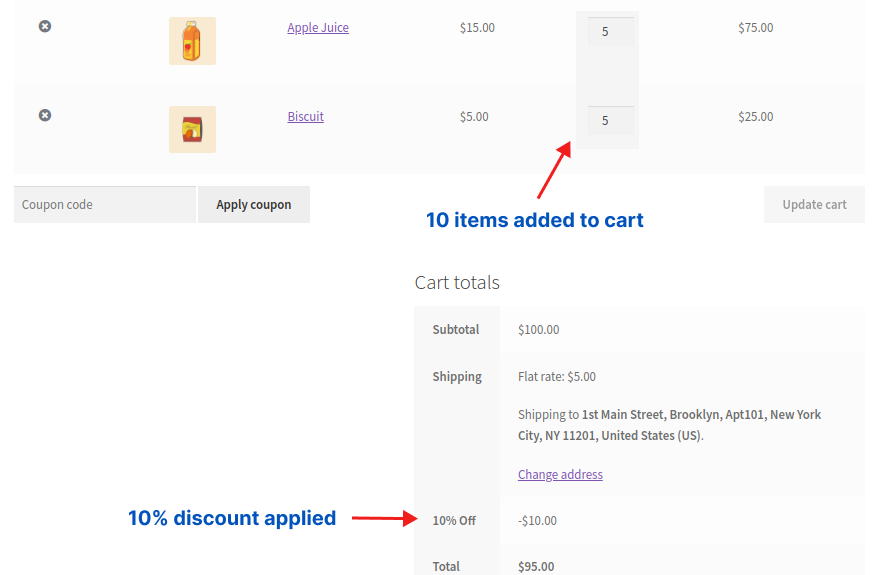
For example, when a customer’s cart has more than 10 items, they get a 10% discount.
To offer a 10% cart discount with a minimum order quantity condition in WooCommerce:
- Install and activate the “Discount Rules for WooCommerce – Pro” (by Flycart).
- Go to your “WordPress” Dashboard-> ”WooCommerce”-> “Discount Rules.”
- Click the “Add New Rule” button.
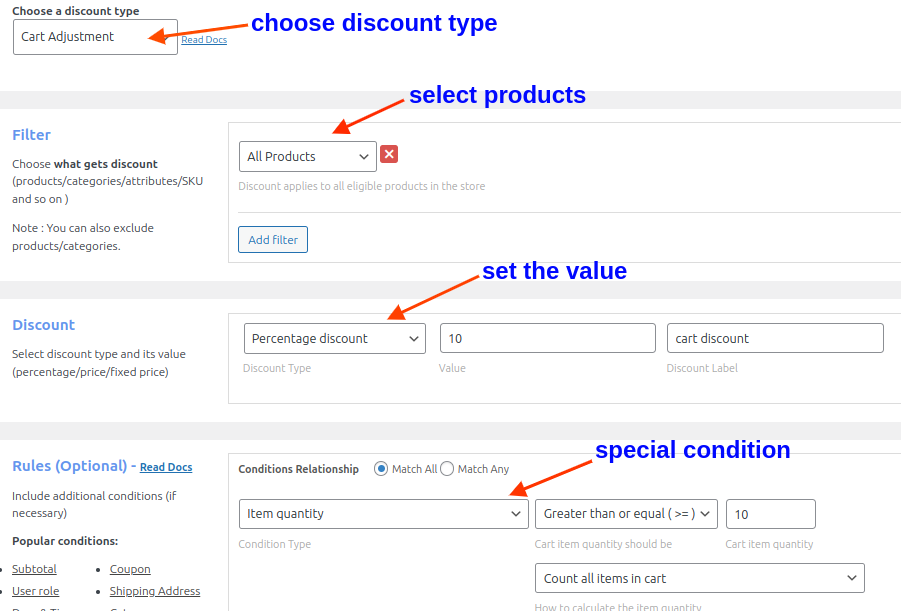
- Give a rule name and choose “Cart Adjustment” as the discount type.
- In the Filter Section, choose “All Products.”
- In the Discount Section, choose “Percentage Discount” and set the value to “10.”
- Go to the Rules Section and add a condition as “Item quantity,” select “Greater than or equal (>=),” set the cart item quantity as “10,” and select “Count all items in the cart.”
- Finally, save and enable the rule.
When customers add 10 or more items to their cart, a 10% discount will be applied.
Recommended Read: How to Set Up WooCommerce Quantity Discount: 2 Steps, 5 Ways
2. How to Apply a $50 Fixed Cart Discount with a Minimum Order Amount?
Customers have to reach the specific cart total to get a discount.
For Example, “Purchase above $400 and get a $50 fixed discount.”
To set a minimum order amount condition in WooCommerce with a $50 fixed discount:
- Install the “Flycart’s Discount Rules for WooCommerce – Pro” plugin and activate it.
- Go to “WooCommerce” -> “Discount Rules” -> “Add New Rule.”
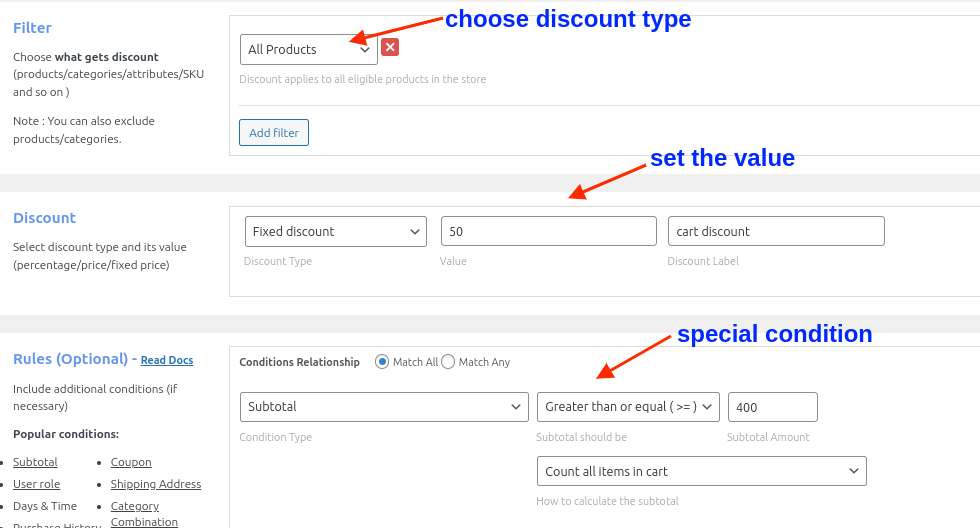
- Choose “Cart Adjustment” as the discount type.
- In the Filter Section, choose “All Products.”
- In the Discount Section, choose “Fixed Discount” and set the value to “50.”
- In the Rules Section, add a condition as “Subtotal,” select “Greater than or equal (>=),” set the cart item quantity as “400,” and select “count all items in the cart.”
- At last, save and enable the rule.
Related Read: How to Set a Minimum Order Amount in WooCommerce to Boost AOV? (More Scenarios)
3. How to Set Up Conditional Discounts for WooCommerce Based on Customers’ Purchase History?
You can analyze customers’ purchase history and segment them into a group to apply discounts only to them.
For Example, get a 10% discount on your Fifth Order.
To create a WooCommerce discount based on purchase history:
- Complete the installation and activation of “Discount Rules for WooCommerce – Pro” by Flycart.
- Navigate to “Discount Rules” under “WooCommerce.”
- Click the “Add New Rule” Button.
- Choose “Product Adjustment” as the discount type.
- In the Filter Section, choose “All Products.”
- In the Discount Section, choose “Percentage Discount” and set the value to “10.”
- In the Rules Section, add a condition as “number of orders made,” select “all time,” choose “Greater than or equal (>=),” set the cart item quantity as “4,” and select “completed.”
- Lastly, save and enable the rule.
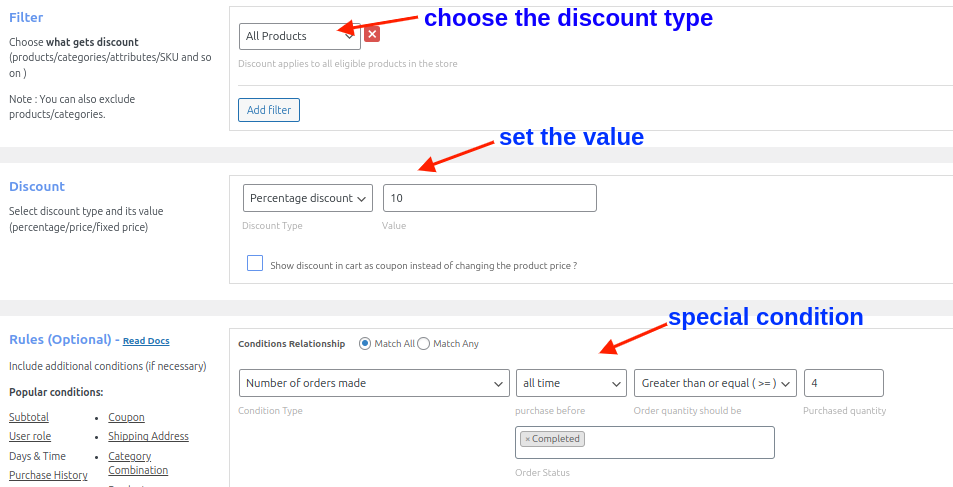
Discounts will be applied to customers who have already completed four successful orders and are purchasing for the fifth time.
You can also set the purchase time within a specific time, like “complete two orders within a week to get a $10 discount on the third order.”
Related Read: How to Create a WooCommerce Next Order Coupon? (3 Ways)
Create multiple discount conditions like minimum order amount/ quantity, specific shipping regions, purchase history, and more using the “Discount Rules for WooCommerce – Pro” plugin to increase customer experience and engagement.
4. How to Create Conditional Discount Coupons in WooCommerce for New Orders?
A Conditional Discount Coupon is one of the smart ways to send targeted discounts and encourage customers to purchase.
For Example, New customers get a 10% discount on their first purchase using a coupon.
To create a conditional discount coupon in WooCommerce for first orders:
- Install “Discount Rules for WooCommerce – Pro (Flycart)” in your WooCommerce site.
- Go to “WooCommerce” -> “Discount Rules.”
- Click “Add New Rule.”
- Choose “Product Adjustment” as the discount type.
- In the Filter Section, choose “All Products.”
- In the Discount Section, choose “Percentage Discount” and set the value to “10.”
- In the Rules Section, add two conditions:
- 1st Condition: Choose “Coupons” as the condition type, select “Create your own coupon,” and enter the coupon code as “NEWOFFER.”
- 2nd Condition: Choose “First order” as the condition type and select “Yes.”
- Finally, save and enable the rule.
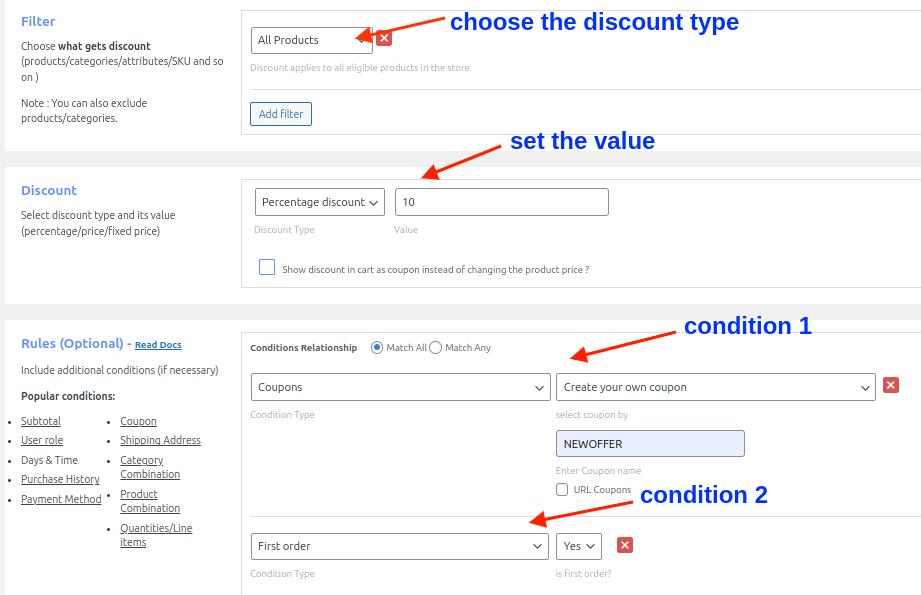
A 10% discount will apply only to first-time customers who have entered a coupon during the checkout process.
Pro Tip: Adding Conditions with Default WooCommerce Coupon
You can set a minimum order total condition with the default WooCommerce coupon settings. To do this:
- Go to “WooCommerce” -> “Marketing” -> “Coupons.”
- Add a new coupon code, set the discount type, and value.
- Set the minimum order total and publish it.
However, WooCommerce lacks advanced conditions like first-order customers and more, so the “Discount Rules for WooCommerce – Pro” plugin is recommended to refine your discount strategies.
Related Read: How to Auto-Apply WooCommerce Coupons via URLs? (4 Ways)
5. How to Offer a 20% Discount only to a Specific User Role “Wholesale Customers” in WooCommerce?
You can apply targeted discounts only to specific user roles, such as Shop managers, wholesale customers, regular customers, and more.
Customers should fit into that particular user group to claim their discounts.
For Example, Wholesale Customers get a 20% discount.
To create a 20% discount for specific user roles in WooCommerce:
- Install and enable “Discount Rules for WooCommerce – Pro” from Flycart.
- Open the “Discount Rules” dashboard under “WooCommerce.”
- Click the “Add New Rule” button to create a new discount rule.
- Choose “Product Adjustment” as the discount type.
- In the Filter Section, choose “All Products.”
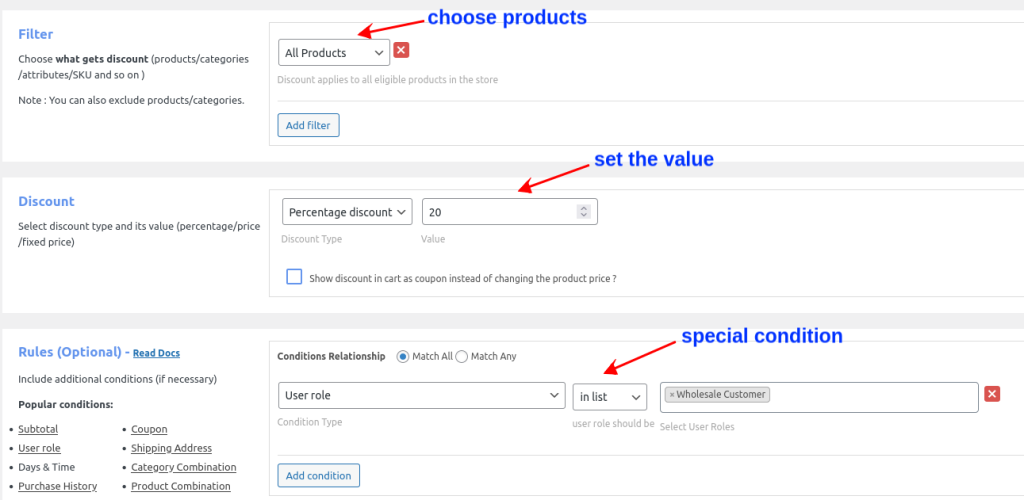
- In the Discount Section, choose “Percentage Discount” and set the value to 20.”
- Go to the Rules Section, choose “User role” as the condition, select “In list”, and choose “Wholesale Customer” as the user role.
- Finally, Save and Enable. Now, we have created a user role discount for WooCommerce.
Related Read: How to Set Up a WooCommerce Role-Based Pricing?
6. How to Set Up Conditional WooCommerce Discounts for Product Combinations?
Conditional discounts for WooCommerce also allow you to combine products and offer discounts. This is a great way to upsell, cross-sell, and promote new products.
For Example, Buy Pants and Shirts together and get a 10% discount.
To set a product combination condition and apply a WooCommerce discount:
- Install and turn on “Discount Rules for WooCommerce – Pro” (Flycart) in your WooCommerce site.
- Create a new discount rule from “Discount Rules.”
- Choose “Product Adjustment” as the discount type.
- In the Filter Section, choose “All Products.”
- In the Discount Section, choose “Percentage Discount” and set the value to “10.”
- Go to the Rules Section, choose “Product Combination” as the condition type, select “Each,” choose the products as “Pant,” “Shirt,” select “Greater than or equal to (>=)” and set the quantity as “1.”
- Finally, save the rule.
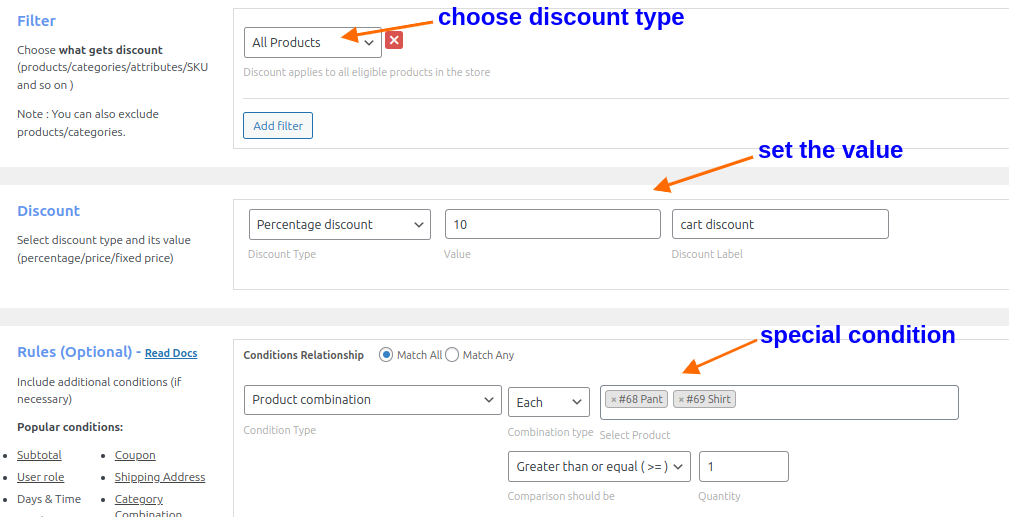
Customers who have both items in their carts can get a 10% discount.
Related Read: How to Create a WooCommerce Fixed Product Discount? 5 Ways
7. How to Enable Free Shipping Deal Only for Specific Shipping Locations?
The easiest way to drag customers to your WooCommerce store is by offering Free Shipping. If you want to attract customers from specific countries, you can use this condition.
For Example, Free shipping to the “India” shipping address.
- Set up and activate the “Discount Rules for WooCommerce – Pro plugin” by Flycart.
- Go to “WooCommerce” -> “Discount Rules” -> “Add New Rule.”
- Choose “Free Shipping” as the discount type.
- Go to the Rules Section, choose “Country” as the condition type, select “In list,” and choose “India” as the country.
- At last, save and enable the rule.
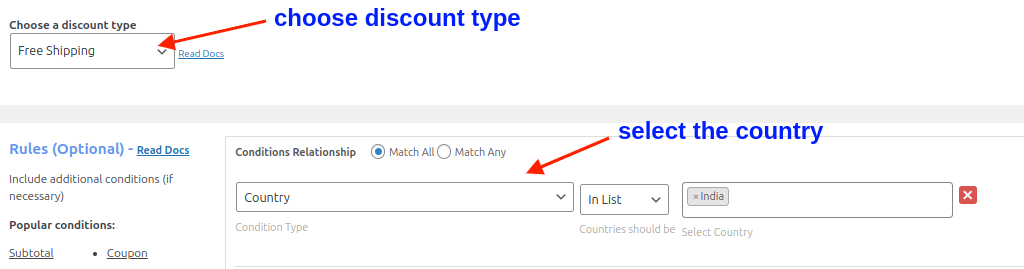
Now, we have created a Free Shipping offer only for specific countries.
Related Read: WooCommerce Free Shipping: A Complete Guide With Examples
Tips for Setting Strategic Discount Conditions in WooCommerce
You should strategically set the purchase conditions for discounts to maximize their impact. Following some of these tips will help you make more sales:
Define Clear Goals
Conditional discounts serve different goals.
They can help boost sales of certain products, grow brand presence in target regions, increase average order value, and more.
Define your goals and discount conditions clearly to achieve the desired results.
Communicate clearly
Clearly communicate your discounts to your customers to increase their visibility. You can use discount bars and percentage sale badges to display discount information.
Tailor Discounts by Customer
Every customer is different. Segment them thoughtfully and offer the right type of discount based on their needs to build long-term loyalty
Create Schedule Discounts
Setting the start and the end date of discounts creates a sense of urgency. As a result, your customers will purchase soon, increasing conversions.
Related Read: How To Create WooCommerce Advanced Discounts? (5 Popular Brand Examples)
Set Usage limits for discounts
Setting limits is a great option for effective discount management and helps prevent misuse of the discount.
Test and Analyze
A/B testing, analyzing, and making required changes is the key to growth.
Pro Tip: When applying conditions to discounts, analyze customers’ purchase behavior and interests to ensure the requirements align with their actual buying patterns.
Note: “Discount Rules for WooCommerce – Pro” is specifically optimized for the HPOS architecture. This means whether you have 100 orders or 100,000, our conditional logic queries the database without slowing down your checkout, even during high-traffic sales events.
Why Offer Conditional Discounts for WooCommerce?
Offering conditional discounts for WooCommerce brings you more benefits than simply boosting your sales. Here is why you need to set discount conditions:
Increase Average Order Value
Setting conditions like minimum order amount or quantity discounts can encourage customers to purchase more to reach specific thresholds, leading to an increase in average order value as they buy more than they originally intended.
Boost Conversions
Since the discount conditions target only a specific set of customers, like first-time customers, specific shipping regions, or more, those meeting those conditions can actually benefit from your discount offer, which boosts conversion rates.
Reduce Abandoned Carts
Conditional discounts for WooCommerce are profitable only when you apply them at the right time.
When customers are about to abandon their cart, a time-limited offer like ‘5% off or $5 cashback if you order within 5 minutes’ can motivate them to complete the purchase and reduce cart abandonment.
Drive Customer Engagement
Discounts should resonate with customers to make them take action.
Motivate customers to purchase from your store by applying conditions at the right time to drive customer engagement.
For example, offering a 5% discount for first orders can easily attract new customers.
Grow Loyal Customer Base
Offering conditional discounts like ‘5% off on the 5th order‘ encourages repeat purchases and gradually builds a loyal customer base.
Better Inventory Management
A WooCommerce conditional discount is one of the best marketing tactics to move your slow-selling products into customers’ carts.
BOGO (Buy One Get One) is a conditional discount that requires customers to buy a specific product to receive a free or discounted one. It’s an effective way to clear slow-moving inventory.
Set conditional discounts using the Discount Rules Pro plugin to increase your sales and revenue, without sacrificing profit margins.
Conclusion
A WooCommerce conditional discount is always a must-have strategy for every store looking to boost its sales without losing more money on discounts.
Many popular brands like Amazon are already using this tactic, like “Minimum Order Quantity,” to help sellers make money and reduce packaging costs on low quantity orders.
You can quickly use “Discount Rules for WooCommerce – Pro” to create and manage your conditional discount offers.
If you haven’t considered applying conditions to your discounts, try it now to boost sales and revenue.
Also Read:
- WooCommerce Dynamic Pricing: 4 Ways to Price Your Products
- How to Create a WooCommerce Bulk Discount in 2026? (With Examples)
- 6 Best WooCommerce Discount Plugins (Free & paid)
Frequently Asked Questions
To add a discount rule in WooCommerce, first install and activate the Flycart’s “Discount Rules for WooCommerce -Pro” plugin.
– Go to “WooCommerce” -> “Discount Rules” -> “Add New Rule.”
– Name your rule and choose a “discount type.”
– In Filter, select the “products.”
– In Discount, set the “type and value.”
– Add any “special conditions” under Rules.
– Save and enable the rule.
To add categories in WooCommerce,
Go to your “WordPress” Dashboard -> “WooCommerce” -> “Products” -> “Categories” -> “Add new category.”
To apply a discount only to customers using a specific Payment method:
– Install and activate “Discount Rules for WooCommerce – Pro.”
– Go to your “WordPress” Dashboard -> “WooCommerce” -> “Discount Rules.”
– Create a new discount rule.
– Choose your “discount type”. Filter “specific products or categories” to apply discounts.
– Set your “discount type and its value.”
– In the “Rules” section, select a condition as “Payment Method” and set the “specific payment method.”
– Save the rule.
To offer a first-order discount, install and activate the “Discount Rules for WooCommerce” plugin:
– Add a new rule.
– Select discount type and target products.
– Set discount value.
– Under Rules, choose “First Order” = Yes.
– To use a code, add a “Coupon” condition and create the code.
– Save the rule.
First-time buyers will now receive the discount.
A conditional coupon is a promotional offer that only works when certain conditions are met. Unlike regular coupons, these may require:
– A minimum purchase
– Buying specific products
– Using it within a set time
– Being a member or a loyal customer
– Limits on how many times it can be used.