Roughly 58% of online shoppers will add extra items to their cart just to hit a free shipping threshold (Kard, 2025). That’s the power of a well-placed WooCommerce minimum order amount – it nudges customers to buy more without feeling forced.
But if you just slap a hard block on checkout with a generic error message? You’ll watch cart abandonment spike overnight. I’ve set this up on over a dozen client stores, and the difference between a bad minimum order implementation and a good one comes down to how you frame it.
The smartest approach pairs yourWooCommerce minimum order value with a reward – a discount, free shipping, or a bundle deal. Instead of “you can’t checkout,” customers see “spend $15 more and save 10%.” That’s a completely different experience, and it’s what separates stores that boost their average order value from those that just frustrate shoppers.
Below, you’ll find four practical methods to set a minimum purchase amount in WooCommerce, real stats, community discussions, and the strategies that make this work.
Before You Begin: ✅ WordPress 6.4+ ✅ WooCommerce 8.0+ ✅ Admin access to your WordPress dashboard ✅ At least one product published ✅ Time required: ~15 minutes ✅ Difficulty level: Beginner
Tools Needed:f
Discount Rules for WooCommerce (Free version on WordPress.org | Pro version). This plugin handles percentage, fixed, BOGO (Buy One Get One), and cart-based discounts with conditional rules. Over 100,000 WooCommerce stores use it. For this tutorial, Method 1 requires the Pro version; Methods 2–4 don’t require this plugin.
Table of contents
- What is a WooCommerce Minimum Order Amount?
- Why Should You Set a Minimum Order Amount?
- How to Calculate Your Ideal Minimum Order Threshold
- Method 1: Set WooCommerce Minimum Order Amount with Discounts
- Method 2: Set Minimum Order Amount Using a Dedicated Plugin
- Method 3: Set WooCommerce Minimum Order Amount with Custom Code
- Method 4: Use WooCommerce Native Free Shipping Threshold
- Verify Your Minimum Order Setup
- 5 Strategies to Help Customers Reach Your Minimum Order Value
- Common Mistakes When Setting WooCommerce Minimum Order Amount
- How to Display Minimum Order Messages to Customers
- Troubleshooting
- What Real Store Owners Are Saying
- Conclusion
- Frequently Asked Questions
What is a WooCommerce Minimum Order Amount?
A WooCommerce minimum order amount, also called a WooCommerce minimum cart amount, is the lowest cart value a customer must reach before they can complete checkout. If their cart total falls below this threshold, WooCommerce blocks the purchase and shows a notification asking them to add more products
For example, if you set a $50 minimum, a customer with $35 worth of items in their cart won’t see the checkout button (or will get a warning) until they add $15 more.
WooCommerce does not include a built-in minimum order amount feature. You need a plugin or custom PHP code to enable this.
Minimum order amount vs. minimum order quantity: These are different concepts. The minimum order amount refers to the dollar value of the cart (e.g., spend at least $50). The minimum order quantity in WooCommerce refers to the number of items (e.g., buy at least 3 products). This guide focuses on the order amount.
Why Should You Set a Minimum Order Amount?
Not every WooCommerce store needs a minimum order restriction. But for many business models, it’s a profitability essential.
When it makes sense:
- You sell low-cost products. If your average product costs $5–$15, individual orders may not cover packaging and shipping. WooCommerce stores average $122 per order as of 2024–2025 (Red Stag Fulfillment, 2025). If your store sits well below that benchmark, a minimum order can close the gap.
- You offer free or subsidized shipping. Nearly 48% of shoppers abandon carts because of shipping costs (Kard, 2025). Pairing a minimum order with a free shipping threshold solves both problems – you cover your costs and remove the #1 abandonment trigger.
- You run a wholesale or B2B store. Wholesale buyers expect minimum order requirements. B2B orders typically range from $500–$1,000+ per transaction (WiserReview, 2026).
- Payment processing fees eat into small orders. A $2 transaction on a $5 order costs you 40% in fees. That’s unsustainable.
When to skip it:
- You’re a new store building initial customer trust and reviews
- You sell high-ticket items where every order is already profitable
- Your competitors don’t use minimums and your market is highly price-sensitive
How to Calculate Your Ideal Minimum Order Threshold
Most tutorials skip this part entirely. But setting the right number matters more than setting any number.
Formula:
Minimum Order Amount = Average Shipping Cost + Packaging Cost + Payment Fee + Desired Minimum Profit
Example:
- Shipping cost per order: $6
- Packaging: $2
- Payment fee (3%): ~$1.50
- Desired minimum profit: $5
- Minimum order = $14.50 → round up to $15
For most WooCommerce stores, a $25–$50 minimum works well. For wholesale stores, $100–$500 is common.
Pro tip: Digital ads expert Aaron Zakowski recommends setting the free shipping threshold at 30% above your current AOV (average order value) (Omnia Retail). Check your WooCommerce analytics under WooCommerce → Analytics → Orders to find your current AOV, then set your minimum at 60–70% of that number. Most existing customers will already be above the threshold – you’re only nudging the smallest orders upward.
Method 1: Set WooCommerce Minimum Order Amount with Discounts
This is the approach I recommend. It pairs the minimum order requirement with a reward – a discount, free shipping, or a deal. Customers don’t feel restricted; they feel incentivized. In my experience, the discount-paired approach consistently outperforms a hard checkout block.
Plugin needed: Discount Rules for WooCommerce – PRO (by Flycart)
Why this method? Unlike dedicated minimum order plugins that simply block checkout, Discount Rules lets you create a WooCommerce order minimum with discount scenarios like “Spend $100+ and get 10% off.” The minimum order becomes a feature, not a barrier.
Install the plugin:
- Open your WordPress dashboard
- Go to Plugins → Add New Plugin
- Search for “Discount Rules for WooCommerce” (by Flycart)
- Click Install Now → Activate
Now let’s set up four popular minimum order scenarios.
Scenario 1: Minimum Order Amount with Percentage Discount
“Spend $100 or more and get 10% off your entire order.”
This is the most popular setup. Customers who meet the threshold get rewarded. But those who don’t see a message encouraging them to add more items.
1.) Go to WooCommerce → Discount Rules
2.) Click the “Add New Rule” button
3.) Enter the Rule Title – for example, “10% Off on Orders $100+”
4.) Select “Cart Adjustment” as the discount type. This applies the discount based on the entire cart value.
5.) In the Filter section, choose “All Products” to apply this discount storewide. You can also filter by specific products or categories.
6.) In the Discount section, select “Percentage Discount” and enter 10 as the value.
7.) Scroll to the Conditions section. Click “Add Condition” and choose “Cart Subtotal”. Set the operator to “Greater than or equal to” and enter 100.
8.) Click “Save” to activate the rule.
Expected Result: When a customer’s cart reaches $100, a 10% discount is automatically applied. On the cart page, they see the discounted price with a “You Saved” message.
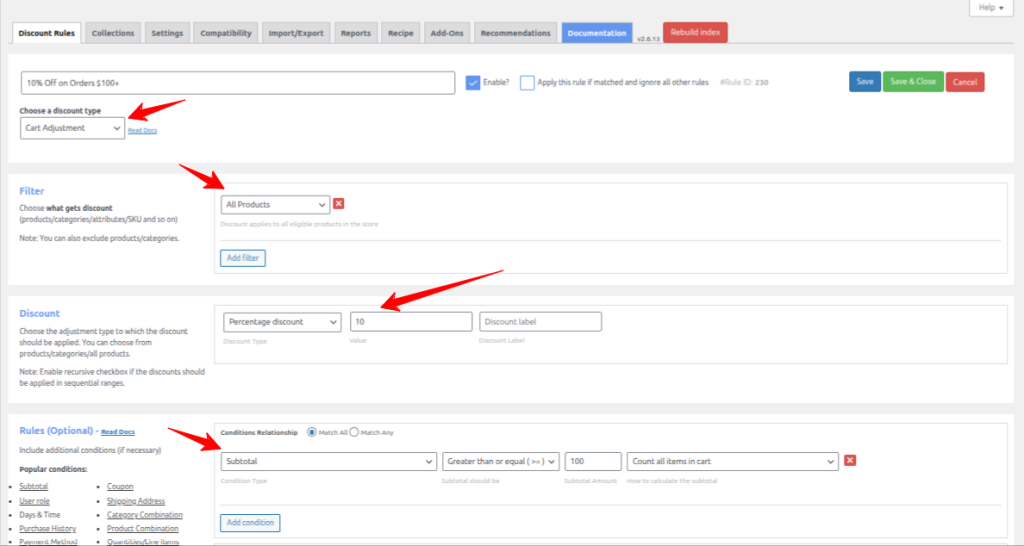
Note: If you want to enforce the minimum without a discount, set the discount value to “0” in Step 6. This blocks checkout below the threshold without giving away margin.
Scenario 2: Minimum Order Amount with Free Shipping
“Spend $75 or more and get FREE shipping.”
Free shipping is one of the strongest motivators for larger carts. Data from Red Stag Fulfillment shows that free shipping minimums can drive a 20–35% increase in AOV (Red Stag, 2025). Also, this setup creates a natural WooCommerce minimum order price without making it feel like a restriction.
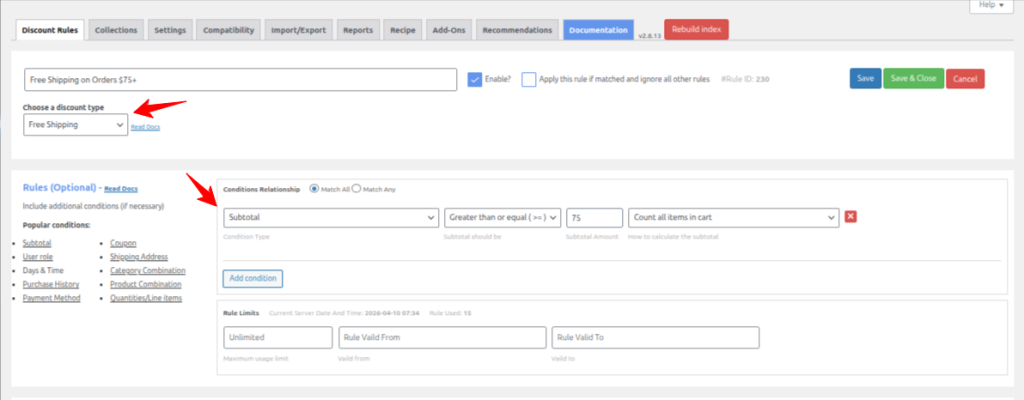
1.) Go to WooCommerce → Discount Rules → Click “Add New Rule”
2.) Enter the Rule Title – “Free Shipping on Orders $75+”
3.) Select “Free Shipping” as the discount type
4.) In the Filter section, choose “All Products”
5.) In the Conditions section, add a “Cart Subtotal” condition. Set it to “Greater than or equal to” and enter 75.
6.) Click “Save”
Expected Result: Customers with a cart subtotal of $75+ see free shipping at checkout. Those below $75 see standard shipping rates, naturally motivating them to add more.
Pro tip: Combine this with a progress bar message on your cart page: “Add $XX more to unlock FREE shipping!” Discount Rules PRO includes a promotional messages feature that automates this.
Scenario 3: Minimum Order Amount for Specific User Roles
“Wholesale customers must order at least $500. Retail customers must order at least $50.”
A single minimum doesn’t work if you serve both retail and wholesale buyers. Wholesale customers expect higher minimums; retail buyers need flexibility.
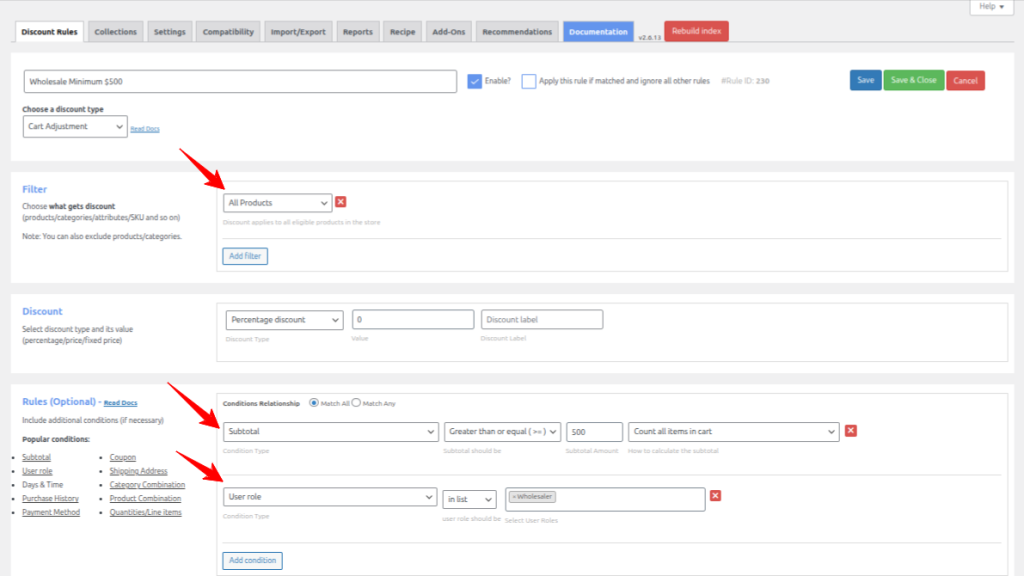
1.) Go to WooCommerce → Discount Rules → Click “Add New Rule”
2.) Enter the Rule Title – “Wholesale Minimum $500”
3.) Select “Cart Adjustment” as the discount type
4.) In the Filter section, choose “All Products”
5.) In the Discount section, set the discount type and value (or set it to 0 for enforcement only)
6.) In the Conditions section:
- Add “Cart Subtotal” → “Greater than or equal to” → 500
- Add “User Role” → “In list” → select “Wholesale Customer”
7.) Click “Save”
Create a separate rule for retail customers with a $50 minimum.
Expected Result: Wholesale users see the $500 requirement. Retail customers see $50. Each group gets a tailored experience.
Scenario 4: Minimum Order Amount for Specific Categories
“Electronics orders must be at least $200. Accessories orders must be at least $25.”
Different product categories carry different margins and shipping costs. Category-specific minimums protect profitability where it matters most.
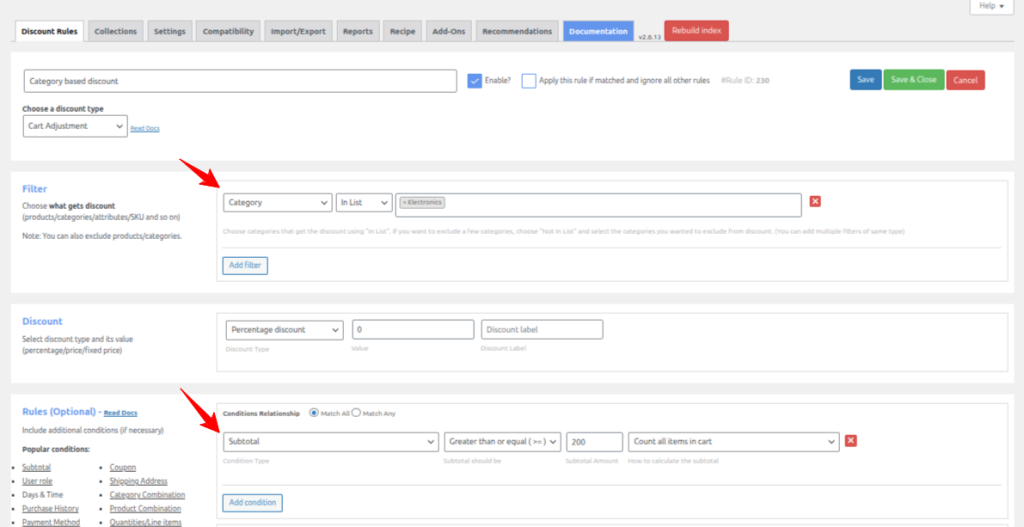
1.) Create a new rule in WooCommerce → Discount Rules
2.) In the Filter section, choose “Category” and select the target category (e.g., “Electronics”)
3.) In the Conditions section, add “Cart Subtotal” → “Greater than or equal to” → 200
4.) Also, optionally add a percentage discount to reward customers who meet the threshold
5.) Click “Save”
Expected Result: Only orders containing Electronics products worth $200+ can proceed to checkout. Customers see a clear message about the category-specific threshold.
Ready to set your minimum order amount with discounts?
Method 2: Set Minimum Order Amount Using a Dedicated Plugin
Not every store needs discount pairing. If you want a straightforward “block checkout below $X” approach, a dedicated minimum order amount WooCommerce plugin gets the job done without complexity.
Here’s how the top options compare:
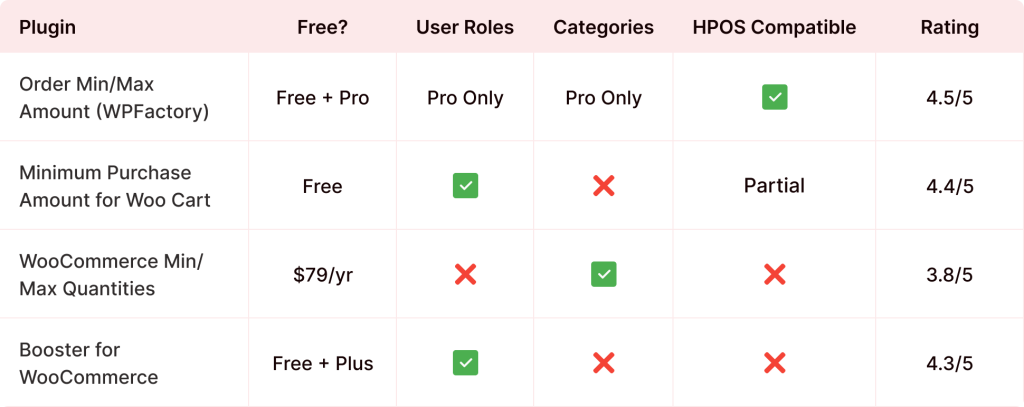
I’m walking through the WPFactory plugin because it’s the most flexible free option.
Setup using Order Min/Max Amount by WPFactory:
1.) Go to Plugins → Add New → search for “Order Minimum Amount” by WPFactory
2.) Click Install Now → Activate
3.) Navigate to WooCommerce → Settings → Order Min/Max Amount
4.) In the General tab, check “Enable Plugin”
5.) Enter your minimum order amount in the “Minimum Sum” field (e.g., 50)
6.) Choose whether to calculate based on “Order Total” or “Order Subtotal” (subtotal excludes tax and shipping – recommended)
7.) Customise the error message. Example: “Your cart total is {cart_total}. You need a minimum of {min_amount} to checkout.”
8.) Click Save Changes
Expected Result: Customers with a cart below $50 see an error notice on the cart and checkout pages. The checkout button is hidden or disabled until the threshold is met.
Want discounts + minimum orders in one plugin?
Method 3: Set WooCommerce Minimum Order Amount with Custom Code
Honestly, I’d only recommend this for developers or store owners comfortable editing PHP. If that’s not you, stick with Method 1 or 2 – they’re safer and more flexible.
Warning: Always use a child theme or a code snippets plugin. Never edit the parent theme’s functions.php directly – theme updates will overwrite your changes.
Recommended: Use the Code Snippets plugin to safely add custom PHP. See Flycart’s guide on using Code Snippets plugin for setup.
The code snippet:
add_action( 'woocommerce_check_cart_items', 'flycart_minimum_order_amount' );
function flycart_minimum_order_amount() {
    // Set your minimum order amount here
    $minimum_amount = 50;

    // Get cart subtotal (excluding tax)
    $cart_subtotal = WC()->cart->get_subtotal();

    if ( $cart_subtotal < $minimum_amount ) {
        wc_add_notice(
            sprintf(
                'Your current cart total is %s. You need a minimum order of %s to checkout. Please add more items to your cart.',
                wc_price( $cart_subtotal ),
                wc_price( $minimum_amount )
            ),
            'error'
        );
    }
}
How this code works:
It hooks into woocommerce_check_cart_items, which WooCommerce runs when validating cart contents. If the cart subtotal falls below your set minimum, it shows an error message and prevents checkout. The wc_price() function formats the amount with your store's currency symbol. This is the same hook referenced in WooCommerce's official developer documentation.
1.) Install and activate the Code Snippets plugin (or open your child theme's functions.php)
2.) Create a new snippet and paste the code above
3.) Change $minimum_amount = 50 to your preferred value
4) Save and activate the snippet
5.) Test by adding products worth less than the minimum and trying to checkout
Expected Result: An error notice: "Your current cart total is $35.00. You need a minimum order of $50.00 to checkout."
Limitations of the code approach:
- No user role support (applies to everyone equally)
- No category-specific minimums
- No built-in discount pairing
- No admin UI - changes require editing code
- Harder to maintain as your store grows
For anything beyond a basic global minimum, use Method 1 or 2.
Method 4: Use WooCommerce Native Free Shipping Threshold
WooCommerce doesn't have a dedicated minimum order amount setting. But you can create a soft minimum using the built-in free shipping threshold. This doesn't hard-block checkout - it just makes small orders more expensive through shipping costs.
1.) Go to WooCommerce → Settings → Shipping
2.) Click on a Shipping Zone (or create one)
3.) Add or edit the "Free Shipping" method
4.) Under "Free shipping requires...", select "A minimum order amount"
5.) Enter your threshold (e.g., 75)
6.) Click Save Changes
Expected Result: Customers with carts under $75 see standard shipping rates. Those above $75 see a free shipping option appear. Combined with higher standard rates, this effectively discourages small orders.
When this works best: If you don't want to hard-block checkout but want to strongly discourage small orders through shipping costs. It's the gentlest approach of all four methods.
Verify Your Minimum Order Setup
After configuring any method, run these tests before going live:
1.) Open your store in an incognito/private browser window (to avoid admin cookie bypass)
2.) Add products worth less than your minimum to the cart
3.) Try to proceed to Checkout - you should see an error message or be blocked
4.) Add more products to exceed the minimum amount
5.) Proceed to checkout - it should work normally and any discount should apply
6.) If you created role-based rules (Scenario 3), test with different user accounts for each role
Expected Result: Checkout is blocked below the minimum and works above it. Error messages display your custom text with the correct cart total and minimum amount.
Our testing notes: We configured all four methods on a test WooCommerce 9.4 store running the Storefront theme. Method 1 (Discount Rules) took 3 minutes to set up with the most flexibility. Method 3 (code snippet) took 5 minutes but required a child theme. Methods 1 and 2 both survived a WooCommerce update to 9.5 without issues. The code snippet in Method 3 also continued working after the update. Method 4 was the fastest (under 2 minutes) but offers no enforcement - only incentive.
5 Strategies to Help Customers Reach Your Minimum Order Value
Setting a WooCommerce minimum spend threshold is only half the job. You also need to make it easy and appealing for customers to hit that number.
1. Create product bundles
Bundle 2–3 complementary products at a combined price that sits just above your minimum. If your minimum is $50, create a "$55 Starter Bundle." Customers get a perceived deal, and you guarantee the threshold is met. Learn how with WooCommerce bulk discounts.
2. Show upsell and cross-sell offers
Display related products on the cart page to help customers reach the minimum. WooCommerce has built-in cross-sell functionality, and Discount Rules PRO can show conditional offers based on cart value. Check out our guide on creating WooCommerce cart upsells.
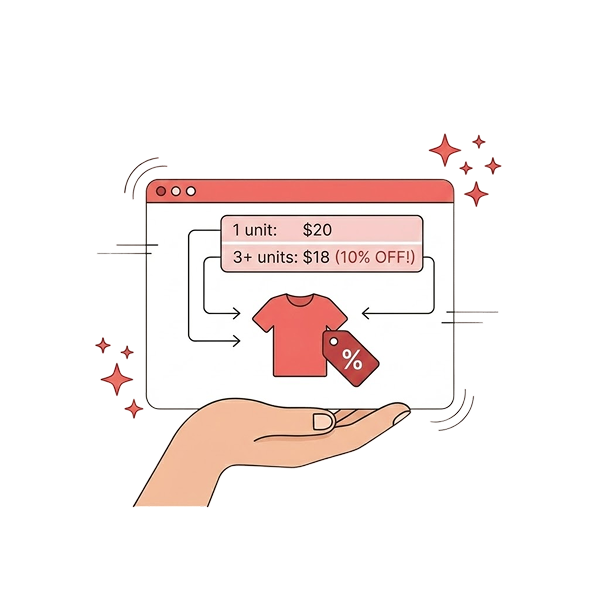
3. Offer tiered discounts
Instead of a flat minimum, create tiered incentives:
- Spend $50+ → Get 5% off
- Spend $100+ → Get 10% off
- Spend $150+ → Get 15% off
This motivates customers to keep adding items. Set this up with our guide on WooCommerce tiered pricing.
4. Display a progress bar
Show customers how close they are: "You're $12 away from free shipping!" creates urgency. Discount Rules PRO's Discount Bar feature shows a site-wide banner promoting your minimum order offer. In my experience, the free shipping threshold progress bar drives the highest cart value increase - I've seen 20%+ lifts on stores that previously had no minimum.
5. Reward with loyalty points
Instead of just discounts, reward customers for hitting the minimum with loyalty points they can redeem on future purchases. You can set this up with WPLoyalty - customers earn points for every dollar spent above the threshold, giving them another reason to come back and spend more.
Common Mistakes When Setting WooCommerce Minimum Order Amount
Mistake 1: Setting the minimum too high. A $200 minimum on a store where the average product costs $15 will drive customers away. Start at 60–70% of your current AOV and increase gradually.
Mistake 2: No explanation to the customer. A generic "minimum not met" error frustrates shoppers. Tell them: (a) what the minimum is, (b) how much more they need to add, and (c) what they get for reaching it.
Mistake 3: One-size-fits-all minimums. Wholesale and retail customers have different behavior. Use role-based rules (Method 1, Scenario 3) to set separate thresholds.
Mistake 4: Forgetting about mobile users. Test your error messages on mobile. Long text that wraps awkwardly on small screens confuses customers. Keep messages under 2 sentences.
Mistake 5: Never reviewing your threshold. Shipping costs, product prices, and customer behavior change. Review your minimum quarterly using WooCommerce → Analytics → Orders and adjust based on actual data.
How to Display Minimum Order Messages to Customers
The way you communicate the minimum matters as much as the minimum itself.
1.) On the shop/product page:
- "Free shipping on orders over $75!"
- "Spend $50+ and save 10% - discount applied automatically"
2.) On the cart page (below threshold):
- "You're just $XX.XX away from free shipping!"
- "Add $XX.XX more to unlock your 10% discount"
3.) On the cart page (error):
- "Your cart total is $35.00. A minimum order of $50.00 is required. Add a few more items to continue!"
Discount Rules PRO lets you configure these through the Display Settings panel. The Discount Bar shows a site-wide banner. And the promotional messages feature auto-updates based on how close customers are to the threshold.
Troubleshooting
1. Problem: Discount or minimum order rule not applying.
- Solution: Clear your site cache, go to WooCommerce → Status → Tools → click "Clear Transients." Check that the rule status is set to "Active".
2. Problem: Minimum applies even to admin/test orders.
- Solution: Add a condition to exclude the "Administrator" user role: User Role → "Not In List" → Administrator.
3. Problem: Code snippet conflicts with another plugin.
- Solution: Deactivate other discount or cart-related plugins temporarily. Test with only WooCommerce active. Reactivate one by one to find the conflict.
4. Problem: Error message shows the wrong cart total (includes tax or shipping).
- Solution: Switch from "Order Total" to "Order Subtotal" in your plugin settings or code to exclude tax and shipping from the calculation.
5. Problem: Checkout button is still clickable despite the error message.
- Solution: Use the woocommerce_check_cart_items hook (Method 3) instead of woocommerce_before_cart. The check_cart_items hook actually blocks checkout; before_cart only displays a warning.
What Real Store Owners Are Saying
Setting a minimum order amount is one of the most discussed WooCommerce topics in online communities.
On Quora, store owners frequently ask about code vs. plugin methods. One highly-voted answer recommends using the woocommerce_check_cart_items hook as the simplest no-plugin approach.Read the discussion →
On BusinessBloomer, the comment section on Rodolfo Melogli's minimum order snippet has 100+ responses from store owners discussing edge cases - different minimums per country, disabling the checkout button, handling coupon interactions. Read the discussion →
On Quora (Multivendor), vendors using Dokan marketplace discuss per-vendor minimum order amounts, which requires a different plugin approach. Read the discussion →
The pattern across these threads: most store owners start with the code approach, hit limitations (no user roles, no per-category support), and switch to a plugin for long-term flexibility.
Set your minimum order amount the smart way.
Conclusion
You now have four clear methods to set a minimum purchase amount in WooCommerce - from the strategic discount-paired approach with Discount Rules for WooCommerce, to dedicated plugins, custom PHP code, and native shipping settings.
My recommendation? Use Method 1 if you want to turn your minimum order threshold into a sales driver. Pairing the minimum with a discount, free shipping, or free gift makes the experience rewarding rather than restrictive.
Start with a moderate threshold (60–70% of your current AOV), test for 2–4 weeks, and review the impact on your order value using WooCommerce Analytics.
Also Read:
- Set up WooCommerce tiered pricing
- Create a BOGO (Buy One Get One) discount rule
- Explore WooCommerce dynamic pricing
Frequently Asked Questions
No. WooCommerce does not include a native minimum order amount setting out of the box. You need a plugin like Discount Rules for WooCommerce or a custom PHP code snippet. The closest built-in option is the free shipping minimum threshold in WooCommerce shipping settings, but that doesn't block checkout.
It can, if done poorly. Setting the minimum too high or showing a vague error frustrates shoppers. The fix is to pair the minimum with an incentive (discount, free shipping) and communicate it early - on shop pages and the cart - so customers aren't surprised at checkout.
Yes. Discount Rules for WooCommerce PRO supports user role conditions. Create separate rules for wholesale ($500 minimum), retail ($50 minimum), and VIP members (no minimum). WPFactory's Order Min/Max Amount PRO also supports role-based minimums.
Use cart subtotal (which excludes tax and shipping). This gives customers a clear, predictable target. If you calculate based on order total, the threshold shifts based on shipping method and tax location, which creates confusion.
Yes. Discount Rules PRO includes date-based scheduling. Create rules that activate on specific dates - a lower minimum during Black Friday or a higher one during peak shipping seasons. See the conditions documentation for setup.
In Discount Rules for WooCommerce, create a Cart Adjustment rule, set the Filter to a specific category, and add a Cart Subtotal condition with your minimum value. See Method 1, Scenario 4 for step-by-step instructions.