Many customers just add one product to their cart, even if they could buy more. Offering WooCommerce quantity discounts is a simple and effective way to incentivize larger purchases and boost their average order value.
Product prices are the primary factor in completing an order, and setting up those prices based on quantities can be a game-changer in influencing customers to order in bulk.
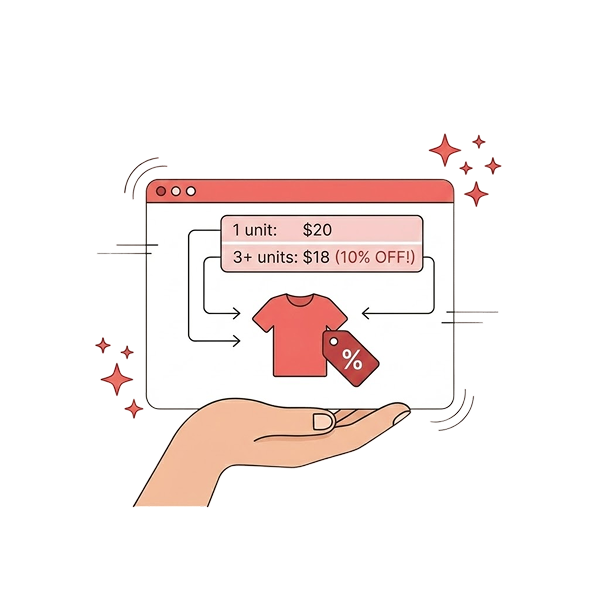
Here’s how it works: If you offer a 5% discount for purchasing 5-6 units and a 10% discount for buying more than 7 units, customers will order in bulk to save money, thus increasing sales and profits.
You need a WooCommerce quantity discount plugin, “Discount Rules for WooCommerce – Pro,” to create and customize your quantity-based pricing.
Let’s learn how to set up this quantity-based discount in your WooCommerce store in just two steps, and also explore five different ways to excite your customers with irresistible quantity discounts.
Increase your sales by up to 36% by offering discounts based on quantity. Use the Discount Rules for WooCommerce – Pro to simplify your process.
Table of contents
- Example of Pricing Products Based on Quantities
- How to Set Up WooCommerce Quantity Discount? (2 Steps)
- 1. How to Apply Quantity Discounts to Specific WooCommerce Products?
- 2. Setting Up Category-Wide Quantity Discounts
- 3. Implementing Role-Based Quantity Pricing for Specific Groups
- 4. How to Trigger WooCommerce Coupon Discounts Based on Item Quantity?
- 5. Combining Quantity Pricing with Minimum Order Totals
- How to Customize the Quantity Discount Table in WooCommerce?
- Why Set Quantity-Based Pricing for WooCommerce?
- The Best WooCommerce Quantity Discount Plugin
- Best Practices for Quantity-Based Pricing in WooCommerce
- A Quick Comparison: WooCommerce Quantity Discount vs Bulk Discount
- Conclusion
- Frequently Asked Questions
Example of Pricing Products Based on Quantities
For instance, consider selling organic coffee beans for $20 per 1kg bag.
You can create a WooCommerce quantity-based pricing structure like the one below to increase the sales of coffee beans.
| Buy 1 or 2 bags | No discount; each bag costs $20 |
| Buy 3-5 bags | $1 fixed discount per unit, each bag costs $19 |
| Buy 6-10 bags | $3 fixed discount per unit, each bag costs $17 |
| Buy 11 bags or more | $5 fixed discount per unit, each bag costs $15 |
How to Set Up WooCommerce Quantity Discount? (2 Steps)
Setting up quantity discounts in WooCommerce requires a plugin, as the default WooCommerce settings don’t let you automate your pricing rules.
Here are the two steps to create a quantity discount in WooCommerce:
Step 1: Installing the Plugin
- Open your WordPress dashboard.
- Go to “Plugins” -> “Add New Plugin.”
- Search for “Discount Rules for WooCommerce – Pro (by Flycart).”
- Click the “Install Now” button to install and activate the plugin on your site.

Step 2: Creating WooCommerce Quantity Discounts
- Go to “WooCommerce” -> “Discount Rules.”
- Click the “Add New Rule” button to create a new quantity discount rule for your store.
- Enter the “Rule Title” (rule name) for your reference.
- Choose the discount type, “Bulk Discount.”
- Filter specific products or categories to set prices based on quantities.
- Configure the discount section based on your sales goal.
- Optionally set purchase conditions for your discounts.
- Save and enable the rule.
Since you know the two easy steps to create discounts based on quantity, let’s explore five ways to make your strategy effective.
1. How to Apply Quantity Discounts to Specific WooCommerce Products?
For example, provide quantity discounts for a specific WooCommerce product in the store, such as coffee beans.
To offer WooCommerce quantity discounts for a specific product:
- Install and activate the “Discount Rules for WooCommerce – Pro” plugin on your site.
- Go to “WooCommerce” -> “Discount Rules.”
- Click the “Add New Rule” button and enter the rule title for your reference.
- Select the Discount Type, “Bulk Discount.”
- Filter the “Coffee Beans” product in the “Filter” section.
- In the “Discount” section, select “Count Quantities By” as “Filters Set Above (it counts products cumulatively).”
- Add the minimum and maximum quantities of the product along with its discount type. For example, “Fixed discount” and set “value” from $0 to $5 for different quantity ranges.
- Optionally, you can provide labels for each quantity range.
- Finally, save and enable the rule.

After configuring this rule, the product quantity table will display on the specific product page.

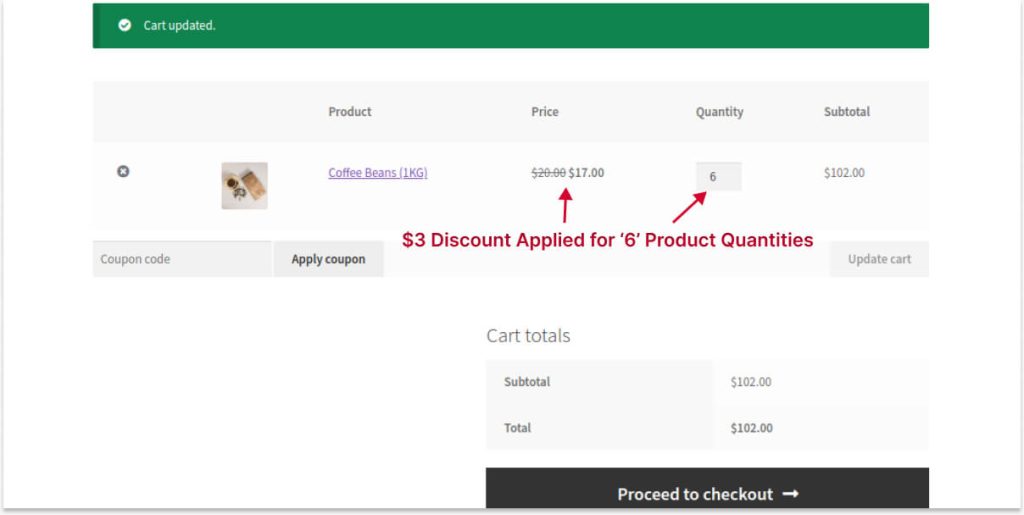
Here is the live result of adding fixed-cost quantity discounts for “Coffee Beans” on a cart page:
Related Read: How to Set Up a WooCommerce Product Discount? (More specific product-based discount examples)
2. Setting Up Category-Wide Quantity Discounts
Similar to a specific product discount, you can set quantity-based discounts for specific categories.
For Example, a 5% to 10% discount for specific quantities for the “Beverages” category.
To create a WooCommerce quantity discount by category:
- Install and activate the “Discount Rules for WooCommerce – Pro” plugin.
- Go to “WooCommerce → Discount Rules.”
- Create a “new rule” and enter a rule title.
- Choose ‘Bulk Discount” as the “Discount Type.”
- In the “Filter” section, select the “Beverages” category.
- In the “Discount” section, choose “Filters set above” and define the minimum product quantities.
- Select “Percentage Discount” as the “Discount Type” and enter the discount values for each quantity range.
- Finally, save and enable the rule.
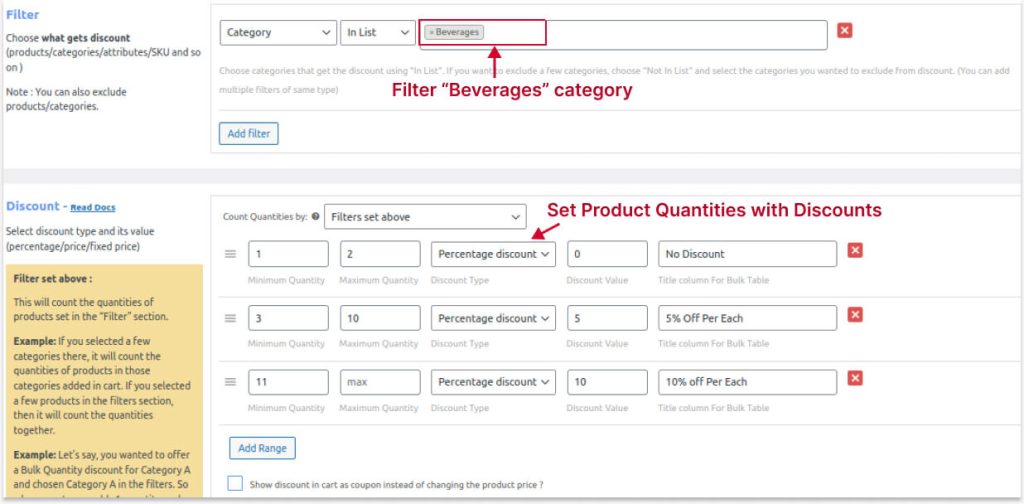
Now, the percentage-based discounts are applied only to the “Beverages” category for specified quantities.

Related Read: How to Create Category Discounts in WooCommerce?
3. Implementing Role-Based Quantity Pricing for Specific Groups
If you are a new store owner, you can set quantity-based pricing only to specific customers or customer groups, instead of setting it up for every customer.
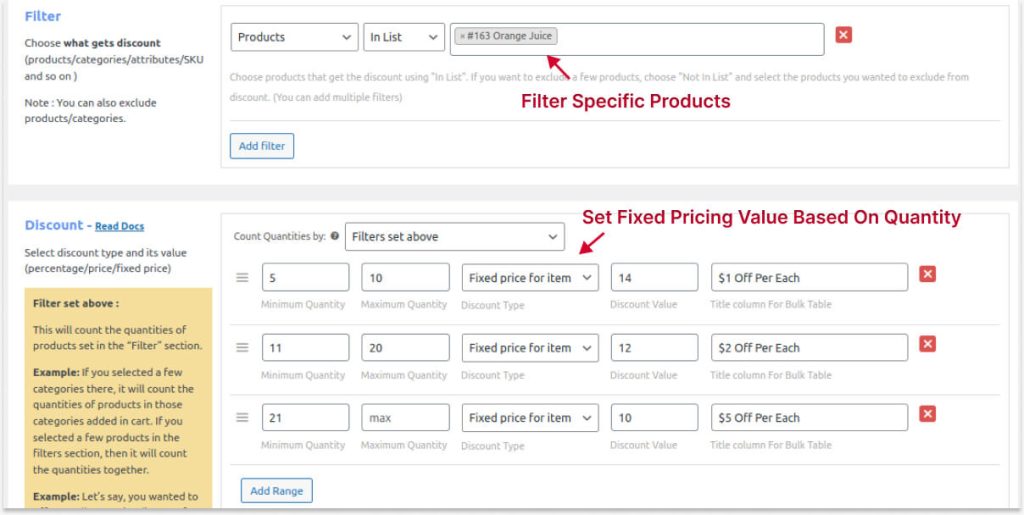
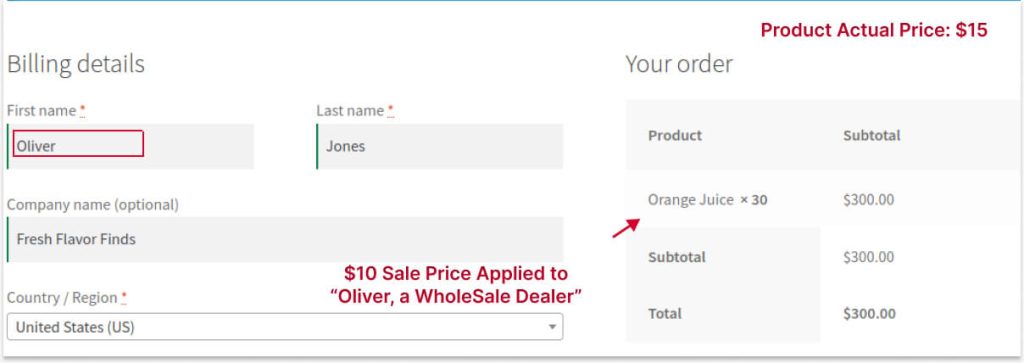
For Example: Fixed pricing based on quantity for a specific user, “Oliver,” in a specific user role, “Wholesale Dealer.” We can also apply this pricing only for a particular item, “Orange juice.”
To set WooCommerce quantity-based pricing for specific users, user roles, or both:
- Install and activate the “Discount Rules for WooCommerce – Pro” plugin in WooCommerce.
- Open “WooCommerce” and navigate to “Discount Rules.”
- Click the “Add New Rule” button.
- Enter the rule title.
- Select the discount type as “Bulk Discount” and filter “Orange Juice” from the products.
- Set the “minimum and maximum quantity” of product.
- Choose “Discount Type” as “
- You can also use a percentage or fixed discount here. Set pricing value for respective quantity ranges.
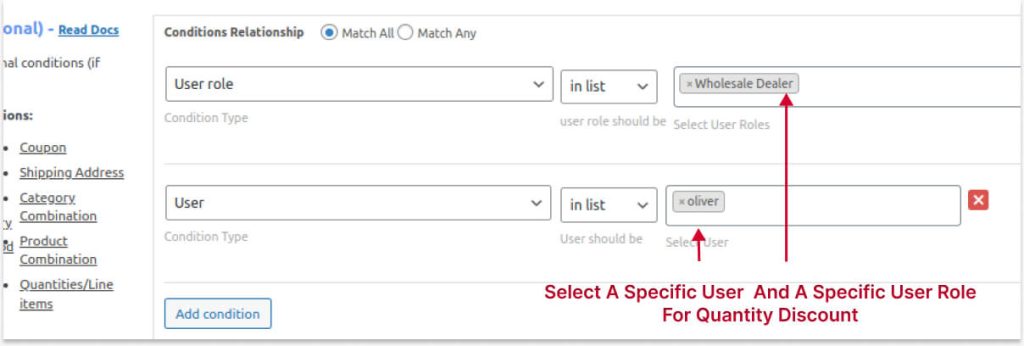
- In the “Condition” section, select two conditions:
- A specific user role – “Wholesale Dealer” and
- A specific user – “Oliver.”
- At last, save and enable the rule.
You can also set only one condition: a user or a user role. It is optional to choose conditions based on your sales goal.
Now, the actual price of “Orange juice” is $15.
However, when this specific user, “Oliver,” from the “Wholesale Dealer” role, visits the store and purchases more quantities, he can get this item at a discounted price based on the quantity range applied above.
Note: You can ignore one condition and offer only to specific customers or customer groups.
Set quantity-based pricing for specific products, customers, or user roles easily using the Discount Rules for WooCommerce – Pro plugin and boost customer experience and AOV.
4. How to Trigger WooCommerce Coupon Discounts Based on Item Quantity?
Example: Apply quantity-based discount only when entering the coupon code “Buy More Pay Less.”
To create a WooCommerce quantity-based coupon discount:
- Install and activate the “Discount Rules for WooCommerce – Pro” plugin by Flycart.
- In WooCommerce, open “Discount Rules.”
- Add a new rule, enter a rule title, and select “Discount Type” as “Bulk Discount.”
- Filter specific products. For this scenario, I apply discounts for all products in the store.
- In the “Discount” section, choose “Count Quantities By” as “Individual Product,” andset a minimum and maximum quantity range.
- Set the discount type and value for the product quantity.
- Select “Coupons” in the “Conditions” section and create your own coupon code.
- Save and enable the rule.

Note:
Since we are applying discounts to all products, we can select “Individual Products” as it calculates quantities individually for each product.
Selecting “Filters set above” will take the quantities for all products and apply discounts for other products that do not satisfy the fixed quantity range.
Here is the final result of applying the discount per quantity with the coupon:

Note: You can apply more conditions based on purchase criteria, such as first order, total order value, total item quantity, specific delivery location, payment method, etc.
Related Read: Two Ways to Create Discount Coupons in WooCommerce Stores
5. Combining Quantity Pricing with Minimum Order Totals
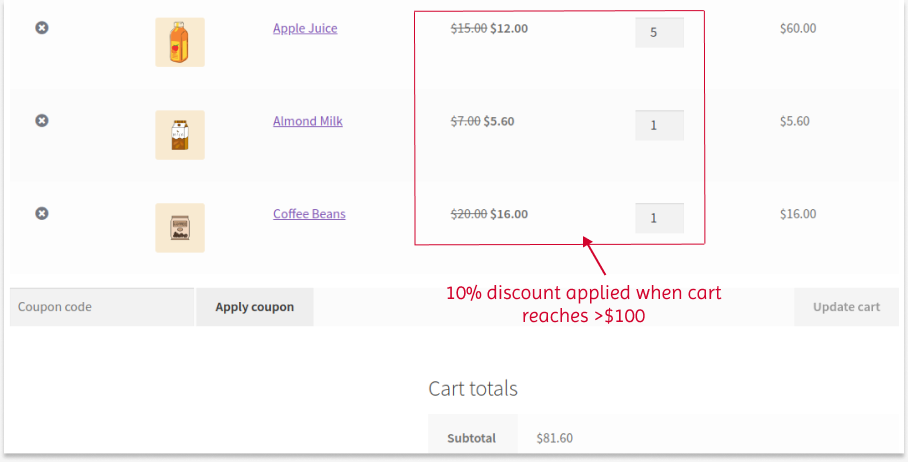
You can set a minimum order amount (cart value/subtotal) and offer quantity-based discounts and pricing in WooCommerce when customers reach that amount. This encourages shoppers to meet the required threshold, leading them to buy more products.
For Example, let’s say that when a customer has $100 worth of items in their cart, quantity discounts will be applied.
To set WooCommerce pricing based on quantity and total order value:
- Install and activate the “Discount Rules for WooCommerce – Pro” plugin for advanced discounts.
- Open your WooCommerce dashboard and click on “Discount Rules.”
- Add a new rule.
- Enter the rule title.
- Select “Discount Type” as “Bulk Discount”.
- Filter “All Products.” We will keep storewide discounts for this scenario.
- In the “Discount” section, choose ” Quantities By” as “Filters set above,” andset a minimum and maximum quantity range.
- Set the discount type and value for the product quantity.
- Select “Subtotal” in the “Conditions” section and set the subtotal amount. For now, we will keep “greater than or equal to $100.”
- Save and enable the rule.
Customers will get discounts per quantity once they reach the order value of $100 or more.
Related Read: How to Set Up Minimum Order Amount in WooCommerce?
How to Customize the Quantity Discount Table in WooCommerce?
Customizing the quantity discount table on product pages is possible with the “Discount Rules for WooCommerce – Pro” plugin.
To customize the WooCommerce pricing table, follow the steps:
- Go to the “Settings” page of the “Discount Rules for WooCommerce – Pro” plugin.
- Enable the discount table in the “Product” section by clicking “Yes.”
- Also, choose the “Position” of the discount table to display the discount table in a particular place.
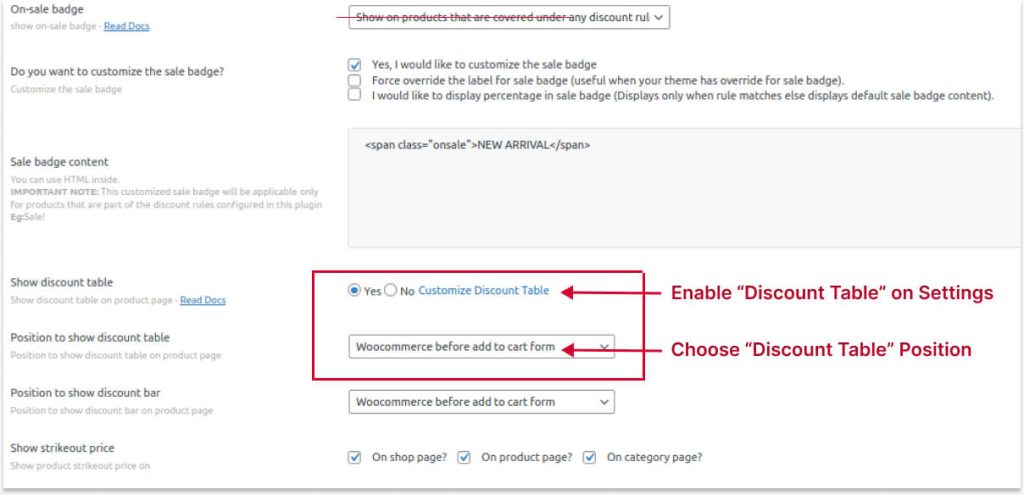
- After clicking “Yes,” you can click “Customize Discount Table” to customize the table’s content based on your discount rules.
- Finally, save the settings.

Customizing Discount Promotion Message
The “Discount Rules for WooCommerce – Pro” plugin also has the option to customize the promotional messages on the cart page based on cart criteria.
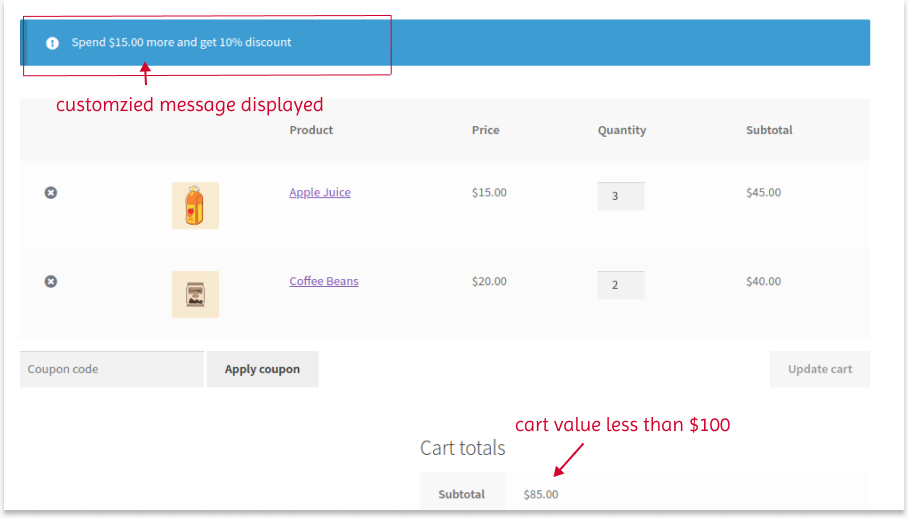
For example, if you are providing quantity discounts based on the cart total, you can display a message like “Spend $15 More to get a 10% discount.”
It will remind customers to reach the specific threshold. To do this:
- Scroll down to the “Rules” section. Choose “Subtotal” as the condition.
- Set the minimum amount in “Subtotal from” to display the message. A customized promotional message is displayed when the customer reaches this amount.
- Customize the message and apply SAS to the “Item quantity” condition.
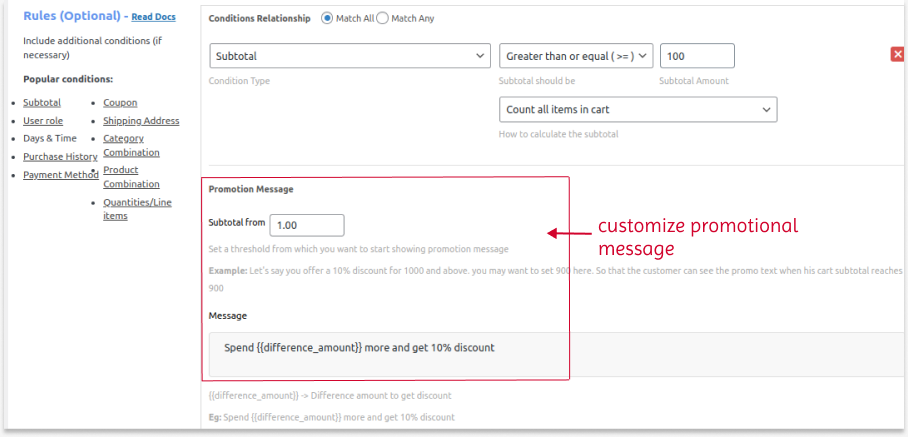
When a customer’s cart value is lower than the specified threshold, a customized promotional message is displayed. This message motivates the customer to reach the specified threshold to apply quantity discounts.
Why Set Quantity-Based Pricing for WooCommerce?
Setting quantity-based pricing for WooCommerce isn’t just another simple offer; it’s a highly profitable strategy.
Here are the benefits you get while setting up product prices based on quantities:
- Increase Average Order Value: Customers are more likely to purchase products in bulk with quantity discounts to save money, which increases their cart value.
- Move Slow-Selling Items: If some products are near their expiration date, you can offer discounts by quantity and encourage customers to order in bulk to clear those items and increase sales.
- Drive Wholesale Customers: Wholesale dealers have always ordered larger quantities of products for their retail stores. WooCommerce product quantity discount is best to attract these wholesale dealers and make them stay in your store for long-term purchases.
- Boost Product Sales on Specific Days: Customers make bulk purchases during holidays like Christmas gifts, and more. Utilizing these days to offer quantity-based discounts will help you yield more sales than on usual days.
- Increase Sales: A Few customers planning to buy products in bulk quantities can consider your store for their purchase, which drives more customers and increases your sales.
The Best WooCommerce Quantity Discount Plugin
WooCommerce doesn’t include built-in quantity pricing, but many quantity discount plugins are available to help you manage your pricing rules.
Choosing the right WooCommerce quantity discount plugin is important for creating quantity discounts without affecting your site’s performance or speed.
Check the following factors before selecting the best WooCommerce quantity pricing plugin:
- Make sure the plugin supports the latest WooCommerce version.
- The plugin price depends on your budget, so choose one that fits your needs.
- Review all the plugin features to ensure it meets your discount requirements.
- Also check user reviews and customer support before making your final choice.
“Discount Rules for WooCommerce -Pro” is one of the recommended quantity discount plugins.
While the default WooCommerce settings and other smart coupons plugins limit or restrict coupons based on quantities, this “Discount Rules for WooCommerce – Pro” plugin lets you automate quantity-based pricing when customers add products to their cart. It also has a coupon limiting and restricting option, but you can take advantage of the automatic discount feature to simplify customers’ checkout by claiming discounts without entering a coupon code.
A few more key features and functionalities to consider when choosing the “Discount Rules for WooCommerce – Pro” plugin:
- Compatible with the latest WooCommerce version.
- Gets regular plugin updates and quick customer support.
- Flexible discount options from bulk discounts to BOGO deals, conditional discounts, bundle discounts, and more.
- Schedule discounts in advance or restrict user limits.
- Enable coupon URL or customize your own coupon with advanced discounts.
- Display a customized “You Save” or “5% off” sale badge or highlight your promotion message in a customized banner.
However, you can also explore the list of best bulk discount plugins for WooCommerce to see what other tools are available on the market.
Best Practices for Quantity-Based Pricing in WooCommerce
When done right, you can earn more with quantity-based pricing in WooCommerce. To do it effectively, follow these best practices:
1. Set Detailed Pricing Table
Customers should know more about how your pricing tiers work and how much they save for buying in large quantities. So, setting up a clear and detailed discount table will help them make decisions and enhance the user experience.
2. Set Minimum and Maximum Quantity Ranges
When deciding the tiers, make sure to include the minimum and maximum quantities for each tier, so that customers can easily add more products to the cart and complete the checkout process.
3. Use Countdown Timer
You cannot enable this bulk quantity offer every day and for every customer. Display a countdown timer with an offer expiration time, which creates a sense of urgency and makes customers buy more within a specific time. It results in more sales quickly.
4. Run A/B Test Offers
Create more than one quantity pricing offer for more products and find out which tier range works for your customers. Implement the best tier to get more sales.
5. Share on Social Media
If you offer a WooCommerce quantity discount for a short time, share your offer on social media to get more eyes on it. That way, you can attract your new and existing customers.
A Quick Comparison: WooCommerce Quantity Discount vs Bulk Discount
WooCommerce quantity discount and bulk discount are often used interchangeably, but it has a few differences:
| Feature | WooCommerce Quantity Discount | WooCommerce Bulk Discount |
| Definition | Discount applied based on the number of units purchased. | Discount given when buying items in large quantities. |
| Pricing Structure | Can be tiered or progressive based on quantity ranges. | Usually applies a single discount for meeting a bulk threshold. |
| Example | Buy 5–9 items → 10% off, Buy 10+ items → 20% off. | Buy 10+ items → 15% off. |
| Flexibility | Often supports multiple tiers and dynamic rules. | Typically simpler with one bulk condition. |
| Application | Can be automatic or coupon-based. | Commonly automatic once the bulk quantity is met. |
| Goal | Encourage customers to buy more units. | Push customers to purchase in larger bulk amounts. |
To know more about bulk discounts, check this guide: How to Create a WooCommerce Bulk Discount?
Set up a quantity-based discount with or without coupons using the “Discount Rules for WooCommerce – Pro” plugin to boost AOV and sales.
Conclusion
By encouraging bulk purchases with WooCommerce quantity discounts, you can increase average order value and build stronger customer loyalty.
If you’re not using quantity-based discounts in your WooCommerce store yet, now is the perfect time to start and grow your sales.
With the best WooCommerce quantity discount plugin, “Discount Rules for WooCommerce,” you can offer various pricing strategies based on quantity. Utilize the plugin’s features to improve your sales and customer experience.
Also Read:
- How to Create WooCommerce Smart Coupons? (With 3+ Types)
- How to Add a WooCommerce Free Gift with Purchase?
Frequently Asked Questions
– A minimum quantity threshold defines how many units a customer must buy to receive the discount.
– The discount type determines whether the offer is a percentage, fixed amount, or fixed price reduction.
– The discount structure specifies whether the pricing is tiered, bulk, or volume-based.
– Eligible products or categories decide which items the quantity discount applies to.
– User or role restrictions control which customers can access the discount.
– Cart conditions set additional requirements, such as a minimum subtotal or specific product combinations.
– Usage limits or exclusions define how often the discount can be used and what it does not apply to.
– The application method determines whether the discount is applied automatically or through a coupon.
To add a quantity field to a WooCommerce shop page, follow these steps:
– Install and activate “Discount Rules for WooCommerce.”
– Go to your WordPress Dashboard-> Discount Rules-> Settings-> Show Discount Table-> Yes. You can customize the Discount Table based on your requirements.
– Now, a quantity field will be added to your WooCommerce shop page.
“Price depends on quantity” is the process of adjusting pricing based on the quantity of items purchased by customers.