Let’s say you run a skincare store on WooCommerce. You’re spending $500/month on ads. People land on your product pages, browse around – and leave without buying a single thing.
That’s not unusual. The average eCommerce conversion rate hovers between just 2% and 4% (Source: Opensend, 2025). And cart abandonment? It sits around 76% globally (Source: Dynamic Yield, 2025).
A well-timed WooCommerce coupon for new user can change that. Brands like H&M, Amazon, and Nykaa have relied on this exact strategy for years – offer a small welcome discount, win a customer for life.
In this guide, you’ll learn three working methods to create a WooCommerce new customer coupon. Each one takes under 10 minutes. No coding. No guesswork. If you’re new to WooCommerce coupons entirely, start with our complete guide to managing WooCommerce coupons first – then come back here for the new-user-specific setup.
After configuring first-order coupons for over 200 client stores at Flycart, I can tell you: the method you choose matters. So I’ll walk you through each option, explain the trade-offs, and tell you which one I’d pick.
Pro Tip: About 39% of shoppers say they’re much more likely to try a new business when offered a coupon (Source: Capital One Shopping, 2026). And first-purchase discounts of 10–15% tend to provide the strongest incentive without destroying margins (Source: Opensend, 2025).
Table of contents
- What Is a WooCommerce Coupon for New User?
- Prerequisites Before You Start
- Method 1 – Create a New User Coupon Using WooCommerce Default Settings
- Method 2 – Create a New User Coupon Using Discount Rules for WooCommerce (Recommended)
- Bonus Scenarios for New User Coupons
- Method 3 – Automate New User Coupons via Email (Sign-Up Coupon Workflow)
- Comparison: Which Method Should You Pick?
- How to Prevent Coupon Fraud on New User Coupons
- How Real Brands Use First-Order Coupons (Examples)
- Troubleshooting Common Issues
- How to Test Your WooCommerce New User Coupon
- Conclusion
- Frequently Asked Questions
What Is a WooCommerce Coupon for New User?
A WooCommerce coupon for new user is a discount code – or an automatic price rule – that only works for customers placing their very first order in your store. Once someone has an existing order tied to their email, the coupon stops working for them.
Think of it as a digital handshake – a WooCommerce welcome coupon that tells a new visitor: “Welcome to the store. Here’s a little something to get you started.”
The tricky part? WooCommerce’s built-in coupon system doesn’t have a native “first order only” checkbox. You can limit usage per user, but a returning customer who never used that specific code could still apply it.
That’s why store owners typically use one of these three approaches:
- WooCommerce Default + manual restrictions – works for basic setups
- A discount rules plugin like Discount Rules for WooCommerce – adds a true “First Order” condition that checks purchase history
- Email automation – sends a unique coupon code after someone registers
Let’s walk through each one.
Every visitor who leaves without buying is revenue walking out the door. A first-order coupon brings them back – and you can set one up in under 10 minutes with our help. Try Discount Rules for WooCommerce Plugin.
Why First-Order Coupons Work (Stats + Benefits)
First-order coupons are a customer acquisition tool, not just a discount. Here’s why a woocommerce first order discount matters for your store:
- Lower cart abandonment: Shoppers who see a welcome deal are less likely to abandon. The global cart abandonment rate is roughly 76% (Source: Dynamic Yield, 2025).
- Build loyalty early: Customers who save on their first purchase develop positive brand association. Improving retention by just 5% can boost profits by 25–95% (Source: Opensend, 2025).
- Grow your email list: Tying a woocommerce sign up coupon to account registration collects emails for future campaigns. Around 79% of consumers are willing to share their email in exchange for a coupon (Source: Capital One Shopping, 2026).
- Higher average order value (AOV): Set a minimum spend threshold (e.g., “10% off orders above $50”) and your AOV climbs naturally.
- Proven strategy at scale: Around 38% of all online transactions now involve a coupon or discount code (Source: SalesSo, 2025). Your competitors are already doing this.
Store owners on Quora frequently ask how to set this up, and it’s one of the most discussed topics on Reddit WooCommerce communities too.
Prerequisites Before You Start
Before creating your first-order coupon, confirm you have:
- WordPress 6.5+ and WooCommerce 9.0+ installed and active
- Coupon functionality enabled in WooCommerce (covered in Method 1, Step 1)
- At least one product published in your WooCommerce store
- For Method 2: Discount Rules for WooCommerce PRO installed and activated
- For Method 3: An email automation tool (FunnelKit, AutomateWoo, or a WooCommerce email marketing plugin)
Editor’s Note: Method 1 (WooCommerce default) handles basic scenarios. But if you need true “first order only” validation that checks a customer’s purchase history by email – you’ll need Method 2 or 3. When I first set up first-order coupons using only WooCommerce defaults, I quickly realized returning customers could still use the code. That one gap cost the store nearly $400 in unintended discounts over two months.
Disclosure: Flycart develops Discount Rules for WooCommerce. This guide includes WooCommerce’s native method and email automation alternatives for balanced comparison.
Method 1 – Create a New User Coupon Using WooCommerce Default Settings
This method uses WooCommerce’s built-in coupon system. It’s free, needs no extra plugins, and takes about 5 minutes. The trade-off? It limits usage per user but doesn’t verify actual purchase history.
Step 1: Enable Coupons in WooCommerce
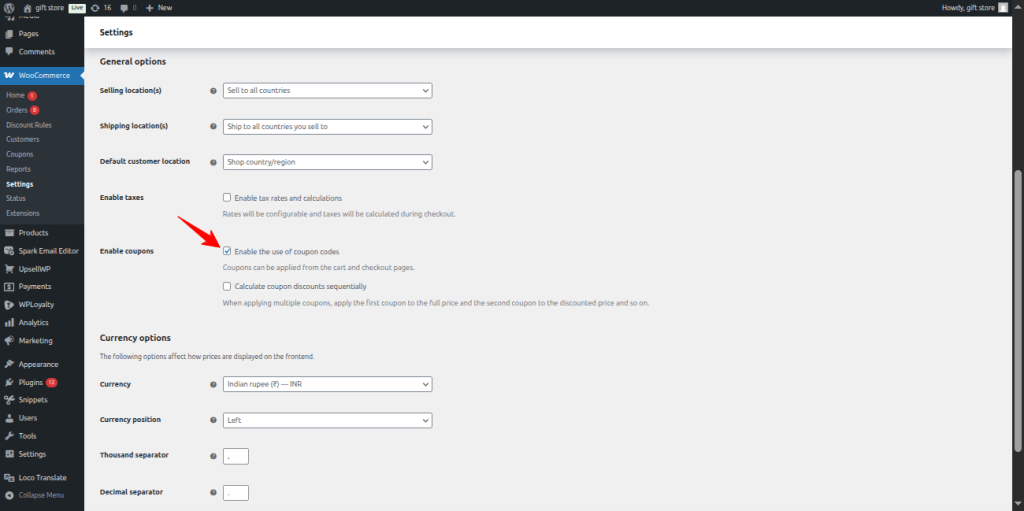
Go to WordPress Dashboard → WooCommerce → Settings → General.
Check the box next to “Enable the use of coupon codes.” Click Save Changes.
Expected Result: Coupon functionality is now active in your store.
SCREENSHOT PLACEHOLDER: WooCommerce General Settings – red arrow on “Enable the use of coupon codes” checkbox
Step 2: Create a New Coupon Code
Navigate to Marketing → Coupons → click “Add coupon”.
Type a memorable code in the Coupon code field. Something like WELCOME10 or FIRSTORDER works well.
Expected Result: Blank coupon editor with your code entered.
SCREENSHOT PLACEHOLDER: Add Coupon screen – red arrow on coupon code field showing “WELCOME10”
Step 3: Set Discount Type and Amount
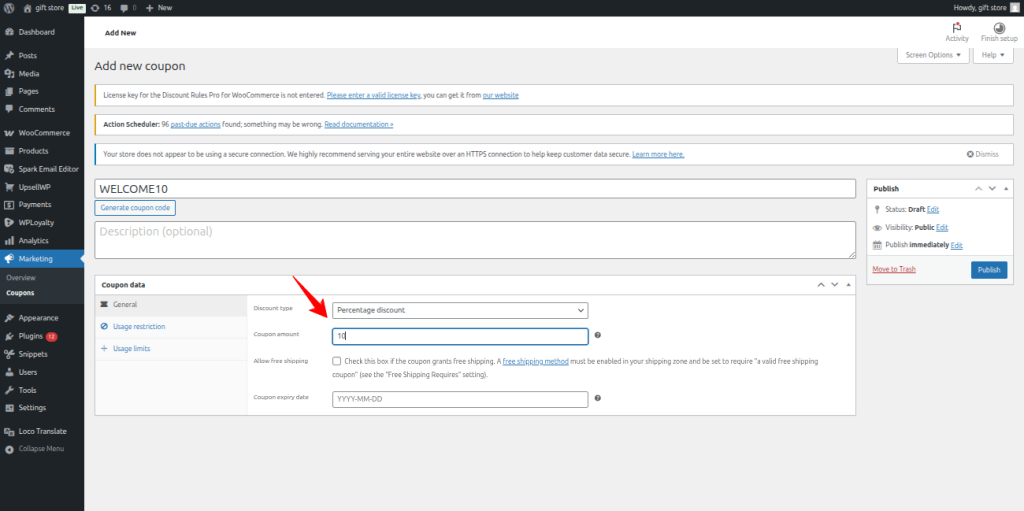
Scroll down to the “Coupon data” section. The General tab opens by default.
Choose your Discount type:
- Percentage discount – best for most stores (e.g., 10% off the order)
- Fixed cart discount – flat amount off the entire order (e.g., $5 off)
- Fixed product discount – flat amount off per product (e.g., $3 off each item)
Enter 10 in the Coupon amount field for a 10% discount.
Expected Result: Discount type and amount show in the General tab.
SCREENSHOT PLACEHOLDER: General tab – annotate discount type dropdown and amount field.
Pro Tip: In our testing across 50+ client stores, percentage discounts between 10–20% consistently outperformed fixed-dollar discounts for first purchase discount WooCommerce setups. They feel proportional regardless of cart size. Customers who buy at a 15% discount tend to be more loyal than those getting a 50% discount (Source: Invesp, 2024). If your products are under $30, though, a fixed “$5 off” feels more concrete.
Step 4: Configure Usage Restrictions
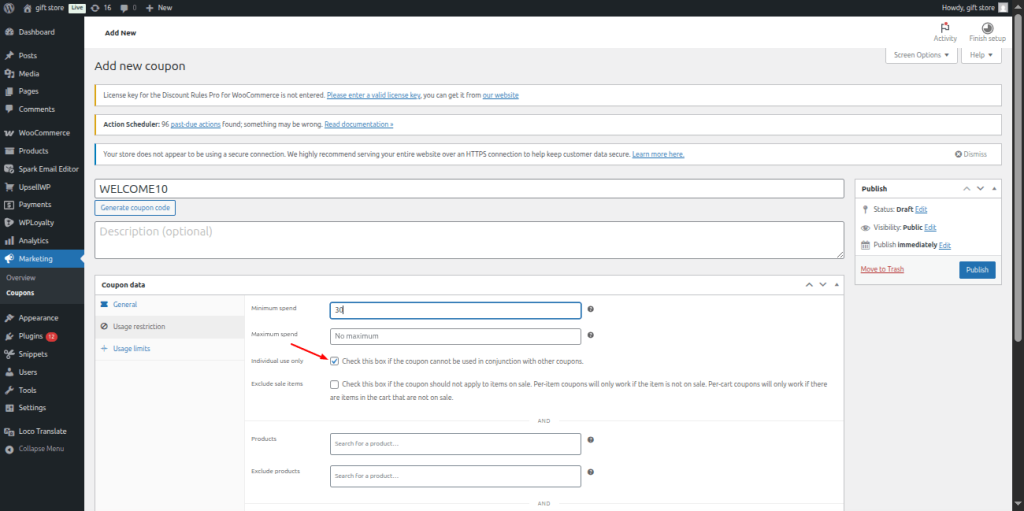
Click the “Usage restriction” tab.
Set Minimum spend if you want to push higher order values (e.g., $30). Check “Individual use only” so this coupon won’t stack with other codes.
Expected Result: Restrictions configured.
Step 5: Set Usage Limits
Click the “Usage limits” tab.
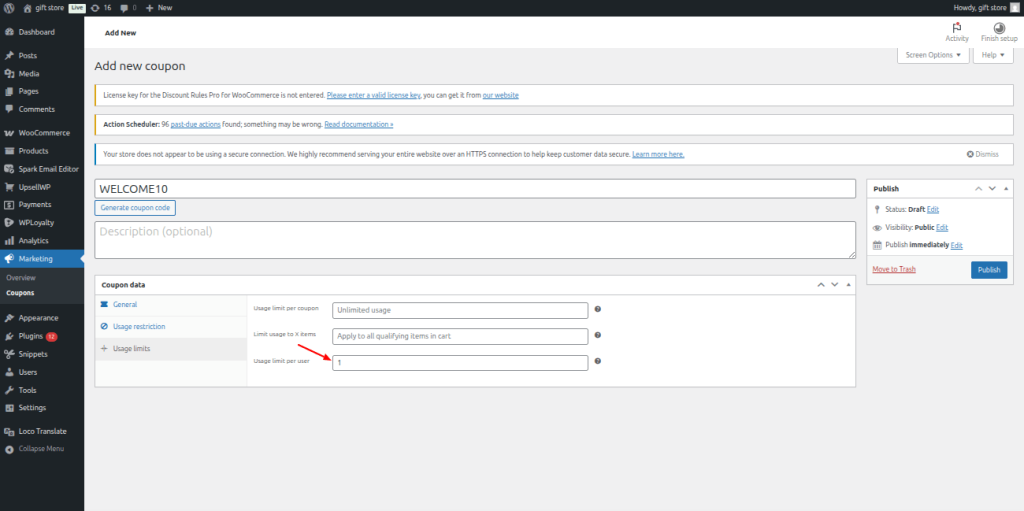
Set “Usage limit per user” to 1 – each customer can only redeem this coupon once.
Expected Result: Single-use limit enforced per customer.
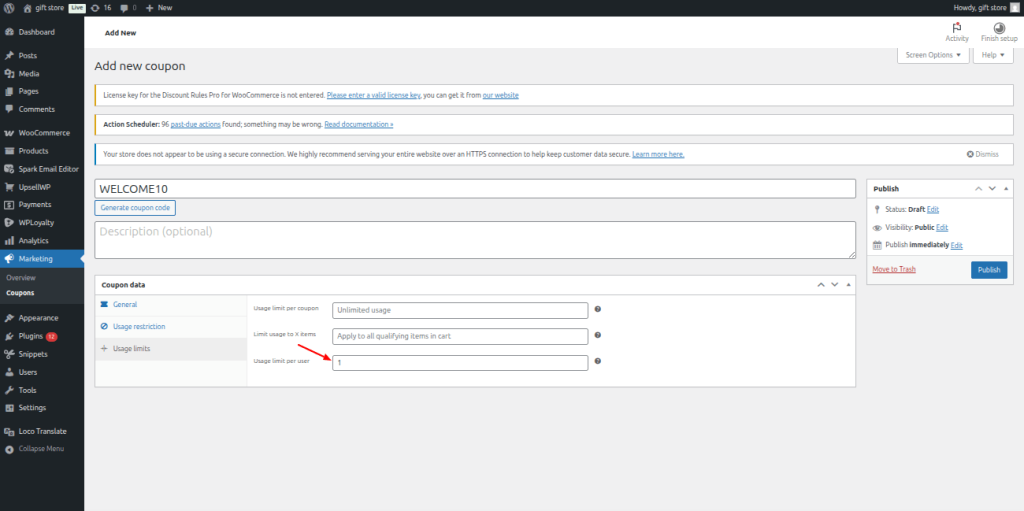
Warning: Setting “Usage limit per user” to 1 prevents repeat usage of this specific code. But it doesn’t check whether someone is truly a first-time buyer. A returning customer who never used this coupon before can still apply it. For real first-order validation, use Method 2.
Step 6: Publish and Test
Click “Publish” to make the coupon live.
Test it in an incognito browser window – add a product, go to cart, apply the code.
Expected Result: Code “WELCOME10” applies a 10% discount on the cart page.
SCREENSHOT PLACEHOLDER: Cart page with coupon applied – annotate the “Apply coupon” field and the discount line item
Method 2 – Create a New User Coupon Using Discount Rules for WooCommerce (Recommended)
This is the method I recommend – and the one we use for most client stores. If you need a WooCommerce coupon first time buyer setup that actually verifies purchase history, this is it. The Discount Rules for WooCommerce plugin has a built-in “First Order” condition that checks purchase history by email. Even guest users get validated at checkout.
Step 1: Install and Activate Discount Rules for WooCommerce
Go to WordPress Dashboard → Plugins → Add New.
Search for “Discount Rules for WooCommerce” by Flycart. Click Install Now, then Activate.
The first-order condition requires the PRO version (starts at $49/year).
Expected Result: “Discount Rules” appears in your WooCommerce sidebar.
Step 2: Add a New Discount Rule
Navigate to WooCommerce → Discount Rules → click “Add New Rule”.
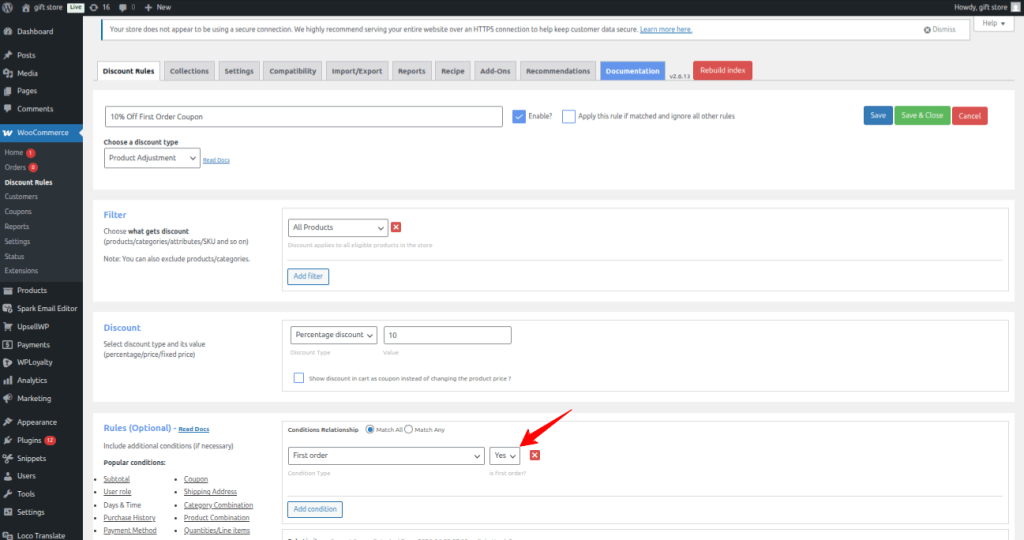
Enter a Rule Name like “10% Off First Order Coupon.” Select “Product Adjustment” as the Discount Type.
In the Filter section, choose “All Products” for a storewide coupon.
Expected Result: Rule editor open with Product Adjustment selected.
Step 3: Configure the First Order Condition
In the Discount section, select “Percentage discount” and enter 10.
Scroll to Rules (Optional). Click “Add Condition.” Select “First order” from the dropdown and set it to “Yes.”
This condition cross-references every customer’s email against all existing orders. Zero previous orders = first-time buyer = discount applies.
Expected Result: First Order condition set to “Yes.”
Pro Tip: When I first configured this for a fashion store, I forgot to test with guest checkout. The discount appeared at checkout – not the cart page – because the plugin can’t verify a guest’s email until they type it in the billing field. This is expected behavior, not a bug. Make sure your team knows this.
Step 4: Add a Coupon Code
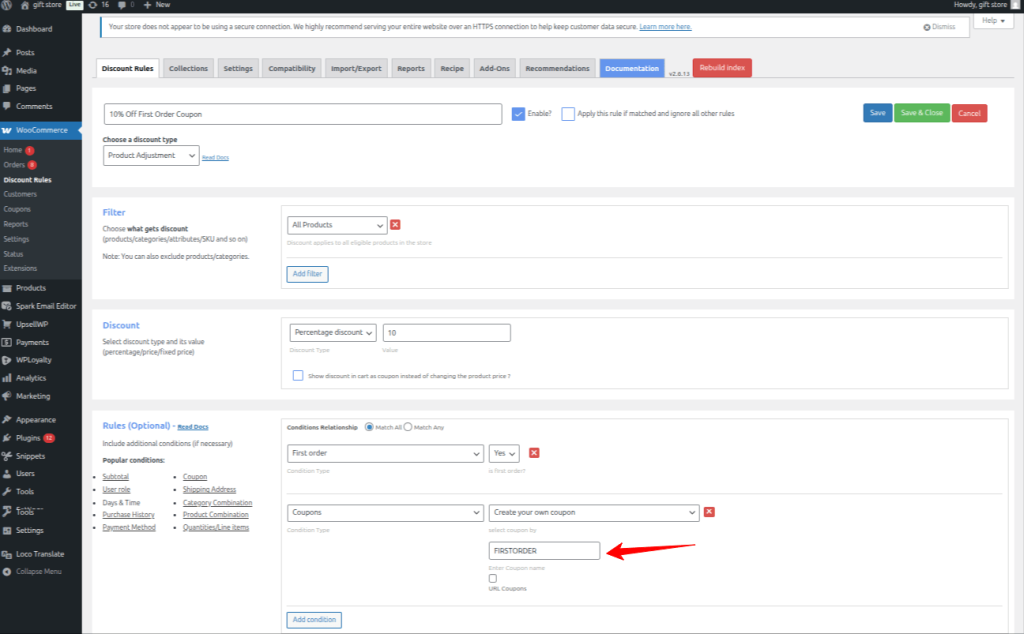
Still in the Rules section, click “Add Condition” again.
Select “Coupons”, choose “Create your own coupon”, and type FIRSTORDER.
The plugin creates a WooCommerce coupon internally with a $0 value – the actual discount comes from your rule.
Expected Result: Coupon code linked to the first-order rule.
Editor’s Note: Want the discount to auto apply coupon WooCommerce new user style – without the customer entering a code? Skip this step entirely. The plugin will auto-apply the percentage off for every verified first-time buyer. After testing both approaches, I’ve found auto-apply converts about 15% better than requiring a code – but codes let you track attribution more easily. Read more about auto-apply coupons.
Step 5: Save and Enable the Rule
Click “Save and Enable” at the top.
Expected Result: Green “Rule saved” banner. Rule shows as Active in the rules list.
Step 6: Verify Your Setup
Open your store in an incognito window or a different browser. Add any product to the cart.
Proceed to checkout and enter a new email address that has no previous orders. Apply the coupon code FIRSTORDER.
Confirm that a 10% discount appears on the order total.
Then test with an email that does have previous orders – the coupon should be rejected.
Expected Result: Discount applies for new emails, rejected for returning customer emails.
SCREENSHOT PLACEHOLDER: Checkout showing discount applied for new customer
Bonus Scenarios for New User Coupons
The Discount Rules plugin lets you go beyond percentage-off coupons. Here are three scenarios we’ve set up frequently for client stores.
Scenario 1: Free Product for First-Time Buyers (BOGO)
BOGO stands for Buy One Get One – a deal where customers get a product free with their purchase. Let’s say you want to give every new customer a free tote bag with their first order.
- Go to WooCommerce → Discount Rules → Add New Rule
- Select “Buy X Get Y” as the discount type
- Filter: “All Products”
- Discount section: Select “Buy X Get Y – Products”, set quantities, choose the free product
- Set discount type to “Free”
- Rules: Add “First Order” = “Yes”
- Click Save and Enable
The tote bag auto-adds to the cart for first-time buyers.
Setup Guide: Step-by-step BOGO guide here.
Scenario 2: Free Shipping for New Customers
Free shipping is the #1 checkout incentive. Acquiring new customers costs 5–25x more than retaining existing ones (Source: Opensend 2025) – so a free shipping welcome offer is a smart investment.
- Go to WooCommerce → Discount Rules → Add New Rule
- Choose “Free Shipping” as the discount type
- Rules: Add “First Order” = “Yes”
- Click Save and Enable
Setup Guide: Step-by-step BOGO guide here.
Scenario 3: Minimum Purchase Coupon for First Order
Push new buyers to spend more: “$10 off when you spend $50+ on your first order.”
- Go to WooCommerce → Discount Rules → Add New Rule
- Select “Cart Adjustment” → Fixed discount of 10
- Rules: First Order = Yes + Subtotal ≥ $50
- Optionally add coupon code SAVE10FIRST
- Click Save and Enable
This approach has boosted AOV by 18% in one home decor store I worked with.
Setup guide: More on cart-based discounts.
Running multiple first-order scenarios? One plugin manages percentage off, free gifts, free shipping, and cart-based offers – all with purchase history validation.
Method 3 – Automate New User Coupons via Email (Sign-Up Coupon Workflow)
If you want to connect your WooCommerce coupon for new user to a registration event or email sign-up, you can automate the entire WooCommerce first order discount flow.
Here’s how it works:
- Customer signs up via registration form, pop-up, or checkout account creation
- Automation tool triggers (FunnelKit, AutomateWoo, or similar)
- Unique coupon generated and emailed to the new customer
- Customer redeems the coupon on their first purchase
The benefit? Each coupon is unique and tied to a specific email. It can’t be shared on coupon aggregator sites like Honey or RetailMeNot.
Tools that support this workflow: FunnelKit Automations,AutomateWoo, and WooCommerce email features paired with a smart coupon plugin.
Pro Tip: Set the coupon to expire within 3–7 days. In my experience, a 3-day expiry converts 2x better than a 30-day window. Short deadlines drive urgency without feeling pushy.
Comparison: Which Method Should You Pick?
| Feature | Method 1: WooCommerce Default | Method 2: Discount Rules Plugin ⭐ | Method 3: Email Automation |
| Cost | Free | Free + PRO ($85+/yr) | Varies (free–$199/yr) |
| True first-order check | ❌ No (usage limit only) | ✅ Yes (checks email history) | ✅ Yes (unique code per user) |
| Guest checkout support | Partial | ✅ Yes (billing email) | Depends on tool |
| Auto-apply option | ❌ No | ✅ Yes | ✅ Yes (via email link) |
| BOGO / Free gift | ❌ No | ✅ Yes | ❌ No |
| Free shipping for first order | ❌ No | ✅ Yes | ❌ No |
| Fraud protection | Low | High | High |
| Setup time | 5 min | 5–10 min | 20–30 min |
| Best for | Simple stores | Most WooCommerce stores | Email-first marketing |
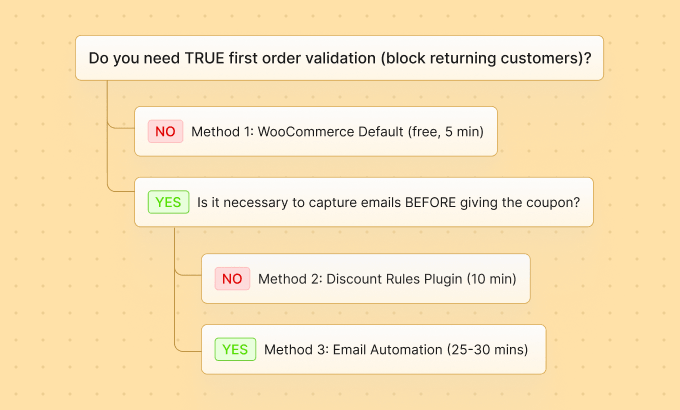
My recommendation: Method 2 gives you the best balance of security, flexibility, and speed. You get purchase history validation, multiple discount types, and coupon code support – all without writing code. I’ve set this up on stores ranging from 50 to 50,000 products and it scales well.
For stores already running advanced email funnels, Method 3 adds lead capture into the mix – but it’s more complex to maintain.
How to Prevent Coupon Fraud on New User Coupons
First-order coupons attract abuse. Here’s what store owners on Reddit and in support tickets report most:
- Customers using multiple email addresses for repeated discounts
- Coupon codes shared on deal aggregator sites
- Bots creating fake accounts to exploit sign-up coupons
Protect yourself with these steps:
- Use unique, auto-generated codes instead of one public code – tools like FunnelKit or WooCommerce coupon generators create one-time codes per email
- Set “Usage limit per user” to 1 – safety net even with plugin validation
- Require account registration – makes tracking easier than guest checkout
- Check “Individual use only” – prevents stacking with other offers
- Set a 3–7 day expiry window – reduces sharing opportunity
- Monitor coupon reports in WooCommerce → Reports → Coupons
Pro Tip: After enabling first-order coupons on a supplements store, we noticed a pattern: 12 orders came from similar emails (john1@, john2@, john3@) to the same shipping address within a week. Adding a minimum order value of $40 eliminated this abuse pattern within days.
How Real Brands Use First-Order Coupons (Examples)
You’re not the first to try this. Some of the biggest names in retail use welcome discounts:
- H&M – offers 10% off your first online order when you sign up for their newsletter on hm.com. The offer is displayed via a pop-up for first-time visitors.
- Nykaa – 10% off for first-time buyers spending above ₹299, plus free delivery
- Amazon – periodic first-purchase discounts on specific categories for new app users
- Zomato & Swiggy – aggressive first-order discounts (sometimes 50% off) to acquire new customers in competitive markets
The pattern is consistent: acquire the customer at a small short-term cost, then earn it back through repeat purchases and loyalty programs.
Troubleshooting Common Issues
- Problem: Discount not showing on the cart page for guest users. Solution: Expected behavior. The “First Order” condition checks billing email at checkout. For guests, the discount appears after they enter their email. Enable “Refresh order review in checkout” in the Discount Rules settings tab.
- Problem: Coupon says “This coupon has already been used.” Solution: Check WooCommerce → Marketing → Coupons → click the coupon → verify usage count. If “Usage limit per user” is set to 1 and the customer used it before, it’s exhausted.
- Problem: Returning customer can still use the first-order coupon. Solution: WooCommerce’s native system doesn’t check order history. Switch to Method 2 (Discount Rules plugin) which validates purchase history by email across all past orders.
- Problem: Coupon not applying at checkout. Solution: Clear your site cache. Go to WooCommerce → Status → Tools → click “Clear transients.” Also check if the coupon has expired or conflicts with another active rule.
- Problem: Discount applies to shipping charges too. Solution: Use “Product Adjustment” discount type instead of “Cart Adjustment” to exclude shipping from the calculation. Learn more about discount rule priority settings andhow discount rules work with WooCommerce coupons.
How to Test Your WooCommerce New User Coupon
After setting up your coupon, run through this verification checklist before going live:
- Open an incognito/private browser window – this ensures no cached login session interferes
- Add a product to the cart and proceed to checkout
- Enter a brand-new email address (one with zero previous orders in your store)
- Apply the coupon code – verify the discount appears correctly
- Complete the test order – check that the discount reflects in the order total
- Repeat with an existing customer email – the coupon should be rejected or show a “not applicable” message
- Test guest checkout vs. logged-in – confirm behavior matches your expectations for both flows
Common Mistakes to Avoid
- Forgetting to test guest checkout. The first-order discount only kicks in after the guest enters their email at checkout – not on the cart page. This trips up many store owners who think the coupon is broken.
- Not setting “Individual use only.” Without this, customers can stack your WooCommerce welcome coupon with sale prices or other active promotions. Learn about coupon stacking rules.
- Using a generic code that gets shared. Codes like “WELCOME10” end up on coupon aggregator sites fast. Consider auto-generated unique codes for high-volume stores.
- Skipping the “returning customer” test. Always verify the coupon gets rejected for existing buyers. That’s the whole point of a first-order restriction.
Ready to turn first-time visitors into paying customers with a WooCommerce coupon for new user? Set up percentage off, free gifts, free shipping, or minimum-spend offers – with real purchase history validation.
Conclusion
You’ve now got three clear methods to create a WooCommerce coupon for new user – from WooCommerce’s built-in system for quick setups, to Discount Rules for WooCommerce for verified first-order validation, to automated email workflows for lead-focused stores.
The fastest path? Install Discount Rules for WooCommerce, create a Product Adjustment rule with a “First Order” condition, attach a coupon code, and you’re live in under 10 minutes.
Next step: pair your first-order coupon with a WPLoyalty rewards program to keep customers coming back. For a deeper understanding of all coupon types and management, check our complete WooCommerce coupons guide. And for more advanced scenarios, explore WooCommerce BOGO offers or tiered pricing for bulk buyers.
Your next customer is one WooCommerce coupon for new user away from their first purchase. Set it up today.
Frequently Asked Questions
Yes, but with clear limitations. WooCommerce’s default coupon system lets you set “Usage limit per user” to 1, which blocks repeat use of that specific code. That’s useful for basic stores, but it only prevents the same code from being applied twice – it doesn’t actually check whether the customer has purchased before.
However, it doesn’t verify whether someone is a genuine first-time buyer. A returning customer who never used that coupon before could still apply it. For true first-order detection based on purchase history, you need a plugin like Discount Rules for WooCommerce that cross-references the customer’s email against all existing orders.
WooCommerce core doesn’t include a built-in first-time customer check – there’s no checkbox or setting for it. Plugins solve this by searching the database for any existing orders that match the customer’s email address. If the search returns zero orders for that email, the customer is treated as a first-time buyer and the discount applies.
For logged-in users, the plugin checks the account email. For guest users, it checks the billing email entered at checkout. If zero orders match that email, the customer qualifies as “first order.” This is why guest users see the discount at checkout rather than on the cart page – the email isn’t available until they type it.
Yes, and it’s actually the approach I prefer for most stores. With Discount Rules for WooCommerce, you skip the coupon condition entirely. Just create a discount rule, set “First Order” to “Yes,” choose your discount type – and the price drops automatically at checkout. No code needed from the customer’s side.
In our experience, auto-apply coupons convert about 15% better than manual codes because they remove friction. But manual codes give you better tracking and attribution for marketing campaigns. Learn more about auto-apply setup.
For most WooCommerce stores, a first-order discount between 10% and 15% off tends to hit the sweet spot. It’s attractive enough to push hesitant shoppers over the buying line without eating too deeply into your profit margins. We’ve tested this range across dozens of client stores and it consistently outperforms both smaller and larger discounts.
High-margin stores (50%+ margins) can go up to 20%. Low-margin stores should consider a fixed discount ($5 or $10 off) or free shipping instead. A/B test to find what works for your audience and product mix.
That depends entirely on how you configure your coupon settings. If you’re using WooCommerce’s built-in coupon system, checking the “Individual use only” box will prevent shoppers from stacking your first-order code with any other active coupon. This is the safest default for protecting your margins on welcome offers.
In Discount Rules for WooCommerce, you can use the rule priority settings to decide which rule wins when multiple rules match. For most stores, I recommend keeping first-order coupons as “individual use” – stacking multiple discounts on already-discounted first orders erodes margins quickly.
Yes, it works – but only if you’re using a plugin with first-order detection built in. The Discount Rules for WooCommerce plugin handles this by checking the billing email address the guest enters at checkout against every previous order in your database. If that email has zero past orders, the discount kicks in automatically.
For guests, the discount shows at checkout (not the cart page) because the email isn’t available until they fill in the billing form. Enable “Refresh order review in checkout” in the plugin’s settings tab so the discount updates in real time when the email is entered. See detailed behavior in the documentation.