Only 44% of customers become repeat buyers! With a customized WooCommerce user group discount, you can retain these 44% of customers easily.
Here is what you have to do:
- When customers purchase products from your store, segment them into certain groups based on their purchase patterns or behaviors.
- Create personalized discounts based on their purchases.
- These exclusive discounts enhance their brand experience and trigger them to buy more, resulting in more sales and profits.
In this blog, let’s check the detailed steps to create personalized WooCommerce customer group discounts with examples. Also, the default WooCommerce does not have a setting to segment customers, that’s why we can opt for a plugin like “Discount Rules for WooCommerce -Pro” to simplify our process.
Increase your loyal customer base to 44% by offering user group discounts using the “Discount Rules” plugin.
Table of contents
What is a WooCommerce User Group Discount?
A WooCommerce User Group Discount is a pricing strategy that allows store owners to offer special discounts to specific groups of users based on their roles, membership levels, or purchase behavior. Instead of giving the same discount to everyone, you can create targeted pricing for groups like wholesalers, subscribers, VIP customers, or logged-in users.
This helps you personalize offers, increase conversions, and reward loyal customers. It’s a powerful way to control pricing and maximize revenue in WooCommerce.
Types of WooCommerce User Group Discounts
Here are the types of user group discounts that you can create and offer in a WooCommerce store:
- First-Order Customers: New customers cannot be segmented as a group, yet you can offer discounts only to new (first-time) customers, encouraging them to come back for more. For example: “A 10% discount on first orders only.”
- Wholesale Customers: Some customers often order products in bulk. Segment them as bulk buyers or wholesale dealers and offer discounts only to them. It helps them buy more products from your store.
Also Read: 5 Best WooCommerce Wholesale Plugins (Free + Paid)
- Subscribers: If you have an email list (or YouTube subscribers), you can provide discounts only to these groups, making them feel special and increasing their loyalty.
- Corporate Customers: If you have a group of customers from corporate businesses, physical store sellers, or other groups, you can group them into one and set a customized user group pricing plan, which encourages them to prefer your store over others.
Similarly, you can organize your customers’ lists into specific groups based on their genders, demographics, age, and other factors to personalize deals. For instance, “A 5% discount only to female customers, celebrating Women’s Day” (or) “Free shipping offer only to customers from Japan.”
Benefits of WooCommerce Customer Group Discounts?
Offering a WooCommerce customer group discount is beneficial in the following ways:
- Increase Sales:
Offering discounts to all customers sometimes makes it impossible to reach profit margins. So, you can create WooCommerce customer group discounts and enhance the customer experience of particular groups. - Enhance Customer Experience:
Exclusive discounts offered only to particular customer groups can make them feel special and enhance their shopping experience, which in turn increases their loyalty to your store. - Sustain Long-term Relationship:
Customers can return to your store for repeat orders if they are satisfied with your products, discounts, and customer support. A WooCommerce user group discount can help you grab customers’ attention and help sustain long-term relationships with your brand. - Get Word-Of-Mouth Marketing:
4 out of 10 customers can share their positive experiences with their friends, families, and networks. With WooCommerce customer group pricing, you can meet their demands and create a positive shopping journey, which leads to indirect marketing for your brand and helps you get new customers. - Convert Abandoned Cart Into Sale:
If some customers abandon their carts due to high product costs, you may offer special discounts based on their purchase-user group. This will urge them to buy the products before missing the deal, and it will discard all the abandoned carts.
How to Add New User Groups in WooCommerce?
With the default options in WordPress/ WooCommerce, you cannot add user groups. It has default groups such as editor, contributor, administrator, and author, but they are unsuitable for WooCommerce store customers.
You can simply use the free “User Role Editor” plugin to add different user groups and segment customers based on their purchase patterns. Install the plugin in your WordPress dashboard.
(A) Adding New Roles
To add different user groups in WooCommerce:
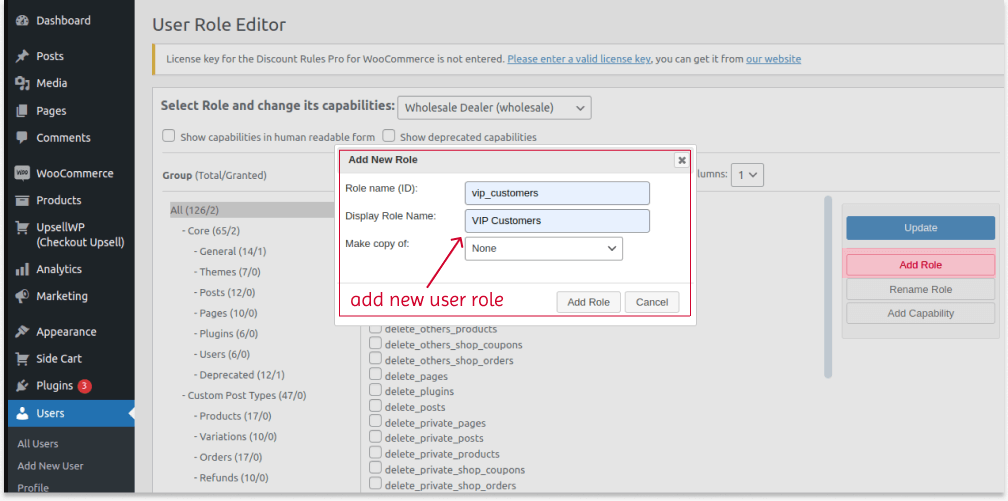
- Navigate to “WordPress dashboard” -> Users -> “User Role Editor.”
- Click “Add Role” on the right side.
- Enter the actual role name ID with underscores (regular_customers) and display name (Regular Customers), and click “Add Role.”
- The plugin will add the new role to your store.
Note: If the same customers are included in the two groups, you can use the “Make Copy Of” option to add them directly to the new role.
(B) Segmenting Customers To Specific User Roles
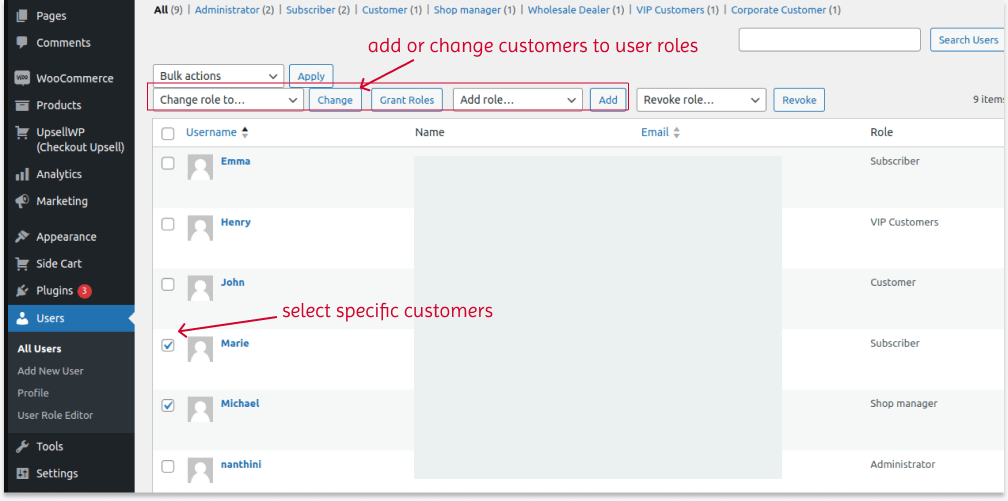
When users register and log in to your store for the first time, they will be added to the “Subscribers” list. To segment them into different roles:
- Navigate to “Users.”
- Click “All Users” to edit existing customers.
- Select specific users and click “Change Role To” in the top drop-down section.
- Choose the specific user role and click “Change” to change these selected users to those groups.
- Another option for adding the same user to two roles is to click “Add Role To” to add the selected users to other groups.
- Similarly, select other users and add them to the respective groups.
Also Read: How to Create User Specific Roles in WordPress?
How to Create a WooCommerce User Group Discount?
You need a versatile plugin like “Discount Rules for WooCommerce -Pro” to create and customize a WooCommerce user group discount. You can check the installation guide for detailed instructions to install and activate the Pro plugin version on your WordPress dashboard.
Or follow these simple steps to install the free plugin version:
- Open your “WordPress” dashboard.
- Go to “Plugins” -> “Add New Plugin.”
- Search for “Discount Rules for WooCommerce (by Flycart)” and install it in your store.
Let’s explore some common scenarios for creating the customer group discount in WooCommerce.
Scenario 1: User Group Discount: Wholesale Customers
If you have customers purchasing bulk items, you can add them to the “Wholesale customer” group and offer exclusive discounts to retain them for future and larger orders.
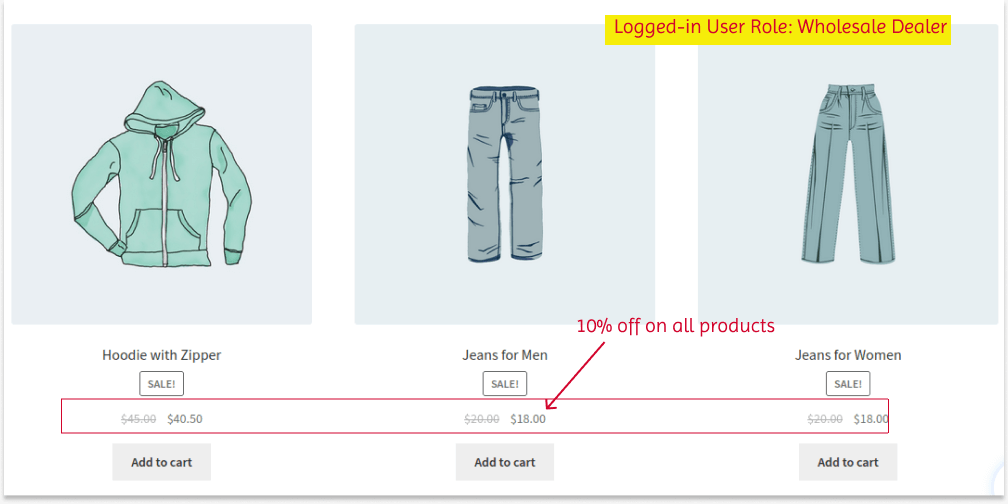
For Example: A 10% discount on all products for “Wholesale Customers.”
To create a WooCommerce user group discount for “Wholesale customers.”
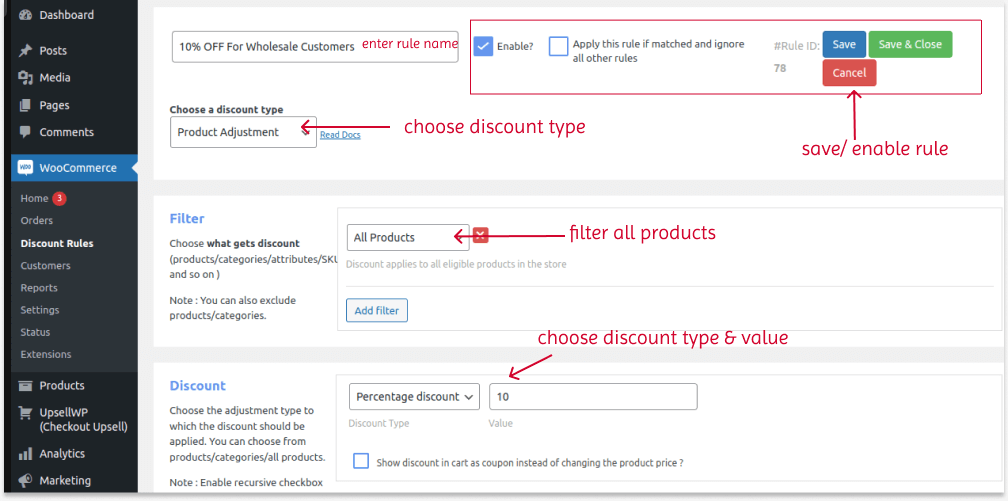
- Go to “WooCommerce” -> “Discount Rules.”
- Click the “Add New Rule” button.
- Enter the rule name for reference.
- Choose the discount type, “Product Adjustment.”
- In the “Filters” section, keep “All Products.”
- In the “Discount” section, choose the discount type, “Percentage Discount,” and value, “10.”
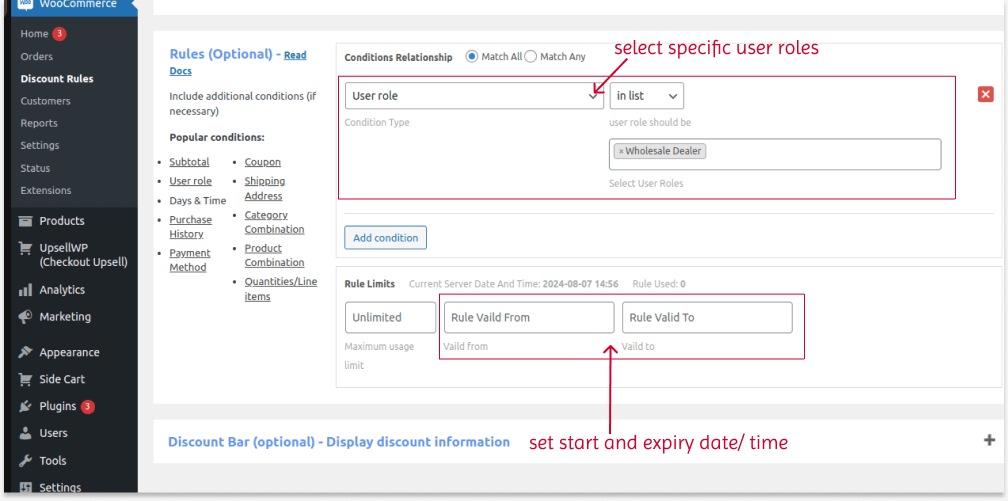
- In the “Rules (optional)” section, add a condition, “User Role”, and select “Wholesale Dealer.”
- Save and enable the rule.
Notes:
- Instead of enabling the rule, you can also schedule your discount rule in advance by setting the “start and expiry” date in the “Rule Limits” section.
Also Read: How to Set a Coupon Expiry Date in WooCommerce?
- Also, set the rule “maximum usage limits” to set the maximum number of times customers can claim the discount from this rule.
When customers from the “Wholesale Dealer” user role log in to your store, they can get 10% off on all products.
Related Read:
Instead of a simple product discount, you can offer bulk discounts to wholesale customers based on the product quantities they purchase.
Learn how to create bulk discounts in WooCommerce!
Scenario 2: Customer Group Discount: Free Shipping
Free shipping is recommended over product discounts, as many customers prefer this deal.
Example: Free Shipping only to Subscribers
If you have an email list and a separate “subscriber” group, you can show your gratitude for joining your brand by offering discounts or free shipping. To create a free shipping offer for specific WooCommerce customer groups:
- Go to “WooCommerce” -> “Discount Rules” -> “Add New Rule”.
- Enter the rule name.
- Choose a discount type, “Free Shipping”.
- In the “Rules (optional) section, choose the “User Role” condition and select the specific role, “Subscriber”.
- Save and enable the rule.
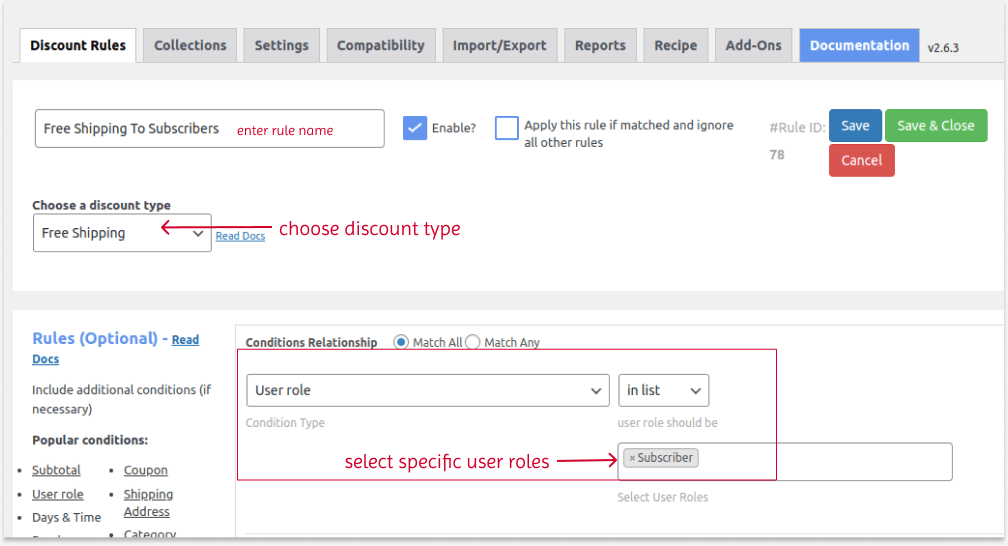
You can also select two or more user roles at once to apply a free shipping offer to more groups.
When customers from the “Subscriber” user group buy products, they are eligible for free delivery orders.
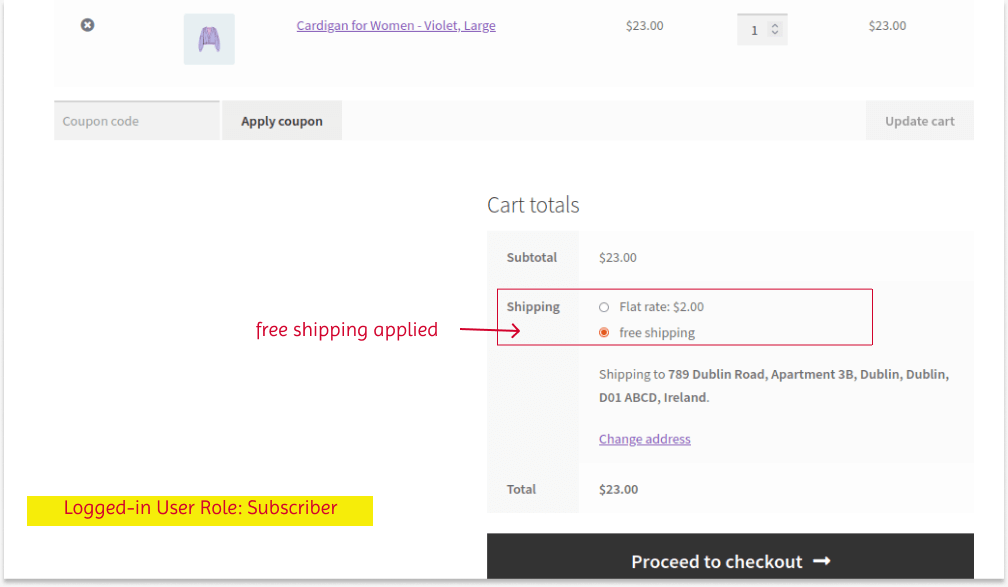
Provide free shipping discount offers only for specific customer groups using the Discount Rules plugin.
Related Read:
How To Offer WooCommerce Free Shipping? (Strategies + More Examples)
Scenario 3: Customer Group Pricing: First-Orders
You can retain first-time customers as regular customers by offering them an exclusive welcoming offer. Additionally, you can set the minimum purchase amount to enable discounts, urging them to try your products.
For example, $20 Off For First-Time Customers On Orders Above $149.
The “Discount Rules” plugin provides the first-time discount option in the “Purchase history” section by default. Although this strategy isn’t specifically a user role, you can implement it for repeat orders.
To set WooCommerce customer group pricing for new customers:
- Go to “WooCommerce” -> “Discount Rules.”
- Add a new discount rule.
- Choose the discount type, “Cart Adjustment,” for offering discounts based on the subtotal.
- Filter “All Products.”
- Choose the discount type and value, “Fixed Discount, 20.”
- In the “Rules (Optional)” section, set:
- First Condition: Choose “First Order” and set “Yes.”
- Second Condition: Choose “Subtotal” and enter the minimum cart total, “149.”
- Lastly, save and enable the rule.
Note:
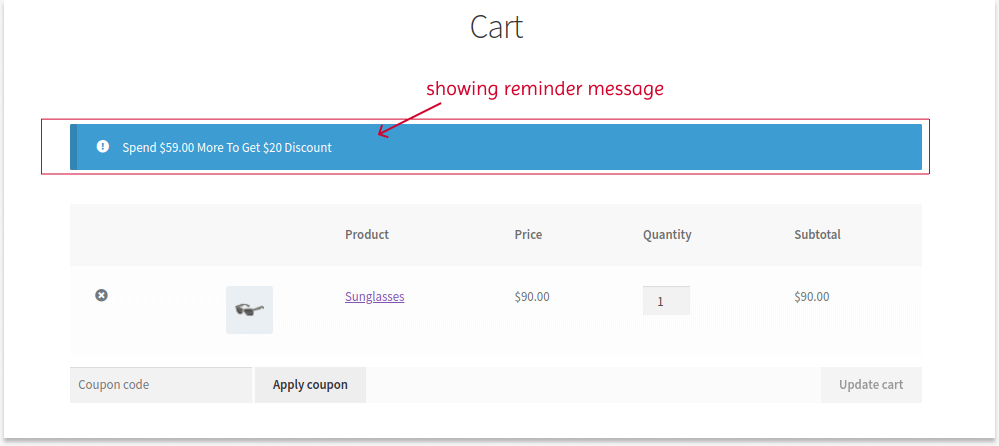
One of the best features of the “Discount Rules” plugin is that you can display a “promotion message” on the cart page to remind customers of the remaining amount they need to spend to get discounts. You can easily customize it from the “Promotion Message” section. Set the start amount in “Subtotal from” when you enable this message and customize the “message”.
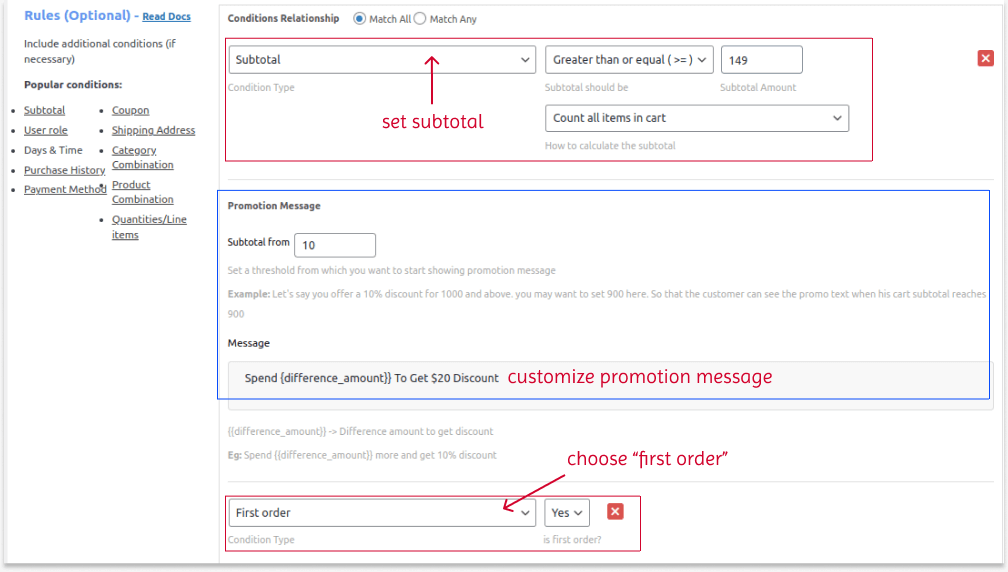
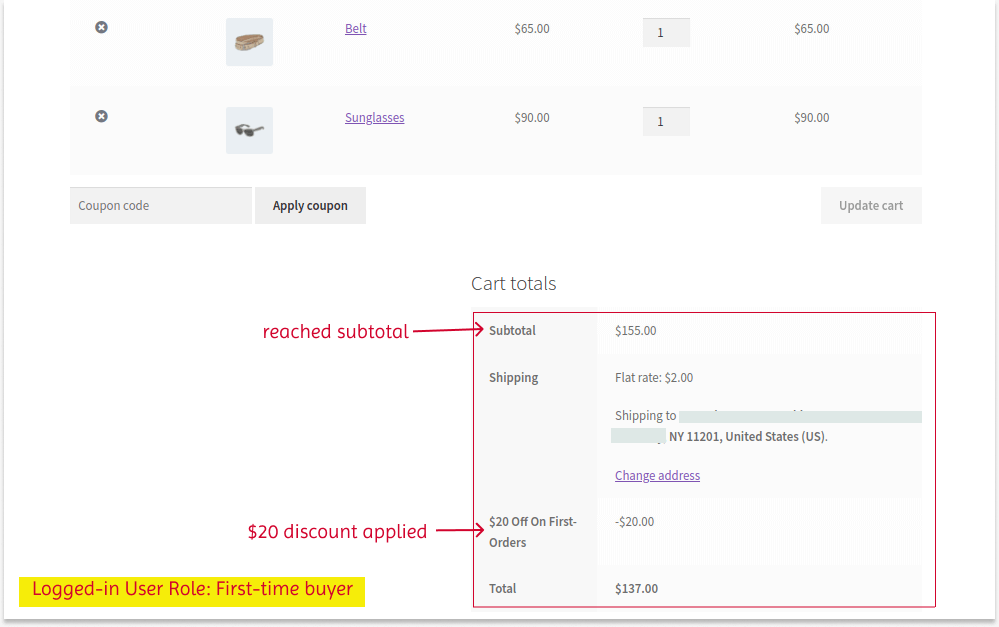
First-time buyers who register and log in to your store and purchase above $149 will receive $20 off.
If the customer doesn’t reach the set cart value, a promotion message will automatically display, urging them to spend more.
Similarly, you can offer Buy One Get One deals for specific user groups easily with the “Discount Rules” plugin. Simply add a “User role” condition and select the specific user groups to apply BOGO discounts. You can mix and match scenarios to create discounts based on your brand’s sales goal.
How to Show Discount Banner On Product Pages
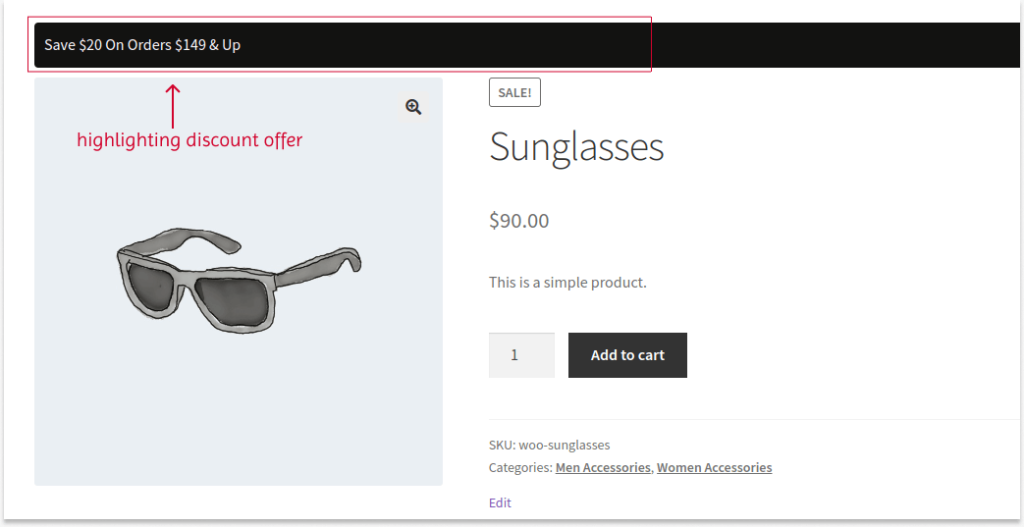
Highlighting discount offers on product pages is crucial to grab customers’ attention and convey your deal to them to increase sales. You can quickly show discount banners on product pages with the “Discount Rules” plugin. To do this, create a new rule or edit the existing one in your “Discount Rules” dashboard.
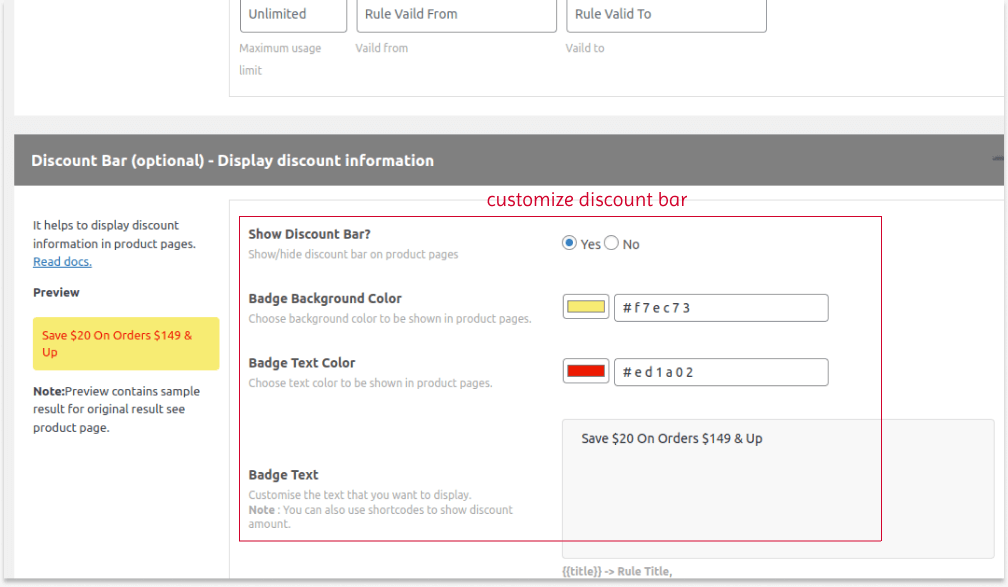
Scroll down to the “Discount Bar” section next to the “Rules” section. Here, you can show or hide the “discount bars.”
- Enable “Yes” in “Show Discount Bar”.
- Customize the banner background and text colors.
- Customize the “Badge Text” to display on product pages.
The “Discount Bar” badge will display on products that are selected under the rule.
Also Read: How to Display Discounts on WooCommerce Product and Cart Pages
Related Read:
You can offer discounts for first-time buyers in different ways other than the minimum purchase amount.
Learn the four more ways to create first-order discounts in WooCommerce!
5 Example Ways to Set Customer Group Pricing
You can set WooCommerce customer group pricing in different ways. Some of the examples are,
a) Simple Percentage or Fixed Discounts
If you are a new WooCommerce store owner and want to implement user group discounts, you can start with simple percentage discounts or fixed discount deals for all or specific products.
For example: 10% Off On All Products Only For Subscribers.
b) Bulk and Bundle Discounts
Offer exclusive bulk or bundle discounts to increase customers’ loyalty who often order in bulk.
For example:
Bulk Offer Only For Wholesale Dealers:
Buy 10 to 20 Items with $5 Off Per Item.
Buy 21 to 50 Items with $7 Off Per Item.
Bundle Deals:
Sell a $10 worth item as “Buy 10 Items For $90, offer exclusively for wholesale dealers.”
c) Coupon Discounts
You can create a coupon code and encourage customers to enter the coupon code at checkout to claim their discounts.
You can use the default coupon settings to create coupons for user groups. Or try the “Discount Rules Pro” plugin to create advanced and smart coupons.
Learn how to create a coupon in WooCommerce.
d) Free Shipping
Offer free shipping to certain user groups to increase brand awareness and sales.
For example, Free shipping on first orders.
e) Minimum Order Value
You can set the minimum order value for certain customer groups to urge them to purchase more, reach the set total, and take advantage of discounts. This will also increase the average order value.
For example: Spend $100 To Get 10% Off. Offer Only For Prime Members.
Learn more about setting a minimum order amount in WooCommerce.
f) Limited-Time Deals
You can also set expiry times to create a sense of urgency and encourage customers to buy products before the deal ends.
For example, “Deal for Subscribers – 30% Off and offer ends in 3 hours.”
Conclusion
Many popular online brands like Amazon are already offering exclusive discounts for their Prime Members or subscribers. When implemented strategically, a WooCommerce user group discount is a sure way to increase order value and sales. They also help you create unique discount offers to stand out from the competition.
You can use “Discount Rules for WooCommerce -Pro” to create and manage customer group discount rules. So, start using the plugin and offer inevitable discounts to your customers to retain them for a long time.
Tip: Like user group discounts, you can also create discounts only for specific customers. For example, a $5 discount for a customer, John.
Also Read:
- How to Create a WooCommerce Bundle Discount?
- 5 Best WooCommerce Discount Plugins in 2024 (Free & Paid
- How to create customer-specific discounts in WooCommerce
Frequently Asked Question
WooCommerce user group discount is a type of discount strategy in which you can segment your customers based on their product browsing patterns, needs, interests, preferences, and purchase history, and offer exclusive discounts only to specific user groups. This enhances their shopping experience and brand loyalty and increases sales.
You can create a discount in WooCommerce in two ways:
(A) Coupon Discount:
You can go to “WordPress dashboard” -> “Marketing” -> “Coupon” -> “Add Coupon.”
Create your coupon code, choose the discount type and amount, and publish it.
(B) Automatic Discount:
You can install and activate any one discount plugin like “Discount Rules For WooCommerce -Pro.”
Then, navigate to “WooCommerce” -> “Discount Rules” -> “Add New Rule.”
You can filter products, choose a discount type and amount, optionally set purchase conditions, save the rule, and enable it.
You can add a cart discount in WooCommerce by installing the “Discount Rules for WooCommerce -Pro” plugin.
1. Simply go to “WooCommerce” -> “Discount Rules” -> “Add New Rule.”
2. Choose the “Cart Adjustment” discount type.
3. Filter products for the discount offer.
4. Select the discount type and value.
5. Optionally, add conditions to the discounts and save the rule.
6. Finally, enable the discount or schedule it for future promotions.
Now, the discounts will be applied to the total amount instead of to each product in the cart.