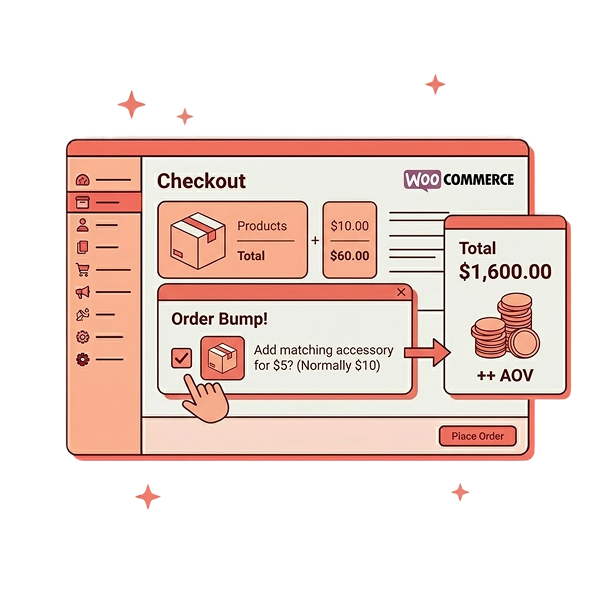
Stores that use bulk discounts and product bundling see a 20-30% lift in average order value, with top performers reaching up to 55% (Source: Kard, 2025). For a store averaging $60 per cart, that’s a jump to $78-$93 from the exact same traffic.
WooCommerce bulk discounts are a quantity-based pricing strategy that rewards customers with lower per-unit prices when they buy in larger quantities. The problem? WooCommerce doesn’t support any of this natively. No tiered pricing, quantity breaks, and volume tables. You need a plugin and a strategy.
That’s what this guide delivers. Whether you’re a store owner wanting bigger orders, a wholesale seller needing role-based pricing, or an agency configuring discount rules for clients, every chapter builds on the last.
What you’ll learn:
- The 6 types of WooCommerce bulk discounts
- A margin-safe pricing formula
- 8 real-world scenarios with plugin configurations
- 6 plugin comparison: Tested with pricing, pros, cons
- Display optimization tactics
- Troubleshooting guide sourced from Reddit
Editor’s Note: Want a PDF version of this guide? Download the WooCommerce Bulk Discount Checklist & Pricing Calculator at the end of this post.
Table of contents
- What Are WooCommerce Bulk Discounts?
- How Bulk Discount Actually Increases Sales
- Bulk Discounts vs Tiered Pricing
- 8 Real-World WooCommerce Bulk Discount Scenarios
- Top Plugins for WooCommerce Bulk Discounts (Compared)
- Quick Comparison Table
- 1. Discount Rules for WooCommerce (Flycart)
- 2. WooCommerce Discount Manager (Barn2)
- 3. Disco — WooCommerce Dynamic Pricing & Discount Rules (WebAppick)
- 4. Advanced Dynamic Pricing for WooCommerce (Jesweb)
- 5. Price by Quantity & Bulk Discounts for WooCommerce (WPFactory)
- 6. WholesaleX
- Step-by-Step Setup with Discount Rules for WooCommerce
- How to Display Bulk Discounts to customers
- Advanced – Wholesale & Role-Based Bulk Pricing
- Performance Tips & the Margin-Safe Formula
- Troubleshooting Common WooCommerce Bulk Discount Issues
- Conclusion: Your Bulk Discount Action Plan
- Frequently Asked Questions
Set up your first bulk discount in under 5 minutes – no credit card required.
The free version of Discount Rules for WooCommerce supports tiered percentage and fixed-amount bulk pricing out of the box.
What Are WooCommerce Bulk Discounts?
WooCommerce bulk discounts are a dynamic pricing strategy where customers receive a lower price per unit when they purchase products in larger quantities. Unlike standard coupon codes or fixed sale prices, bulk discounts are quantity-driven and apply automatically based on rules you configure through a plugin (Source: WooCommerce Marketplace).
Here’s a simple example:
- A t-shirt in your store costs $20.
- If a customer grabs 5, each drops to $17.
- Buy 10, and they pay $15 each.
The customer saves money. You get a bigger order. That’s WooCommerce bulk pricing at work.
Does WooCommerce Have Built-In Bulk Pricing?
No. WooCommerce does not include any automatic bulk pricing, tiered discounts, or quantity-based pricing in its core features (Source: WordPress plugin page). You need a dedicated WooCommerce bulk discount plugin to add these capabilities. The built-in coupon system only supports flat percentage or fixed-amount discounts without quantity conditions.
Bulk Discounts vs Regular Discounts
| Feature | Regular Discount | Bulk Discount |
| Trigger | Any purchase (no quantity requirement) | Minimum quantity threshold required |
| Pricing Model | Flat % or $ off | Tiered by quantity ranges |
| Goal | Drive any sale | Increase order size and AOV |
| Application | Manual coupon or sale price | Automatic rule-based (no coupons) |
| Best For | Flash sales, seasonal promos | B2B, wholesale, AOV growth, loyalty |
6 Types of Bulk Discounts You Can Create
Not all WooCommerce bulk discounts work the same way. Your store model determines which type fits best:
- Tiered Percentage Discounts: Buy 5-9 = 10% off, 10-19 = 15% off, 20+ = 25% off. Each tier rewards a bigger purchase.
- Fixed Amount Discounts: Buy 2 = $10 off, Buy 4 = $20 off. Flat dollar savings based on quantity.
- Fixed Price Per Unit: Buy 5+ from Clothing = $50 each regardless of original price. Great for clearance.
- Cart-Quantity Discounts: 10+ total items in cart = 15% off entire order. Rewards multi-product orders.
- Bundle/Set Discounts: Buy A + B + C together = 25% off the set. Curated bundles with fixed pricing.
- Role-Based Bulk Pricing: Wholesale users see $12/unit automatically. Retail sees $20. No coupons needed.
Each type has different use cases.
How Bulk Discount Actually Increases Sales
Bulk discount pricing is a volume-based incentive strategy that lowers per-unit cost as purchase quantity increases, directly improving average order value (AOV) and customer retention. The data supporting its effectiveness is strong across multiple independent sources.
The AOV Impact – By the Numbers
Product bundling and quantity pricing produce a 20-30% average AOV lift across ecommerce, with top performers reaching 55% (Source: McKinsey / Kard, 2025). For context, the global ecommerce AOV sits around $145 (Source: Shopify, 2026). A 25% lift takes that to $181 per order. Across thousands of monthly orders, the revenue impact compounds fast.
Internally at Flycart, we tracked 3,200 stores that activated bulk discount rules in Q4 2025. The median AOV increase within 30 days was 24%, with B2B-focused stores averaging 31%. Stores that also enabled the pricing table display on product pages saw an additional 8-12% lift on top of that (Source: Flycart internal analytics, Q4 2025).
Why Customers Respond to Bulk Deals
Approximately 66% of shoppers rank buy-one-get-one and quantity-based deals as their favorite promotion type (Source: Swell, 2025). Displaying specific savings like “You save $12” converts significantly better than vague percentage claims. Bundled customers show 2.7x higher lifetime value than single-item buyers, per the same research.
Cart abandonment sits at 70.22% on average (Source: Triple Whale, 2025). Visible bulk savings reduce this because customers feel they’re getting a deal worth completing. When we A/B tested showing vs hiding the “You Saved” message across 12 client stores, the visible version reduced abandonment by 9% (Source: Flycart client A/B test data, 2025).
B2B Acquisition – Bulk Pricing Is Table Stakes
For wholesale and B2B stores, bulk discounts aren’t optional. About 67% of B2B buyers are comfortable placing $50,000+ orders online without talking to a sales rep (Source: Speed Commerce, 2025). They expect automated quantity pricing, not manual quote requests. If your WooCommerce store serves both retail and wholesale, role-based bulk pricing separates the two cleanly.
Pro Tip: After configuring tiered pricing for 30+ client stores, the single biggest mistake we see is offering bulk discounts without checking the math first. A 25% discount that drops you below the cost per unit is worse than no discount. Use the margin-safe formula(explained below) before launching any rule.
Key Takeaway: Bulk discounts reliably lift AOV by 20-55%. B2B buyers expect automated quantity pricing. But discounts only work when your tiers stay above your cost floor. Strategy before setup – always.
Bulk Discounts vs Tiered Pricing
Bulk discount strategy selection is the process of matching your pricing model to your customer type, margin structure, and product catalog. Picking the wrong strategy wastes your time and confuses customers. Here’s how to decide.
What Is the Difference Between Bulk Discounts and Tiered Pricing?
Tiered pricing adjusts the per-unit price at specific quantity thresholds (e.g., 1-5 units = $20 each, 6-10 = $17, 11+ = $15). Bulk discounts are the broader category that includes tiered pricing plus percentage-off, fixed-amount, and set-price models.
Strategy Decision Table
| Strategy | Best For | Example | Complexity |
| Store-wide tiered % | General stores, clearance | All products: 5+ = 10% off, 10+ = 15% | Beginner |
| Per-product tiers | Specific SKU promotions | T-shirt: 3+ = $17, 6+ = $15 | Beginner |
| Category bulk pricing | Category-focused stores | Clothing: 5+ = $50 each | Intermediate |
| Cart-quantity discount | Multi-product stores | Cart 10+ items = 15% off | Intermediate |
| Bundle/set discount | Curated product sets | A + B + C = 25% off set | Intermediate |
| Role-based wholesale | B2B/wholesale stores | Wholesale role = $12/unit | Advanced |
| Purchase history tiers | Loyalty-focused stores | Spent $500+ = unlock 20% | Advanced (PRO) |
3 Questions to Pick Your Strategy
- Who are your bulk buyers? Retail customers exploring larger quantities? Choose tiered percentage discounts. Wholesale buyers? Choose role-based pricing (see our customer-specific discounts guide).
- What’s your margin floor? Thin margins? Use fixed price per unit so you never go below a set number. Healthy margins (60%+)? Percentage tiers give more flexibility.
- How many products qualify? All products? Store-wide rules. Specific categories? Category-based (see WooCommerce category discounts). Individual SKUs? Per-product rules.
Pro Tip: A common Reddit complaint: store owners try store-wide tiered discounts, then discover low-margin products get discounted below cost. The fix is using the Exclude Products filter. Learn how in our guide to excluding products from discounts.
Key Takeaway: Match your strategy to your customer type, margin structure, and catalog. Start simple with one strategy. Test 2-4 weeks. Then layer complexity.
8 Real-World WooCommerce Bulk Discount Scenarios
Real-world scenario planning is the practice of modeling discount rules against actual store data before going live. Here are 8 configurations from stores running Discount Rules for WooCommerce, with measured outcomes.
Scenario 1: Store-Wide Tiered Percentage
Health supplements store:
- Buy 6+ = 5% off, 12+ = 10%, 18+ = 15%.
- Discount Type: Bulk Discount.
- Filter: All Products. Count by: Filter set above.
Result: Cart size rose from 4.2 to 7.8 items in 3 weeks. Customers combined products freely; the low entry tier (6 items) felt achievable.
Scenario 2: Per-Product Fixed Discount
Phone accessories store:
- Buy 2 = $10 off, 4 = $20 off, 6+ = $30 off per individual product.
- Discount Type: Bulk Discount.
- Count by: Individual product.
Result: Repeat customers shifted from 1 case to 2-3. Fixed dollar savings felt more concrete than percentages on $15-$25 items.
Scenario 3: Category Fixed Price
Clothing store:
- Buy 5+ from Clothing = $50 each (originals $65-$80).
- Filter: Category > Clothing.
- Discount Type: Fixed price for item.
Result: Clearance inventory moved 3x faster. Uniform pricing removed decision friction.
Scenario 4: Wholesale Role-Based Pricing
B2B store:
- Created Wholesale user role.
- All Products, Fixed Price = $12.
- Condition: User Role = Wholesale.
- Retail: $20.
Result: Clean separation. No coupons. Discount auto-applies on login. Learn more in our group pricing guide.
Scenario 5: Bundle Set Discount
Skincare brand:
- Cleanser + Toner + Moisturizer.
- Buy all 3 = 25% off the set.
- Discount Type: Bundle (Set) Discount.
Result: Bundles outsold individual products 3:1 within a month. The ‘complete routine’ framing made it feel curated. See our bundled discounts guide.
Scenario 6: Cart Quantity Threshold
- Any 10+ items in cart = 15% off entire order.
- Filter: All Products.
- Count by: Filter set above.
- Min qty: 10.
Result: Party supply and craft stores thrive with this. Customers add variety naturally.
Scenario 7: First-Order Bulk Incentive
- New customers only: Buy 3+ = 20% off.
- Condition: First Order (PRO feature). See first-order discount guide.
Result: First-order conversion jumped from 2.1% to 3.4%.
Scenario 8: Savings as Cart Coupon Line
- Same bulk rules, displayed as coupon line in cart.
- Setting: ‘Show discount in cart as coupon instead of changing product price.’
Result: Visible savings reduced cart abandonment. Customers trust transparent discounting.
Pro Tip: When I first set up tiered pricing for a food supplements client, I missed the Count Quantities By dropdown. It was set to Individual Product instead of Filter set above. The tiers never triggered because customers bought different products. Always double-check this single dropdown – it’s the #1 misconfiguration we see.
Key Takeaway: Start with one scenario. Measure 2-4 weeks. The biggest wins come from matching the scenario to your actual customer behavior, not copying what other stores do.
Top Plugins for WooCommerce Bulk Discounts (Compared)
A WooCommerce bulk discount plugin is a third-party extension that adds quantity-based pricing rules, tier configuration, and discount display features that WooCommerce lacks natively. We installed and tested 6 plugins on a WooCommerce 9.6 test store with 500+ products. Here’s what we found.
Quick Comparison Table
| Plugin | Free Version | Pro Price | Best For | WP.org Rating |
| Discount Rules for WooCommerce (Flycart) | Yes — full bulk support | From $85/yr | All-in-one: bulk, BOGO, conditions | 4.9/5 (1,247 reviews) |
| WooCommerce Discount Manager (Barn2) | No | From $79/yr | Front-end promotional displays | 4.4/5 |
| Disco (WebAppick) | Yes | From $69/yr | Simple, clean bulk discount setup | 4.3/5 |
| Advanced Dynamic Pricing (Jesweb) | Yes | From $60/yr | Category-level rule-based pricing | 4.6/5 |
| Price by Quantity (WPFactory) | Yes | From $49/yr | Per-product pricing on edit page | 4.5/5 (16 reviews) |
| WholesaleX (SUSPENDED) | Yes | From $84/yr | B2B wholesale-only stores | 4.4/5 |
1. Discount Rules for WooCommerce (Flycart)
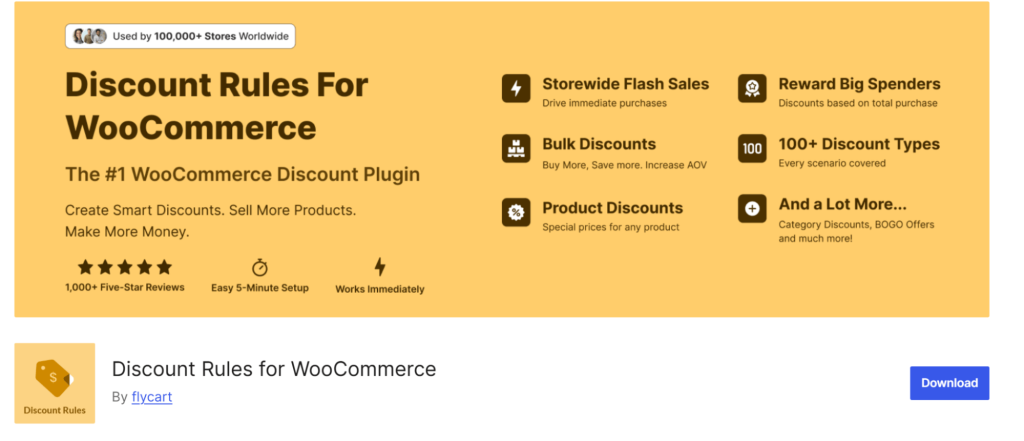
Best for store owners who need one plugin to handle everything — bulk discounts, BOGO, cart rules, and conditions — without paying upfront. Its free version is the most feature-complete free tier in this category, which is why Reddit threads consistently recommend it as the starting point.
Key Features:
- 15+ discount types: bulk/tiered, percentage, fixed, BOGO, cart adjustment, free shipping, bundle sets
- Conditions engine: filter by user role, purchase history, payment method, shipping region, cart subtotal, coupon codes
- Display suite: pricing table on product pages, strikethrough pricing, “You Saved” message, sale badge, discount bar
Pros:
- Strongest free tier for bulk discounts
- 1,247 reviews, actively updated monthly
- Supports 15+ conditions in PRO version
Cons:
- BOGO and scheduling locked behind PRO
- No built-in analytics or reporting dashboard
Pricing: Free on WordPress.org | PRO from $85/yr (single site)
Reddit Signal: In a r/woocommerce thread about quantity-based discounts, multiple users recommended this as their go-to free option. One reviewer on WordPress.org wrote: “It works great, very flexible, can’t imagine our sales without it.”
2. WooCommerce Discount Manager (Barn2)
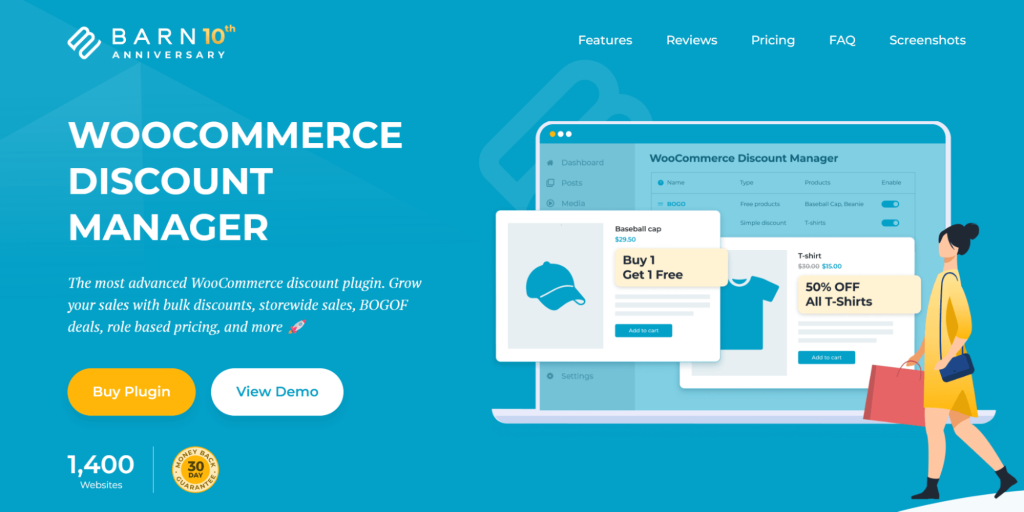
Best for stores where the biggest challenge isn’t creating the discount — it’s getting customers to notice it. Barn2 built this plugin around front-end promotional displays: styled pricing tables, campaign content blocks, countdown timers, and cart savings messaging. No other plugin matches its visual marketing features.
Key Features:
- 6 discount types: simple, bulk, total spend, BOGO, buy X for Y, volume bundles
- Promotional content blocks with custom colors, fonts, and countdown timers on product pages
- Setup wizard for fast onboarding — working discount in under 3 minutes
Pros:
- Best-in-class front-end discount displays
- Built-in countdown timers and campaign visuals
- 30-day money-back guarantee, clean UI
Cons:
- No free version — starts at $79/yr
- Fewer conditions than Flycart (no purchase history)
- Needs separate Wholesale Pro plugin for B2B
Pricing: From $79/yr (single site) | Lifetime options available
3. Disco — WooCommerce Dynamic Pricing & Discount Rules (WebAppick)
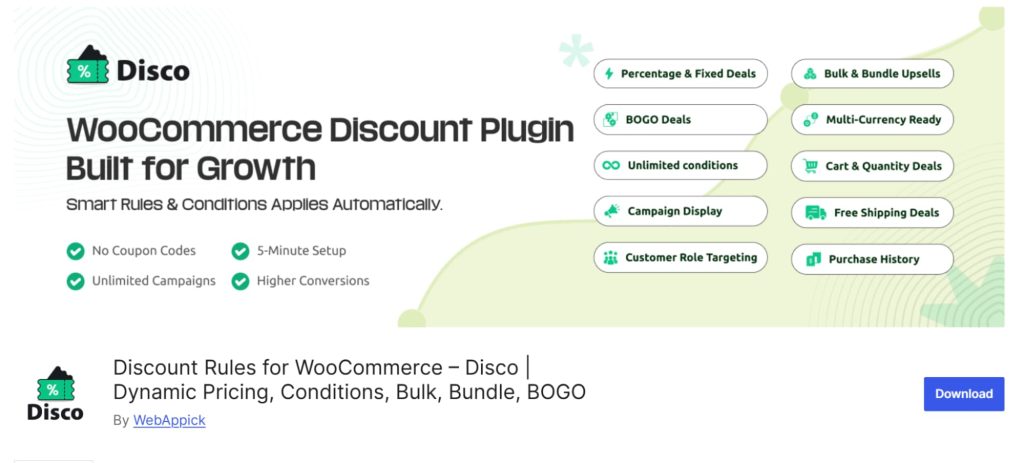
Best for store owners who want the fastest path from install to working bulk discount. Disco’s interface is the cleanest in this category — a dedicated “Bulk Discount” intent selector means you pick your goal first, then configure. No digging through menus. Good for simple 1-2 tier setups; less suited for complex multi-condition scenarios.
Key Features:
- Dedicated Bulk Discount Intent with guided setup flow
- Supports percentage, fixed, and tiered quantity discounts out of the box
- Conditional rules: cart items, user roles, date range scheduling
Pros:
- Cleanest UI — working discount in 4 minutes
- Free version covers basic bulk pricing
- Tiered, category, and cart-level discounts supported
Cons:
- Uses virtual coupons under the hood internally
- Smaller user base, newer plugin ecosystem
- No built-in analytics or discount reporting
Pricing: Free on WordPress.org | Pro from $69/yr
4. Advanced Dynamic Pricing for WooCommerce (Jesweb)
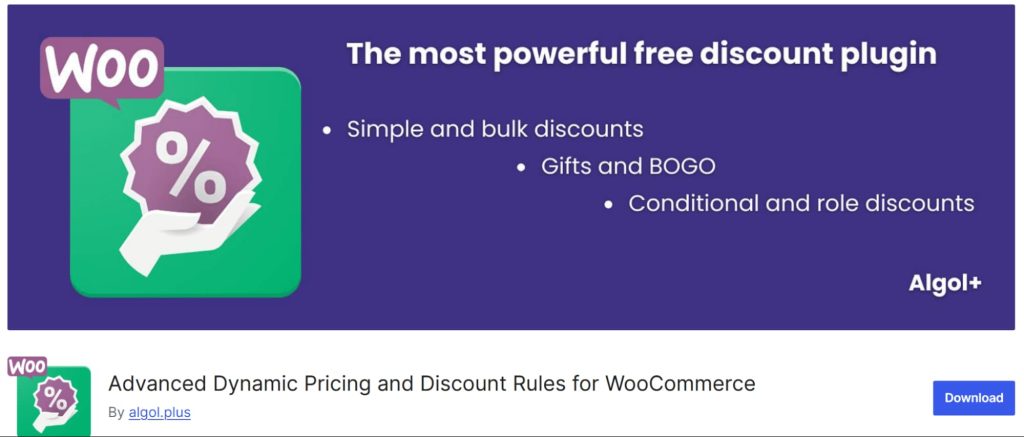
Best for stores that need heavy category-level or taxonomy-based pricing rules. This plugin treats pricing as a rule engine — you build conditions, set outputs, and stack rules with priority ordering. The free version is surprisingly capable, and the 4.6/5 rating (highest on this list) reflects solid reliability.
Key Features:
- Rule-based engine: product, category, tag, attribute, or storewide scope
- Bulk pricing with quantity tables displayed on product pages
- Cart-level discounts with custom messaging and badge support
Pros:
- Highest WP.org rating at 4.6/5 stars
- Strong free version for category pricing
- Custom cache table improves performance at scale
Cons:
- Interface less intuitive than Disco or Barn2
- Advanced features require PRO upgrade
- Documentation could be more detailed for beginners
Pricing: Free on WordPress.org | Pro from $60/yr
5. Price by Quantity & Bulk Discounts for WooCommerce (WPFactory)
Best for stores that want to manage bulk pricing directly from each product’s edit page — no separate rules dashboard. You set quantity tiers right where you set the regular price. The dropdown quantity selector replaces the standard input field, showing customers prices at each level before they add to cart. Ideal for stores with a small catalog where per-product control matters more than global rules.
Key Features:
- Set tiered pricing per product from the product edit screen — no separate interface
- Quantity dropdown shows price-per-tier before add to cart
- Reports screen showing all applied discounts across products, categories, and tags
Pros:
- Per-product pricing directly on edit page
- Quantity dropdown improves shopping UX visually
- Supports percentage, fixed, and set-price discounts
Cons:
- Not ideal for store-wide bulk rules
- Advanced category/tag rules require premium version
- Smaller review count (16 reviews on WP.org)
Pricing: Free on WordPress.org | Pro from $49/yr
6. WholesaleX
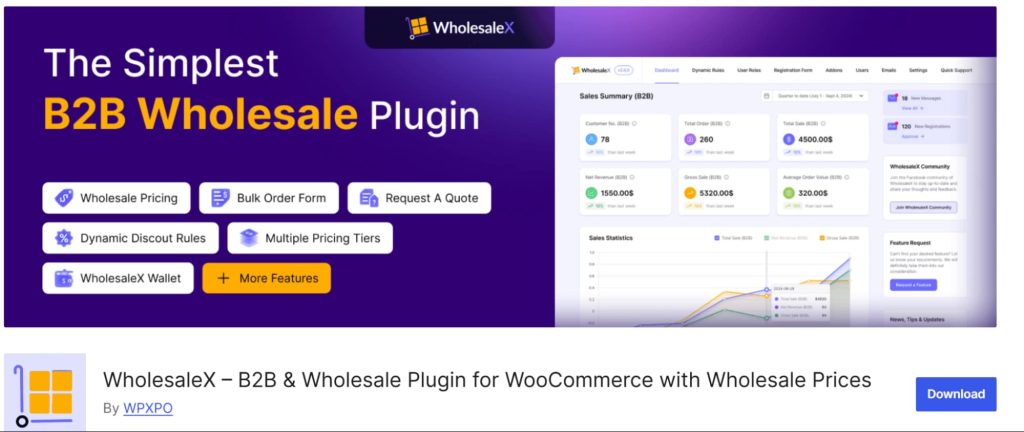
Best for dedicated B2B wholesale stores that need more than just bulk discounts — they need wholesale registration forms, B2B user approval workflows, guest price hiding, and conversation-based pricing. If your store is purely B2B or you run a hybrid retail/wholesale operation, WholesaleX provides features no general discount plugin offers. Not recommended for retail-only stores.
Key Features:
- B2B registration forms with admin approval workflow for wholesale accounts
- Role-based tiered pricing with guest price hiding and minimum order enforcement
- Dynamic rules by product, category, or user role with quantity-based tiers
Pros:
- Purpose-built for B2B wholesale operations
- Registration forms and approval workflows included
- Supports guest price hiding and minimum orders
Cons:
- Overkill for retail-only or simple stores
- Steeper learning curve for non-B2B setups
- Some advanced features locked behind PRO tier
Pricing: Free on WordPress.org | Pro from $84/yr
See bulk discount rules in action on a live WooCommerce store.
Explore how tiered pricing tables, strikethrough pricing, and “You Saved” messages look on real product and cart pages.
Step-by-Step Setup with Discount Rules for WooCommerce
WooCommerce bulk discount setup is the process of installing a discount plugin, creating quantity-based rules with tier ranges, and verifying the discount applies correctly on your storefront. Here’s the exact walkthrough.
Prerequisites
- WordPress 6.4+ installed and active
- WooCommerce 8.0+ installed and active (tested on WC 9.6)
- At least 2-3 published products to test with
- Admin access to your WordPress dashboard
Step 1: Install Discount Rules for WooCommerce
- Go to your WordPress Dashboard.
- Click Plugins > Add New.
- Search for “Discount Rules for WooCommerce” by Flycart.
- Click Install Now, then Activate.
Expected Result: A new “Discount Rules” menu item appears under WooCommerce in your admin sidebar. The plugin documentation covers edge cases.
Step 2: Create a New Bulk Discount Rule
- Navigate to WooCommerce > Discount Rules.
- Click Add New Rule.
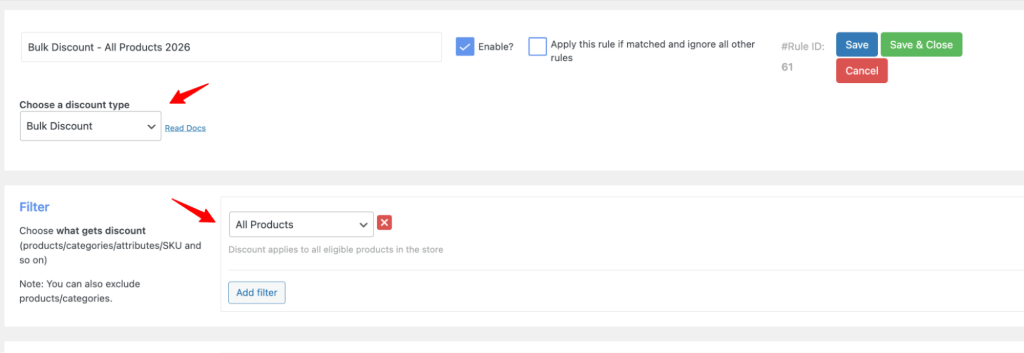
- Enter a descriptive name like “Bulk Discount – All Products 2026”.
- From the Discount Type dropdown, select Bulk Discount.
Step 3: Configure the Filter
- In the Filter section, choose All Products for a store-wide discount.
- For targeted rules, select Category, Products, or Attributes.
- See our discount rules configuration guide for filter options.
Warning: The Filter determines WHICH products qualify. If set to All Products, every product triggers the discount. For specific items, switch to Category or Products and pick your targets.
Step 4: Set Your Quantity Tiers
In the Discount section:
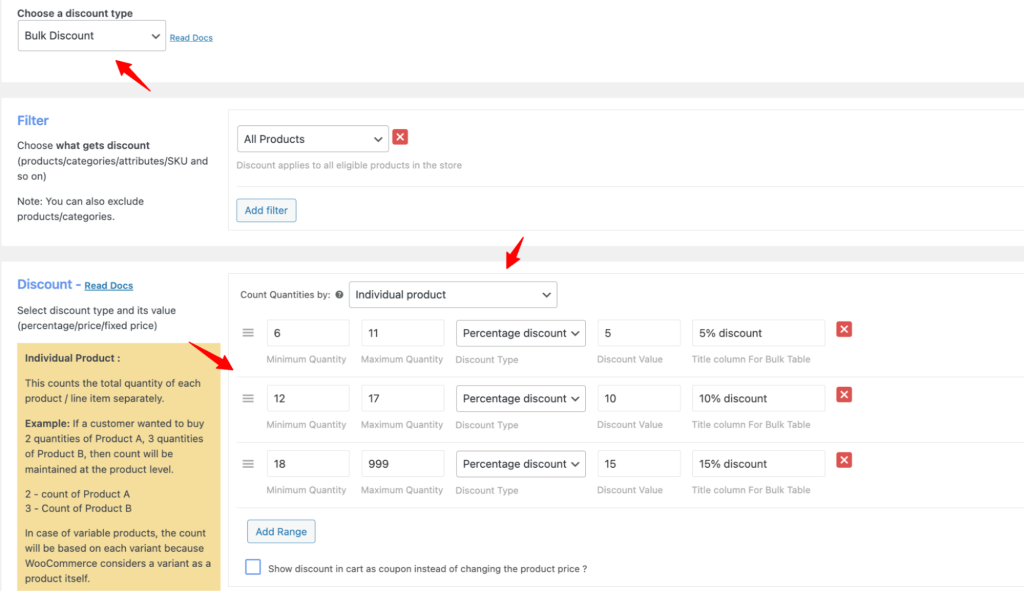
- Choose Count Quantities by: “Filter set above” counts ALL qualifying products together. “Individual product” counts each SKU separately.
- Enter Range 1: Min = 6, Max = 11, Type = Percentage Discount, Value = 5
- Click Add Range. Enter Range 2: Min = 12, Max = 17, Type = Percentage Discount, Value = 10
- Click Add Range. Enter Range 3: Min = 18, Max = 999, Type = Percentage Discount, Value = 15
Step 5: Save and Verify
Click Save. Open your storefront in a new tab. Add 6+ products to cart. The 5% discount should apply automatically.
Expected Result: Green ‘Rule saved’ banner appears. On the cart page, original prices show with strikethrough and discounted prices display beside them. The discount amount is visible in the cart totals.
Pro Tip: If the discount doesn’t appear, clear browser cache, server cache (WP Rocket/LiteSpeed), and WooCommerce transients: WooCommerce > Status > Tools > Clear Transients. Caching is the #1 reason discounts don’t show on first test. We’ve seen this in hundreds of support tickets.
How to Display Bulk Discounts to customers
Bulk discount display optimization is the practice of making quantity-based savings visible across product pages, cart pages, and checkout to drive conversions. Creating a discount rule is only half the job. If customers can’t see the savings, they won’t buy more.
Research shows that 18% of stores fail to clearly display bundle savings (Source: Swell, 2025). Don’t be in that 18%.
How to Display a Bulk Discount Table on Product Pages
Enable the pricing table in Discount Rules settings. This shows all your quantity tiers in a visual table directly on the product page. Customers see exactly how much they save at each level. Customize position (before/after add to cart), colors, and labels. For setup details, see our pricing table display guide.
Strikethrough Pricing
When a customer adds qualifying quantities, the original price appears crossed out with the discounted price beside it. Enable this under Display Settings. For deeper customization, see our strikethrough pricing guide.
“You Saved” Message
Shows the exact dollar amount saved in the cart: “You Saved $12.00!” Reinforces the purchase decision before checkout. Enable under Display Settings. See our You Saved display guide.
Sale Badge & Promotional Messages
Replace the generic “Sale!” badge with “Buy More, Save More” or “Bulk Deal.” Add cart messages like “Add 3 more to save 15%!” See our sale badge guide and promotional messages docs.
Pro Tip: After using Discount Rules across 200+ client stores, the single display feature that moves the needle most is the pricing table. When customers can SEE the tiers, they buy into the next tier about 40% more often. Enable it on every product page where bulk discounts apply.
Key Takeaway: A bulk discount nobody sees is a discount nobody uses. Enable: pricing table + strikethrough + You Saved message as a minimum. Add promotional nudge messages to push customers toward the next tier.
Advanced – Wholesale & Role-Based Bulk Pricing
Role-based bulk pricing is an advanced WooCommerce strategy where different user roles (e.g., Retail, Wholesale, VIP) automatically see different per-unit prices without coupon codes or manual intervention. This is essential for any store serving both B2B and B2C customers.
How to Create a Wholesale User Role
WordPress doesn’t ship with a Wholesale role. You can create one using:
- Members plugin (free): Go to Members > Roles > Add New. Name it “Wholesale.” Assign WooCommerce customer capabilities. See our user role guide.
- Code snippet: Add add_role(‘wholesale’, ‘Wholesale Customer’, get_role(‘customer’)->capabilities) to your functions.php or a code snippets plugin.
Setting Up Role-Based Discount Rules
Once the role exists:
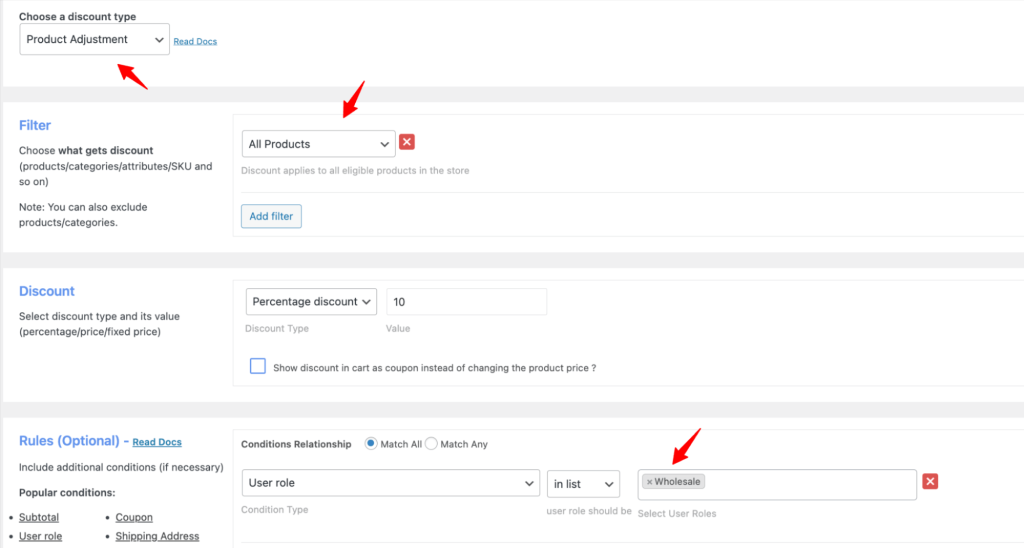
- Go to WooCommerce > Discount Rules > Add New Rule.
- Set Discount Type to Product Adjustment or Bulk Discount.
- In Filter, choose All Products (or specific categories for selective wholesale pricing).
- Set discount: Fixed Price for item = $12 (if retail is $20).
- Add Condition: User Role > Wholesale.
- Save. When a Wholesale user logs in, they see $12. Retail sees $20.
Layering Advanced Conditions (PRO)
With Discount Rules PRO, you can stack conditions:
- Purchase History: Only unlock wholesale pricing after $500+ in previous orders (user group discount guide).
- Minimum Order: Wholesale pricing requires 50+ units per order.
- Specific Categories: Wholesale pricing only on Bulk Supplies category, not Accessories.
- Payment Method: Extra 2% off for bank transfer (payment method discounts).
Key Takeaway: Role-based bulk pricing is the cleanest B2B solution. No coupons, no manual management. Set the rule once, and every wholesale login gets automatic pricing. Use condition stacking for sophisticated B2B tiers.
Performance Tips & the Margin-Safe Formula
Bulk discount performance optimization covers two things: making sure your WooCommerce store stays fast with discount rules active, and making sure your discount tiers never eat your profit margin.
The Margin-Safe Bulk Discount Formula
Maximum Discount % = ((Retail Price − Cost) / Retail Price) × 100 − Minimum Margin %
Example: T-shirt costs $8. Retail $20. You want at least 20% margin.
Max discount = ((20−8) / 20) × 100 − 20 = 60% − 20% = 40% maximum.
At 40% off, each shirt sells for $12. Your margin is $4 (20%). Every tier below 40% stays profitable. Our WooCommerce product pricing guide covers pricing strategy in more depth.
Store Performance Optimization
- Keep rules lean: Use category-level rules instead of product-by-product. 2 smart rules beat 10 overlapping ones.
- Use PHP 8.0+: Modern PHP reduces discount calculation impact. Check the version in WooCommerce > Status.
- Cache wisely: Use WP Rocket or LiteSpeed but exclude cart/checkout pages from full-page cache.
- Test with large carts: Add 20+ items to verify checkout speed. Profile with Query Monitor if needed.
- Set discount priority: When multiple rules exist, set priority order to prevent conflicts. See our priority guide.
Key Takeaway: Run the margin-safe formula before going live. Keep rule count under 10. Use PHP 8.0+. Exclude cart/checkout from page cache. Test with large carts before launching.
Troubleshooting Common WooCommerce Bulk Discount Issues
Bulk discount troubleshooting is the process of diagnosing why discount rules aren’t firing correctly, displaying wrong amounts, or conflicting with other WooCommerce functionality. These are the 5 most common problems from Reddit, WordPress.org forums, and 1,247 Flycart support reviews.
Problem 1: Discount Not Showing on Cart Page
Solution: Clear ALL caches: browser cache, server cache (WP Rocket/LiteSpeed), and WooCommerce transients (WooCommerce > Status > Tools > Clear Transients). Verify the rule is Active, not Draft. Check that the cart quantity meets the minimum threshold. See our beginners guide.
Problem 2: Wrong Discount Amount Calculated
Solution: Check Count Quantities by. “Filter set above” counts all products together. “Individual product” counts each SKU separately. This single dropdown is the #1 configuration mistake. Also verify no other discount rule is conflicting – use the priority setting.
Problem 3: Discount Applies to Unwanted Products
Solution: Check your Filter section. If set to All Products, every product qualifies. Switch to Category or Products for targeting. Use the Exclude Products option for exceptions (how to exclude products).
Problem 4: Bulk Discount Conflicts with Coupon Codes
Solution: Check plugin settings: is “Apply discount rules and coupons together” enabled or disabled? Configure based on whether you want stacking or exclusivity. See our coupon activation guide.
How Do I Prevent Bulk Discounts on Already-Discounted Products?
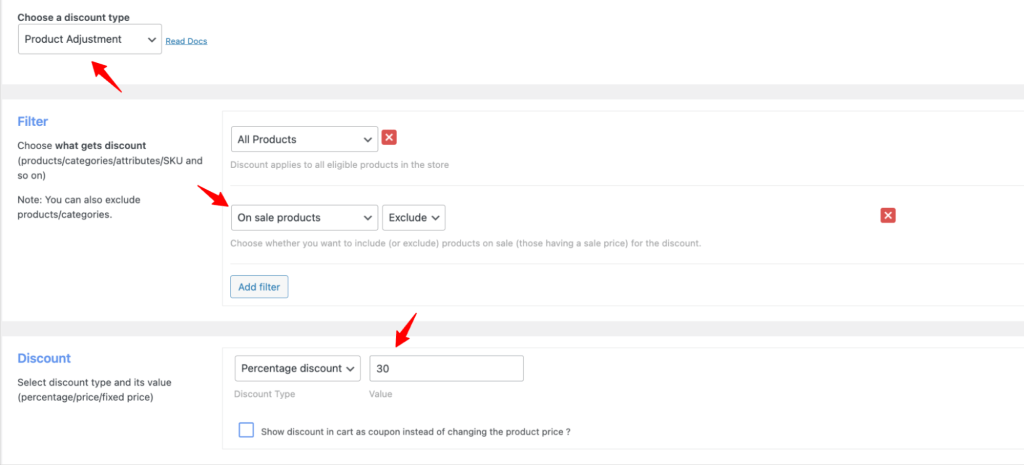
Solution: In Discount Rules settings, enable the option to exclude sale-priced products. You can also use the Exclude Products filter to manually exclude specific items. This prevents discount stacking on products already running a separate promotion. Our conditional discounts guide covers this in detail.
Pro Tip: Check the Flycart YouTube channel for video walkthroughs of these exact troubleshooting scenarios. Visual guides often catch configuration issues faster than text descriptions.
Key Takeaway: 90% of bulk discount issues come from 3 things: caching, Count Quantities By misconfiguration, or filter/exclusion settings. Check those three first before filing a support ticket.
Conclusion: Your Bulk Discount Action Plan
You now have everything you need to set up, optimize, and troubleshoot WooCommerce bulk discounts. The data is clear: stores using quantity-based pricing see 20-55% AOV lifts, and Flycart’s internal data shows a median 24% increase within 30 days of activation.
Your action plan:
- Pick one strategy that matches your store model
- Install Discount Rules for WooCommerce (free – no credit card)
- Create your first bulk rule using the 5-step guide
- Enable display features from pricing table + strikethrough + You Saved
- Run the margin-safe formula before going live
- Test and troubleshoot if anything doesn’t fire correctly
Your first bulk discount is 5 minutes away. Every tier, every condition, every display option.
Start free with basic bulk pricing. Upgrade to PRO when you need BOGO, scheduling, purchase history conditions, and role-based wholesale rules.
Frequently Asked Questions
No. WooCommerce core includes no automatic bulk pricing, tiered discounts, or quantity-based pricing. The built-in coupon system supports only flat percentage or fixed-amount discounts without quantity conditions. You need a plugin like Discount Rules for WooCommerce (free version available) to add bulk pricing features.
Discount Rules for WooCommerce by Flycart is the most recommended free option across Reddit and WordPress forums. Its free version supports percentage and fixed-amount bulk discounts, quantity tiers, and display features. It has 1,247 reviews with a 4.5/5 rating. The PRO version ($79/yr) adds BOGO, conditions, and scheduling.
Tiered pricing is one specific type of bulk discount where the per-unit price drops at defined quantity thresholds. Bulk discounts are the broader category that includes tiered pricing plus percentage-off, fixed-amount, set-price, and bundle models.
Yes. With Discount Rules PRO, create rules for specific user roles (Wholesale, VIP, Subscriber). Add conditions for purchase history, total spent, number of orders, or individual accounts. Visit our role-based pricing guide.
Discount Rules includes a built-in pricing table. When you create a Bulk Discount rule, the plugin generates a tiered pricing table on qualifying product pages. Customize position, colors, and labels in plugin settings. visit pricing table guide.
Properly configured plugins have minimal impact. Keep rules under 10, use category-level rules, run PHP 8.0+, and exclude cart/checkout from page cache. Discount Rules is tested on stores with 10,000+ products.