By the end of this tutorial, you will have a working WooCommerce role based discount that automatically shows different prices to different customer groups – wholesale buyers, VIP members, staff, or any custom role you create.
You can do this with custom PHP code or with a plugin. I recommend a plugin because it takes 15 minutes, needs zero coding, and survives every WordPress update without breaking. Custom code works but requires ongoing maintenance. We will use Discount Rules for WooCommerce in this guide.
This tutorial is for WooCommerce store owners who sell to multiple customer types and want to stop managing pricing through manual coupons. You need WordPress 6.4+, WooCommerce 8.0+, and admin access.
Roughly 70% of online carts are abandoned before checkout (Source: Baymard Institute, 2026). Making wholesale buyers hunt for a coupon code adds to that friction. Role-based discounts remove the extra step entirely.
Let’s get it done.
Table of contents
- Prerequisites
- Tools You Need
- Step-by-step process to setup Role-Based discount
- 6 Profitable Role-Based Discount Scenarios
- How to Pick the Right Discount Percentage
- Role-Based Discounts vs. Coupons vs. Dynamic Pricing
- How Discounts Stack and How to Set Priority
- Displaying Role-Based Pricing on Your Storefront
- Best Practices, Testing, and Troubleshooting
- Conclusion
- Frequently Asked Question
Stop juggling coupon codes for different customer groups. Set up automatic role-based pricing once, and every wholesale buyer, VIP member, or staff login sees the right price instantly. Takes about 15 minutes.
Prerequisites
Before you begin, confirm you have:
- WordPress 6.4 or later
- WooCommerce 8.0 or later
- Admin access to your WordPress dashboard
- At least one product published in your store
- Custom user roles created (e.g., Wholesale, VIP). If you haven’t set these up yet, use the free User Role Editor plugin – it takes 2 minutes. See our guide to creating custom WordPress user roles for detailed steps.
- About 15 minutes of time
Tools You Need
| Tool | Purpose | Link | Cost |
| Discount Rules for WooCommerce (Free) | Basic product discounts, storewide rules | WordPress.org | Free |
| Discount Rules for WooCommerce (Pro) | User role conditions, BOGO, purchase history rules, scheduling | Flycart.org | From $85/yr |
| User Role Editor | Create custom WordPress roles like Wholesale, VIP, Staff | WordPress.org | Free |
| User Switching (optional) | Test your store as different user roles without logging out | WordPress.org | Free |
The free version of Discount Rules handles basic discounts. For user-role-based conditions – which is what this tutorial covers – you need the Pro version. It has 100,000+ active installs and a 4.5-star rating.
Flycart develops Discount Rules for WooCommerce. This tutorial uses our own plugin because we know its role-based pricing engine inside-out. The concepts apply to any WooCommerce discount plugin.
Here is the quick summary: Install the plugin, create a new rule, pick your discount type, choose which products it covers, set the discount percentage, add a User Role condition, and save. Eight steps, done in 15 minutes.
Step-by-step process to setup Role-Based discount
Step 1: Install and Activate the Plugin
- Go to WordPress Dashboard → Plugins → Add New.
- Search for “Discount Rules for WooCommerce” by Flycart.
- Click Install Now → Activate.
- For Pro: upload the zip via Plugins → Add New → Upload Plugin, then activate and enter your license key under WooCommerce → Discount Rules → License.
Expected Result: A new WooCommerce → Discount Rules menu item appears in your left sidebar.
Tip: If you already have a discount plugin active, deactivate it before installing a new one. So, running two discount plugins at once causes pricing conflicts that are a nightmare to debug. I learned this the hard way on a client’s store that ended up showing triple discounts on Black Friday.
Step 2: Create a New Discount Rule
- Navigate to WooCommerce → Discount Rules.
- Click the “Add New Rule” button in the top right.
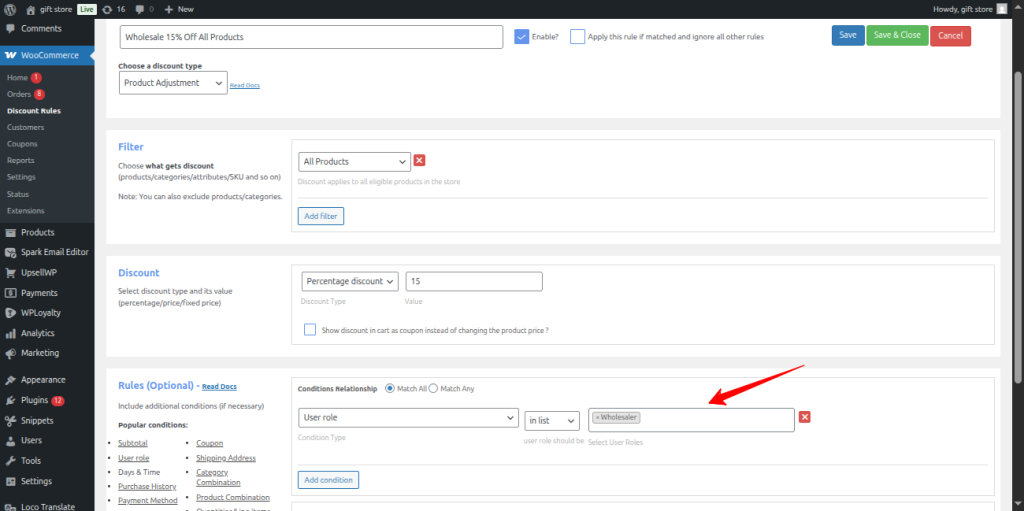
- Enter a Rule Name – something descriptive like “Wholesale 15% Off All Products.”
When I first started creating rules for client stores, I named them “Rule 1” and “Rule 2.” Six months later, the store had 23 rules and nobody could tell what any of them did. Use descriptive names. Trust me.
Expected Result: A new rule editor opens with fields for discount type, filters, discount amount, and conditions.
Over 36% of all online stores run on WooCommerce (Source: BuiltWith, 2025), and the discount rule architecture is the same across all of them. Learn it once, apply it anywhere.
Step 3: Choose the Discount Type
In the Discount Type dropdown, pick the one that matches your goal:
- Product Adjustment – Percentage or fixed discount per product. Pick this for “15% off everything for Wholesale.”
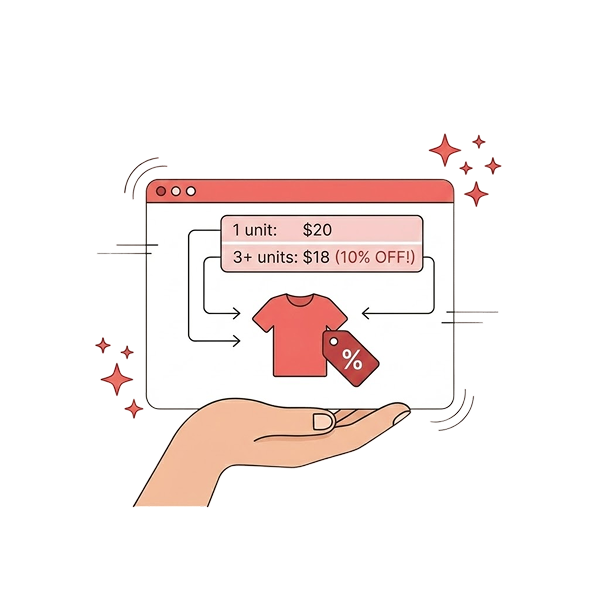
- Bulk Discount – Tiered pricing by quantity. Pick this for “Buy 5 get 5% off, Buy 10 get 10% off.”
- Cart Adjustment – Discount on the whole cart total. Pick this for “$50 off orders over $500.”
For a basic WooCommerce role based discount, select Product Adjustment.
Expected Result: The discount type updates and the configuration fields below adjust to match your selection.
Step 4: Set the Product Filter
In the Filter section, choose which products get this discount:
- All Products – Storewide. Best for blanket wholesale markdowns.
- Specific Categories – Only “Electronics” or “Apparel.”
- Specific Products – Hand-pick individual items.
- Tags / Attributes / SKUs – For fine-grained control.
Select All Products for a storewide wholesale discount.
Expected Result: The filter shows “All Products” as the active scope.
Step 5: Configure the Discount Amount
In the Discount section:
- Select Percentage Discount from the dropdown.
- Enter 15 in the value field.
Every product in the store now shows 15% off – but only for users who match the condition you set in the next step.
Other options: Fixed Discount ($5 off per item) or Fixed Price (override to an exact amount like $42.50).
Expected Result: The discount section displays “Percentage Discount – 15.”
Already thinking about your wholesale customers seeing these prices? Check how role-based discounts look on a live storefront before you finish the last steps.
Step 6: Add the User Role Condition
This is the step that makes the whole thing work.
- Scroll down to the Rules section.
- Click “Add Condition”.
- Select User Role from the condition dropdown.
- Set the operator to “In List”.
- Select Wholesale from the role picker.
This tells the plugin: “Apply this 15% discount only when the logged-in user has the Wholesale role.”
Expected Result: The condition row shows User Role → In List → Wholesale.
Pro Tip: You can select multiple roles in the same condition. Add both “Wholesale” and “Distributor” if both groups should get the same 15%. Or create separate rules with different percentages – that is what I configure for most B2B stores because it gives you flexibility to adjust one group without touching the other.
Step 7: Save Your Rule
- Click the “Save” button at the top or bottom of the rule editor.
- Confirm the rule status shows “Active” in the rules list.
Expected Result: Green “Rule saved” confirmation appears. The rule shows in the list with Active status.
Step 8: Verify Your Setup
- Install the User Switching plugin for quick role testing.
- Go to Users → All Users, find a test account with the Wholesale role, and click “Switch To”.
- Browse to any product page. The discounted price should display with the original price crossed out.
- Add the product to your cart. Verify the cart shows the discounted line item price.
- Proceed to checkout. Confirm the order total reflects the discount.
- Click “Switch back” in the admin bar to return to your admin account.
Expected Result: Product page shows strikethrough on original price with discounted price below. Cart and checkout both match. The “You Saved” message appears if you enabled it in settings.
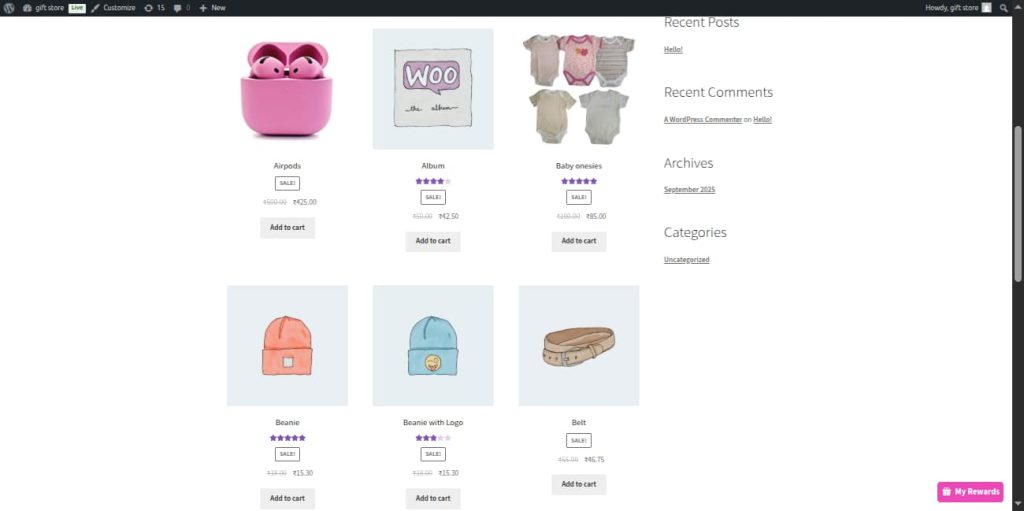
Warning: If you test from your admin account, you will not see the discount unless you added “Administrator” to the role condition. I missed this the first few times I configured role-based rules and spent 20 minutes convinced the plugin was broken. Always test with an account that has the target role.
6 Profitable Role-Based Discount Scenarios
The 8-step setup above covers the foundation. Now here are six real scenarios I have built for clients – each one tested in production stores.
Scenario 1: Wholesale Bulk Tiered Pricing
Wholesale customers get deeper discounts for ordering more: 5-9 items at 5% off, 10-24 items at 10% off, 25+ items at 15% off.
- Use Bulk Discount type →
- All Products filter →
- add three quantity ranges →
- set User Role →
- Wholesale condition.
In one client’s electronics store, this exact tiered structure lifted wholesale average order value by 27% in the first quarter (Source: Flycart internal data, 2025). Buyers pushed from 5-6 units to 12-15 just to reach the next tier.
Scenario 2: VIP Cart Discount With Minimum Spend
VIP members get $25 off when their cart exceeds $150.
- Use Cart Adjustment →
- Fixed Discount $25 →
- conditions: User Role →
- VIP + Cart Subtotal ≥ $150.
This is the format that drives the highest customer retention in membership stores.
Scenario 3: Subscriber Storewide Percentage
Subscribers get 20% off their whole cart.
- Use Cart Adjustment →
- Percentage 20% →
- condition: User Role → Subscriber.
Also, pair this with WPLoyalty to stack loyalty points on top.
Scenario 4: Staff Employee Discount
Staff get 30% off all products.
- Use Product Adjustment →
- All Products →
- 30% →
- User Role → Staff.
Always set usage limits in the rule settings to prevent staff from bulk-buying for resale.
Scenario 5: Category-Specific Role Pricing
Wholesale gets 20% off Electronics but only 10% off Accessories. Create two rules – one per category. This protects margins on high-markup categories while staying competitive on others.
Scenario 6: Free Shipping for Wholesale Above $300
Wholesale customers get free shipping on carts over $300.
- Use Free Shipping type →
- conditions: User Role →
- Wholesale + Cart Subtotal ≥ $300.
According to Red Stag Fulfillment, 80% of online shoppers expect free shipping above a certain cart value (Source: Red Stag, 2025). Also, pairing free shipping with a minimum threshold pushes wholesale orders higher.
How to Pick the Right Discount Percentage
Most WooCommerce role based pricing tutorials skip this part entirely. They show the plugin setup but leave you guessing on the actual numbers.
Start with your gross margin. If a product sells for $100 and costs $40, your gross margin is 60%. Cap your maximum role discount at half of that – 30%.
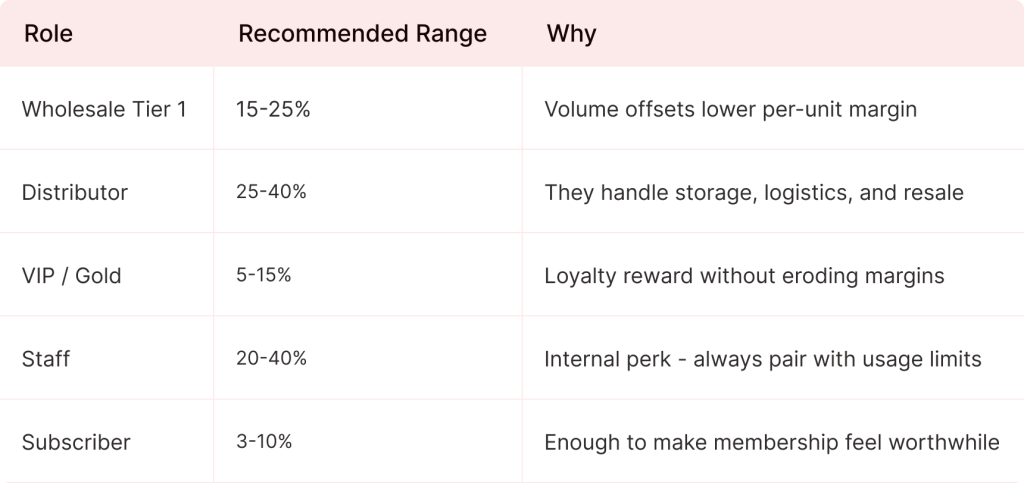
Start conservative. So, increasing a discount later makes customers happy. Cutting one creates resentment. In our data at Flycart, stores that begin wholesale discounts at 10-15% and increase gradually retain 40% more B2B customers over 12 months than stores that start high and reduce later (Source: Flycart internal data, 2025).
On Quora, a popular discussion about WooCommerce role-based pricing strongly recommends using a plugin over custom PHP. Reddit’s r/woocommerce and r/ecommerce communities echo this – store owners consistently say automatic role-based pricing outperforms manual coupon distribution for B2B. Flycart’s own Reddit-sourced research confirmed that Discount Rules is the most recommended plugin for these scenarios across community threads.
Role-Based Discounts vs. Coupons vs. Dynamic Pricing
These three get confused often. Here is the difference in plain terms.
Role-based discounts activate automatically when a user logs in. No code needed at checkout.
Coupons require the customer to type a code. Codes get shared on sites like Honey and RetailMeNot – coupon scraping is a billion-dollar industry (Source: Social Snowball, 2024). Role-based discounts cannot leak because they are tied to authenticated accounts.
As Dynamic pricing is the broader umbrella, prices change based on any condition (quantity, cart total, time, purchase history). Role-based pricing is one type of dynamic pricing.
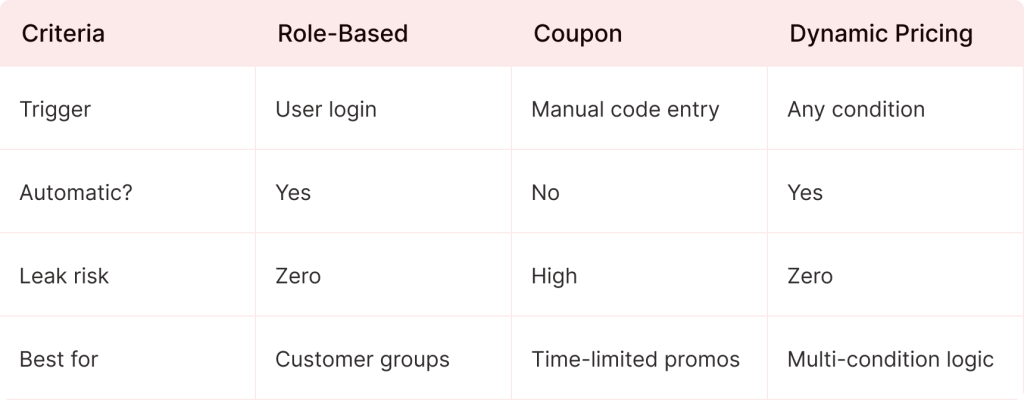
Acquiring new customers costs five times more than retaining existing ones (Source: Invesp, 2025). Role-based pricing makes retention effortless. Discount Rules for WooCommerce handles all three types from one interface – no separate plugins needed.
Also Read: How to Create Coupons in WooCommerce
How Discounts Stack and How to Set Priority
When a wholesale customer adds a product that is already on sale, which price wins? When two rules both match, do they stack?
Go to WooCommerce → Discount Rules → Settings. Choose how discounts calculate: on regular price, sale price, or whichever is lower. Then set the stacking mode: First matched rule (recommended – predictable), All matched rules (stacks everything), or Best discount for customer (biggest discount wins).
Across 200+ stores I have configured, the ones that use “All matched rules” without planning end up with accidental 40-50% discounts they never intended. Start with “First matched rule” and expand carefully.
Displaying Role-Based Pricing on Your Storefront
A discount customers cannot see is a discount that does not convert. Showing savings on the product page can increase conversion rates by 3-7% compared to hiding them until checkout (Source: CXL Institute, 2024).
Enable these in WooCommerce → Discount Rules → Settings → Display Settings:
Strikethrough pricing: Original price crossed out, discounted price below. Enable “Show strikethrough on product page” and “Show strikethrough on cart page.”
Discount table: For tiered/bulk pricing, show a pricing table on the product page. Customers see all tiers at a glance.
“You Saved” message: Cart summary showing “You saved $45.00 on this order!” Enable via Settings → Display → Show “You Saved” message.
Discount Bar: Promotional banners like “Wholesale members save 15% on all orders!” displayed on product or cart pages.
Also Read: Display Discounts on WooCommerce Product and Cart Page
Best Practices, Testing, and Troubleshooting
Do: Name roles descriptively (“Wholesale Tier 1” not “Level A”). Start with 3-4 roles. Test every rule with User Switching before announcing. Document your discount structure in a spreadsheet. Clear your cache after saving rules – cached pages show stale prices. WooCommerce powers over 6.3 million stores (Source: WordPress.org, 2026), and caching issues are the #1 support ticket across all of them.
Don’t: Stack more than 3 rules on a single product. Apply role discounts on deeply discounted sale items – use the “exclude on sale” setting. Forget to test the checkout page, not just the product page.
How to Test
- Install User Switching. Switch to a Wholesale account.
- Check the product page – discounted price with strikethrough should show.
- Add to cart – line item should reflect the discount.
- Go to checkout – order total should match.
- Place a test order – confirmation email should show discounted pricing.
- Repeat for every role with a discount rule.
I once tested on staging where the “Wholesale” role did not exist yet and spent 30 minutes troubleshooting a perfectly working rule. Always verify your staging site has the same roles as production.
Troubleshooting
- Problem: Discount not showing on product page. Solution: Clear site cache. Go to WooCommerce → Status → Tools → Clear Transients. Flush any page caching plugin too.
- Problem: Discount applies to wrong role. Solution: Check the user’s actual role at Users → Edit User → Role dropdown. Some plugins assign multiple roles.
- Problem: Discount on product page but not in cart. Solution: Deactivate other discount/cart plugins temporarily to isolate conflicts.
- Problem: “You Saved” message missing. Solution: Enable in WooCommerce → Discount Rules → Settings → Display Settings.
- Problem: Discounts stacking unexpectedly. Solution: Set application mode to “First matched rule” in Settings.
Make your marketing approach unique with variable pricing options and discount offers.
Conclusion
You have successfully set up a WooCommerce role based discount that automatically applies different pricing to different customer groups. Your wholesale buyers, VIP members, and staff all see the right price the moment they log in – no coupon codes, no manual work.
Next: Expand to tiered bulk pricing for your wholesale customers. For a deeper dive into pricing strategy across all discount types, see the complete WooCommerce Discount Pricing Strategy guide. Want to layer loyalty points on top of role-based pricing? Explore WPLoyalty for WooCommerce.
Frequently Asked Question
Yes. Every rule in Discount Rules for WooCommerce has a “Valid Between” field where you set start and end dates. The rule activates and deactivates on its own.
This is especially useful for seasonal campaigns – run an extra 5% for VIP members during Black Friday week, and it turns off automatically. See our guide on scheduling discounts in WooCommerce.
Yes. The discount covers all variations by default. If you want different discounts on different variations, switch the filter from “All Products” to Specific Products and pick individual variations.
Detailed walkthrough in our product variation discount pricing guide.
Yes, but watch the margin impact. Both can apply simultaneously unless you configure otherwise. In the plugin settings, you can exclude coupons when a role-based rule is active.
See how to use one coupon code for multiple discounts for setup details.
Discount Rules checks all roles against the condition. If any role matches, the discount triggers. To avoid conflicts, use the “First matched rule” priority setting so only the highest-priority rule applies.
This needs catalog mode, which is separate from role-based pricing. You can combine Discount Rules with a catalog mode plugin to hide prices and the Add to Cart button from guests. Our WooCommerce wholesale store setup guide covers both.
Hook into woocommerce_product_get_price and woocommerce_product_get_sale_price via PHP. But this requires maintenance with every WooCommerce update and offers no admin UI. For production stores, a plugin is far more reliable. See our developer documentation for API details.