A WooCommerce storewide discount is a promotional strategy where a uniform price reduction is applied to all products in the store.
Imagine offering discounts across your entire store; it attracts new shoppers, encourages repeat purchases, and increases overall sales. However, cutting prices without a plan can quickly impact your profit.
With the right approach, you can run a WooCommerce storewide sale that boosts ROI while protecting your margins.
In this blog, we’ll walk through step-by-step methods to create a WooCommerce storewide discount in four proven ways that help your store stand out, grow your audience, and drive more revenue.
Note: Manually adjusting prices for every product takes time and effort. Instead, you can use a discount plugin like “Discount Rules for WooCommerce – Pro” to quickly set up sitewide discounts in multiple flexible ways.
Convert 40% of window visitors into loyal customers by offering storewide discounts using the Discount Rules Pro plugin.
Table of contents
- What is a WooCommerce Storewide Discount?
- How to Set Up Storewide Discount in WooCommerce Store?
- 1. How to Set Up a Percentage-Based Storewide Discount in WooCommerce?
- 2. Applying a Site-Wide Bulk Discount in WooCommerce
- 3. Running a Storewide Sale Using BOGO Strategy
- 4. How to Apply a Coupon-Based Sitewide Sale Discount in WooCommerce?
- Why Run a Storewide Sale in WooCommerce?
- Best Practices to Run a WooCommerce Sitewide Sale
- 6 Best Times to Offer a Site-Wide Discount in WooCommerce
- Advanced Storewide Discount Strategies for WooCommerce
- Conclusion
- Frequently Asked Questions
What is a WooCommerce Storewide Discount?
A WooCommerce storewide discount sale applies the same discount to all products, making it one of the most profitable strategies to increase sales during specific times of the year.
For example, applying a fixed discount ($10 off) or a percentage discount (15% off) to all store products.
This sitewide sale helps you reach new customers who haven’t tried your products before, convert them into your customers, increase brand awareness, and ultimately drive more sales.
Best Use Case
You can run a storewide sale during peak times or seasonal times to increase sales and conversions within a specific time.
For example, offering discounts on all products during Christmas, or running a Winter/ Summer sale for a specific time period.
Offering a limited-time sitewide discount in your WooCommerce store helps you increase your customer base and sales without ruining your profit.
How to Set Up Storewide Discount in WooCommerce Store?
Setting up a storewide discount in your WooCommerce store can be done with both the built-in WooCommerce option and a plugin.
(i) Setting Up Storewide Discount Using the Built-in Option
You can manually reduce all products’ prices, but it takes time and effort. This method only suits beginner store owners who are selling fewer than 10 products and don’t want to personalize the offer.
To do this:
- Open your “WordPress” dashboard.
- Go to “Products” -> “All Products.”
- Bulk Select and Edit “All Products” and Edit the Sale Price by reducing a fixed amount or percentage of the amount.
- Save the changes.
What if you have more products and you want to offer personalized sitewide discounts like:
- Offering storewide discount only to customers who buy in bulk (or)
- Offering storewide discount only to specific customer groups (or) specific shipping regions (or).
- Applying a sitewide discount only to customers who spend a specific amount on checkout?
Also, if you want to change the product’s price to the original price, you have to bulk edit products again and change products’ price, which is time-consuming and involves manual effort.
That’s why opting for a plugin is recommended to simplify your process.
A discount plugin will help you offer storewide discounts with personalizations, and it allows you to simply “disable” the rule within a click to revert the products’ price to its original price.
(ii) Setting Up Storewide Discount Using the Plugin
Using a discount plugin like “Discount Rules for WooCommerce -Pro” can simplify your uniform price reduction process.
To set up a storewide discount in your WooCommerce store using a plugin:
(A) Install The Plugin:
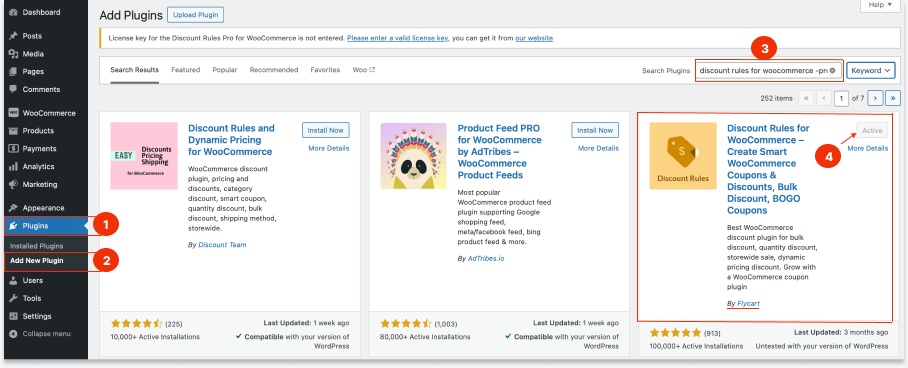
- Open your “WordPress” dashboard.
- Go to “Plugins” -> “Add New Plugin.”
- Search for “Discount Rules for WooCommerce.”
- Click “Install now” and “Activate” the plugin in your WooCommerce store.
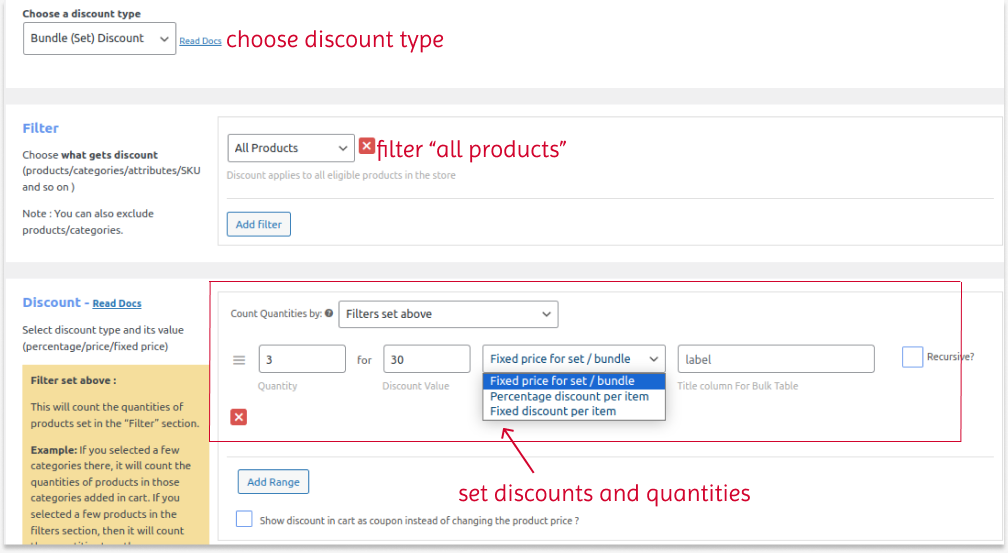
- Go to “WooCommerce” -> “Discount Rules” -> “Add New Rule.”
- Select the “Discount Type:” “Product Adjustment.” (or, bulk/ bundle discount, or BOGO)
- In the “Filter” section, keep “All Products.”
- In the “Discount” section, select the “Discount Type:” “Fixed/ Percentage Discount” with Value as “10/ 20.”
- Optionally, in the “
- Set the “SubTotal” (Minimum Order Amount)
- Choose Specific Customer Groups (User Roles such as Wholesale customers, VIP members, etc.)
- Choose specific shipping regions like India, the USA, or
- Other conditions.
- You can also schedule the rule in advance for a specific seasonal sales by setting the Time and Date in the “Rules (Limit) section.”
- Finally, save and enable the rule.
As you know now, how to set up a storewide discount in your WooCommerce store, let’s check different proven ways to offer it to your customers strategically.
Here are the 4 ways to apply a sitewide discount in WooCommerce:
1. How to Set Up a Percentage-Based Storewide Discount in WooCommerce?
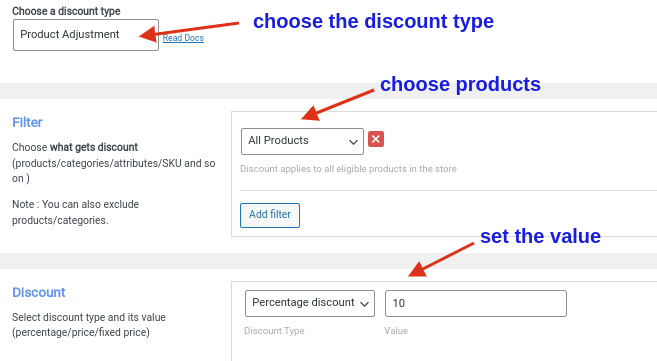
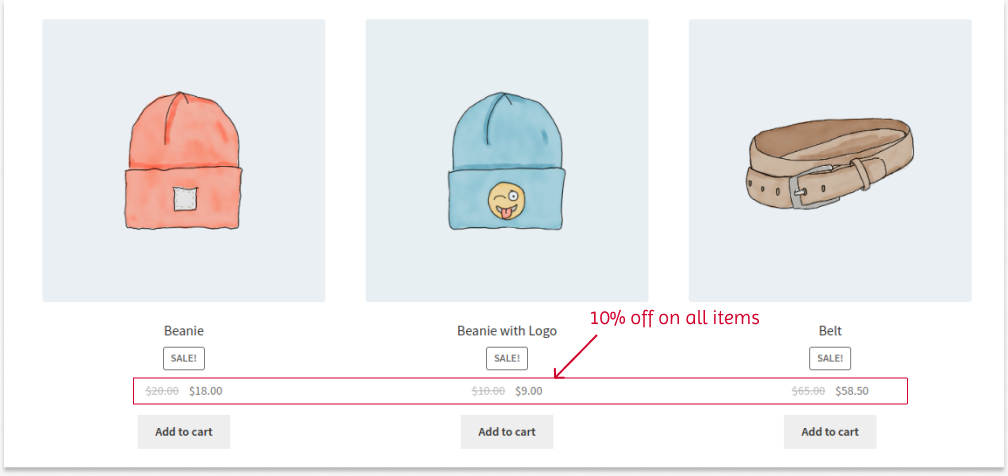
Example: Applying a 10% discount on all products in the store. This is the most common discount to drive more customers and increase sales.
To create a 10% WooCommerce storewide discount:
1. Go to “WooCommerce” -> “Discount Rules.”
2. Click the “Add New Rule” button. Enter the rule name for your reference.
3. Choose the discount type as “Product Adjustment.”
4. In the Filter section, choose “All Products” to offer a storewide discount.
5. In the discount section, choose “Percentage discount” and set the value to “10.”
6. Finally, save and enable the rule.
A 10% discount will be applied to all products in the store.
Related Read: How to create percentage discounts in WooCommerce? (More Examples)
2. Applying a Site-Wide Bulk Discount in WooCommerce
A sitewide bulk discount can influence customers to purchase in bulk and increase order value.
For Example,
Buy 1 to 10 products and get a $5 discount
Buy 11 to 20 products and get a $10 discount.
Buy 21 or more products and get a $15 discount.
To run a sitewide bulk sale in WooCommerce:
1. Go to “WooCommerce” -> “Discount Rules.”
2. Click “Add New Rule.” Enter the rule name.
3. Choose the discount type as “Bulk Discount.”
4. Choose “All Products” for a sitewide sale in the “Filter” section.
5. In the discount section, choose “Fixed discount” and set the value based on the quantity range.
6. Lastly, save and enable the rule.
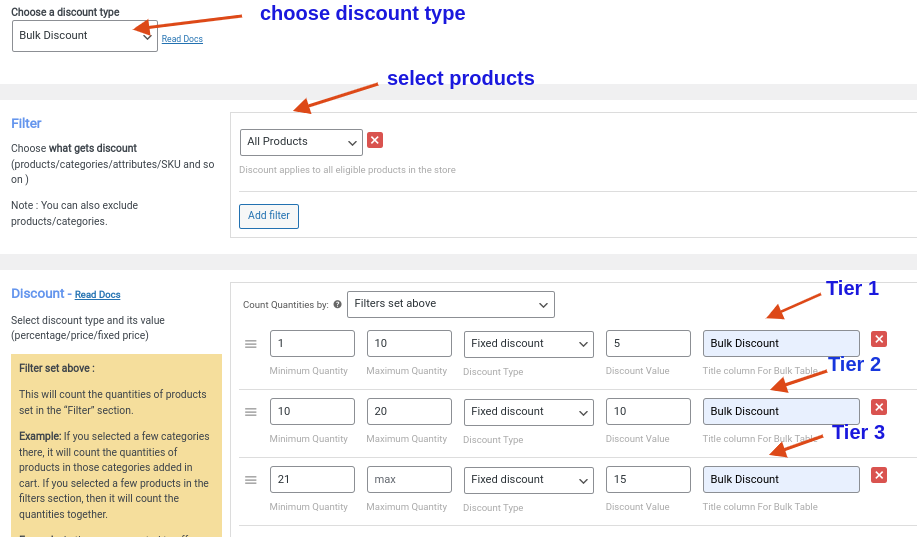
Now, we have created bulk discounts, and customers can get discounts based on the quantities they purchase.
Related Read: How to create bulk discounts in WooCommerce? (More Examples & Tips)
Run a storewide sale with percentage, fixed, or bulk discounts using the Discount Rules Pro plugin to increase customer base and order value.
3. Running a Storewide Sale Using BOGO Strategy
Buy One Get One (BOGO) deals are a well-known strategy for attracting customers and making a sale in the WooCommerce store.
If you combine the BOGO free deals with a storewide sale, it can boost the sales even more.
For Example, buy two or more products and get the cheapest one in the cart for free.
To create a storewide sale in WooCommerce with a BOGO free strategy:
1. Navigate to “WooCommerce” -> “Discount Rules.”
2. Add a new rule.
3. Choose the discount type as “Buy X Get Y.”
4. In the Filter section, choose “All Products.”
5. In the discount section, choose “Buy X Get Y – All,” and set the following options:
- Set “Buy X Count Based On” as “Filters Set Above.”
- Choose the “Cheapest” option.
- Set the “Buy and Get Quantities.”
- Choose the “Free” discount type.
6. At last, save and enable the rule.
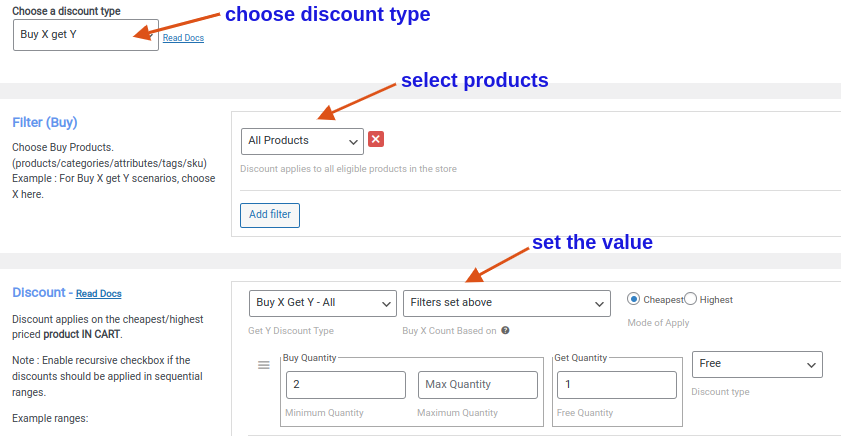
Note: If you want to offer the same “X” product for free, choose the discount type as “Buy X Get X.”
Related Read: How to Create WooCommerce BOGO (Buy One Get One) Deals? (More Examples)
4. How to Apply a Coupon-Based Sitewide Sale Discount in WooCommerce?
You can run a WooCommerce sitewide sale using a coupon discount. It increases customers’ engagement and they need to enter the coupon code at checkout to claim their discounts.
For Example, use the “NEWOFFER” coupon code and enjoy a 15% discount on all products.
To apply the WooCommerce coupon discount to all products:
1. Navigate to “WooCommerce” -> “Discount Rules.”
2. Add a new rule.
3. Choose the discount type as “Product Adjustment.”
4. In the “Filter” section, choose “All Products” for a WooCommerce sitewide discount.
5. In the discount section, choose “Percentage discount” and set the value to “15.”
6. In the “Rules” section, choose “Coupons” as the condition type, select “Create your own coupon,” and enter the coupon code as “NEWOFFER.”
7. Finally, save and enable the rule.
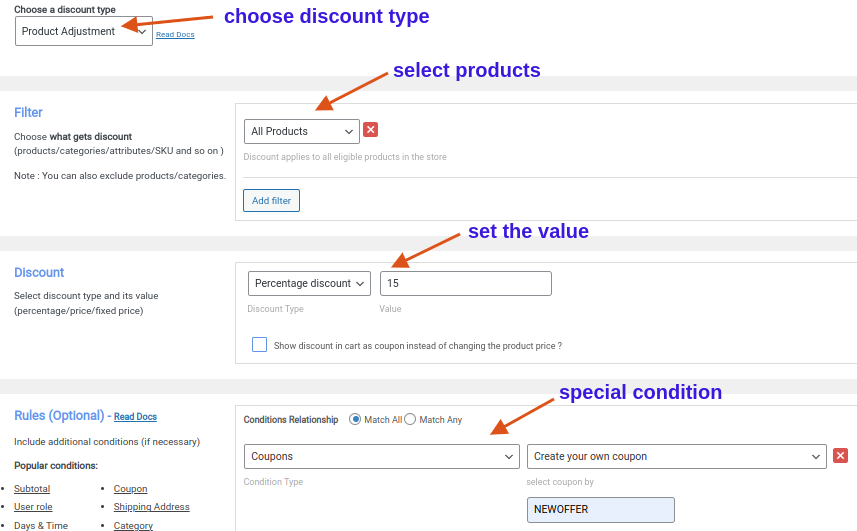
Now, we have created a sitewide coupon discount.
Note: You can also create a storewide coupon using the default WooCommerce feature. However, you cannot extend its functionality to set purchase conditions.
If necessary, check the detailed steps for creating a coupon in WooCommerce using the default feature and the “Discount Rules” plugin.
Why Run a Storewide Sale in WooCommerce?
Running a storewide sale in WooCommerce is a wise decision to increase sales over a specific period. Here are a few key benefits you obtain while running such an event:
- Drive More Customers: Discounts are powerful to capture customers’ attention who otherwise don’t know about your products or store. Offering discounts on all items can help customers try your products for the first time, which results in an increased customer base.
- Increase Sales and Revenue: The term “Sale” in a storewide sale event is often associated with the feeling of providing value to customers, saving them money, and enhancing their shopping experience and loyalty. It influences customers to purchase more from your store, resulting in more sales and revenue.
- Clear Your Old Stocks: You can easily apply discounts on products that need to be sold soon and clear your inventory for upcoming stocks.
- Boost Brand Visibility: Brand awareness is the fundamental factor in growing your business to higher levels and getting profits. Applying a sitewide discount can be helpful to drive traffic from different regions and boost your products’ visibility.
Now you know the importance of sitewide sales. Let’s discuss the steps to create a storewide sale in WooCommerce.
Best Practices to Run a WooCommerce Sitewide Sale
Running a WooCommerce sitewide sale needs to be implemented in a strategic way to boost sales and revenue without losing money.
Follow these best practices for a profitable sale event:
- Choose the Right Discount Type: Percentage discounts are popular, but fixed-amount discounts work well for products with consistent pricing. BOGO deals can be effective for specific product categories. Choose suitable discounts tailored to customer needs.
- Utilize Discount Plugins: WooCommerce doesn’t offer built-in storewide discounts. So, discount plugins like “Discount Rules for WooCommerce -Pro” can simplify offering discount deals.
- Clearly Communicate the Offer: Share the discount on your website, social media, and email marketing to notify your customers about the sale. Use clear and concise language to explain the discount details (percentage, duration, requirements).
- Consider Minimum Purchase Threshold (Optional): Setting the minimum order amount can incentivize customers to spend more to reach the threshold, claim storewide discounts, and maximize their savings.
- Track Performance: Monitor the discount’s impact on sales, conversion rates, and inventory turnover to analyze the strategy’s effectiveness.
6 Best Times to Offer a Site-Wide Discount in WooCommerce
You can’t run site-wide discounts in your WooCommerce store constantly without hurting profits. Instead, apply them strategically during peak selling periods, such as:
A. Major Shopping Seasons & Holidays: These are high-intent periods when shoppers already expect deals.
Scenarios like:
- New Year & Year-End Sales
- Valentine’s Day
- Holi, Diwali, Dussehra (India-focused stores)
- Black Friday & Cyber Monday
- Christmas & Holiday Season
Why does it work?
- Customers are actively looking to buy.
- Discount expectations are already set.
- Higher traffic + urgency = better conversions.
B. Store Anniversaries & Brand Milestones: Celebrating your brand creates exclusivity.
For instance:
- Store launch anniversary
- Reaching milestones (10k customers, 5 years, etc.).
Why does it work?
- Feels personal and celebratory
- Strengthens brand loyalty
- Doesn’t clash with competitor sales.
C. New Product Launches: A site-wide discount can amplify a launch beyond just the new item.
Best use cases:
- Launch week
- First 48–72 hours post-launch.
Why it works:
- Drives traffic across the entire catalog
- Encourages bundled purchases
- Reduces hesitation around trying your brand.
D. Low-Sales or Slow Business Periods: Every store has quiet phases; use discounts to wake demand.
Common slow periods:
- Post-holiday slump
- Mid-month sales dips
- Off-season months for niche products.
Why it works
- Re-engages inactive shoppers
- Boosts cash flow
- Keeps inventory moving.
E. End of Season or Inventory Clearance: Perfect for fashion, electronics, or seasonal goods.
Best timing
- End of summer/winter
- Product model upgrades
- Overstock situations.
Why it works
- Clears stock fast
- Free up warehouse space
- Converts dead inventory into revenue.
F. Email List & Subscriber-Exclusive Events: Discounts feel more valuable when access is limited.
Best times
- Newsletter growth campaigns
- Re-engagement sequences
- VIP customer events.
Why does it work?
- Builds email and SMS lists
- Rewards loyal customers
- Reduces dependency on paid ads.
Advanced Storewide Discount Strategies for WooCommerce
Applying a simple percentage discount, coupon codes, and BOGO deals are the most common strategies that everyone knows.
What if you twist your WooCommerce storewide discount strategy in advanced ways that separate your store from the rest of the competition?
Check these three more advanced storewide discounts to enhance your strategy and boost sales:
A) How to Set up a WooCommerce First Order Discount?
You can offer discounts on all products only to new (first-order) customers. It will help you grow your new customer groups.
B) How to Set up Customer-Specific Discounts in WooCommerce?
You can increase customer engagement by running a lucky draw and offering storewide discounts only to “specific” (selected) customers.
C) How to Create a User Group Discount in WooCommerce?
Not only to specific customers, but you can also apply a WooCommerce sitewide discount only to “specific” user (customer) groups, such as VIP customers, Wholesale dealers, Subscribers, and more. It will enhance their loyalty and make them choose your brand for their future purchases.
Offer advanced storewide discounts based on order amount, customer groups, and purchase history using the Discount Rules Pro plugin and boost brand visibility and sales.
Conclusion
Offering a WooCommerce storewide discount is now simple. You can utilize this strategy to take your store to the next level.
By clearly defining discount goals, segmenting customers, and strategically offering discounts like bulk or BOGO deals, discounts over amount, and more, you can easily win back new and existing customers.
You can also use the “Discount Rules for WooCommerce -Pro” plugin to easily create, customize, and manage different discount rules.
Also Read
- How to Display the Discount Percentage on the Sale Badge in WooCommerce?
- How to Set Multiple Prices Per Product in WooCommerce?
- 7 Best Discount Plugins for WooCommerce
Frequently Asked Questions
Using the “Discount Rules for WooCommerce-Pro” plugin, you can add a discount to the WooCommerce checkout page rather than displaying it on the product page.
Install and activate the plugin. Then,
1. Go to “WooCommerce” -> “Discount Rules” -> “Add a new rule.”
2. Select discount as “Cart Adjustment.”
3. Filter products to apply discounts.
4. Choose the discount type and value.
5. Optionally set conditions for discounts in the “Rules” section.
6. Save changes and enable the rule.
You can use the “Discount Rules for WooCommerce -Pro” plugin to schedule a discount in WooCommerce.
1. Go to “WooCommerce” -> “Discount Rules” -> “Add a new rule.”
2. Select the discount type, filter products, and choose the discount type & value.
3. Optionally set conditions for the discounts.
4. In the “Rules (optional)” section, enter the “Rule Valid From and To” date to schedule a discount in WooCommerce.
5. Save and enable the rule.
The “Discount Rules for WooCommerce -Pro” plugin by Flycart is one of the best plugins to create a sitewide discount for your WooCommerce store.
It provides flexible percentage, fixed, and bulk discounts options with an easy interface to create personalized storewide offers that drive sales.
To apply a 15% discount on all products:
1. Install the “Discount Rules for WooCommerce” plugin by Flycart.
2. Go to “WooCommerce” -> “Discount Rules” -> “Add New Rule.”
3. Select the “Product Adjustment” discount type.
4. Keep “All Products” in the “Filter” section.
5. Set the “Discount Type and Value:” “Percentage Discount and 15.”
6. Save and enable the rule.