WooCommerce cart discounts let store owners create automatic or coupon-based promotions based on the cart subtotal, order quantity, and other cart conditions.
On average, 70.19% of shopping carts are abandoned — that’s more than two-thirds of potential sales slipping away.
Taxes, higher shipping charges, the total order value, and several other factors can stop customers from clicking the “Proceed to Checkout” button.
A WooCommerce cart discount is one of the best ways to reduce this. By displaying instant discounts on the cart page, you encourage shoppers to complete their purchase instead of leaving their cart.
WooCommerce does not have features to apply discounts to the cart. However, you have freemium plugin options like “Discount Rules for WooCommerce -Pro” that let you personalize cart discounts in the way you want.
In this complete guide, you’ll learn:
- What a WooCommerce cart discount is
- Why showing discounts in the cart boosts conversions
- Two quick steps to create cart discounts for WooCommerce
- Seven detailed examples with conditions
- Pro tips and advanced strategies to maximize results.
Let’s dive in.
Offer personalized cart discounts with the Discount Rules Pro plugin to encourage customers to purchase more, enhance their experience, and boost sales.
Table of contents
- What is a WooCommerce Cart Discount?
- Why Show Discounts on the WooCommerce Cart Page?
- How to Create a WooCommerce Cart Discount?
- 7 Examples to Create a WooCommerce Cart Discount
- Example 1: A 10% Simple Cart Discount on All Items
- Example 2: A $15 Fixed Cart Discount Based on Subtotal Using a Coupon Code
- Example 3: Fixed Discount Per Product Based on Cart Item Quantities
- Example 4: WooCommerce Cart Discount Based on Cart Items
- Example 5: Cart Discounts for Specific Product Attributes
- Example 6: Fixed Cart Discounts Only for First-Time Customers
- Example 7: Apply Discount When Two Specific Products are in Cart
- Advanced Discount Strategies to Boost Sales
- Best Practices for Creating High-Converting Cart Discounts
- Conclusion
- Frequently Asked Questions
What is a WooCommerce Cart Discount?
A WooCommerce cart discount is a price reduction applied directly to the customer’s cart — before checkout, based on certain purchase conditions like:
- Subtotal amount
- Specific products or categories
- Cart quantity or item combinations
- Customer type (first-time or returning)
For example:
“Get $50 off when your cart total exceeds $499.”
This type of discount motivates customers to increase their order value or complete their purchase, improving both conversion rate and average order value.
Why Show Discounts on the WooCommerce Cart Page?
Showing discounts on the WooCommerce cart page helps reduce cart abandonment and encourages customers to complete their purchase.
Here are the main benefits of creating WooCommerce cart discounts:
- Reduce Cart Abandonment: Many shoppers leave their carts because of unexpected costs at checkout. Showing a discount in the cart builds trust and helps balance those extra charges.
- Increase Average Order Value: Cart discounts encourage customers to spend more to qualify for offers like “Spend $200 and save $20.”
- Improve Customer Satisfaction: Instant savings make customers feel valued. This creates a better shopping experience and builds brand loyalty.
- Encourage Repeat Purchases: When discounts are automatically applied in the cart, customers are more likely to return and shop again.
- Boost Conversion Rate: Visible savings on the cart page give shoppers the final push to click “Proceed to Checkout.”
Now that you know the value of WooCommerce cart discounts, let’s look at how to create them to increase your sales.
How to Create a WooCommerce Cart Discount?
Creating a WooCommerce cart discount is not complicated. It’s even simpler and involves two quick steps with the help of the “Discount Rules for WooCommerce -Pro” plugin.
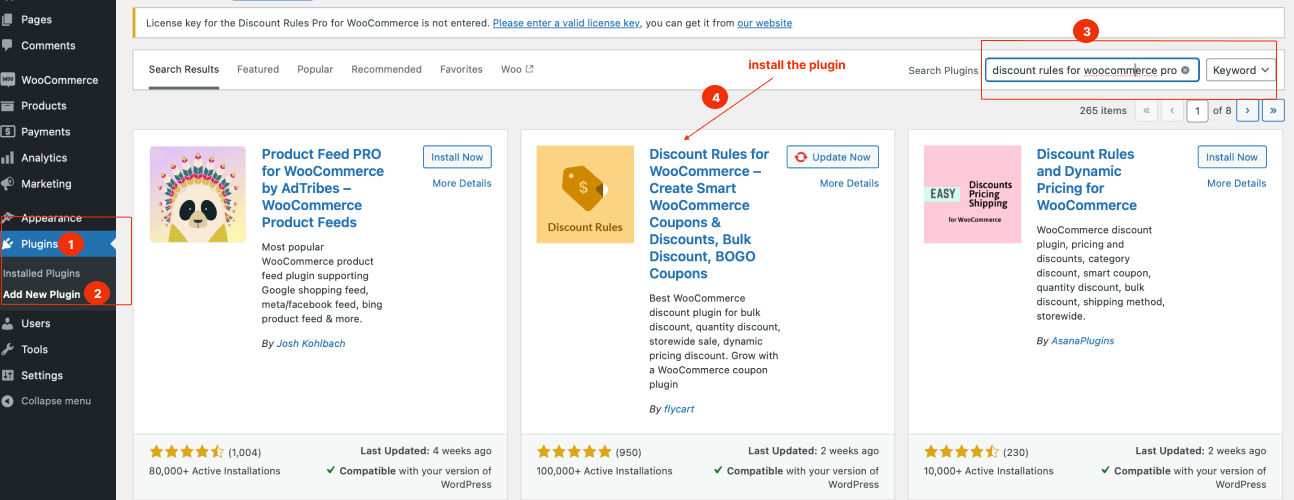
Step 1: Installing the Discount Rules Pro Plugin
To install the plugin:
- Open your WordPress dashboard.
- Go to “Plugins” -> “Add New Plugin.”
- Search for “Discount Rules for WooCommerce” (by Flycart).
- Click the “Install Now” button to install and activate it on your site.
Step 2: Creating a WooCommerce Cart Discount
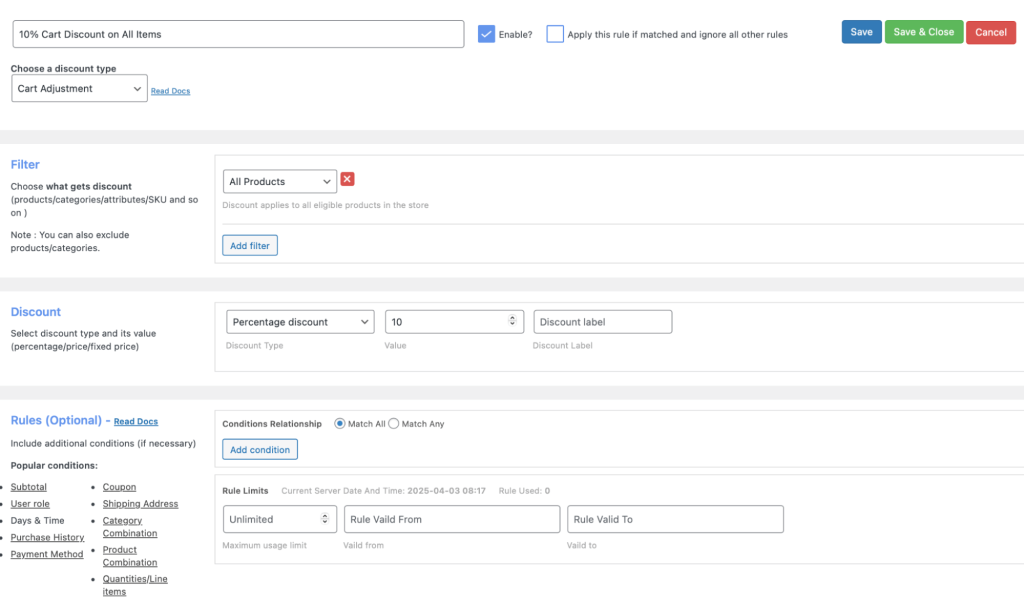
To create a WooCommerce cart discount:
- Go to “WooCommerce” -> “Discount Rules.”
- Click the “Add New Rule” button to add a new cart discount rule.
- Enter the rule name for your reference.
- Choose the discount type, “Cart Adjustment.”
- In the “Filter” section, select all or specific products to apply discounts.
- In the “Discount” section, set the discount type with the given options.
- Optionally add conditions to your cart in the “Rules” section.
- Finally, save and enable the rule.
That’s it! You have now successfully created a WooCommerce cart discount to boost sales.
7 Examples to Create a WooCommerce Cart Discount
Now we will check how to personalize your WooCommerce cart discounts in different ways with six examples.
Example 1: A 10% Simple Cart Discount on All Items
A universal discount encourages impulse buying and suits storewide promotions.
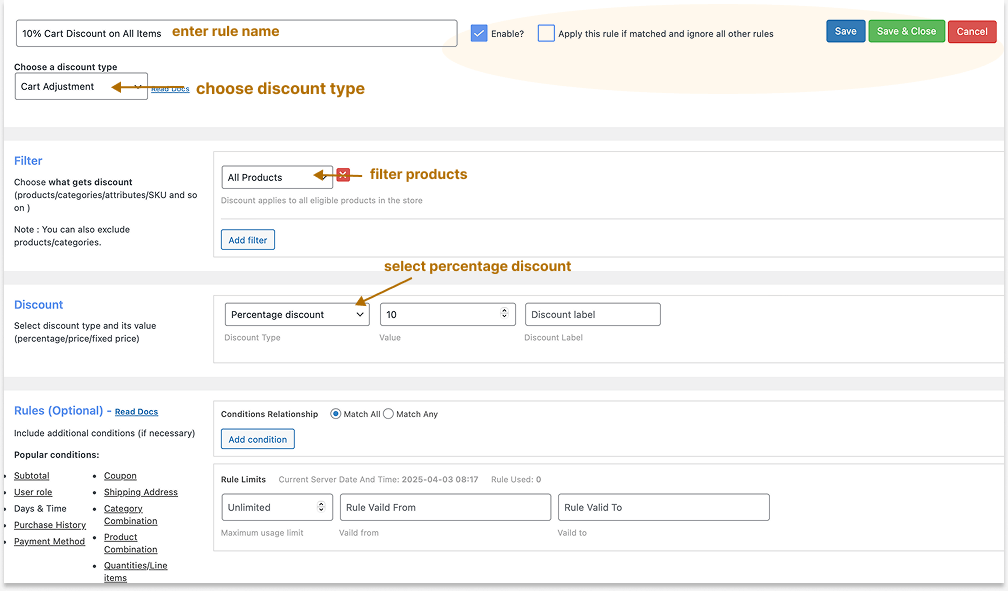
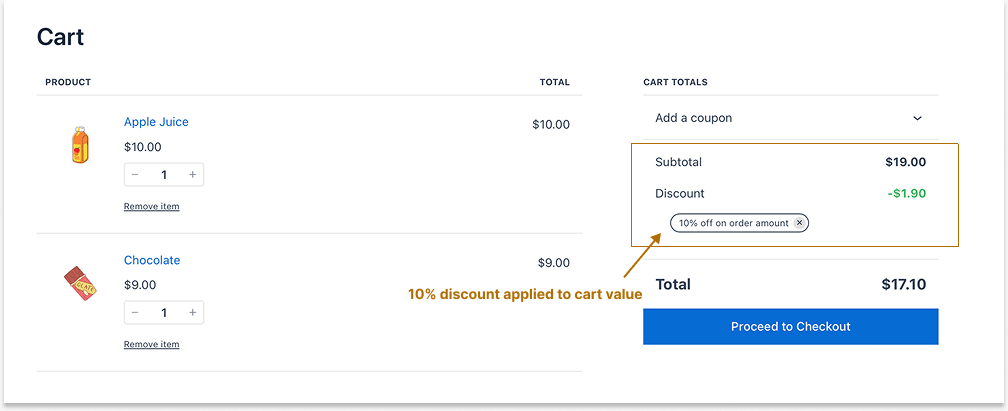
Let’s offer a 10% discount on customers’ cart total for all (any) items they have added:
To create a simple 10% cart discount in WooCommerce:
- Go to “WooCommerce → Discount Rules.”
- Click “Add New Rule” to create a new cart discount rule.
- Enter a “rule title” for your reference.
- Select the discount type as “Cart Adjustment.”
- In the “Filter” section, keep “All Products” selected.
- In the “Discount” section, choose “Percentage” as the discount type and enter “10” as the value.
- Finally, “save and enable” the rule.
Now, customers can add any products to their cart and get a 10% discount.
When to use: Perfect for festive sales or clearance events.
Related Read: How to Set Up a WooCommerce Discount Percentage? (More Examples)
Example 2: A $15 Fixed Cart Discount Based on Subtotal Using a Coupon Code
Encourage higher spending by offering a fixed discount only when customers reach a minimum subtotal.
Let’s offer your customers a $15 fixed discount only when they reach a cart value of $199 and above with the coupon code “SAVE15.”
To create a WooCommerce fixed cart discount based on the subtotal:
- Go to “WooCommerce” -> “Discount Rules.”
- Click the “Add New Rule” button.
- Enter the “rule title” for your reference.
- Choose the discount type, “Cart Adjustment.”
- In the “Filter” section, keep “All Products.”
- In the “Discount” section, select the “Fixed Discount” type with the value “15.”
- In the “Rules” section, add two conditions:
- Select “Subtotal” – Set the minimum order amount, for example, $199.
- Select “Coupons” – Create your own or add an existing coupon code, for instance, SAVE15.
- Lastly, save and enable the rule.
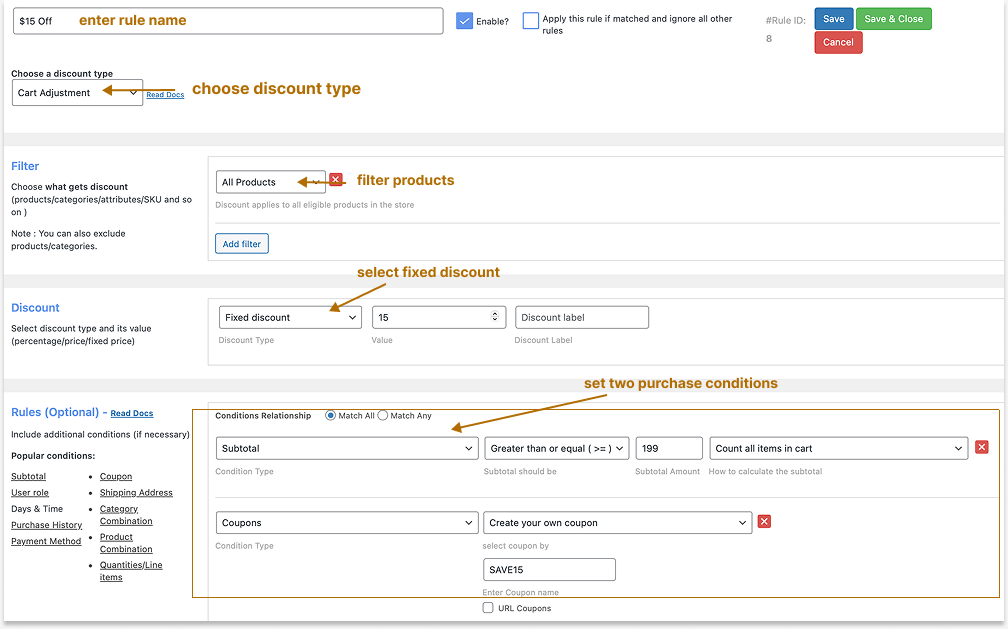
Now, a $15 fixed cart discount will be applied only when customers enter the coupon code and reach the minimum order amount.
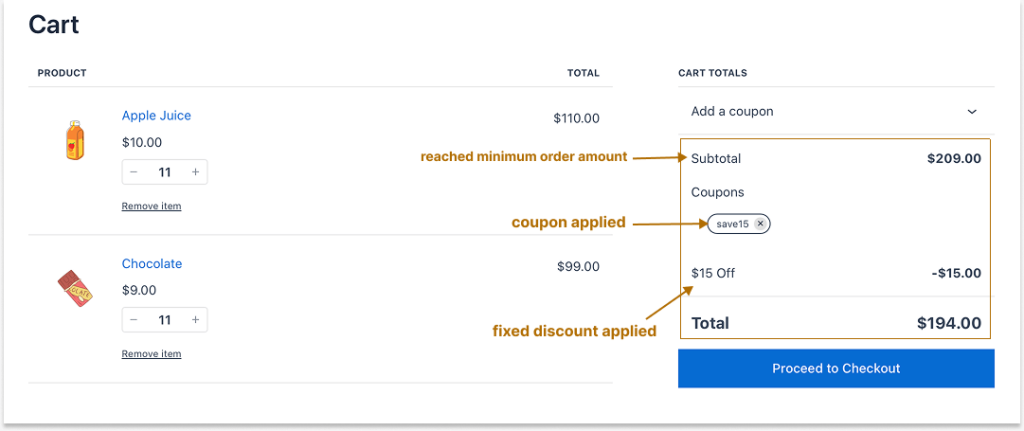
Tip: Promote this in banners — “Spend $199, Save $15 — Use Code SAVE15 to increase your offer visibility and reach sales goal.
For more fixed cart discount ideas, check this blog: How to Set Up Fixed Cart Discount in WooCommerce
Create cart offers with percentage or fixed discounts by using the Discount Rules Pro plugin to enhance customer experience and boost order value.
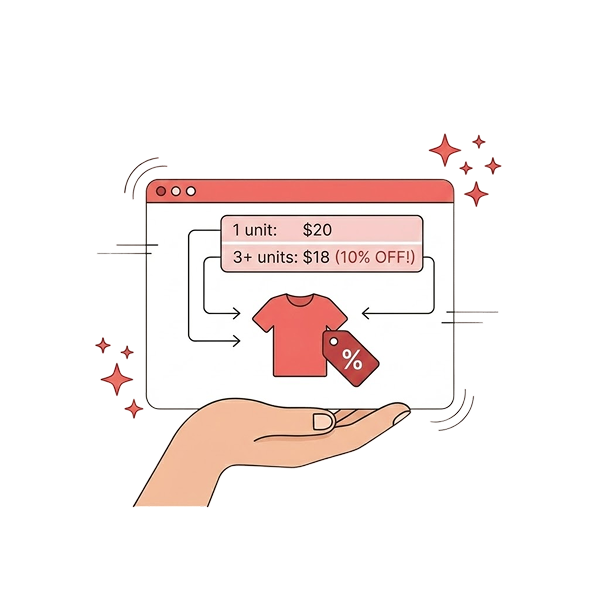
Example 3: Fixed Discount Per Product Based on Cart Item Quantities
Motivate customers to buy more items by rewarding larger quantities.
Let’s offer a fixed discount on each product only for the specific items in the store. We will also set the item quantities to make customers add more items to their carts. It increases the average order value.
To create a (fixed) cart discount per product based on cart item quantities:
- Go to “WooCommerce” -> “Discount Rules” -> “Add New Rule” -> Enter the Rule Name.
- Choose the discount type, “Cart Adjustment.”
- In the Filter” section, select specific products to apply discounts. For example, ‘Belt & Cap.”
- In the “Discount” section, choose the discount type, “Fixed Discount Per Product”, with the value. For instance, “2.”
- In the “Rules” section, add a new condition, “Item quantity,” and set how the quantities can be counted – as all items in the cart or only filtered products.
- For instance, “Count all items in the cart” and quantity should be “Greater than or equal to 2.”
- Optionally, you can also set the “Valid From and To” Date and Time in the “Rules Limits” section to schedule your cart discount offer.
- Finally, save and enable the rule.
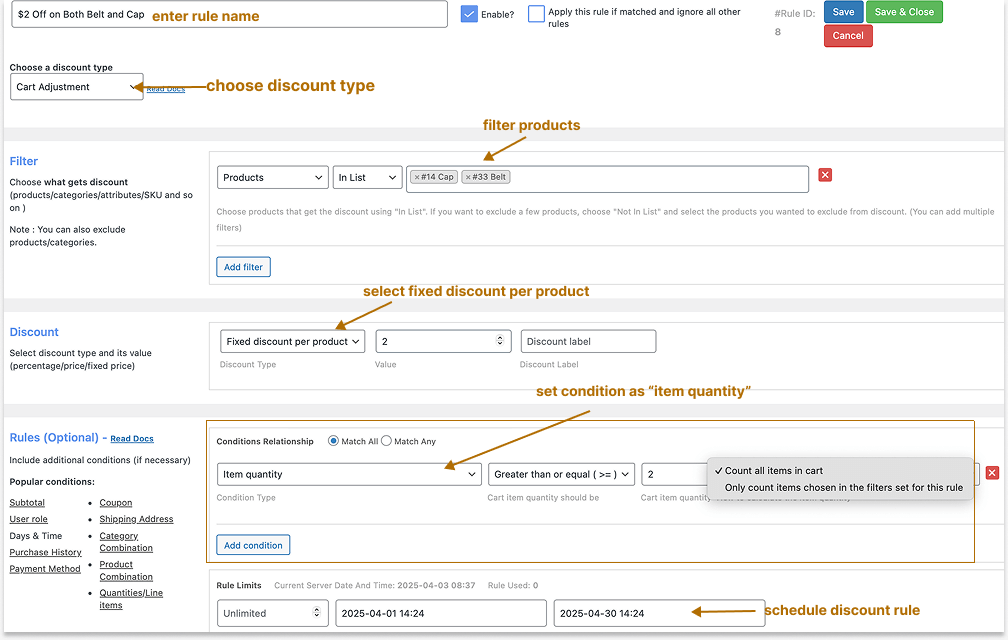
Now, the fixed discount per product will be applied when customers add the specific item quantities to their cart. Also, the rule will be invalid after the specified date and time.
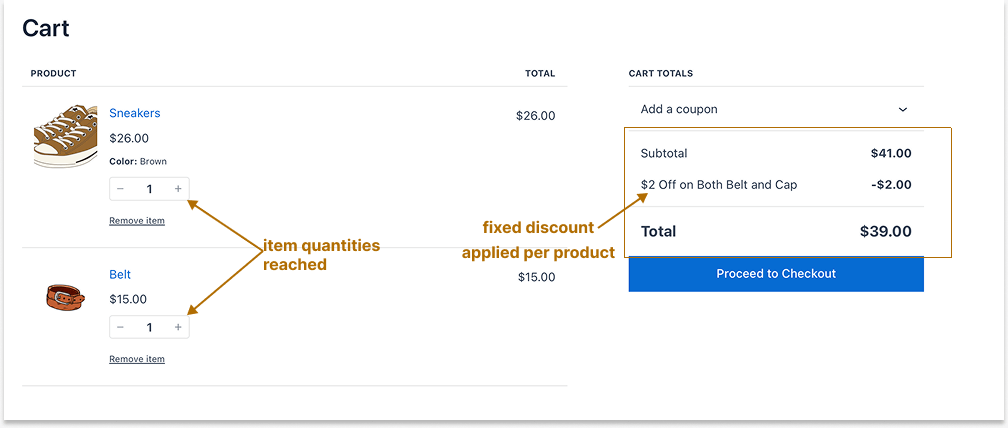
Tip: Combine with “Buy More, Save More” messaging on banners and social media.
Related Read: How to Offer WooCommerce Quantity Discounts?
Example 4: WooCommerce Cart Discount Based on Cart Items
Offer discounts when certain items are present in the cart.
Let’s apply a 20% exclusive discount only when customers add a specific item to their cart.
To create a WooCommerce discount based on cart items:
- Go to “WooCommerce” -> “Discount Rules.”
- Add a new rule and enter the rule name.
- Choose the discount type, “Cart Adjustment.”
- In the “Filter” section, keep “All Products.”
- In the “Discount” section, select the “Percentage Discount” type with a value of “20.”
- In the “Rules” section, select the “Products” condition and select the specific items that customers need to add to their cart.
- For instance, “T-shirt or collar T-shirt (or both)” with quantities “greater than or equal to 1.”
- At last, save and enable the cart discount rule.
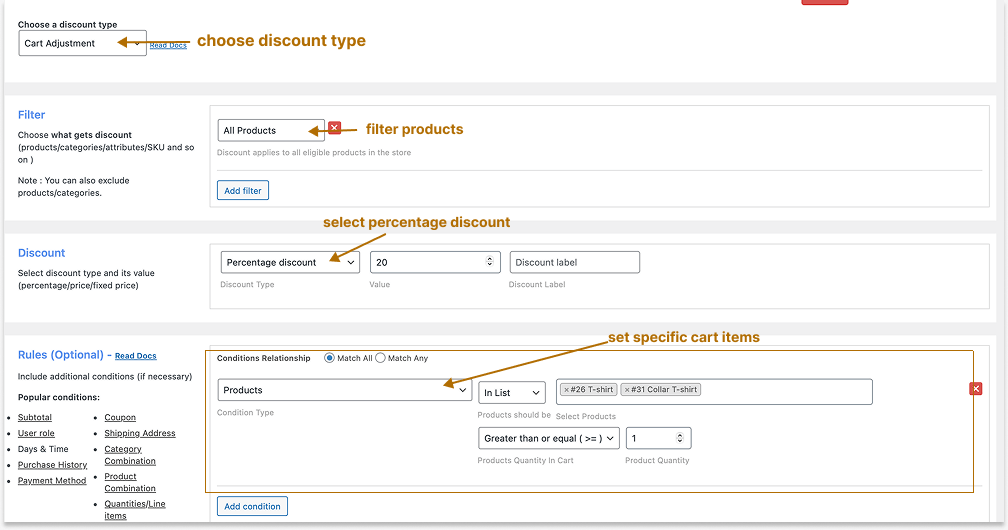
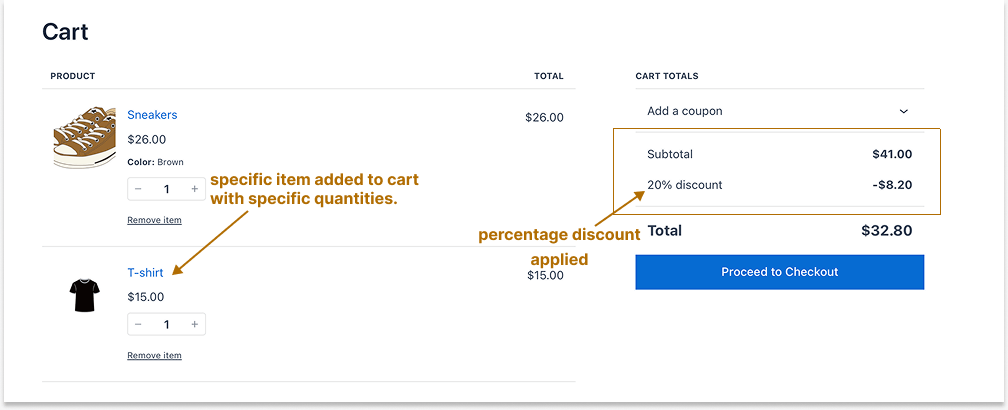
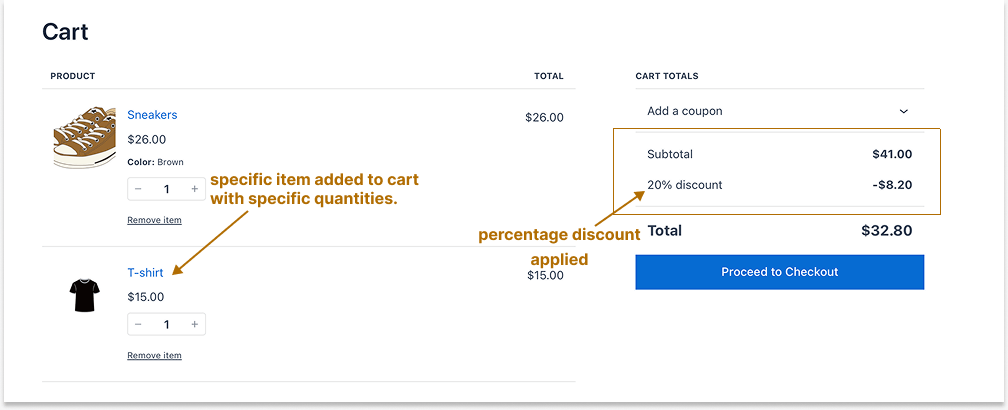
When customers add any one or all of the specific cart items with specified quantities, they can get a 20% discount.
Tip: Use this during product launches or category promotions.
Related Read: How to Set Up a WooCommerce Category Discount? (Apply discounts only to specific product categories.)
Example 5: Cart Discounts for Specific Product Attributes
A WooCommerce cart discount can be applied to specific product attributes like color, size, or materials, instead of all products.
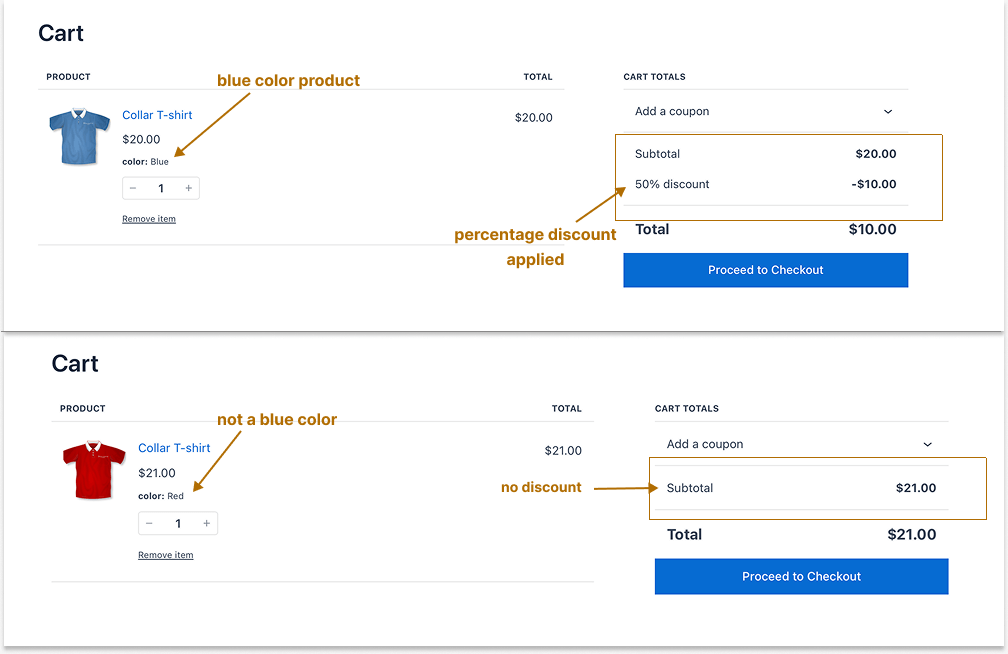
For example, a 50% cart discount only for “Blue” color products.
To create a cart discount for specific product attributes in WooCommerce:
- Navigate to “WooCommerce” -> “Discount Rules.”
- Click the “Add New Rule” button and enter the rule name.
- Choose the discount type, “Cart Adjustment.”
- In the “Filter” section, select “Attributes” and select the specific attribute. For instance, “Blue.”
- In the “Discount” section, select the “Percentage Discount” type with a value of “50.”
- Lastly, save and enable the rule.
Now, the 50% discount is applied only when customers add “blue” color items to their cart.
Marketing Idea: Promote as “Blue Friday Sale – Half Price on All Blue Items!”
Related Read: How to Create WooCommerce Variable Product & Variable Discounts
Example 6: Fixed Cart Discounts Only for First-Time Customers
Rewarding new customers builds trust and encourages repeat purchases.
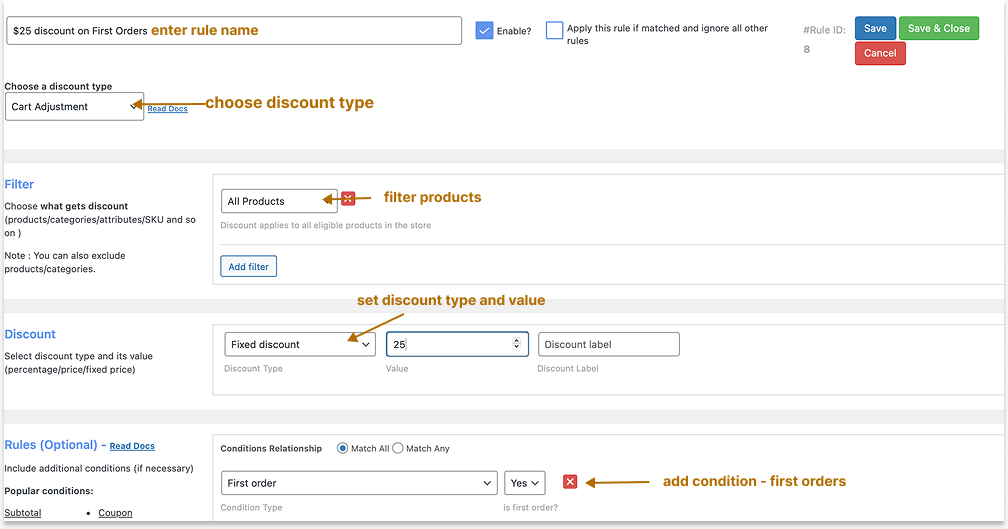
Let’s offer a $25 fixed cart discount only to first-time orders (new customers).
To create a fixed cart discount in WooCommerce only for first orders:
- Go to “WooCommerce” -> “Discount Rules” -> “Add New Rule.”
- Enter the rule name.
- Choose the discount type, “Cart Adjustment.”
- Filter the products to apply discounts.
- Select the “Fixed Discount” type with the value “25” in the “Discount” section.
- In the “Rules” section, add a new condition, “First Order,” and select “Yes.”
- At last, save and enable the rule.
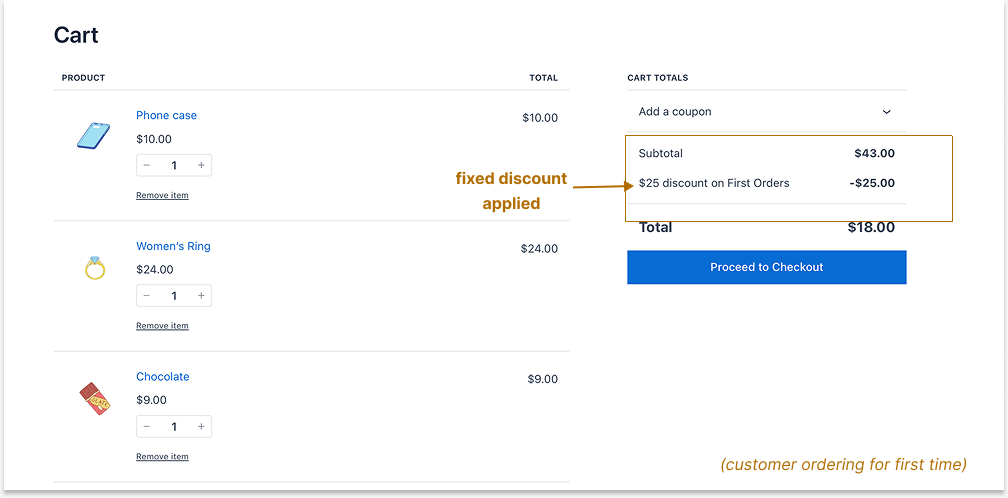
Now, first-time orders can only get a $25 fixed cart discount, while the remaining customers cannot claim this discount.
Tip: Combine with email onboarding — “Welcome! Here’s $25 off your first order.”
Related Read: How to Set Up a WooCommerce First Order Discount?
Example 7: Apply Discount When Two Specific Products are in Cart
This is one of the common scenarios where store owners want to apply discounts only when two specific products are in the customers’ carts. It’s perfect for combo or cross-selling deals.
To create a cart discount in WooCommerce only when two products are added:
- Go to “WooCommerce” -> “Discount Rules.”
- Add a new rule and enter the rule title.
- Choose the “Cart Adjustment” discount type,
- Filter “All or Specific” products.
- In the “Discount” section, set a specific discount type with a value.
- In the “Rules” section, set the condition type as “Product Combination” and choose the two specific products.
- Finally, save and enable the rule.
Now, when customers add these two products to the cart, they will get discounts.
It is similar to the 4th example; however, it has slight differences.
In the 4th example above, the “Products” option lets customers add “any” of those specific products with quantities.
In this 7th example, the “Product Combinations” option makes customers add “all or both” of those specific products.
Based on your sales goal, set these options and let customers know whether they should have any or both of the specific products in their cart to be eligible for discounts.
Tip: Great for bundling seasonal collections or complementary items.
Advanced Discount Strategies to Boost Sales
Once your WooCommerce cart discounts are live and performing, you can layer in advanced discount strategies to scale your conversions, enhance user experience, and retain long-term customers.
These strategies expand beyond cart discounts and help create a comprehensive promotional system to boost your sales:
1. Storewide discount sale:
A storewide sale is one of the most powerful discount strategies to attract all customer segments — from first-time shoppers to loyal buyers. It simplifies decision-making by applying savings automatically across your catalog.
Check the full setup process here: How to Set Up a WooCommerce Storewide Sale? (4 Proven Ways)
2. Customer-Specific/ Role-Specific Discounts in WooCommerce:
Personalized pricing helps you reward repeat customers or VIP members without using generic coupon codes.
User group discounts let you target specific segments, such as wholesalers, affiliates, students, or employees. These discounts can be applied dynamically when users belong to a predefined role.
The Discount Rules Pro plugin allows you to apply discounts based on individual users or user roles (e.g., “subscriber,” “wholesale,” “member”).
Check how to apply discounts only to specific users or user roles:
Best Practices for Creating High-Converting Cart Discounts
Below are proven best practices that help you build high-converting cart discounts that not only increase order value but also improve customer retention.
1. Simplify Your Discount Rules
Avoid complex discount rules that confuse shoppers. Keep them simple and clear.
For example, “Get 15% off on orders over $199” for quick understanding and better conversions.
2. Create a Sense of Urgency
Use time-limited discounts to create FOMO.
Add timers or end-date banners like “Hurry! Offer ends in 2 hours!” to prompt quicker checkouts and reduce cart abandonment.
3. Highlight Discounts on the Cart Page
Show savings clearly near the cart total. Enable “Show discount in cart” in the Discount Rules plugin so shoppers see real-time savings, boosting trust and conversions.
4. Use Threshold-Based Incentives
Use near-threshold discounts to boost order value. Display messages like “Add $100 more to get 10% off” to nudge customers to add extra items and unlock rewards.
5. A/B Test Discount Values
Test different offers—10%, 15%, or $20 off—and compare results. Track conversion rate, AOV, and repeat purchases to find what performs best.
6. Optimize Messaging Across Channels
Keep messaging consistent across emails, carts, and banners. Use festive phrases like “Unwrap Your Deal” or “Extra Savings Applied at Checkout!” to grab attention.
7. Combine Cart Discounts with Free Shipping
Free shipping is as effective as discounts.
Combine both—for example, “Get 15% off + Free Shipping on orders over $199” to boost conversions and cart value.
8 Schedule and Automate Your Offers
Always schedule discount start and end dates. Use Discount Rules Pro to automate activation and expiry, perfect for holiday or flash sales.
9. Monitor and Optimize Regularly
Use WooCommerce Analytics or Discount Rules Reports to track top-performing cart discounts, then adjust discount values or conditions for better results.
Offer cart discounts based on cart items, quantities, or subtotals using the Discount Rules Pro plugin to boost sales and revenue.
Conclusion
Creating a cart discount for WooCommerce is more than just setting a percentage off — it’s about crafting an offer that motivates, excites, and converts visitors into buyers.
When you display cart-level savings instantly, customers are more likely to check out confidently. Customer satisfaction is the key to long-term business success, and you have to enhance their experience to get more orders.
By applying the right discount types — fixed, percentage, or conditional — you can:
- Reduce cart abandonment
- Improve loyalty
- Increase your average order value.
The process is quick, scalable, and completely customizable. Start small, test variations, and refine for maximum impact!
You can simply use the “Discount Rules for WooCommerce -Pro” plugin to easily personalize your cart discounts, enhance customer experience, and boost sales & revenue.
Also Read
- How to Add a WooCommerce Free Gift with Purchase?
- 7 Best WooCommerce Discount Plugins to Boost Sales in 2025
Frequently Asked Questions
To display a cart discount as a “fee”:
1. Install and activate the “Discount Rules Pro” plugin.
2. Go to “WooCommerce” -> “Discount Rules” -> “Settings”.
3. Scroll down to the “Cart” section and select the “Apply Cart Discount As” option as “Fee”.
4. Save changes.
It will display the cart discount as a “Fee” instead of applying it in coupon code format.
Note: If it is displayed as “fee” by default, you can change it to “coupon,” if necessary.
Minimum cart price is the required order amount to get a discount. WooCommerce lacks this by default, but you can set it. Example: discount applies only if the subtotal is ≥ $100.
The best cart discount plugin supports conditions, user roles, and scheduling.
“Discount Rules for WooCommerce – Pro” plugin offers all these: set discounts by subtotal, items, or quantity; choose fixed or percentage types; target products or users; and schedule or limit rules by order, payment, or region.
Many store owners confuse cart and coupon discounts.
Both reduce prices, but they differ in how they are applied; knowing this helps plan effective sales campaigns.
– A cart discount auto-applies based on cart conditions like subtotal, quantity, or products, no code needed. It activates automatically when rules are met. For example, “Get 10% off when your cart total exceeds ₹3,000.” This reduces friction and drives conversions.
– A coupon discount requires manual code entry at checkout, ideal for targeted promotions like emails or social media campaigns (e.g., “Use code FESTIVE20 for 20% off”).